

Introduction to TypeScript
TypeScript is a language that is a superset of JavaScript.
- TypeScript can be used where you want to write JavaScript.
- When compiled, it generates JavaScript.
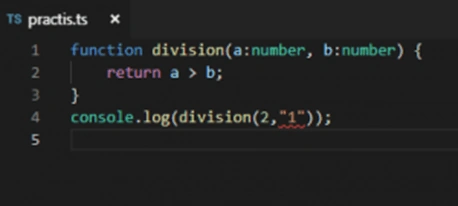
- TypeScript provides a compile-time environment that JavaScript lacks. This means we get fewer exceptions or bugs while working with TypeScript over JavaScript.
- ECMAScript 6 is also called as ES6 or ECMAScript 2015 or JavaScript 6. TypeScript is an extension of ES6.
We can say JS (parent) >> ES6 (child of JS -->TS (child of ES6||JS6).
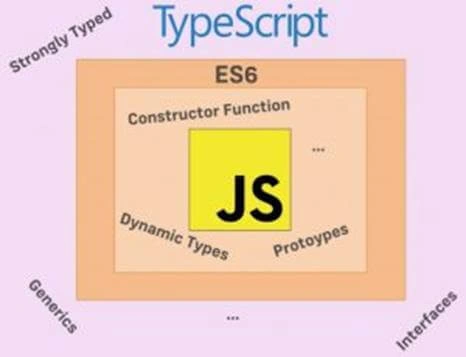
In this article, we will learn some of the basics of TypeScipt, from installation to getting started with TypeScipt.
So, let's start.
Installation of TypeScipt
Step 1
Install node.js from https://nodejs.org/en/download/. Node basically provides a server-side environment. By installing a node, we will get the Node Package Manager (NPM).
NPM helps us to install packages. An NPM package is basically a JavaScript file library that can be used in our project.
If you want to know if the node is installed or not on your system, then open your CMD and type the following command.
C:\Users\AM\Desktop\TypeScript>node
If you want to know the version of the node installed, then execute the following command.
C:\Users\AM\Desktop\TypeScript>node -v
v10.15.1</code>
Step 2
Now, it's time to install TypeScript.
C:\Users\AM\Desktop\TypeScript>npm install -g typescript
The above command will install the latest version of TS at a global level. If you want to install it locally (i.e for folder only), don't use -g. To install an older version, use the following syntax.
C:\Users\AM\Desktop\TypeScript>npm install -g [email protected]
To know the TypeScript version, use the following command.
C:\Users\AM\Desktop\TypeScript>tsc -version
Version 3.3.3333
Step 3
We need some editor to write our code. Here, I am recommending to use the Visual Studio Code.
How TypeScript makes life easier?
Let's understand this with an example. Here, we have a JavaScript file.
Join the conversation! Your thoughts help the community grow.