Introduction

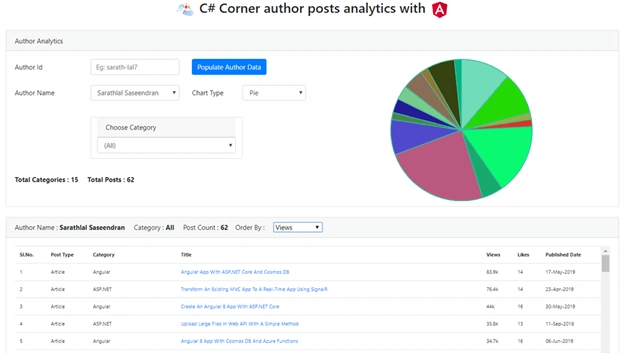
C# Corner provides RSS feeds (maximum 100 posts only) with various data about their authors. We will use one of these RSS feeds to fetch the author's post details and scrape data such as article category, number of views, and number of likes for each post and save to a SQL Server database. In our application, user can give an author id and fetch the post data for that author and save to the database. Once we populate the data, we can fetch the data with different LINQ queries using Entity Framework and show the data in Angular application as Chart or some other formats.

Motivation for this app

I have published more than 70 articles so far on C# Corner and just wanted to analyze my posts' reach to the audience. I have searched various ways to fetch data from C# Corner site and luckily got RSS feeds. But RSS feeds do not contain the data like the number of views or number of likes for a post. Again, I was searching for a way to get this kind of data and finally, decided to scrape each post and get individual data. Though it is a time-consuming process, I have achieved my goal to get the desired data from the C# Corner site. I believe this will be useful to other authors also. Hence, I am sharing the source code of the app attached to this article.

Create a Web API project in Visual Studio

We need to create a Web API project for populating the data to SQL server database and fetch various data for our Angular application.
Firstly, let us create an “ArticleMatrices” table in SQL Server database using the below SQL script.
  1. CREATE TABLE [dbo].[ArticleMatrices](
  2. [Id] [int] IDENTITY(1,1) NOT NULL,
  3. [AuthorId] [nvarchar](50) NULL,
  4. [Author] [nvarchar](50) NULL,
  5. [Link] [nvarchar](250) NULL,
  6. [Title] [nvarchar](250) NULL,
  7. [Type] [nvarchar](50) NULL,
  8. [Category] [nvarchar](50) NULL,
  9. [Views] [nvarchar](50) NULL,
  10. [ViewsCount] [decimal](18, 0) NULL,
  11. [Likes] [int] NULL,
  12. [PubDate] [date] NULL,
  13. CONSTRAINT [PK_ArticleMatrices] PRIMARY KEY CLUSTERED
  14. (
  15. [Id] ASC
  16. ))

Create a Web API project in Visual Studio

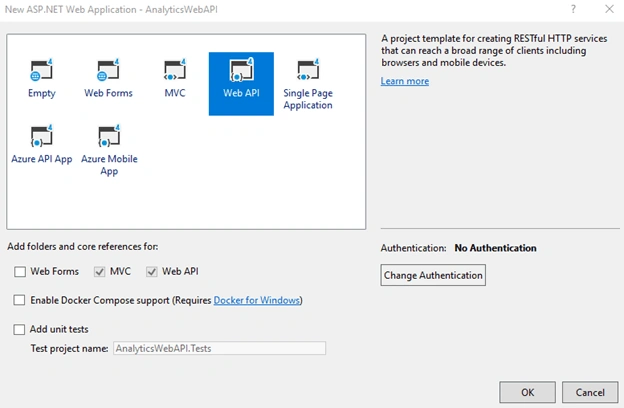
Open Visual Studio and create a new web application with “ASP.NET Web Application” template. You can also choose the “Web API” option.
C# Corner Author Posts Analytics With Angular 8
After clicking the OK button, our project will be created with default dependencies.
We can install “HtmlAgilityPack” NuGet library to scrape the data.

C# Corner Author Posts Analytics With Angular 8
We must enable CORS in this Web API project to access services from Angular 8 application. Hence, we install the "Microsoft.AspNet.WebApi.Cors“ library also.

C# Corner Author Posts Analytics With Angular 8
Please note, this library will install other three related libraries as well.
We now need to enable CORS in “WebApiConfig” file. I have enabled CORS for all domains. In real applications, you can restrict it with a specific domain.
WebApiConfig.cs
  1. using System.Web.Http;
  2. using System.Web.Http.Cors;
  3. namespace AnalyticsWebAPI
  4. {
  5. public static class WebApiConfig
  6. {
  7. public static void Register(HttpConfiguration config)
  8. {
  9. // Web API configuration and services
  10. var cors = new EnableCorsAttribute("*", "*", "*");
  11. config.EnableCors(cors);
  12. // Web API routes
  13. config.MapHttpAttributeRoutes();
  14. config.Routes.MapHttpRoute(
  15. name: "DefaultApi",
  16. routeTemplate: "api/{controller}/{id}",
  17. defaults: new { id = RouteParameter.Optional }
  18. );
  19. }
  20. }
  21. }
We need some model classes to fetch data from SQL server and populate C# Corner author information. For simplicity, I will create a single class file “Models” and create all classes inside this file.
Models.cs
  1. using System;
  2. namespace AnalyticsWebAPI.Models
  3. {
  4. public class ArticleMatrix
  5. {
  6. public int Id { get; set; }
  7. public string AuthorId { get; set; }
  8. public string Author { get; set; }
  9. public string Link { get; set; }
  10. public string Title { get; set; }
  11. public string Type { get; set; }
  12. public string Category { get; set; }
  13. public string Views { get; set; }
  14. public decimal? ViewsCount { get; set; }
  15. public int Likes { get; set; }
  16. public DateTime PubDate { get; set; }
  17. }
  18. public class Feed
  19. {
  20. public string Link { get; set; }
  21. public string Title { get; set; }
  22. public string FeedType { get; set; }
  23. public string Author { get; set; }
  24. public string Content { get; set; }
  25. public DateTime PubDate { get; set; }
  26. public Feed()
  27. {
  28. Link = "";
  29. Title = "";
  30. FeedType = "";
  31. Author = "";
  32. Content = "";
  33. PubDate = DateTime.Today;
  34. }
  35. }
  36. public class Authors
  37. {
  38. public string AuthorId { get; set; }
  39. public string Author { get; set; }
  40. public int Count { get; set; }
  41. }
  42. public class Category
  43. {
  44. public string Name { get; set; }
  45. public int Count { get; set; }
  46. }
  47. }
I have created “ArticleMatrix”,“Feed”,” Authors”, “Category” model classes. Each class has its own significance in our application.
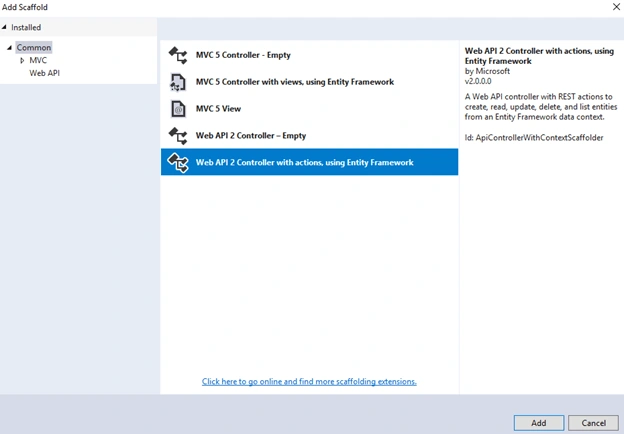
We can create a Web API controller using scaffolding.
C# Corner Author Posts Analytics With Angular 8
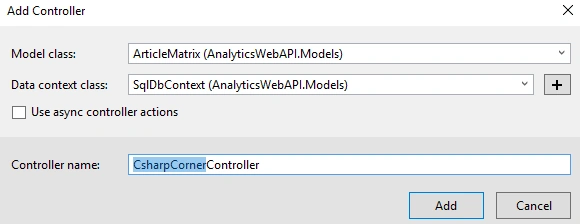
Choose “Web API 2 Controller with actions, using Entity Framework” option and choose a model class from the drop-down list to create a new controller.
We have already created “ArticleMatrices” table in SQL server and we have the same set of properties inside “ArticleMatrix” model class.
We will choose this class to create a controller. Entity Framework automatically chooses the mapping between the SQL table and model class.
C# Corner Author Posts Analytics With Angular 8
It will automatically create a “SqlDbContext” db context file along with the controller class file. Also, note that in Web.Config, a connection string is also created with default values. You can modify this connection string with your SQL Server and database details.

C# Corner Author Posts Analytics With Angular 8
We can add the methods inside the Web API controller.
CsharpCornerController.cs
  1. using AnalyticsWebAPI.Models;
  2. using HtmlAgilityPack;
  3. using System;
  4. using System.Collections.Generic;
  5. using System.Data;
  6. using System.Globalization;
  7. using System.IO;
  8. using System.Linq;
  9. using System.Net;
  10. using System.Text;
  11. using System.Web.Http;
  12. using System.Xml.Linq;
  13. namespace AnalyticsWebAPI.Controllers
  14. {
  15. [RoutePrefix("api/CsharpCorner")]
  16. public class CsharpCornerController : ApiController
  17. {
  18. private SqlDbContext db = new SqlDbContext();
  19. readonly CultureInfo culture = new CultureInfo("en-US");
  20. [HttpGet]
  21. [Route("CreatePosts/{authorId}")]
  22. public bool CreatePosts(string authorId)
  23. {
  24. try
  25. {
  26. int count = 0;
  27. XDocument doc = XDocument.Load("https://www.c-sharpcorner.com/members/" + authorId + "/rss");
  28. var entries = from item in doc.Root.Descendants().First(i => i.Name.LocalName == "channel").Elements().Where(i => i.Name.LocalName == "item")
  29. select new Feed
  30. {
  31. Content = item.Elements().First(i => i.Name.LocalName == "description").Value,
  32. Link = (item.Elements().First(i => i.Name.LocalName == "link").Value).StartsWith("/") ? "https://www.c-sharpcorner.com" + item.Elements().First(i => i.Name.LocalName == "link").Value : item.Elements().First(i => i.Name.LocalName == "link").Value,
  33. PubDate = Convert.ToDateTime(item.Elements().First(i => i.Name.LocalName == "pubDate").Value, culture),
  34. Title = item.Elements().First(i => i.Name.LocalName == "title").Value,
  35. FeedType = (item.Elements().First(i => i.Name.LocalName == "link").Value).ToLowerInvariant().Contains("blog") ? "Blog" : (item.Elements().First(i => i.Name.LocalName == "link").Value).ToLowerInvariant().Contains("news") ? "News" : "Article",
  36. Author = item.Elements().First(i => i.Name.LocalName == "author").Value
  37. };
  38. List<Feed> feeds = entries.OrderByDescending(o => o.PubDate).ToList();
  39. string urlAddress = string.Empty;
  40. List<ArticleMatrix> articleMatrices = new List<ArticleMatrix>();
  41. foreach (Feed feed in feeds)
  42. {
  43. count++;
  44. if (count > 100) break;
  45. urlAddress = feed.Link;
  46. HttpWebRequest request = (HttpWebRequest)WebRequest.Create(urlAddress);
  47. HttpWebResponse response = (HttpWebResponse)request.GetResponse();
  48. string strData = "";
  49. if (response.StatusCode == HttpStatusCode.OK)
  50. {
  51. Stream receiveStream = response.GetResponseStream();
  52. StreamReader readStream = null;
  53. if (response.CharacterSet == null)
  54. {
  55. readStream = new StreamReader(receiveStream);
  56. }
  57. else
  58. {
  59. readStream = new StreamReader(receiveStream, Encoding.GetEncoding(response.CharacterSet));
  60. }
  61. strData = readStream.ReadToEnd();
  62. response.Close();
  63. readStream.Close();
  64. HtmlDocument htmlDocument = new HtmlDocument();
  65. htmlDocument.LoadHtml(strData);
  66. ArticleMatrix articleMatrix = new ArticleMatrix
  67. {
  68. AuthorId = authorId,
  69. Author = feed.Author,
  70. Type = feed.FeedType,
  71. Link = feed.Link,
  72. Title = feed.Title,
  73. PubDate = feed.PubDate
  74. };
  75. string category = htmlDocument.GetElementbyId("ImgCategory").GetAttributeValue("title", "");
  76. articleMatrix.Category = category;
  77. var view = htmlDocument.DocumentNode.SelectSingleNode("//span[@id='ViewCounts']");
  78. if (view != null)
  79. {
  80. articleMatrix.Views = view.InnerText;
  81. if (articleMatrix.Views.Contains("m"))
  82. {
  83. articleMatrix.ViewsCount = decimal.Parse(articleMatrix.Views.Substring(0, articleMatrix.Views.Length - 1)) * 1000000;
  84. }
  85. else if (articleMatrix.Views.Contains("k"))
  86. {
  87. articleMatrix.ViewsCount = decimal.Parse(articleMatrix.Views.Substring(0, articleMatrix.Views.Length - 1)) * 1000;
  88. }
  89. else
  90. {
  91. decimal.TryParse(articleMatrix.Views, out decimal viewCount);
  92. articleMatrix.ViewsCount = viewCount;
  93. }
  94. }
  95. else
  96. {
  97. articleMatrix.ViewsCount = 0;
  98. }
  99. var like = htmlDocument.DocumentNode.SelectSingleNode("//span[@id='LabelLikeCount']");
  100. if (like != null)
  101. {
  102. int.TryParse(like.InnerText, out int likes);
  103. articleMatrix.Likes = likes;
  104. }
  105. articleMatrices.Add(articleMatrix);
  106. }
  107. }
  108. count = 0;
  109. db.ArticleMatrices.RemoveRange(db.ArticleMatrices.Where(x => x.AuthorId == authorId));
  110. foreach (ArticleMatrix articleMatrix in articleMatrices)
  111. {
  112. count++;
  113. db.ArticleMatrices.Add(articleMatrix);
  114. }
  115. db.SaveChanges();
  116. return true;
  117. }
  118. catch
  119. {
  120. return false;
  121. }
  122. }
  123. [HttpGet]
  124. [Route("GetAll/{authorId}")]
  125. public IQueryable<ArticleMatrix> GetAll(string authorId)
  126. {
  127. return db.ArticleMatrices.Where(x => x.AuthorId == authorId).OrderByDescending(x => x.PubDate);
  128. }
  129. [HttpGet]
  130. [Route("GetAuthors")]
  131. public IQueryable<Authors> GetAuthors()
  132. {
  133. return from x in db.ArticleMatrices.GroupBy(x => x.AuthorId)
  134. select new Authors
  135. {
  136. AuthorId = x.FirstOrDefault().AuthorId,
  137. Author = x.FirstOrDefault().Author,
  138. Count = x.Count()
  139. };
  140. }
  141. [HttpGet]
  142. [Route("GetCategory/{authorId}")]
  143. public IQueryable<Category> GetCategory(string authorId)
  144. {
  145. return from x in db.ArticleMatrices.Where(x => x.AuthorId == authorId).GroupBy(x => x.Category)
  146. select new Category
  147. {
  148. Name = x.FirstOrDefault().Category,
  149. Count = x.Count()
  150. };
  151. }
  152. [HttpGet]
  153. [Route("GetPosts/{authorId}/{category}/{orderBy}")]
  154. public IQueryable<ArticleMatrix> GetPosts(string authorId, string category, string orderBy)
  155. {
  156. var newCategory = category.Replace("~~~", ".").Replace("```", "&").Replace("!!!", "#");
  157. if (newCategory == "all")
  158. {
  159. switch (orderBy)
  160. {
  161. case "likes":
  162. return db.ArticleMatrices.Where(x => x.AuthorId == authorId).OrderByDescending(x => x.Likes);
  163. case "views":
  164. return db.ArticleMatrices.Where(x => x.AuthorId == authorId).OrderByDescending(x => x.ViewsCount);
  165. case "category":
  166. return db.ArticleMatrices.Where(x => x.AuthorId == authorId).OrderBy(x => x.Category);
  167. case "type":
  168. return db.ArticleMatrices.Where(x => x.AuthorId == authorId).OrderBy(x => x.Type);
  169. default:
  170. return db.ArticleMatrices.Where(x => x.AuthorId == authorId).OrderByDescending(x => x.PubDate);
  171. }
  172. }
  173. else
  174. {
  175. switch (orderBy)
  176. {
  177. case "likes":
  178. return db.ArticleMatrices.Where(x => x.AuthorId == authorId && x.Category == newCategory).OrderByDescending(x => x.Likes);
  179. case "views":
  180. return db.ArticleMatrices.Where(x => x.AuthorId == authorId && x.Category == newCategory).OrderByDescending(x => x.ViewsCount);
  181. case "category":
  182. return db.ArticleMatrices.Where(x => x.AuthorId == authorId && x.Category == newCategory).OrderBy(x => x.Category);
  183. case "type":
  184. return db.ArticleMatrices.Where(x => x.AuthorId == authorId && x.Category == newCategory).OrderBy(x => x.Type);
  185. default:
  186. return db.ArticleMatrices.Where(x => x.AuthorId == authorId && x.Category == newCategory).OrderByDescending(x => x.PubDate);
  187. }
  188. }
  189. }
  190. protected override void Dispose(bool disposing)
  191. {
  192. if (disposing)
  193. {
  194. db.Dispose();
  195. }
  196. base.Dispose(disposing);
  197. }
  198. }
  199. }
For code simplicity, I have made all the HTTP methods as GET methods only. I have created “CreatePosts”, “GetAll”, “GetAuthors”, “GetCategory”, “GetPosts” methods inside controller class.
The “CreatePosts” method is the most important method and it will populate the data for an author to the database. I have used many HttpAgilityPack properties inside this method. All other methods are self-explanatory.
We have successfully completed the Web API project. We can run the project and check methods inside the controller. Since I have created all the methods as HTTP GET, you can simply check it with any browser itself.

Create an Angular 8 Project using CLI

We can create the Angular 8 project using below command.
ng new AnalyticsAngular8
It will take some time to create all the node packages. We can install Chart.js package in our project using the below command.
npm install chart.js --save
We are all set to start coding in the Angular project.
We also have to install the “bootstrap” library to project.
Import bootstrap class inside the “style.css” file for future usage.
style.css
  1. /* You can add global styles to this file, and also import other style files */
  2. @import "~bootstrap/dist/css/bootstrap.css";
Le us import “HttpClientModule”, “FormsModule” and “ReactiveFormsModule” inside the app.module file.
app.module.ts
  1. import { BrowserModule } from '@angular/platform-browser';
  2. import { NgModule } from '@angular/core';
  3. import { AppRoutingModule } from './app-routing.module';
  4. import { AppComponent } from './app.component';
  5. import { HttpClientModule } from '@angular/common/http';
  6. import { ReactiveFormsModule, FormsModule } from '@angular/forms';
  7. @NgModule({
  8. declarations: [
  9. AppComponent
  10. ],
  11. imports: [
  12. BrowserModule,
  13. AppRoutingModule,
  14. HttpClientModule,
  15. FormsModule,
  16. ReactiveFormsModule
  17. ],
  18. providers: [],
  19. bootstrap: [AppComponent]
  20. })
  21. export class AppModule { }
Modify the “app.component” component file with the below code.
app.component.ts
  1. import { Component, OnInit } from '@angular/core';
  2. import { HttpClient } from '@angular/common/http';
  3. import { Chart } from 'chart.js';
  4. import { FormGroup, FormBuilder } from '@angular/forms';
  5. @Component({
  6. selector: 'app-root',
  7. templateUrl: './app.component.html',
  8. styleUrls: ['./app.component.css']
  9. })
  10. export class AppComponent implements OnInit {
  11. constructor(private http: HttpClient, private fb: FormBuilder) { }
  12. authors: Author[] = [];
  13. posts: Post[] = [];
  14. authorForm: FormGroup;
  15. chartClicked: boolean;
  16. showDetails: boolean;
  17. showLoader: boolean;
  18. categories: string[] = [];
  19. counts: number[] = [];
  20. chart1: Chart;
  21. backColor: string[] = [];
  22. totalPosts: number;
  23. selectedCategory: string;
  24. selectedAuthor: string;
  25. selectedCount: number;
  26. selectedAuthorId: string;
  27. private baseUrl = 'http://localhost:4000/api/csharpcorner';
  28. ngOnInit(): void {
  29. this.authorForm = this.fb.group({
  30. authorId: '',
  31. chartType: 'pie',
  32. author: '',
  33. category: '',
  34. orderBy: 'pubDate'
  35. });
  36. this.showDetails = false;
  37. this.showLoader = false;
  38. this.showAuthors();
  39. }
  40. showAuthors() {
  41. this.http.get<Author[]>(this.baseUrl + '/getauthors').subscribe(result => {
  42. this.authors = result;
  43. }, error => console.error(error));
  44. }
  45. fillData() {
  46. this.fillCategory();
  47. }
  48. fillCategory() {
  49. if (this.chart1) this.chart1.destroy();
  50. this.showDetails = false;
  51. this.categories = [];
  52. this.counts = [];
  53. this.chartClicked = true;
  54. this.authorForm.patchValue({
  55. category: ''
  56. });
  57. this.totalPosts = 0;
  58. this.selectedAuthorId = this.authorForm.value.author.AuthorId;
  59. this.http.get<Categroy[]>(this.baseUrl + '/getcategory/' + this.authorForm.value.author.AuthorId).subscribe(result => {
  60. result.forEach(x => {
  61. this.totalPosts += x.Count;
  62. this.categories.push(x.Name);
  63. this.counts.push(x.Count);
  64. this.backColor.push(this.getRandomColor());
  65. });
  66. if (result.length == 0 || this.selectedAuthorId == undefined) return;
  67. this.chart1 = new Chart('canvas1', {
  68. type: this.authorForm.value.chartType,
  69. data: {
  70. labels: this.categories,
  71. datasets: [
  72. {
  73. data: this.counts,
  74. borderColor: '#3cba9f',
  75. backgroundColor: this.backColor,
  76. fill: true
  77. }
  78. ]
  79. },
  80. options: {
  81. legend: {
  82. display: false
  83. },
  84. scales: {
  85. xAxes: [{
  86. display: false
  87. }],
  88. yAxes: [{
  89. display: false
  90. }],
  91. }
  92. }
  93. });
  94. }, error => console.error(error));
  95. }
  96. clickChart(event: any) {
  97. var evt = this.chart1.chart.getElementAtEvent(event);
  98. if (evt.length == 0) return;
  99. this.chartClicked = true;
  100. this.authorForm.patchValue({
  101. category: this.categories[evt[0]._index]
  102. });
  103. this.fillDetails();
  104. }
  105. populateData() {
  106. if (this.authorForm.value.authorId == '' || this.authorForm.value.authorId == undefined) {
  107. alert('Please give a valid Author Id');
  108. return;
  109. }
  110. this.showLoader = true;
  111. if (this.chart1) this.chart1.destroy();
  112. this.chartClicked = true;
  113. this.authorForm.patchValue({
  114. chartType: 'pie',
  115. author: ''
  116. });
  117. this.showDetails = false;
  118. this.http.get(this.baseUrl + '/CreatePosts/' + this.authorForm.value.authorId).subscribe(result => {
  119. this.showAuthors();
  120. this.showLoader = false;
  121. if (result == true) {
  122. alert('Author data successfully populated!');
  123. }
  124. else {
  125. alert('Invalid Author Id');
  126. }
  127. this.authorForm.patchValue({
  128. authorId: ''
  129. });
  130. }, error => console.error(error));
  131. }
  132. categorySelected() {
  133. if (this.chartClicked) {
  134. this.chartClicked = false;
  135. return;
  136. }
  137. this.fillDetails();
  138. }
  139. fillDetails() {
  140. var category = this.authorForm.value.category;
  141. var newCategory = category.replace('.', "~~~").replace('&', '```').replace('#', '!!!');
  142. this.http.get<Post[]>(this.baseUrl + '/getposts/' + this.authorForm.value.author.AuthorId + '/' + newCategory + '/' + this.authorForm.value.orderBy).subscribe(result => {
  143. this.posts = result;
  144. this.selectedCategory = (category == 'all') ? 'All' : category;
  145. this.selectedCount = result.length;
  146. this, this.selectedAuthor = this.authorForm.value.author.Author;
  147. this.showDetails = true;
  148. }, error => console.error(error));
  149. }
  150. getRandomColor() {
  151. var letters = '0123456789ABCDEF';
  152. var color = '#';
  153. for (var i = 0; i < 6; i++) {
  154. color += letters[Math.floor(Math.random() * 16)];
  155. }
  156. return color;
  157. }
  158. private delay(ms: number) {
  159. return new Promise(resolve => setTimeout(resolve, ms));
  160. }
  161. }
  162. interface Author {
  163. AuthorId: string;
  164. Author: string;
  165. Count: number;
  166. }
  167. interface Categroy {
  168. Name: string;
  169. Count: number;
  170. }
  171. interface Post {
  172. Link: string;
  173. Title: string;
  174. Type: string;
  175. Category: string;
  176. Views: string;
  177. ViewsCount: number;
  178. Likes: number;
  179. PubDate: Date;
  180. }
Also, modify the corresponding HTML and CSS files with the below codes.
app.component.html
  1. <div style="text-align:center">
  2. <h2>
  3. <img width="50" src="../assets/csharpcornerlogo.png" alt="C# Corner Logo">
  4. C# Corner author posts analytics with
  5. <img width="50" alt="Angular Logo"
  6. src="data:image/svg+xml;base64,PHN2ZyB4bWxucz0iaHR0cDovL3d3dy53My5vcmcvMjAwMC9zdmciIHZpZXdCb3g9IjAgMCAyNTAgMjUwIj4KICAgIDxwYXRoIGZpbGw9IiNERDAwMzEiIGQ9Ik0xMjUgMzBMMzEuOSA2My4ybDE0LjIgMTIzLjFMMTI1IDIzMGw3OC45LTQzLjcgMTQuMi0xMjMuMXoiIC8+CiAgICA8cGF0aCBmaWxsPSIjQzMwMDJGIiBkPSJNMTI1IDMwdjIyLjItLjFWMjMwbDc4LjktNDMuNyAxNC4yLTEyMy4xTDEyNSAzMHoiIC8+CiAgICA8cGF0aCAgZmlsbD0iI0ZGRkZGRiIgZD0iTTEyNSA1Mi4xTDY2LjggMTgyLjZoMjEuN2wxMS43LTI5LjJoNDkuNGwxMS43IDI5LjJIMTgzTDEyNSA1Mi4xem0xNyA4My4zaC0zNGwxNy00MC45IDE3IDQwLjl6IiAvPgogIDwvc3ZnPg==">
  7. </h2>
  8. </div>
  9. <form novalidate [formGroup]="authorForm">
  10. <div class="card row" style="margin: 25px; height:425px;">
  11. <div class="card-header">
  12. Author Analytics
  13. </div>
  14. <div class="card-body">
  15. <div class="row">
  16. <div class="col-md-6">
  17. <div class="form-group row mb-4">
  18. <label class="col-md-3 col-form-label" for="authorId">Author Id</label>
  19. <div class="col-md-4">
  20. <input class="form-control" id="authorId" formControlName="authorId" type="text"
  21. placeholder="Eg: sarath-lal7" />
  22. </div>
  23. <div class="col-md-5">
  24. <button class="btn btn-primary mr-3" (click)="populateData()">
  25. Populate Author Data
  26. </button>
  27. </div>
  28. </div>
  29. <div class="form-group row mb-4">
  30. <label class="col-md-3 col-form-label" for="authorId">Author Name</label>
  31. <div class="col-md-4">
  32. <select formControlName="author" (ngModelChange)="fillData()" class="form-control" id="authorId">
  33. <option value="" disabled>Select an Author</option>
  34. <option *ngFor="let myauthor of authors" [ngValue]="myauthor">{{myauthor.Author}} </option>
  35. </select>
  36. </div>
  37. <label class="col-md-2 col-form-label" for="chartType">Chart Type</label>
  38. <div class="col-md-3">
  39. <select id="chartType" class="form-control" formControlName="chartType" (ngModelChange)="fillData()">
  40. <option value="pie">Pie</option>
  41. <option value="doughnut">Doughnut</option>
  42. <option value="polarArea">Polar Area</option>
  43. </select>
  44. </div>
  45. </div>
  46. <div class="row mb-4">
  47. <div class="col-md-3">
  48. </div>
  49. <div class="card col-md-6" style="margin: 15px; height:100px;">
  50. <div class="card-header">
  51. Choose Category
  52. </div>
  53. <div>
  54. <select formControlName="category" (ngModelChange)="categorySelected()" class="form-control"
  55. id="categoryId">
  56. <option value="" disabled>Select a Category</option>
  57. <option value="all">(All)</option>
  58. <option *ngFor="let mycategory of categories" [ngValue]="mycategory">{{mycategory}} </option>
  59. </select>
  60. </div>
  61. </div>
  62. </div>
  63. <div *ngIf="categories.length>0">
  64. <b> Total Categories : {{ categories.length}} Total Posts : {{totalPosts}}</b>
  65. </div>
  66. </div>
  67. <div class="col-md-6">
  68. <div class="chart-container" style="position: relative; height:25vh; width:45vw" (click)="clickChart($event)">
  69. <canvas id="canvas1"></canvas>
  70. </div>
  71. <div class="file-loader" *ngIf="showLoader">
  72. <div class="upload-loader">
  73. <div class="loader"></div>
  74. </div>
  75. </div>
  76. </div>
  77. </div>
  78. </div>
  79. </div>
  80. <div class="card row" style="margin: 25px; height:450px;" *ngIf="showDetails && totalPosts>0">
  81. <div class="card-header">
  82. Author Name : <b>{{selectedAuthor}}</b>
  83. Category : <b>{{selectedCategory}}</b>
  84. Post Count : <b>{{selectedCount}}</b>
  85. Order By :
  86. <select id="orderBy" formControlName="orderBy" (ngModelChange)="fillDetails()">
  87. <option value="pubDate">Publish Date</option>
  88. <option value="views">Views</option>
  89. <option value="likes">Likes</option>
  90. <option value="category">Category</option>
  91. <option value="type">Post Type</option>
  92. </select>
  93. </div>
  94. <div class="card-body">
  95. <div class="table-responsive" style="max-height:350px; font-size: 12px">
  96. <table class="table mb-0" *ngIf="posts && posts.length>0">
  97. <thead>
  98. <tr>
  99. <th>Sl.No.</th>
  100. <th>Post Type</th>
  101. <th>Category</th>
  102. <th>Title</th>
  103. <th>Views</th>
  104. <th>Likes</th>
  105. <th>Published Date</th>
  106. </tr>
  107. </thead>
  108. <tbody>
  109. <tr *ngFor="let post of posts; let i=index">
  110. <td>{{i+1}}</td>
  111. <td>{{post.Type}}</td>
  112. <td>{{post.Category}}</td>
  113. <td><a href="{{post.Link}}" target="_blank">{{post.Title}}</a></td>
  114. <td>{{post.Views}}</td>
  115. <td>{{post.Likes}}</td>
  116. <td>{{post.PubDate | date: 'dd-MMM-yyyy'}}</td>
  117. </tr>
  118. </tbody>
  119. </table>
  120. </div>
  121. </div>
  122. </div>
  123. </form>
  124. <router-outlet></router-outlet>
app.component.css
  1. /* Spin Start*/
  2. .file-loader {
  3. background-color: rgba(0, 0, 0, .5);
  4. overflow: hidden;
  5. position: fixed;
  6. top: 0;
  7. left: 0;
  8. right: 0;
  9. bottom: 0;
  10. z-index: 100000 !important;
  11. }
  12. .upload-loader {
  13. position: absolute;
  14. width: 60px;
  15. height: 60px;
  16. left: 50%;
  17. top: 50%;
  18. transform: translate(-50%, -50%);
  19. }
  20. .upload-loader .loader {
  21. border: 5px solid #f3f3f3 !important;
  22. border-radius: 50%;
  23. border-top: 5px solid #005eb8 !important;
  24. width: 100% !important;
  25. height: 100% !important;
  26. -webkit-animation: spin 2s linear infinite;
  27. animation: spin 2s linear infinite;
  28. }
  29. @-webkit-keyframes spin {
  30. 0% {
  31. -webkit-transform: rotate(0deg);
  32. }
  33. 100% {
  34. -webkit-transform: rotate(360deg);
  35. }
  36. }
  37. @keyframes spin {
  38. 0% {
  39. transform: rotate(0deg);
  40. }
  41. 100% {
  42. transform: rotate(360deg);
  43. }
  44. }
  45. /* Spin End*/
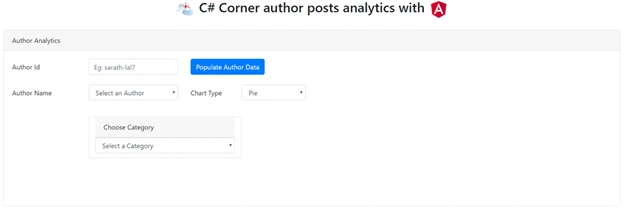
We have completed the coding part in the Angular project also. We can run both, Web API project and Angular project, now.
C# Corner Author Posts Analytics With Angular 8
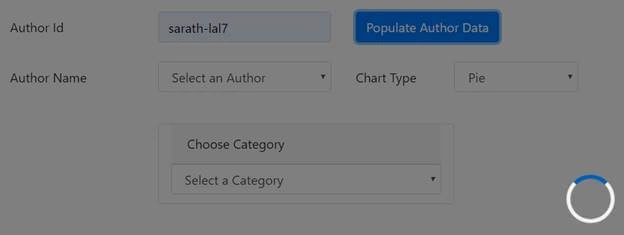
Enter an author id and click “Populate Author Data” button to fetch author post details from the C# Corner site.
C# Corner Author Posts Analytics With Angular 8
It will take some time to scrape data from the site based on the number of posts this author has published.
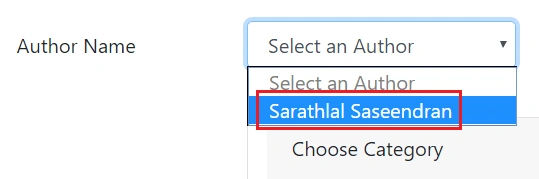
After completing the data population, the user can select an author name from the drop-down list.
C# Corner Author Posts Analytics With Angular 8
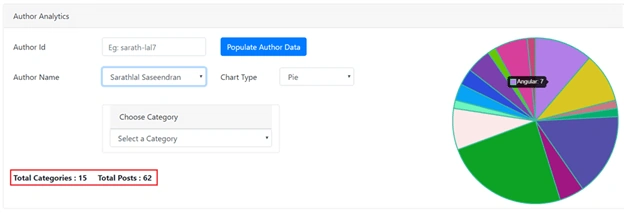
Whenever you process a new author's data, the author name will be added to the drop-down list automatically. After choosing the author name, the post's category will be shown as a chart. You can see the category name as a tooltip in the chart.
C# Corner Author Posts Analytics With Angular 8
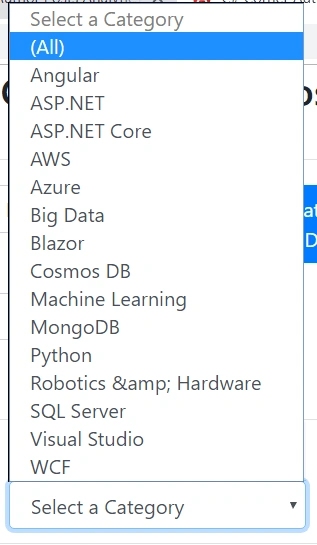
It will add posted categories to the category drop-down also.
C# Corner Author Posts Analytics With Angular 8
You can choose any of these categories and will get the entire list of posts for that category.
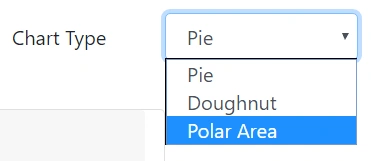
Currently, I have added three types of Charts - “Pie”, “Doughnut” and “Polar Area”.
C# Corner Author Posts Analytics With Angular 8
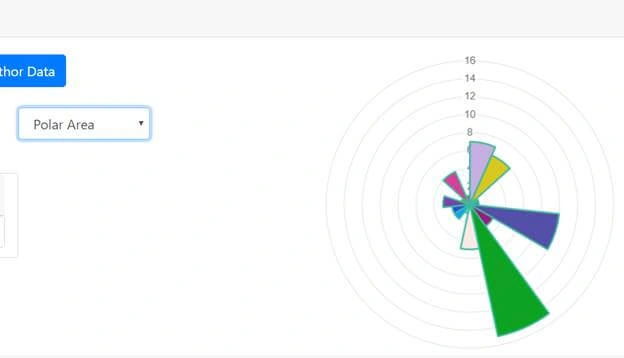
You can view the chart in any of these types. Below is a Polar Type chart. The previous chart was a Pie chart.
C# Corner Author Posts Analytics With Angular 8
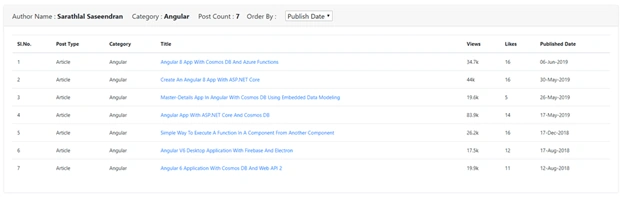
You can choose a category by clicking on a chart or choosing from the category drop-down. The entire posts for that category will be shown as below.
C# Corner Author Posts Analytics With Angular 8
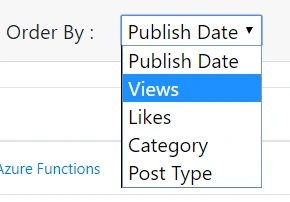
You can view the posts in different orders by choosing from "Order By" drop-down.
C# Corner Author Posts Analytics With Angular 8
I have hosted the Angular app on Azure. You can analyze your post details through this Live App.

Conclusion

In this article, we saw how to scrape C# Corner author post information from the site using “HtmlAgilityPack” library and Web API service. We also discussed how to show this data in an Angular 8 application. We have used Chart.js library to show different types of charts and showed the entire posts in a grid. Please note that currently, C# Corner feeds give a maximum of 100 post details only. Hence, we can analyze a maximum of 100 posts only. I have attached the source code of both the Angular and Web API projects with this article. Please check from your side and give your valuable feedback on this article and application.