

Introduction
This article demonstrates camera and lighting in unity. Here, we will learn how to add cameras and lights in your project.
Prerequisites
Unity environment version5.6.1
Create Terrain
Step 1
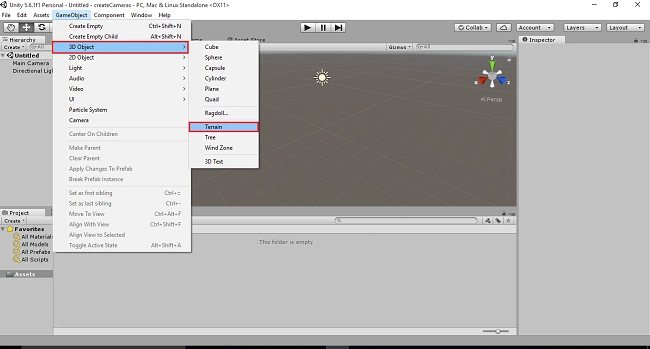
First you have to open the unity3D project. The unity window is like this. Select the GameObject menu in menu bar. Select 3D object and pick the Terrain option.
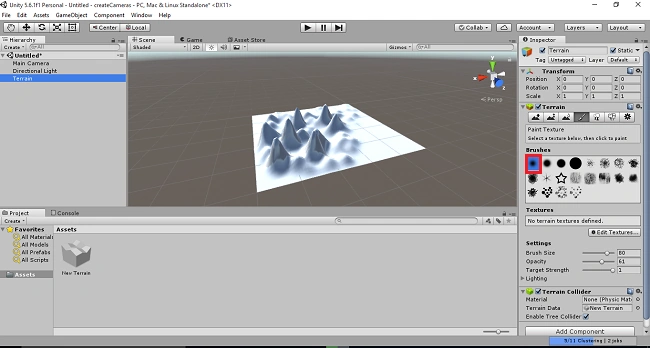
Select the terrain option and select brush tool in your right side. Select brushes and increase the brush size. Apply to the terrain like this,
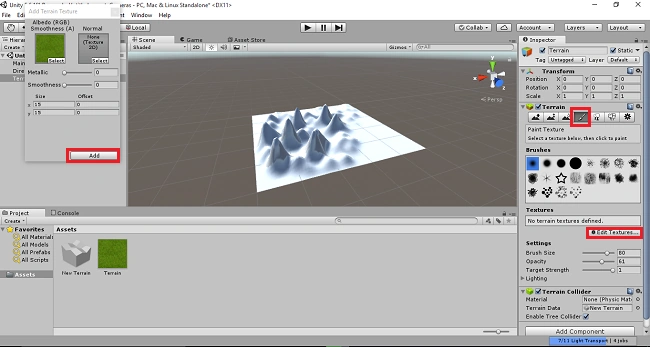
I have to download the terrain textures image. Select the terrain brush and go to the edit textures. Select the terrain image and click on the add button.
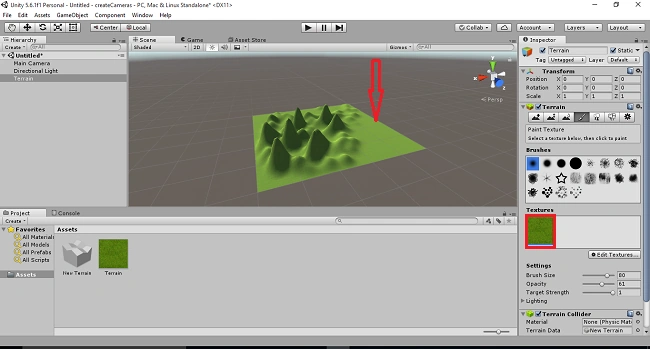
The terrain textures are added into the terrain.
Add Cameras in your project
Step 2
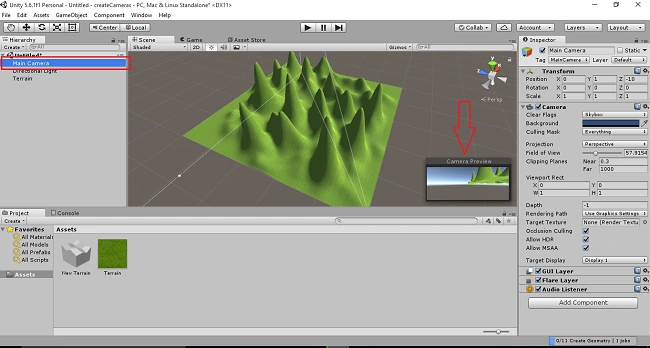
Click on the main camera, the camera preview displays in the scene view.
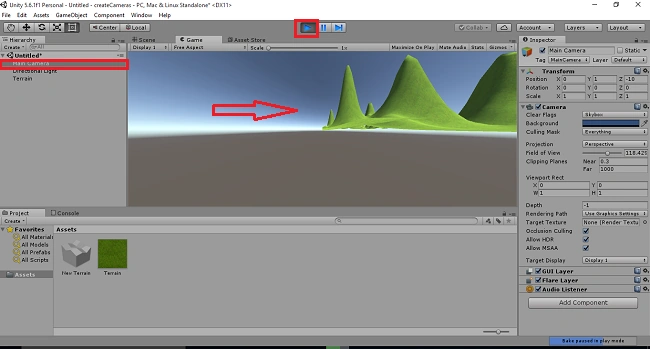
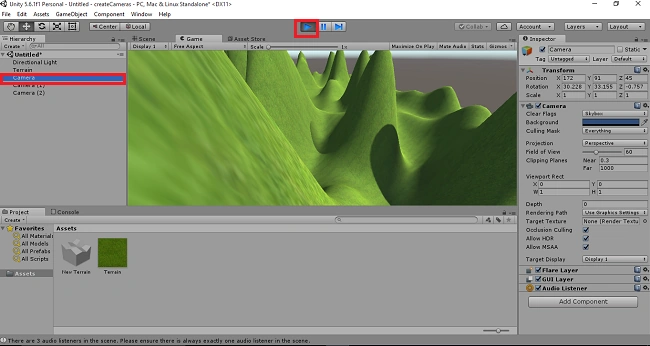
Select the main camera, click on the play button. The terrain will be displayed in the Game view.
Click on the play button again. Now delete the main camera.
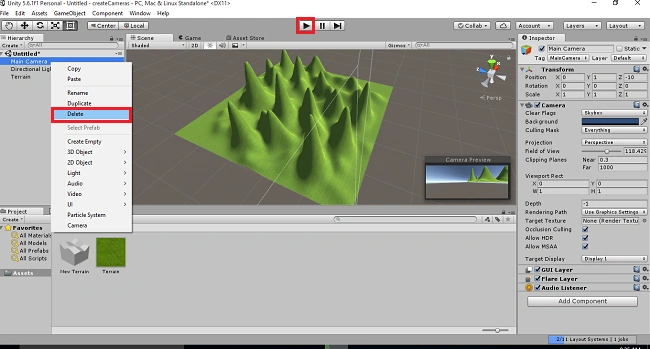
The main camera is deleted. Here, I will explain how to add different cameras in different views of your project.
Go to the Game Object and select camera option.
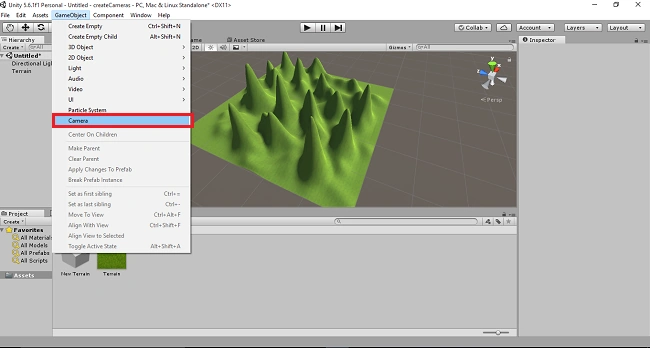
Create camera, camera1, camera2 using Game Object.
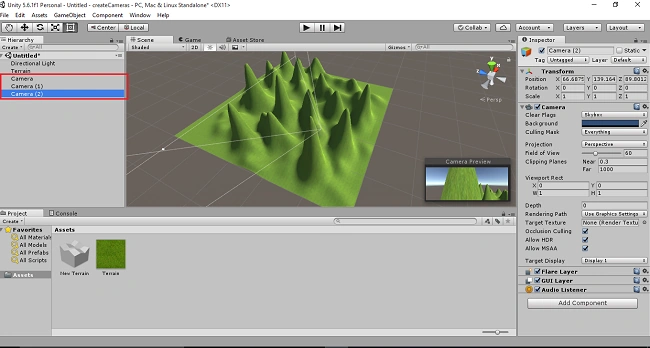
Select the camera and click on the rotation tool. You can rotate your camera; the changes will be displayed in the camera preview.
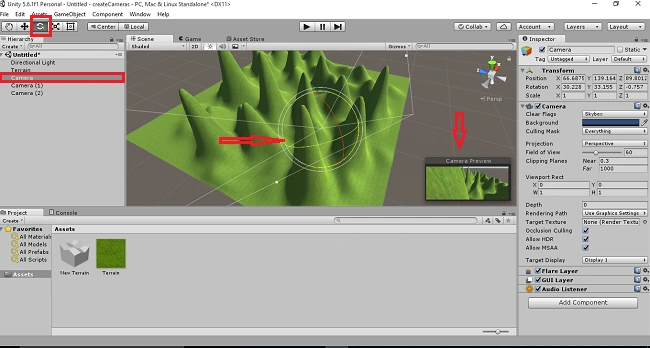
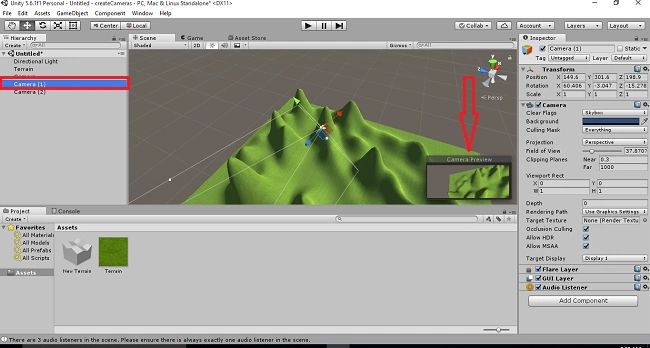
Click on the camera1 and change the camera position. The changes will be display in the camera preview.
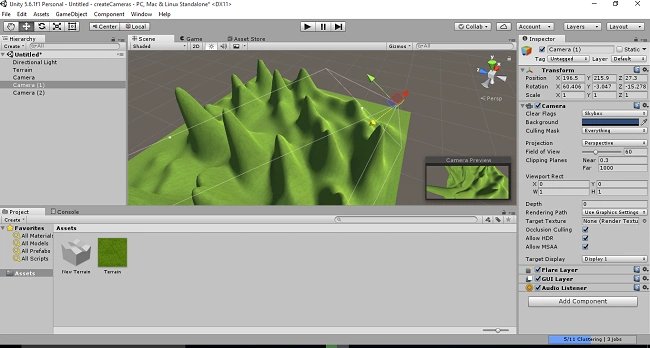
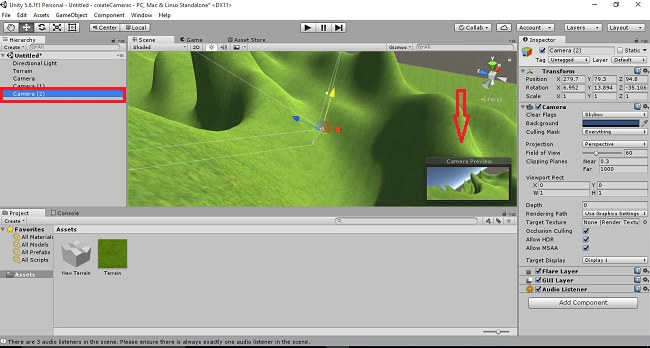
Click on the camera2 and change the camera position. The changing will be displayed in the camera preview.
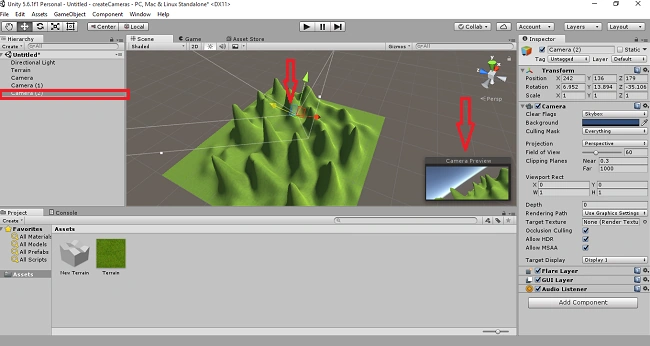
Click on the play button, it will be displayed in different views of the cameras.
Camera1 view displays in camera preview.
Camera2 view displays in camera preview.
Add Lighting in your project
Step 3
Click on the directional light. The light can be displayed in the scene view.
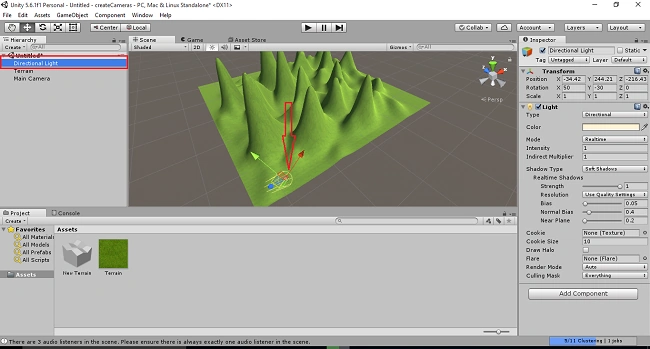
Click on the lights on and off the scene view. Now the light is off.
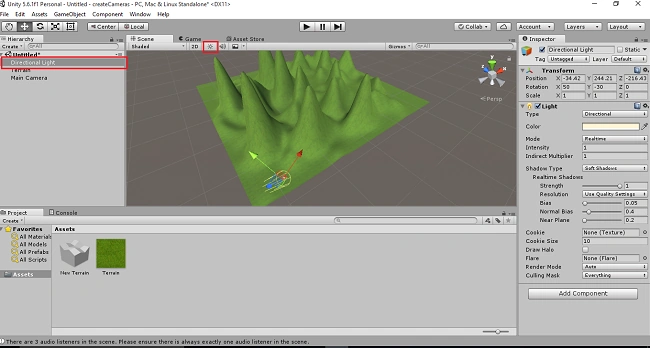
Select the Rotation tool. Rotate your lights in x axis, y axis, z axis. The environment is changed.
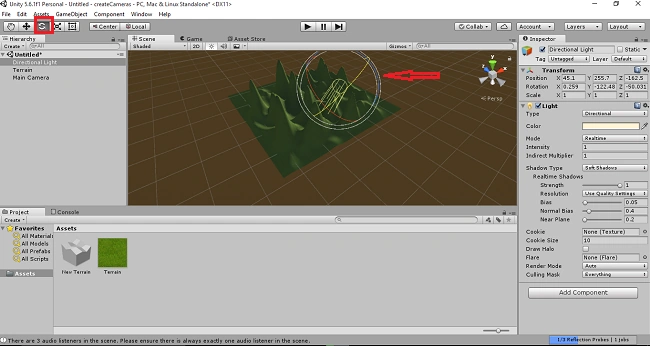
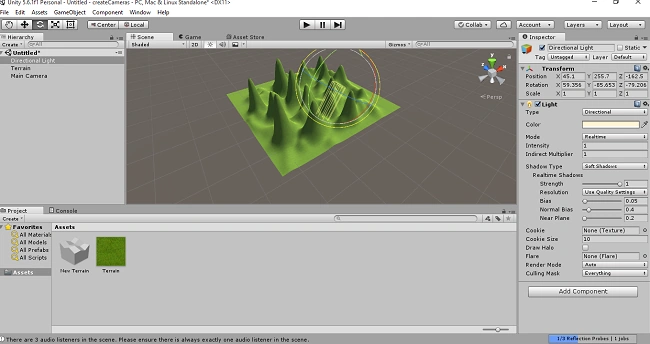
Rotate again and the terrain comes into normal view.
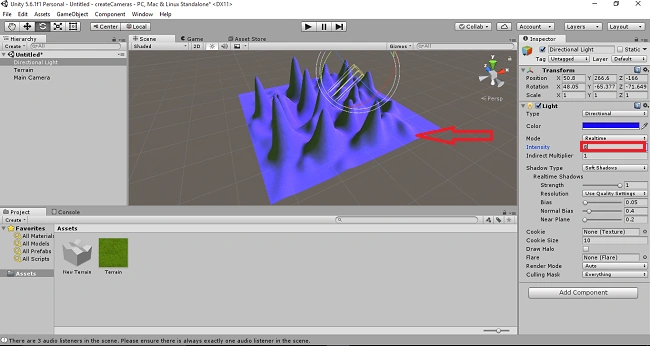
Select the Directional light. Choose the color andit can be applied on your terrain.
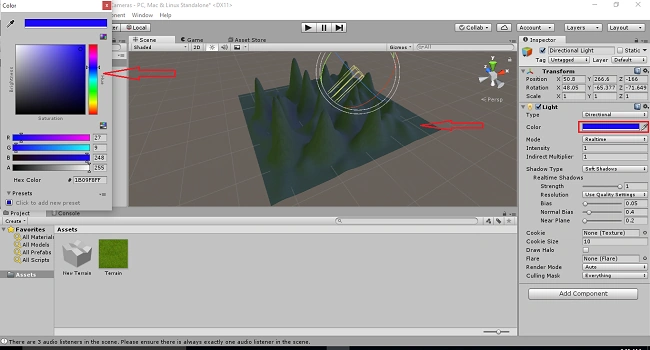
You can change the color; go to the intensity and give the value 5. The color can be increased.
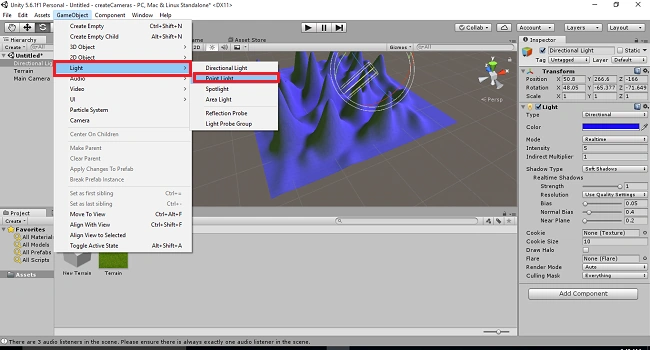
Point light
Go to the Game Object select Light and choose the Point light option.
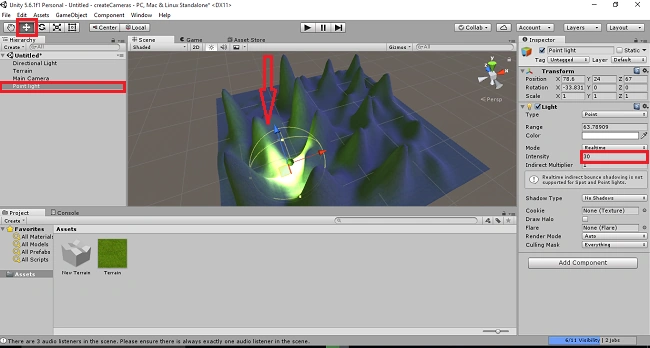
Select the point light and change the value of range and intensity. The full terrain is dark but the particular area is applying the light.
Spot Light
Go to the Game Object select Light and choose the Spot light option.
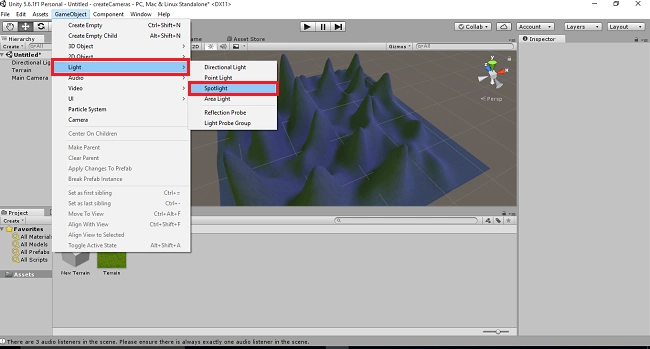
Select the Spot light and change the value of range and intensity.
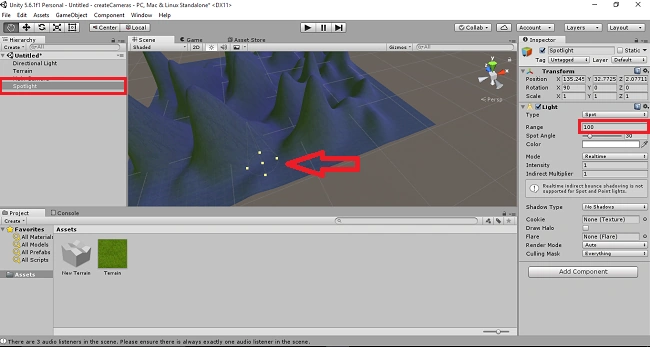
The light only applies into a particular spot.
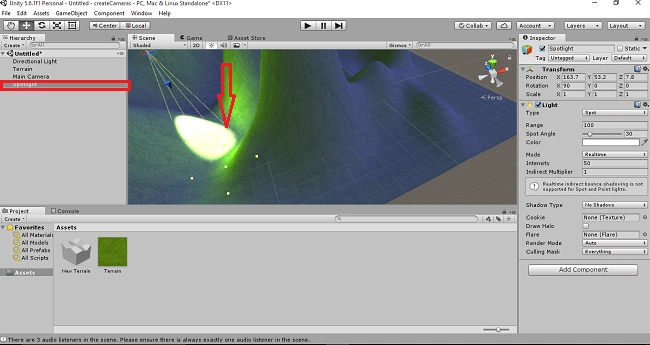
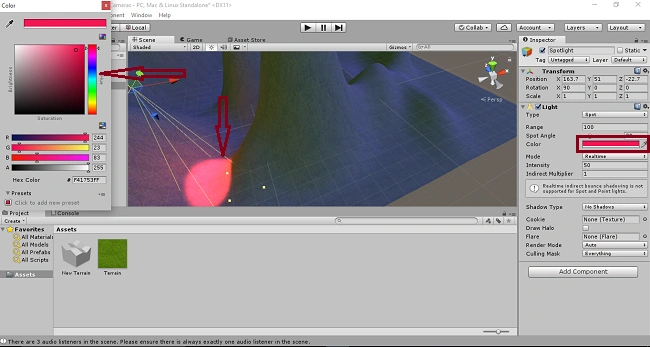
You can change the spot light color. Click on the color option select the color. The color applies into the spotlight.
Summary
I hope, you understood how to add cameras and lights in unity.
Gayathri AnbazhaganPosted Jun 10, 2017, 9:48 PM
Thanks for your comments.....
Thiruppathi RPosted Jun 9, 2017, 12:01 PM
Nice article.Thanks for sharing...
Manav PandyaPosted Jun 9, 2017, 12:14 AM
Nice one .............