I will explain step-by-step Cascading Dropdown lists in the following.
1: SQL Database
In this database section create the two tables, State and City.
Table 1: State
- Create table India_State
- (
- S_id int identity(1,1) primary key,
- S_name varchar(30)
- )
Table 2: City
- create table City
- (
- City_id int identity(1,1) primary key,
- City_name varchar(30),
- S_id int foreign key references India_state(S_id)
- )
2: Visual Studio
In this section add a UI Page, BAL class file and DAL class file.
Step 1
Create a DAL file as in the following.
Go to the project in the Solution Explorer and add a DAL class file as in Figure 1.
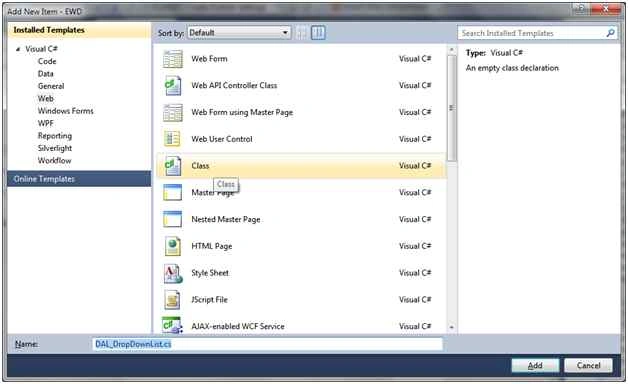
Figure 1: Add DAL class File.
DAL Code
- using System;
- using System.Collections.Generic;
- using System.Linq;
- using System.Web;
- using System.Configuration;
- using System.Data;
- using System.Data.SqlClient;
-
- namespace EWD.DAL
- {
- public class DAL_DropDownList
- {
- public static DataTable StateList()
- {
- string connection = ConfigurationManager.ConnectionStrings["Conncet_DB"].ConnectionString;
-
- SqlConnection con = new SqlConnection(connection);
- SqlCommand cmd = new SqlCommand("select S_id,S_name from India_State", con);
- con.Open();
- cmd.CommandType = CommandType.Text;
- SqlDataReader dr = cmd.ExecuteReader();
- DataTable dt = null;
- if (dr.HasRows)
- {
- dt = new DataTable("India_State");
- dt.Load(dr);
-
- return dt;
- }
- if (cmd != null)
- {
- cmd.Dispose();
- cmd = null;
- }
- return dt;
- }
-
- public static DataTable GetCityList(int S_id)
- {
- string connection = ConfigurationManager.ConnectionStrings["Conncet_DB"].ConnectionString;
-
- SqlConnection con = new SqlConnection(connection);
- SqlCommand cmd = new SqlCommand("select City_id,City_name from City Where S_id=@S_id", con);
- con.Open();
- cmd.CommandType = CommandType.Text;
- cmd.Parameters.AddWithValue("@S_id", SqlDbType.Int).Value = S_id;
- SqlDataReader dr = cmd.ExecuteReader();
- DataTable dt = null;
- if (dr.HasRows)
- {
- dt = new DataTable("City");
- dt.Load(dr);
-
- return dt;
- }
- if (cmd != null)
- {
- cmd.Dispose();
- cmd = null;
- }
- return dt;
- }
- }
- }
Step 2
Add a BAL File as in Figure 2.
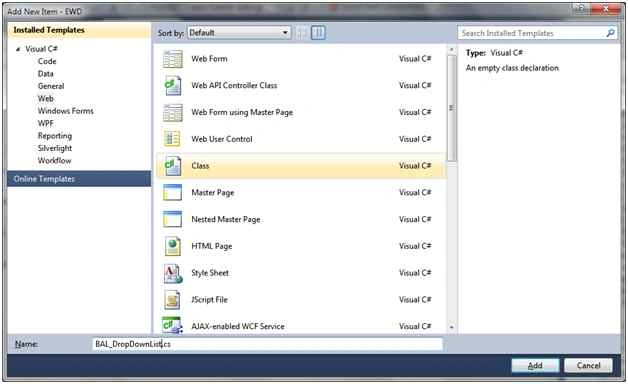
Figure 2: Add BAL Class
BAL Code
- using System;
- using System.Collections.Generic;
- using System.Linq;
- using System.Web;
- using System.Data;
- using EWD;
-
- namespace EWD.BAL
- {
- public class BAL_DropDownList
- {
- public static DataTable GetStateList()
- {
- return DAL.DAL_DropDownList.StateList();
- }
-
- public static DataTable GetCityList(int S_id)
- {
- return DAL.DAL_DropDownList.GetCityList(S_id);
- }
- }
- }
Step 3
Create the UI Design.
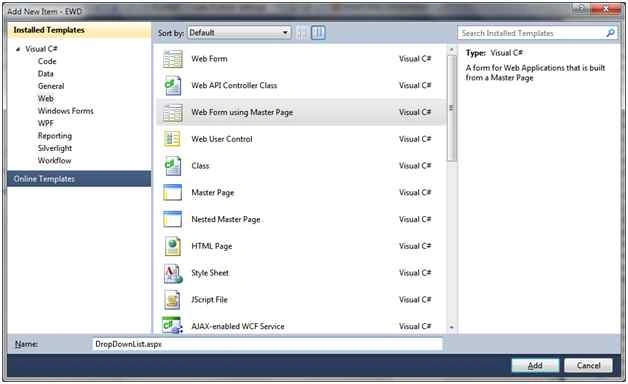
Figure 3: Add Design Page,
UI Design Code
In this section add a dropdown list to bind a State and City record from the database.
Also the State dropdownlist AutoPostBack event true bind for Child City Record.
- <%@ Page Title="" Language="C#" MasterPageFile="~/Site.Master" AutoEventWireup="true" CodeBehind="DropDownList.aspx.cs" Inherits="EWD.UI.DropDownList" %>
- <asp:Content ID="Content1" ContentPlaceHolderID="HeadContent" runat="server">
- </asp:Content>
- <asp:Content ID="Content2" ContentPlaceHolderID="MainContent" runat="server">
- <h2>Cascading DropDownList in three tier Application </h2>
- <table>
- <tr>
- <td>Select State</td><td><asp:DropDownList ID="ddlState" runat="server"
- onselectedindexchanged="ddlState_SelectedIndexChanged" AutoPostBack="true" ></asp:DropDownList></td>
-
- <td>Select City</td><td><asp:DropDownList ID="ddlCity" runat="server"></asp:DropDownList></td>
- </tr>
- </table>
-
- </asp:Content>
UI Code
- using System;
- using System.Collections.Generic;
- using System.Linq;
- using System.Web;
- using System.Web.UI;
- using System.Web.UI.WebControls;
- using System.Data;
- using EWD.BAL;
-
- namespace EWD.UI
- {
- public partial class DropDownList : System.Web.UI.Page
- {
- protected void Page_Load(object sender, EventArgs e)
- {
- if (!IsPostBack)
- {
- BindState();
- }
- }
-
- public void BindState()
- {
- BAL_DropDownList DDL = new BAL_DropDownList();
-
- DataTable dtState = EWD.BAL.BAL_DropDownList.GetStateList();
- ddlState.DataSource = dtState;
- ddlState.DataTextField = "S_name";
- ddlState.DataValueField = "S_id";
- ddlState.DataBind();
- ddlState.Items.Insert(0, new ListItem("---Select State---"));
- }
-
- protected void ddlState_SelectedIndexChanged(object sender, EventArgs e)
- {
- BindCity();
- }
-
- public void BindCity()
- {
- int S_id;
- int.TryParse(ddlState.SelectedValue, out S_id);
-
- DataTable dtCity = EWD.BAL.BAL_DropDownList.GetCityList(S_id);
-
- ddlCity.DataSource = dtCity;
- ddlCity.DataTextField = "City_name";
- ddlCity.DataValueField = "City_id";
- ddlCity.DataBind();
- ddlCity.Items.Insert(0, new ListItem("---Select City---"));
- }
- }
- }
Output
Now run the code and display the results in the web page.
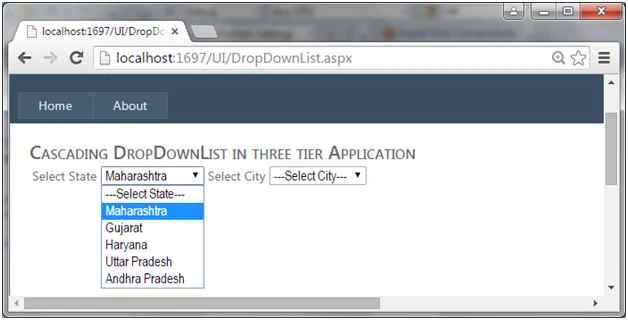 Figure 4:
 Parent DropDownList
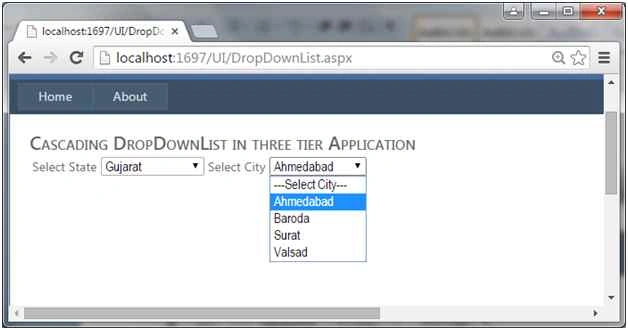 Figure 5:
 Child DropDownList
Thanks for reading this article. Have a nice day sir.


Sr KarthigaPosted Mar 29, 2016, 9:21 AM
good one
Sr KarthigaPosted Mar 29, 2016, 9:21 AM
nice explanation
Gowtham RajamanickamPosted Aug 27, 2015, 9:52 AM
good
Amol JadhaoPosted Aug 25, 2015, 1:39 AM
useful for starter..
Debasis SahaPosted Aug 25, 2015, 12:31 AM
Nice one..
Shridhar SharmaPosted Aug 24, 2015, 12:54 PM
good one
RakeshPosted Aug 24, 2015, 10:24 AM
thanks Sibeesh Venu
Sibeesh VenuPosted Aug 24, 2015, 9:23 AM
Nice Share :)
Rajeesh MenothPosted Aug 24, 2015, 6:55 AM
Good One
Ankit BansalPosted Aug 24, 2015, 5:33 AM
nice...
Gowtham KPosted Aug 24, 2015, 3:02 AM
Good one
Karthikeyan KPosted Aug 24, 2015, 2:55 AM
Thanks for share sir
Sumit JoshiPosted Aug 24, 2015, 2:39 AM
Thanks for sharing.
santosh kumarPosted Aug 24, 2015, 2:37 AM
Hi can you please explain me why we make that methods static ?Is it not possible making that methods not static if possible what is the advantage to make it static?
Mohammed IbrahimPosted Aug 24, 2015, 2:16 AM
nice
Saineshwar BageriPosted Aug 24, 2015, 1:37 AM
nice start