

In this article, we will learn about the concept of Components in PowerApps and how we can reuse it in other apps/screens.
Scenario
Let's consider a requirement where we need to display a header and footer in our App, and suppose we will be having more than 10 screens. So in this case, if we are not using Components then it will be difficult to keep that header and footer on every screen and if there is any change let's say for font size or Title or logo, we need to navigate all 10 screens and make those changes there. To avoid these repetitive changes we can create this as a component and then it can be used on various screens.
Components are reusable building blocks available in PowerApps. Using components, the App maker can reuse it in the same App or across App using the component library. The component library is simply a container that will contain all components in it.
Let's see an example of how to create components and use them on screen.
Here we will create a header with Screen Title and Logo.
Step 1
Open PowerApps > Create Canvas App.
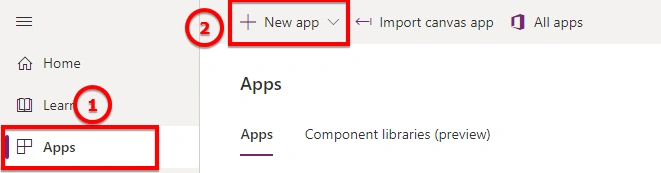
Step 2
Select Component > Create New Component.
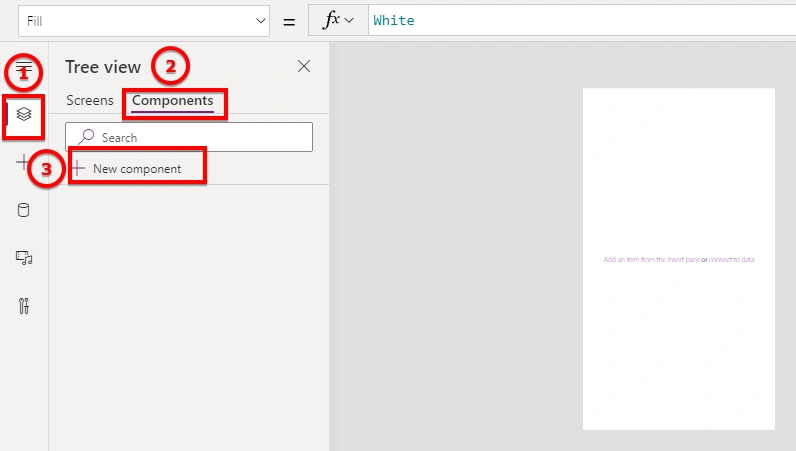
Step 3
After the component is added, Click on Insert in menu > select icon and add Rectangle after scrolling in the icon menu.
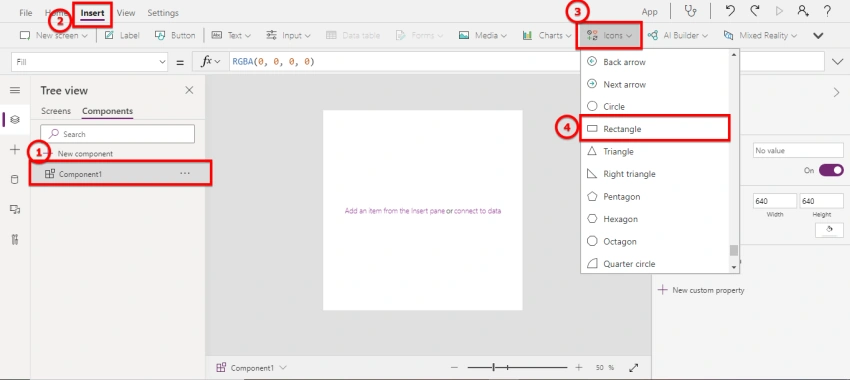
Step 4
Now add an image and label control above rectangle which we just added above.
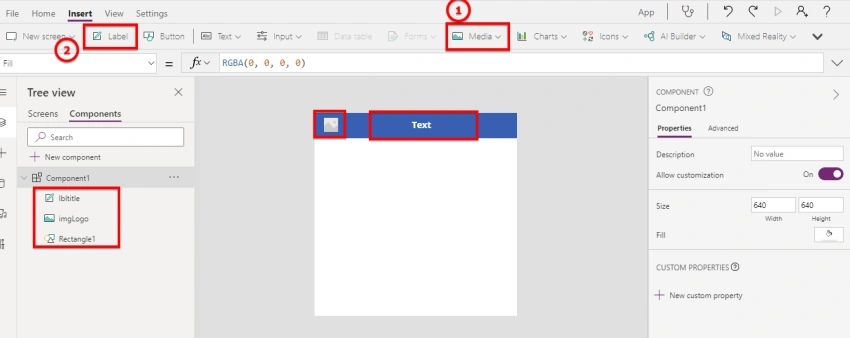
Step 5
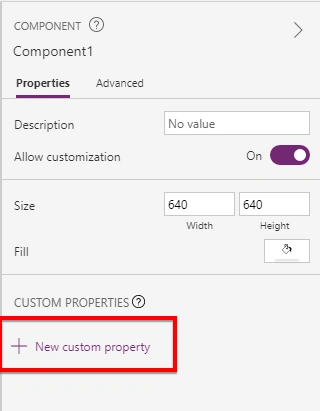
Now create 2 custom properties from the right panel.
Step 6
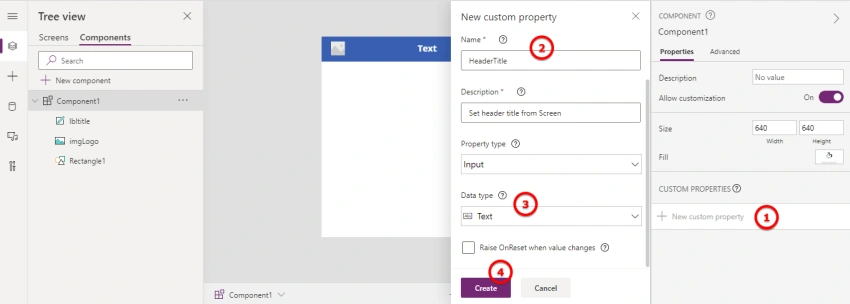
Add a new property with data type text to set Header Title.
Step 7
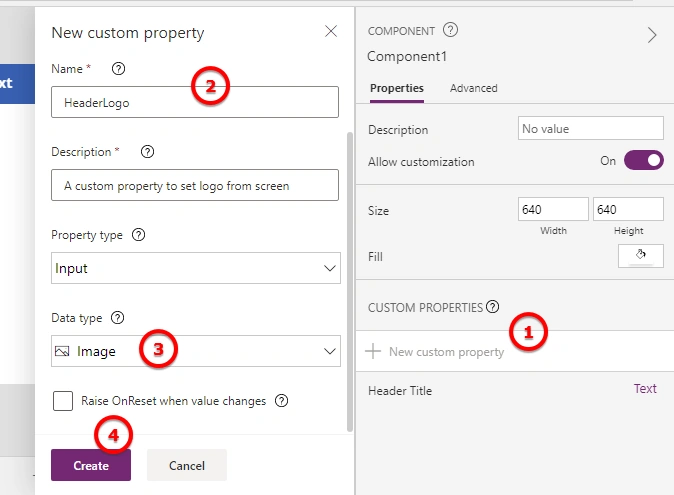
In the same way add other properties with Data Type Image to set logo (this is just to demonstrate that we can pass different types of properties. Ideally, it would be good to not make the logo dynamic but set it in the component itself).
Step 8
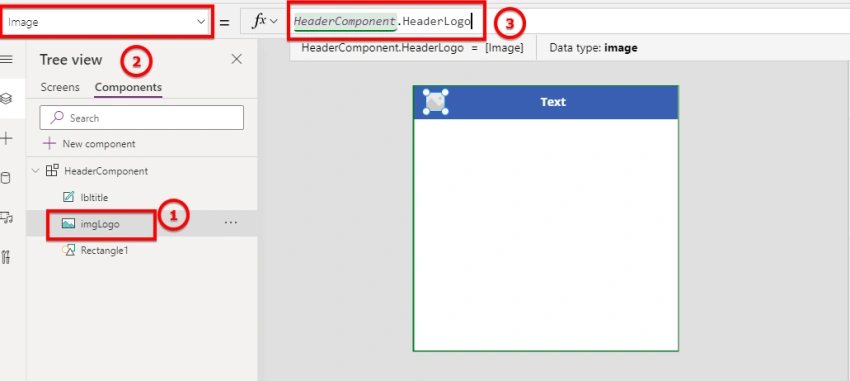
Now select image control, from property select Image property and set it to <component name>.<property name>.
Step 9
Let us do the same for the label Title.
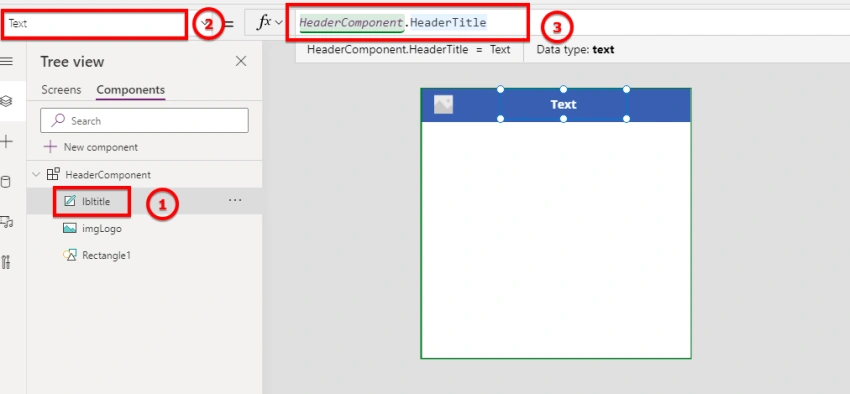
Step 10
Set Height of Component to the required height.
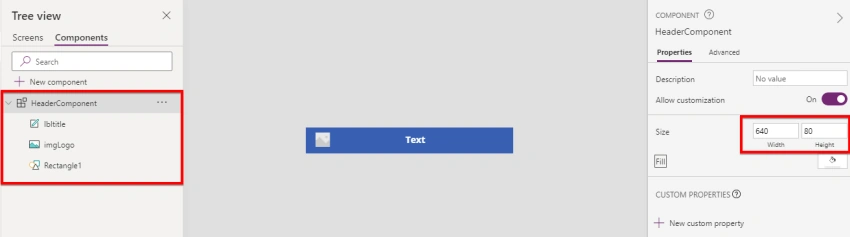
Now we have the component ready, so we will go ahead in use it on screen.
Step 11
Go to Screen > Add Component to your screen.
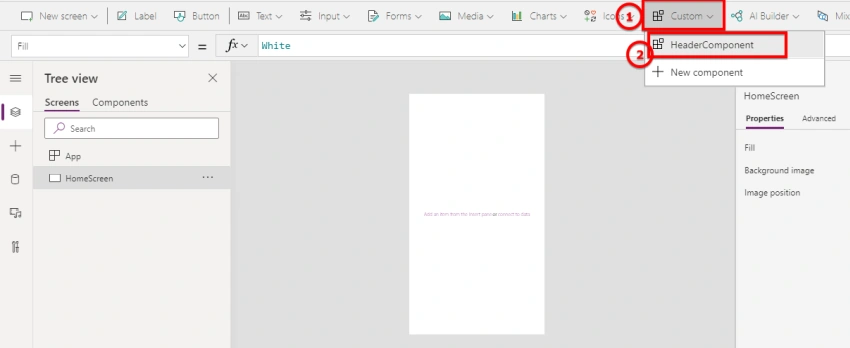
Step 12
After Adding Component to Screen, add logo as per your need to media section in the left panel.
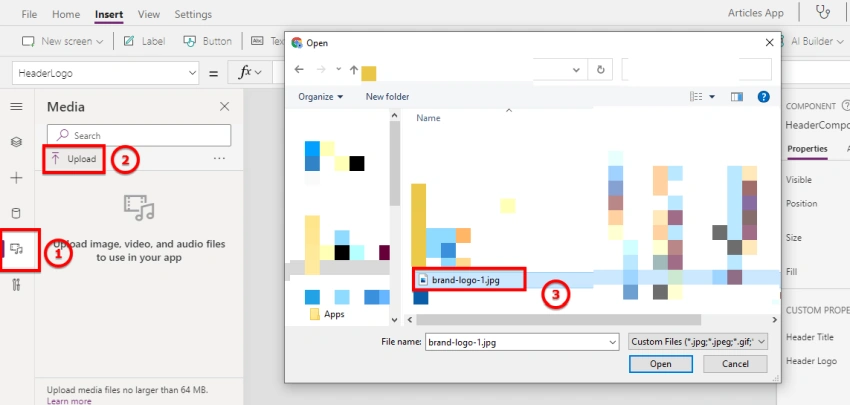
Step 13
Now we will set logo property.
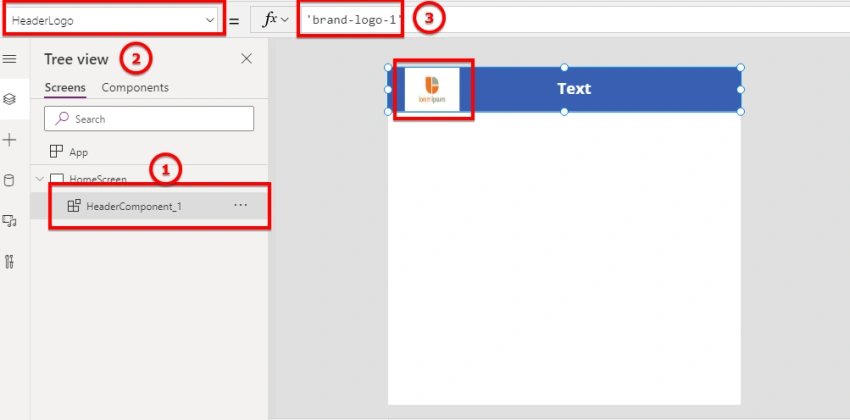
Step 14
Like logo, Set Title property of Component.
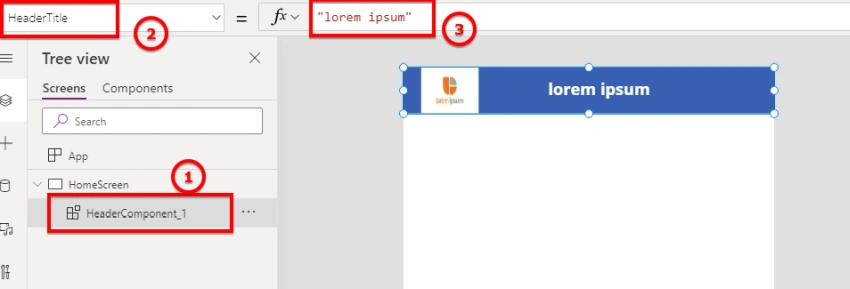
In this way you can design header components. We can add any styles, font size, color, or anything else that we want to make our component look better.
In the same way, we can also create a footer component
Step 15
Create another component named FooterComponent > You can rename it from three dots menu after component name as shown below,
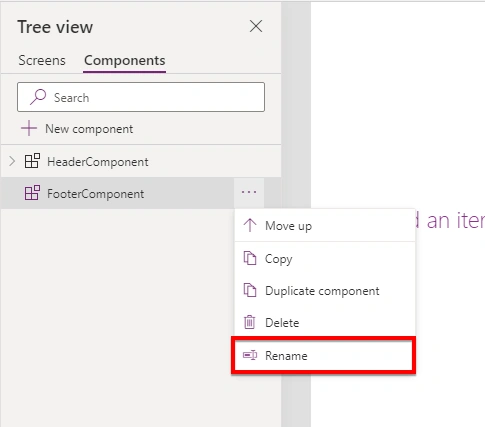
Step 16
Add Html Text control from Text Menu.
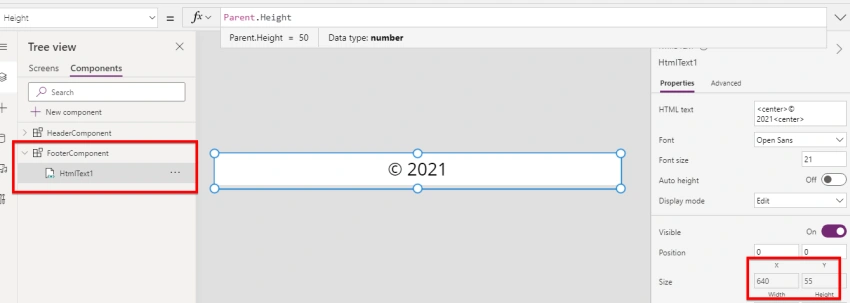
Step 17
Now add this component on screen,
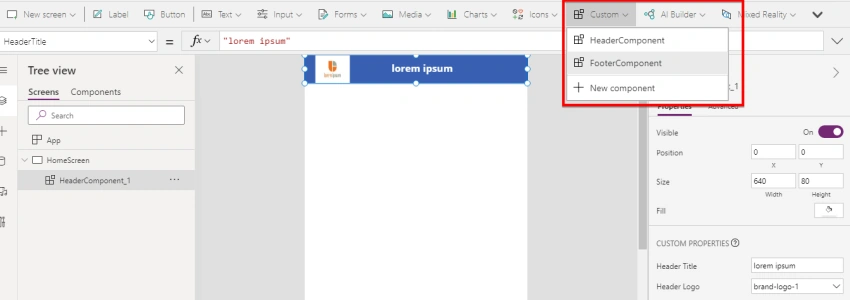
Step 18
Set Y property of Footer Component as dynamic.
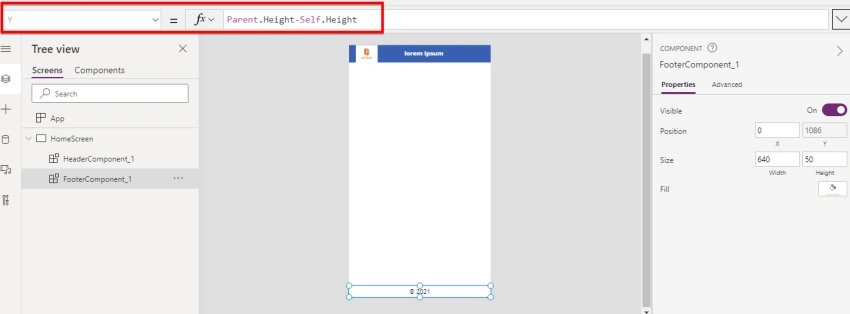
If you look now we have created a screen that has a header and footer components.
We can add as many custom properties as we want that need to be set from our screen to make content dynamic in components.
Conclusion
In this article, we have explored below concepts,
- Overview of components in Power Apps
- Create new components with dynamic properties
- Using components in Screens
- Creating reusable header and footer in Power Apps (just like master page concept in SharePoint or ASP.net )
Devni ThuduhenagePosted Aug 21, 2021, 9:50 AM
Steps are very clearly explained.