

In this article, we will learn about the concept of Component in PowerApps and how we can reuse it in other App. Let's consider a requirement where we need to display a header and footer in our App and suppose we will be having more than 10 screens.
So in this case, if we are not using Components then it will be difficult to keep that header and footer on every screen and if there is any change let's say for font size or Title or logo, we need to navigate all 10 screens and make those changes there. To avoid these repetitive changes Components can be used.
Components are reusable building blocks available in PowerApps. Using component App maker can reuse it in the same App or across App using the component library. The component library is nothing just play the role of a container that will contain all components in it.
Let's see an example for how the component works,
Step 1 - Open PowerApps > Create Canvas App

Step 2 - Select Component > Create New Component

Step 3 - After the component is added, Click on Insert in menu > select icon and add Rectangle after scrolling in the icon menu

Step 4 - Now add an image and label control above rectangle added above
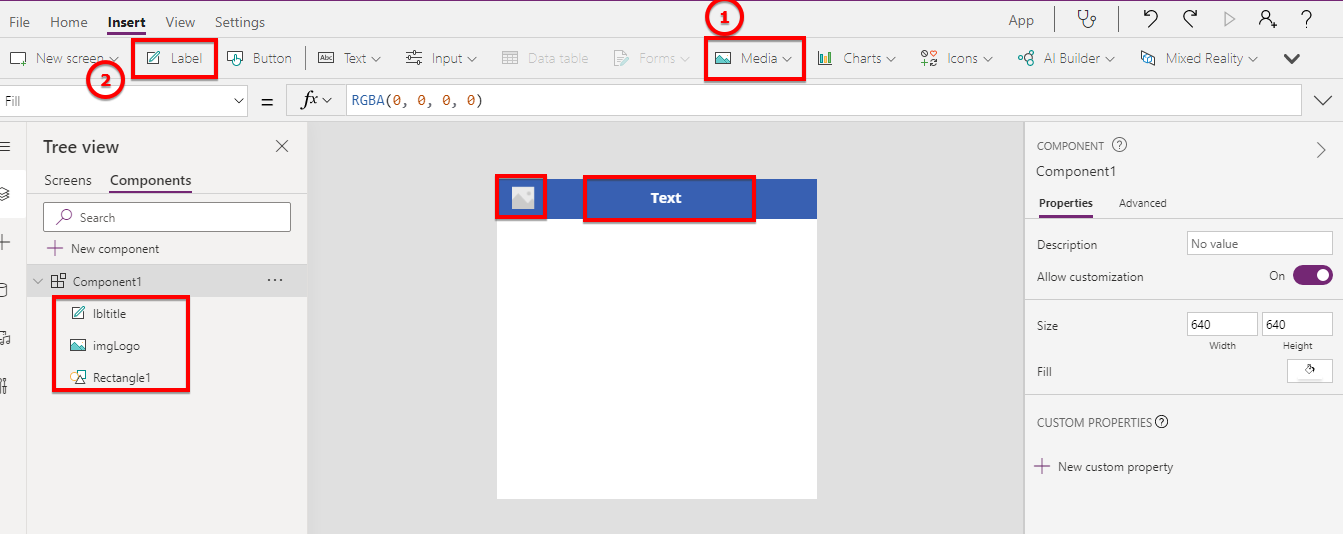
Step 5 - Now create 2 custom properties from the Right panel

Step 6 - Add New property with Data Type Text to set Header Title

Step 7 - Same way Add other property with Data Type Image to set logo

Step 8 - Now select image control, from property select Image property and set it to <component name>.<property name>


Join the conversation! Your thoughts help the community grow.