

Step 1
Without these prerequisites, the Application will not run.
- Visual Studio 2017.
- TypeScript 2.0 for Visual Studio 2017.
Step 2
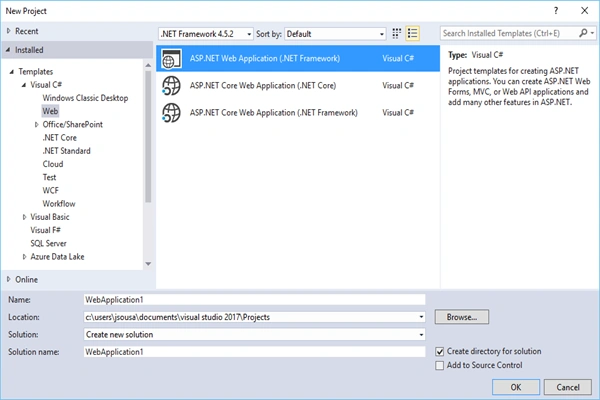
Go to Visual Studio’s File New Project menu, expand the Web category and pick ASP.NET Web Application, as shown below.
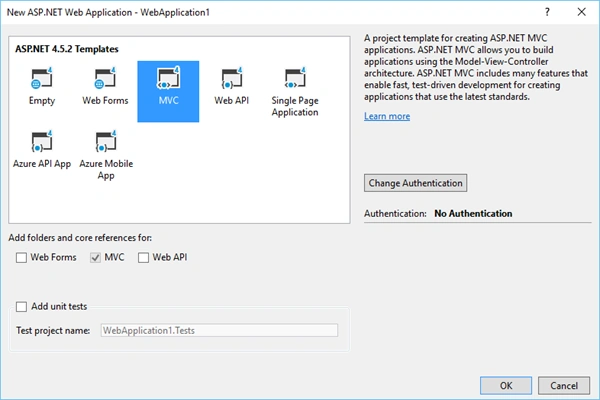
Select the template MVC.
Step 3
We need to prepare our frontend to run Angular 4.
- Create tsconfig.json, which is the TypeScript compiler configuration file.
JavaScript
- {
- "compilerOptions": {
- "target": "es5",
- "module": "commonjs",
- "moduleResolution": "node",
- "sourceMap": true,
- "emitDecoratorMetadata": true,
- "experimentalDecorators": true,
- "lib": [ "es2015", "dom" ],
- "noImplicitAny": true,
- "suppressImplicitAnyIndexErrors": true
- }
- }
The most important things in your package.json refer to the name and the version fields. These are actually required and your package won't install without them. The name and version together form an identifier, which is assumed to be completely unique. Changes to the package should come along with the changes to the version.
JavaScript
- {
- "name": "angular-quickstart",
- "version": "1.0.0",
- "description": "QuickStart package.json from the documentation for visual studio 2017 & WebApi",
- "scripts": {
- "start": "tsc && concurrently \"tsc -w\" \"lite-server\" ",
- "lint": "tslint ./app/**/*.ts -t verbose",
- "lite": "lite-server",
- "pree2e": "webdriver-manager update",
- "test": "tsc && concurrently \"tsc -w\" \"karma start karma.conf.js\"",
- "test-once": "tsc && karma start karma.conf.js --single-run",
- "tsc": "tsc",
- "tsc:w": "tsc -w"
- },
- "keywords": [],
- "author": "",
- "license": "MIT",
- "dependencies": {
- "@angular/common": "4.0.2",
- "@angular/compiler": "4.0.2",
- "@angular/core": "4.0.2",
- "@angular/forms": "4.0.2",
- "@angular/http": "4.0.2",
- "@angular/platform-browser": "4.0.2",
- "@angular/platform-browser-dynamic": "4.0.2",
- "@angular/router": "4.0.2",
- "angular-in-memory-web-api": "~0.2.4",
- "systemjs": "0.19.40",
- "core-js": "^2.4.1",
- "rxjs": "5.0.1",
- "zone.js": "^0.7.4"
- },
- "devDependencies": {
- "concurrently": "^3.2.0",
- "lite-server": "^2.2.2",
- "typescript": "~2.0.10",
- "canonical-path": "0.0.2",
- "tslint": "^3.15.1",
- "lodash": "^4.16.4",
- "jasmine-core": "~2.4.1",
- "karma": "^1.3.0",
- "karma-chrome-launcher": "^2.0.0",
- "karma-cli": "^1.0.1",
- "karma-jasmine": "^1.0.2",
- "karma-jasmine-html-reporter": "^0.2.2",
- "protractor": "~4.0.14",
- "rimraf": "^2.5.4",
- "@types/node": "^6.0.46",
- "@types/jasmine": "2.5.36"
- },
- "repository": {}
- }
- Create a sub-folder app on the root folder. On this folder, we need to create our TypeScript files.
- ts
- module.ts
- component.ts
- component.html
- Create your index.html file, as shown below.
HTML
- <!DOCTYPE html>
- <html>
- <head>
- <script>document.write('<base href="' + document.location + '" />');</script>
- <title>Angular4 Routing</title>
- <base href="/">
- <meta charset="UTF-8">
- <meta name="viewport" content="width=device-width, initial-scale=1">
- <base href="/">
- <link rel="stylesheet" href="styles.css">
- <!-- load bootstrap 3 styles -->
- <link href="https://maxcdn.bootstrapcdn.com/bootstrap/3.3.6/css/bootstrap.min.css" rel="stylesheet">
- <!-- Polyfill(s) for older browsers -->
- <script src="node_modules/core-js/client/shim.min.js"></script>
- <script src="node_modules/zone.js/dist/zone.js"></script>
- <script src="node_modules/systemjs/dist/system.src.js"></script>
- <script src="systemjs.config.js"></script>
- <script>
- System.import('app/main.js').catch(function (err) { console.error(err); });
- </script>
- </head>
- <body>
- <my-app>Loading App</my-app>
- </body>
- </html>
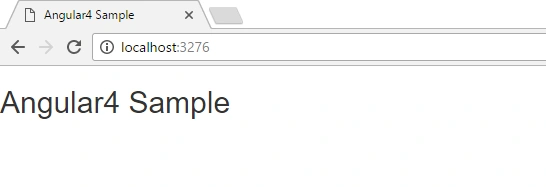
Angular will launch the app in the Browser with our component and place it in a specific location on an index.html.
Step 5
Resources
Angular4: https://angular.io/
Vikram ChaudharyPosted Sep 8, 2017, 6:52 AM
It would have been great if you could have explained the various files without explanation it is of not great use
Madhanmohan DevarajanPosted May 4, 2017, 10:37 AM
Nice article for AngularJS4 learners. Thanks for sharing...
Thiruppathi RPosted May 4, 2017, 1:08 AM
Nice article for angularjs 4...