

This article includes a step by step tutorial to learn WCF using MVC in Visual Studio. We are also using the Entity Framework (.edmx model) for database operations. This scenario targets the user of Entity Framework Model's first approach that consumes WCF service which is consumed in MVC applications for CRUD operations.
Note :
- Make sure that Entity Framework is already installed with Visual Studio. Otherwise, install it using NuGet Packages.
- Create a table in your database with the name of "UserDetail", as the following.
Id int Name Nvarchar(250) Email Nvarchar(250) 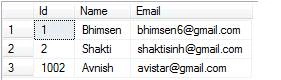
Step 1. Crate a blank solution
- Open Visual Studio.
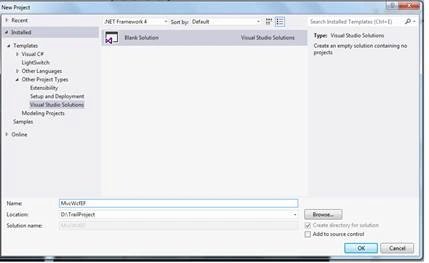
- File - New - Project…
- Select "Other project Type" in the left pane and choose "Blank Solution."
- Type the name of the Solution "MvcWcfEF";
Step 2. Creating an WCF Application
- Right click on the MvcWcfEF solution in Solution Explorer and go to Add New Project.
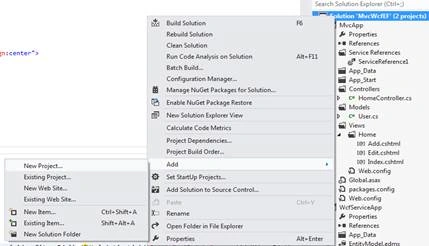
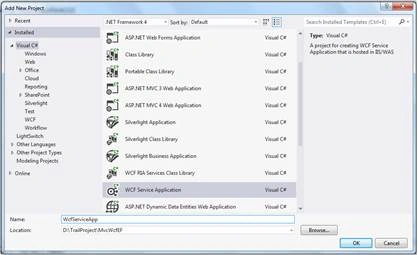
- Select WCF Service Application Library and type the name as WcfServiceApp.
- Click on OK.
Step 3. Creating a service for CRUD operation.
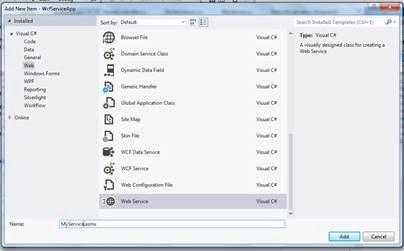
- Right click on the WcfServiceApp project and select Add - New Item.
- Choose Web option from left pane and select "WCF Service".
- Type the name as "MyService.svc" and click on Add button.
Step 4. Creating an Entity Framework Model.
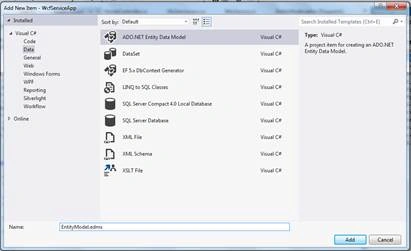
- Right click on the WcfServiceApp project and select Add - New Item.
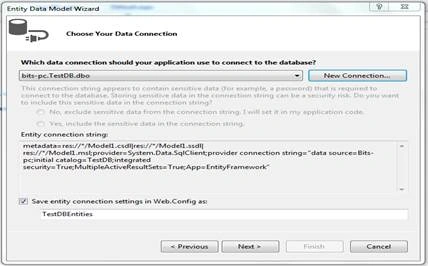
- Choose Data option from left pane and select "ADO.NET Entity data model".
- Type the name as "EntityModel.edmx" and click on Add button, same as in the following images.
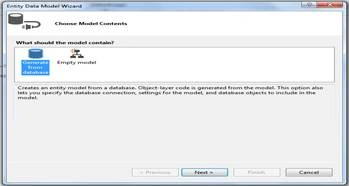
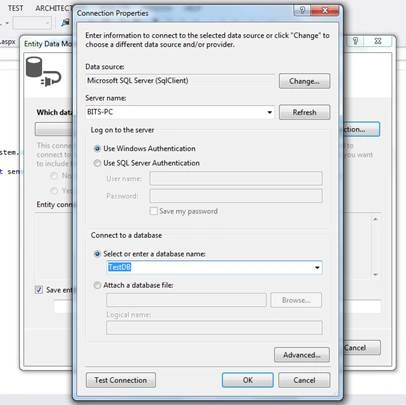
- Select your database and type the name of connection settings in web.config as "TestDBEntities".
Step 5. Write a service for CRUD operation
- Open MyService.csv page from WcfService application and write the following code:
- using System;
- using System.Collections.Generic;
- using System.Data;
- using System.Linq;
- using System.Runtime.Serialization;
- using System.ServiceModel;
- using System.Text;
- namespace WcfServiceApp
- {
- // NOTE: You can use the "Rename" command on the "Refactor" menu to change the class name "MyService" in code, svc and config file together.
- // NOTE: In order to launch WCF Test Client for testing this service, please select MyService.svc or MyService.svc.cs at the Solution Explorer and start debugging.
- public class MyService : IMyService
- {
- public void DoWork()
- {
- }
- public List<UserDetail> GetAllUser()
- {
- List<UserDetail> userlst = new List<UserDetail>();
- TestDBEntities tstDb = new TestDBEntities();
- var lstUsr = from k in tstDb.UserDetails select k;
- foreach (var item in lstUsr)
- {
- UserDetail usr = new UserDetail();
- usr.Id = item.Id;
- usr.Name = item.Name;
- usr.Email = item.Email;
- userlst.Add(usr);
- }
- return userlst;
- }
- public UserDetail GetAllUserById(int id)
- {
- TestDBEntities tstDb = new TestDBEntities();
- var lstUsr = from k in tstDb.UserDetails where k.Id==id select k;
- UserDetail usr = new UserDetail();
- foreach (var item in lstUsr)
- {
- usr.Id = item.Id;
- usr.Name = item.Name;
- usr.Email = item.Email;
- }
- return usr;
- }
- public int DeleteUserById(int Id)
- {
- TestDBEntities tstDb = new TestDBEntities();
- UserDetail usrdtl = new UserDetail();
- usrdtl.Id = Id;
- tstDb.Entry(usrdtl).State = EntityState.Deleted;
- int Retval = tstDb.SaveChanges();
- return Retval;
- }
- public int AddUser(string Name, string Email)
- {
- TestDBEntities tstDb = new TestDBEntities();
- UserDetail usrdtl = new UserDetail();
- usrdtl.Name = Name;
- usrdtl.Email = Email;
- tstDb.UserDetails.Add(usrdtl);
- int Retval = tstDb.SaveChanges();
- return Retval;
- }
- public int UpdateUser(int Id,string Name, string Email)
- {
- TestDBEntities tstDb = new TestDBEntities();
- UserDetail usrdtl = new UserDetail();
- usrdtl.Id = Id;
- usrdtl.Name = Name;
- usrdtl.Email = Email;
- tstDb.Entry(usrdtl).State = EntityState.Modified;
- int Retval = tstDb.SaveChanges();
- return Retval;
- }
- }
- }
- Now, Open IMyService and write the "ServiceContract" and "DatatContract", as follows.
- using System;
- using System.Collections.Generic;
- using System.Linq;
- using System.Runtime.Serialization;
- using System.ServiceModel;
- using System.Text;
- namespace WcfServiceApp
- {
- // NOTE: You can use the "Rename" command on the "Refactor" menu to change the interface name "IMyService" in both code and config file together.
- [ServiceContract]
- public interface IMyService
- {
- [OperationContract]
- List<UserDetail> GetAllUser();
- [OperationContract]
- int AddUser(string Name, string Email);
- [OperationContract]
- UserDetail GetAllUserById(int id);
- [OperationContract]
- int UpdateUser(int Id, string Name, string Email);
- [OperationContract]
- int DeleteUserById(int Id);
- }
- [DataContract]
- public class UserDetails
- {
- [DataMember]
- public int Id { get; set; }
- [DataMember]
- public string Name { get; set; }
- [DataMember]
- public string Email { get; set; }
- }
- }
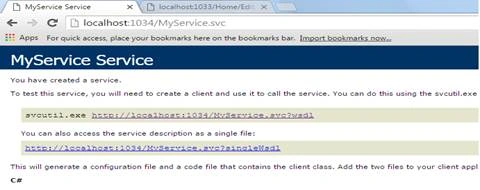
Service has been completed. Now, build the service.
- Press F5 to run the Service.
- Copy the Service URL, as shown in following image (localhost:1034/MyService.svc), for creating the reference.
Step 6. Creating an MVC Application
- Now, right click on the "MvcWcfEF " solution in Solution Explorer, again.
- Select e New Project…
- Select ASP.NET MVC3/4 Web Application.
- Enter the name of application as "MvcApp".
- Click on OK.
Adding a Project Priority and setting the reference
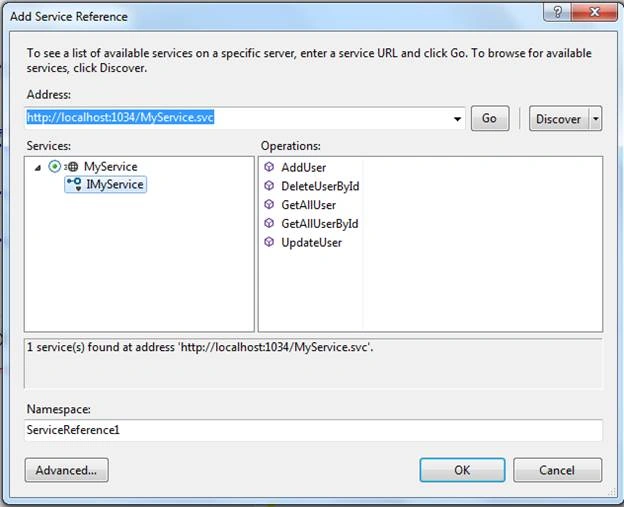
- Right click on the MvcApp and click on add service reference as in he image below.
- Paste the Copied Service URL in the given address and press Go button.
- All the services will display, as in the folowing picture. Just give the Namespace as "ServiceRefernce1" and click on OK button.
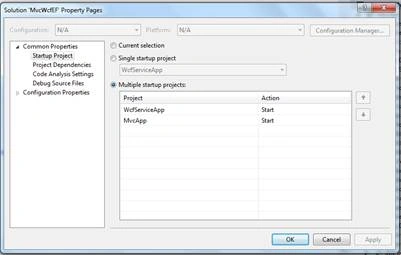
Since WCF service application and MVC application both are in the same solution, we have to build the Service first and then the MVC application in order to consume the service in MVC application. Do the following for that,
- Right Click on the MvcWcfEF Solution in Solution Explorer and click on properties.
- Check the "Multiple Startup Project " and set the application priority for WCF and MVC application (WCF service should be first and MVC afterwards), as in the following image.
Create a Model
Right click on Model folder and click on Class. Write the class name as "User" and create the following properties.
- using System;
- using System.Collections.Generic;
- using System.Linq;
- using System.Web;
- namespace MvcApp.Models
- {
- public class User
- {
- public int Id { get; set; }
- public string Name { get; set; }
- public string Email { get; set; }
- }
- }
Right click on the Controller folder and click on add controller. Give the name of controller as "HomeController" and write the following action for CRUD operation.
- using System;
- using System.Collections.Generic;
- using System.Linq;
- using System.Web;
- using System.Web.Mvc;
- using MvcApp.Models;
- namespace MvcApp.Controllers
- {
- public class HomeController : Controller
- {
- //
- // GET: /Home/
- ServiceReference1.MyServiceClient ur = new ServiceReference1.MyServiceClient();
- public ActionResult Index()
- {
- List<User> lstRecord = new List<User>();
- var lst = ur.GetAllUser();
- foreach (var item in lst)
- {
- User usr = new User();
- usr.Id = item.Id;
- usr.Name = item.Name;
- usr.Email = item.Email;
- lstRecord.Add(usr);
- }
- return View(lstRecord);
- }
- public ActionResult Add()
- {
- return View();
- }
- [HttpPost]
- public ActionResult Add(User mdl)
- {
- User usr= new User();
- usr.Name=mdl.Name;
- usr.Email=mdl.Email;
- ur.AddUser(usr.Name,usr.Email);
- return RedirectToAction("Index", "Home");
- }
- public ActionResult Delete(int id)
- {
- int retval = ur.DeleteUserById(id);
- if (retval > 0)
- {
- return RedirectToAction("Index", "Home");
- }
- return View();
- }
- public ActionResult Edit(int id)
- {
- var lst = ur.GetAllUserById(id);
- User usr = new User();
- usr.Id = lst.Id;
- usr.Name = lst.Name;
- usr.Email = lst.Email;
- return View(usr);
- }
- [HttpPost]
- public ActionResult Edit(User mdl)
- {
- User usr = new User();
- usr.Id = mdl.Id;
- usr.Name = mdl.Name;
- usr.Email = mdl.Email;
- int Retval = ur.UpdateUser(usr.Id, usr.Name, usr.Email);
- if (Retval > 0)
- {
- return RedirectToAction("Index", "Home");
- }
- return View();
- }
- }
- }
Creating a view is very simple. Just right click on All action of the controller and click on Add View. The following is the code for all views (Index, Add, Edit).
Index.cshtml
- @model IEnumerable<MvcApp.Models.User>
- @{
- ViewBag.Title = "Index";
- }
- @using (Html.BeginForm()){
- <div>
- <h2>User Details</h2>
- @Html.ActionLink("Add User", "Add", "")
- </div>
- <div>
- <table >
- <tr style="background-color: #FFFACD; text-align:center">
- <th style="text-align:left">
- Name
- </th>
- <th style="text-align:left">
- </th>
- <th style="text-align:left">
- Manage
- </th>
- </tr>
- @{
- foreach (var item in Model)
- {
- <tr style="background-color: #FFFFF0">
- <td>
- @item.Name
- </td>
- <td>
- @item.Email
- </td>
- <td>
- @Html.ActionLink("Edit", "Edit", new { id = @item.Id }) /@Html.ActionLink("Delete", "Delete", new {id[email protected] })
- </td>
- </tr>
- }
- }
- </table>
- </div>
- }
- @model MvcApp.Models.User
- @{
- ViewBag.Title = "Add";
- }
- <h2>Add New User</h2>
- @using (Html.BeginForm()) {
- <div style="text-align:center">
- <table>
- <tr>
- <td>
- Name :
- </td>
- <td>
- @Html.TextBoxFor(m=>m.Name)
- </td>
- </tr>
- <tr>
- <td>
- Email :
- </td>
- <td>
- @Html.TextBoxFor(m=>m.Email)
- </td>
- </tr>
- <tr>
- <td>
- Email :
- </td>
- <td>
- <input type="submit" value="Submit" />
- </td>
- </tr>
- </table>
- </div>
- }
- @model MvcApp.Models.User
- @{
- ViewBag.Title = "Edit";
- }
- <h2>Edit User</h2>
- @using (Html.BeginForm()) {
- <div style="text-align:center">
- <table>
- <tr>
- <td>
- Name :
- </td>
- <td>
- @Html.TextBoxFor(m=>m.Name)
- </td>
- </tr>
- <tr>
- <td>
- Email :
- </td>
- <td>
- @Html.TextBoxFor(m=>m.Email)
- </td>
- </tr>
- <tr>
- <td>
- </td>
- <td>
- <input type="submit" value="Update" />
- </td>
- </tr>
- </table>
- </div>
- }
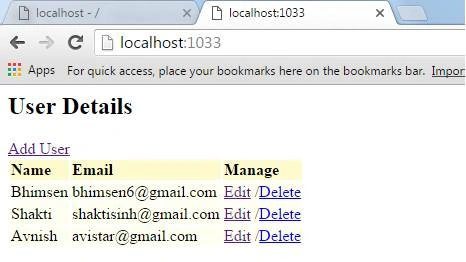
Hope your Application View will be like the following image.
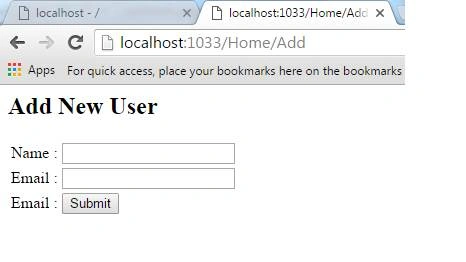
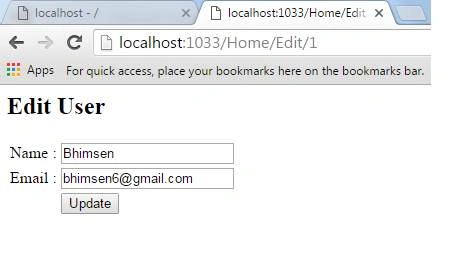
And , Like following.
Kumar BhimsenPosted Aug 22, 2019, 8:20 AM
Using Newtonsoft.Json;using Newtonsoft.Json.Linq; using System; using System.Collections.Generic; using System.Linq; using System.Net; using System.Net.Http; using System.Text; using System.Web.Http; using TestApi.Models; namespace TestApi.Controllers { public class TestController : ApiController { tstDBEntities obj = new tstDBEntities(); [HttpGet] [Route("api/Test/InsertProduct")] public HttpResponseMessage InsertProduct(string str) { bool status = false; string Error_Message = string.Empty; dynamic JsonData = JObject.Parse(str); string S_Name = JsonData.S_Name; string F_Name = JsonData.F_Name; string Address = JsonData.Address; int? CreatedBy = Convert.ToInt32(JsonData.CreatedBy); bool IsActive = Convert.ToBoolean(JsonData.IsActive); DateTime CreatedOn = DateTime.Now; using (var ctx = new tstDBEntities()) { try { HPU_Reg objHPU_Reg = new HPU_Reg(); objHPU_Reg.S_Name = S_Name; objHPU_Reg.F_Name = F_Name; objHPU_Reg.Address = Address; objHPU_Reg.IsActive = IsActive; objHPU_Reg.CreatedBy = CreatedBy; objHPU_Reg.CreatedOn = CreatedOn; ctx.HPU_Reg.Add(objHPU_Reg); if (objHPU_Reg != null) { ctx.SaveChanges(); } status = true; } catch (Exception) { status = false; } } return new HttpResponseMessage(HttpStatusCode.OK) { Content = new StringContent(JsonConvert.SerializeObject(new { Status = status, Error_Message = Error_Message })) }; } [HttpGet] [Route("api/Test/UpdateProduct")] public HttpResponseMessage UpdateProduct(string str) { bool status = false; string Error_Message = string.Empty; dynamic JsonData = JObject.Parse(str); int? Pk_regid = Convert.ToInt32( JsonData.Pk_regid); string S_Name = JsonData.S_Name; string F_Name = JsonData.F_Name; string Address = JsonData.Address; using (var ctx = new tstDBEntities()) { try { HPU_Reg objHPU_Reg = ctx.HPU_Reg.Where(p => p.Pk_regid == Pk_regid).FirstOrDefault(); if (objHPU_Reg != null) { objHPU_Reg.S_Name = S_Name; objHPU_Reg.F_Name = F_Name; objHPU_Reg.Address =Address; ctx.SaveChanges(); } status = true; } catch (Exception) { status = false; } } return new HttpResponseMessage(HttpStatusCode.OK) { Content = new StringContent(JsonConvert.SerializeObject(new { Status = status, Error_Message = Error_Message })) }; } [Route("api/Test/GetAllRegistration")] public IHttpActionResult GetAllRegistration() { IList<HpuRegViewModel> regdetails = null; using (var ctx = new tstDBEntities()) { regdetails = ctx.HPU_Reg.Select(s => new HpuRegViewModel() { Pk_regid = s.Pk_regid, S_Name = s.S_Name, F_Name = s.F_Name, Address = s.Address, // IsActive = Convert.ToInt32(s.IsActive) }).ToList<HpuRegViewModel>(); } if (regdetails.Count == 0) { return NotFound(); } else { return Ok(regdetails); } } [Route("api/Test/GetRegistratonById/{id}")] public IHttpActionResult GetRegistratonById(int id) { HpuRegViewModel obj = null; using (var ctx = new tstDBEntities()) { obj = ctx.HPU_Reg.Where(s => s.Pk_regid == id) .Select(s => new HpuRegViewModel() { Pk_regid = s.Pk_regid, S_Name = s.S_Name, F_Name = s.F_Name }).FirstOrDefault<HpuRegViewModel>(); } if (obj == null) { return NotFound(); } return Ok(obj); } [Route("api/Test/Delete/{id}")] public IHttpActionResult Delete(int id) { using (var ctx = new tstDBEntities()) { var itemToRemove = ctx.HPU_Reg.SingleOrDefault(x => x.Pk_regid == id); //returns a single item. if (itemToRemove != null) { ctx.HPU_Reg.Remove(itemToRemove); ctx.SaveChanges(); } } //Content = new StringContent(JsonConvert.SerializeObject(new { Status = status, Error_Message = Error_Message })) return Ok(); } } } using Newtonsoft.Json; using Newtonsoft.Json.Linq; using System; using System.Collections.Generic; using System.Data; using System.Linq; using System.Web; using System.Web.Script.Serialization; using System.Web.UI; using System.Web.UI.WebControls; namespace WebDemo { public partial class Default : System.Web.UI.Page { protected void Page_Load(object sender, EventArgs e) { if(!IsPostBack) { BindGrid(); } } protected void BindGrid() { using (var client = new System.Net.Http.HttpClient()) { client.BaseAddress = new Uri("http://localhost:50868/api/Test/"); client.DefaultRequestHeaders.Accept.Clear(); client.DefaultRequestHeaders.Accept.Add(new System.Net.Http.Headers.MediaTypeWithQualityHeaderValue("application/json")); var response = client.GetAsync("GetAllRegistration").Result; if (response.IsSuccessStatusCode) { string responseString = response.Content.ReadAsStringAsync().Result; DataTable dt = (DataTable)JsonConvert.DeserializeObject(responseString, (typeof(DataTable))); grdData.DataSource = dt; grdData.DataBind(); } } } protected void btnEdit_Click(object sender, EventArgs e) { Button btn = (Button)sender; GridViewRow row = (GridViewRow)btn.NamingContainer; HiddenField hdnId = (HiddenField)row.FindControl("hdnId"); Response.Redirect("AddEditUser.aspx?id="+ hdnId.Value); } protected void btnDelete_Click(object sender, EventArgs e) { Button btn = (Button)sender; GridViewRow row = (GridViewRow)btn.NamingContainer; HiddenField hdnId = (HiddenField)row.FindControl("hdnId"); using (var client = new System.Net.Http.HttpClient()) { HPU_Reg obj = new HPU_Reg(); client.BaseAddress = new Uri("http://localhost:50868/api/Test/"); client.DefaultRequestHeaders.Accept.Clear(); client.DefaultRequestHeaders.Accept.Add(new System.Net.Http.Headers.MediaTypeWithQualityHeaderValue("application/json")); var response = client.GetAsync("Delete/" + Convert.ToInt32(hdnId.Value)).Result; if (response.IsSuccessStatusCode) { string responseString = response.Content.ReadAsStringAsync().Result; dynamic JsonData = JObject.Parse(responseString); } } } } } using Newtonsoft.Json.Linq; using System; using System.Collections.Generic; using System.Linq; using System.Web; using System.Web.Script.Serialization; using System.Web.UI; using System.Web.UI.WebControls; namespace WebDemo { public partial class AddEditUser : System.Web.UI.Page { protected void Page_Load(object sender, EventArgs e) { if(!IsPostBack) { int id =Convert.ToInt32(Request.QueryString["id"]); if(id>0) { BindData(id); } } } protected void BindData(int id) { using (var client = new System.Net.Http.HttpClient()) { HPU_Reg obj = new HPU_Reg(); client.BaseAddress = new Uri("http://localhost:50868/api/Test/"); client.DefaultRequestHeaders.Accept.Clear(); client.DefaultRequestHeaders.Accept.Add(new System.Net.Http.Headers.MediaTypeWithQualityHeaderValue("application/json")); var response = client.GetAsync("GetRegistratonById/"+ id).Result; if (response.IsSuccessStatusCode) { string responseString = response.Content.ReadAsStringAsync().Result; dynamic JsonData = JObject.Parse(responseString); txtName.Text = JsonData.S_Name; txtFather.Text= JsonData.F_Name; txtAddress.Text = JsonData.Address; chkActive.Checked = Convert.ToBoolean(JsonData.IsActive); } } } protected void btnSave_Click(object sender, EventArgs e) { int id = Convert.ToInt32(Request.QueryString["id"]); string methodName = string.Empty; if (id > 0) { methodName = "UpdateProduct"; HPU_Reg obj = new HPU_Reg(); obj.Pk_regid = id; obj.S_Name = txtName.Text; obj.F_Name = txtFather.Text; obj.Address = txtAddress.Text; obj.IsActive = chkActive.Checked; obj.CreatedOn = DateTime.Now; GetSomething(obj, methodName); } else { methodName = "InsertProduct"; HPU_Reg obj = new HPU_Reg(); obj.S_Name = txtName.Text; obj.F_Name = txtFather.Text; obj.Address = txtAddress.Text; obj.IsActive = chkActive.Checked; obj.CreatedBy = 1; obj.CreatedOn = DateTime.Now; GetSomething(obj, methodName); } } public void GetSomething(HPU_Reg obj, string methodName) { using (var client = new System.Net.Http.HttpClient()) { JavaScriptSerializer js = new JavaScriptSerializer(); string jsonData = js.Serialize(obj); client.BaseAddress = new Uri("http://localhost:50868/api/Test/"); client.DefaultRequestHeaders.Accept.Clear(); client.DefaultRequestHeaders.Accept.Add(new System.Net.Http.Headers.MediaTypeWithQualityHeaderValue("application/json")); var response = client.GetAsync(methodName + "?str=" + jsonData).Result; if (response.IsSuccessStatusCode) { string responseString = response.Content.ReadAsStringAsync().Result; dynamic JsonData = JObject.Parse(responseString); // Newtonsoft.Json.Linq.JObject json = Newtonsoft.Json.Linq.JObject.Parse(responseString); if (JsonData.Status == "true") { lblMsg.Text = "Record submitted Successfully"; } else { lblMsg.Text = "OOps! Something Went wrong."; } //product = Newtonsoft.Json.JsonConvert.DeserializeObject<Product>(responseString); } } } } }
Hitanshi MehtaPosted Nov 21, 2018, 5:32 AM
Good One!!!Keep sharing!!!
Vikrant ShekharPosted Nov 6, 2017, 2:26 AM
Excellent for beginner
Munir AhmadPosted May 25, 2017, 9:55 AM
Very beautiful article for beginners....
Priya PalanisamyPosted Apr 16, 2017, 10:00 AM
Very nice explanation
Asad AliPosted Jul 19, 2016, 4:10 AM
Good one
Shobana JPosted Jul 19, 2016, 2:38 AM
Nice one
kalu singh raoPosted Jul 19, 2016, 1:26 AM
Nice...