Background
In my previous article Introduction to Web Service with Example in ASP.Net, we learned how to create a simple Web Service. This article explains how to consume the Web Service in an ASP.Net web Application. And remember, I have written this article only focusing on beginners. So let us start step-by-step so beginners can understand it very easily.
Requirement
You need to keep a Web Service application in a running mode so it can be accessible for use, so go to my article Introduction to Web Service with Example in ASP.Net, and create a Web Service and keep it in running mode I hope you have done that.
What does consuming mean?
Many beginners are confused about what consuming means, but it's very simple, it means to use Web Services in an application.
Example
I have created Web Services and now I want to use it in a real requirement so I used it in an ASP.Net Web Application. In other words, I am consuming the Web Service in an ASP.Net web application. Similarly, you can use the same Web Service in Windows, console applications, Java, and other applications.
I hope you understand the word "consuming".
So let us create a simple ASP.Net Web Application as,
- "Start" - "All Programs" - "Microsoft Visual Studio 2010".
- "File" - "New" - "Project..." then in the New Project window "C#" - "Empty Project" (to avoid adding a master page).
- Give the project a name, such as "Consumingwebservice" or another as you wish, and specify the location.
- Then right-click on Solution Explorer and select "Add New Item" - "Default.aspx" page.
- Then drag three TextBoxes, one Button, and one Label onto the "Default.aspx" page.
Then the <body> section of the Default.aspx page looks as in the following.
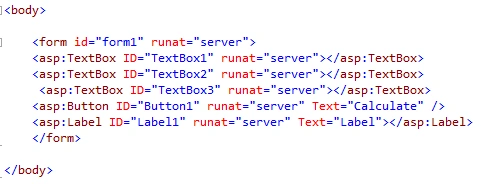
In the preceding source code, you have seen that I have taken three text boxes to get input from users because we know that our Web Service method created as in my article Introduction to Web Service with Example in ASP.Net takes the three input values day, month and year so I have taken the three text boxes and button click event. We will call the Web Service method and the output will be displayed on the label control so I have also taken one button and label control.
I hope you understand it.
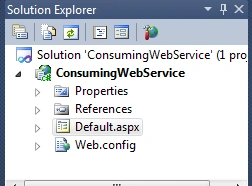
Now your Solution Explorer of ASP.Net Web Application will be as in the following.
Adding a Web Service Reference in the ASP.Net Web Application
The most important task when consuming a Web Service in an ASP.Net Web Application is adding the Web Service reference into the ASP.Net web application. So how to add it? Let us see the procedure.
Right-click on the ASP.Net Web Application and click on "Add Service Reference" as in the following.
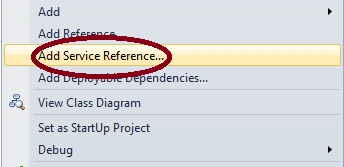
Then after clicking on the above option, the following window will appear, then click on the "Advanced" tab.

Now after clicking on the Advanced tab, it will show the following window then click on the "Add Web Reference" option as in the following in a circle.
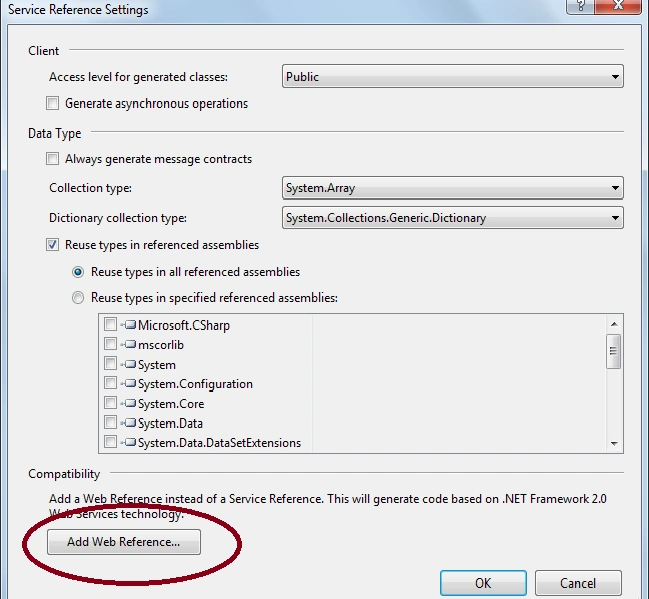
After clicking on the Add Web Reference tab, it will show the following window. Now this is a very important step when adding the web reference to the ASP.Net web Application. Since you see the "URL" option in the following window, on that window we need to paste or type the Web Service URL address.
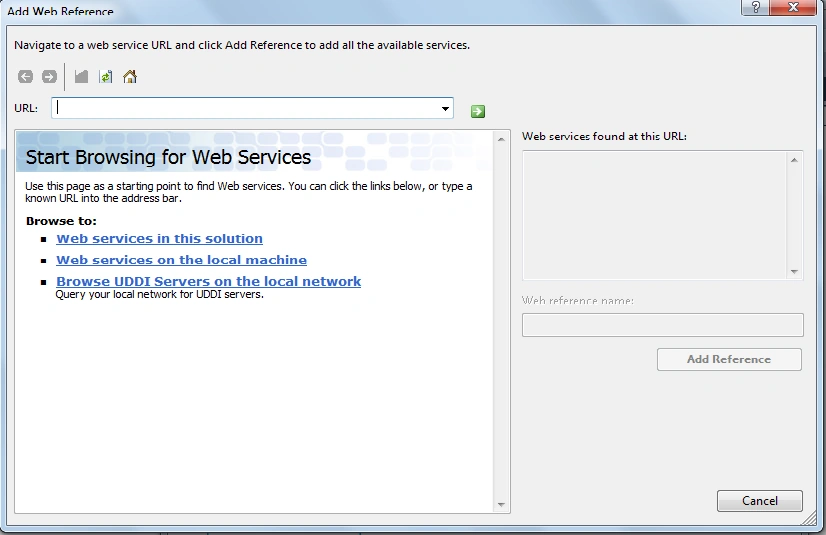
So how to add the URL Reference in the preceding URL box, let us see the procedure again.
Run the Web Service we created in my article Introduction to Web Service with Example in ASP.Net by clicking on F5 or whatever other option you are familiar with, it will then show the following web page.
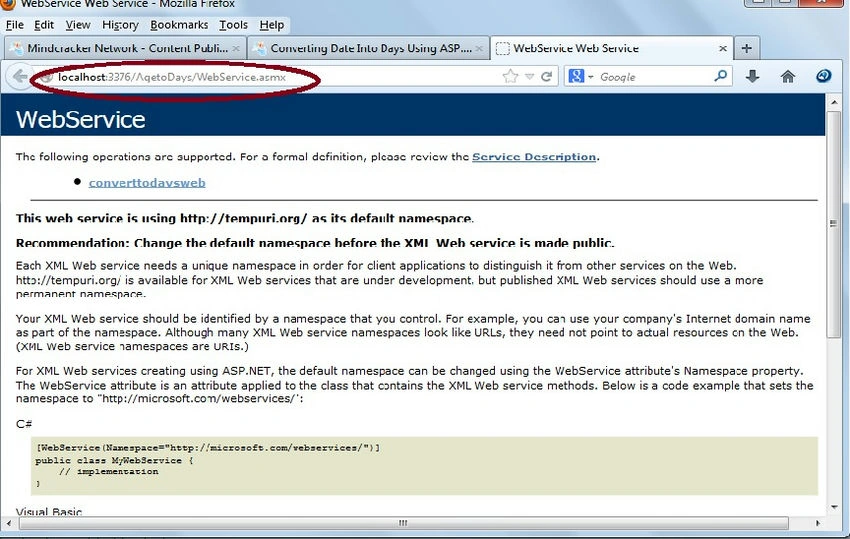
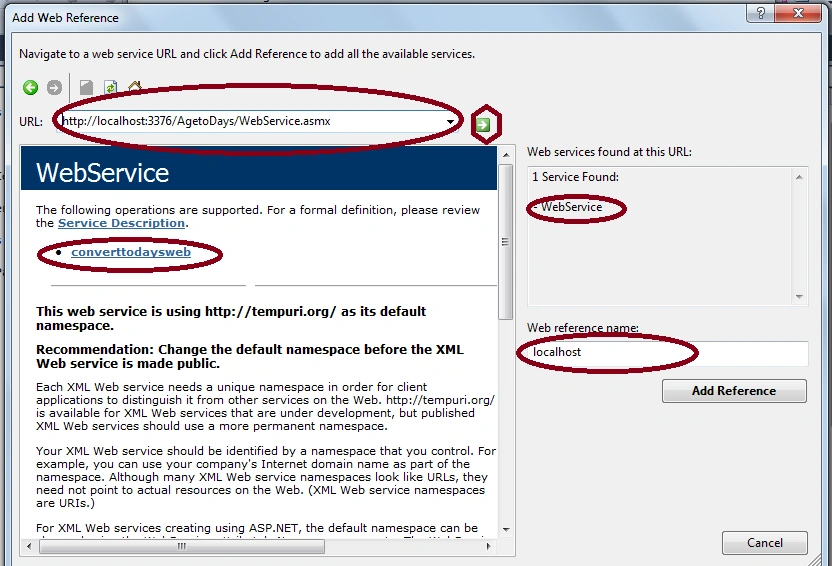
As you clearly see there, the preceding window displays the method named "convert today's web" as we created in our Web Service, now just you need to copy the preceding URL that I have circled in red and paste it into the Step 4 window URL option, then the Step 4 window will look as in the following.
What After Pasting the URL in the preceding URL box?
After pasting the URL in the preceding window box, click on the green right-headed arrow button, it will discover the Web Services available related to that URL address and you see that in that related URL one Web Service is found message is displayed along with the Web Service name, "Web Services" in the preceding right-hand side window.
The Name of the Web Service is "WebService" because I have given the class name as Web Service, that's why the name is Web Services, in your case it might be different or the class name is anything so you can use any name for Web Service so don't be confused about it.
Web Reference Name
In the right-hand corner of the window you have seen the option for the Web reference name; the web reference name is anything you wish and this name will be added to your ASP.Net Web Application as an allies name for Web Service. In my article, I have given the web reference name "local host".
Then after adding the Web Service reference in the ASP.Net web application, the Solution Explorer will look as follows.
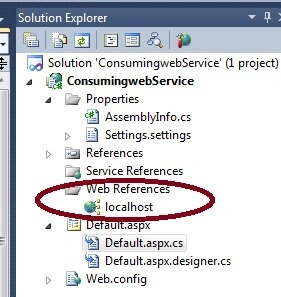
In the preceding window, you have clearly seen that the Web Service reference named "localhost" is added to the ASP.Net web Application. I hope you understand how to add the Web Service reference to the ASP.Net web application.
Calling the Web Service method from the ASP.Net Web Application
We have added the Web Service reference to our web application. Now next is how to call the Web Service method that we created in our Web Service Application from the ASP.Net Web Application.
The following is the procedure.
- Go to the Default.aspx page of our ASP.Net Web application and double-click on the button that we have placed on the Default.aspx page.
- Now write the following code in the button click to create the object of the Web Service class.
localhost.webservice age = new localhost.webservice();
In the code above, I have created the object of the Web Service class named "age" followed by the Web reference name ("localhost") and Web Service class ("web service"), I hope you understand how to create the object of the Web Service class.
The entire code of the Default.aspx.cs page will be as follows.

Code Explanation
In the code above, I first created the object of the Web Service class named "age" followed by the Web reference name ("localhost") and Web Service class ("web service").
Then I declared the three integer variables "day", "month" and "year" to store the values provided by the user as input from Textbox1, Textbox2, and Textbox3.
Now, in the next step, as you know our new Web Service method takes three parameters, so I ed the three input parameters "day", "month" and "year" to the Web Service method "converttodaysweb".
Then I declared another integer variable, "a", to store the values returned by the Web Service method "convert today's web".
Finally, I displayed the values returned by the Web Service method "converttodaysweb" on the label control using the variable "a" because, as you know, we have stored the returned values of the method into the variable a, so the final result will be stored in the variable a.
Now, run the ASP.Net web application and provide the input of day, month, and year. I will enter my Date of Birth and then I will click on the "Calculate" button, it will show the output as in the following:
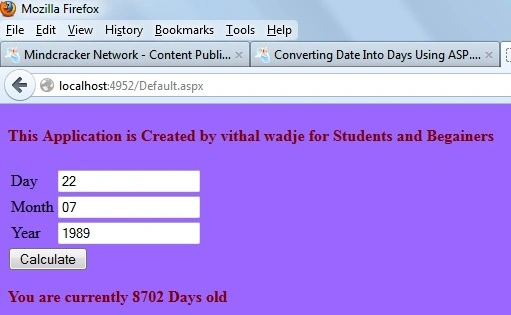
In the preceding screen, you see that currently, I am 8702 days old, which means that for the last 8702 days, I have been on this earth.
Note
- For detailed code please download the zip file attached above.
- Also, refer to my previous article about creating a Web Service.
Summary
I hope that beginners, as well as students, understand the creation and consumption of Web Services in ASP.Net web applications using my two articles. If you have any suggestion regarding this article then please contact me. Student suggestions are also welcomed.


Toxsl TechnologiesPosted May 23, 2024, 7:20 AM
Locate Service: Find the web service URL. Add Reference: Use "Add Service Reference" in Visual Studio. Invoke Methods: Call service methods using the generated proxy class. Handle Responses: Process returned data and handle errors. Security: Ensure secure transmission, handle authentication. Testing: Thoroughly test integration in different scenarios. Optimization: Optimize for performance, consider caching and asynchronous methods.
Pruebas_unitarias ONEPosted Oct 6, 2021, 2:00 AM
Where is the zip link :'(
Keshar SomvanshiPosted May 16, 2020, 1:02 PM
Good Work, serves the purpose of introducing a curious mind to create and consume ASP.NET Web service.
Manju GurjarPosted Sep 19, 2019, 2:15 AM
Thanku so much.. Please post such more content like this.
Alok SinghPosted Aug 27, 2019, 1:17 AM
Before calling the web service, how can we assure that it's running properly?
Nitin AroraPosted Jul 31, 2019, 1:15 PM
Can we sniff this request to webservice in fiddler or any other tool?
Guest UserPosted Jul 30, 2019, 3:15 AM
Question: If the webservice doesn't have a .asmx file, I can still add the service reference but when I want to create the webservice object it won't work. Any way around this?
Prateek TiwaryPosted May 5, 2019, 5:53 AM
When i give input and press the button, it says "Please Enter Only Integer Values".. how to solve this??
Umashankar RajpootPosted Mar 2, 2019, 12:52 AM
Service URL - http://35.154.31.88/CHECKOUT/service.asmxService Name - Pushdata Soap Header Values - pid – 131(Constant) fid – 3591(Constant) cid – 93(Constant) TokenKey - d06325d6-a9db-4a65-bedc-3f68fa64d5b2 (Constant) uid – DRIT (Constant) roleid – 1126 (Constant) Services Parameter – Name: xmlString Type: String Format - <?xml version="1.0"?><PARAMETERS><SID VALUE="61"/><ADDRESS VALUE=""/><AREA VALUE=""/><CIRCLE VALUE=""/><COMPLAINT_NO VALUE=""/><COMPLAINT_SUB_TYPE VALUE=""/><COMPLAINT_TYPE VALUE=""/><CONSUMER_NAME VALUE=""/><DISCOM VALUE=""/><DIVISION VALUE=""/><FRT_MOBILE VALUE=""/><JE_MOBILE VALUE=""/><LANDMARK VALUE=""/><MOBILE_NO VALUE=""/><MODE_OF_REGISTRATION VALUE=""/><PIN_NO VALUE=""/><REF_COMPLAINT_SUB_TYPE_CODE VALUE=""/><REF_COMPLAINT_TYPE_CODE VALUE=""/><REMARKS VALUE=""/><SUB_DIVISION VALUE=""/><ZONE VALUE=""/></PARAMETERS> above all the required detail for web service related . i don't know how to code for this soap service to call. please help me and reply as soon as possible.
Rafael GarciaPosted Feb 24, 2019, 6:20 PM
Because the examples can not be downloaded?
Stuart SeganPosted Feb 12, 2019, 12:25 PM
Nicely done!
naresh reddy karnaPosted Aug 30, 2018, 11:42 PM
Please help me, How can I make the URL used for reference dynamic.
Hadshana KamalanathanPosted Jul 22, 2018, 1:05 AM
Nice post..
Syed AtherPosted Oct 2, 2017, 1:05 AM
Sir how can i use webservice in same application?
mayank DesaiPosted Mar 30, 2017, 3:33 AM
Is it Possible to Call Web service asynchronously ? could you please provide some information?
Pravas RanjanPosted Feb 6, 2017, 2:27 AM
Very nicely explained keep posting like this.....
Pravas RanjanPosted Feb 6, 2017, 2:25 AM
Vithal Excellent Article Can you please add some article on Rest full web service so that it can be very helpful for us.....
Vithal WadjePosted Sep 9, 2016, 8:20 AM
Thanks
Suresh MolabantiPosted Sep 9, 2016, 3:21 AM
Nice
Vithal WadjePosted Jun 26, 2015, 11:53 AM
thanks
Arjun DhilodPosted Jun 26, 2015, 8:10 AM
nice
Vithal WadjePosted Jun 22, 2015, 11:55 AM
?
Raees KhanPosted Jun 22, 2015, 3:43 AM
Example for consume web service without adding service reference in client application.
Vithal WadjePosted Jun 14, 2015, 1:17 AM
thanks Edrick Lomibao
Edrick LomibaoPosted Jun 12, 2015, 10:23 PM
Hi Vithal Wadje im getting error when created webservice is accessing through server "No connection could be made because the target machine actively refused it 127.0.0.1:52260"
Vithal WadjePosted Jan 16, 2015, 1:11 AM
refer my article http://www.c-sharpcorner.com/UploadFile/0c1bb2/autocomplete-extender-using-Asp-Net/
Deepak MahajanPosted Jan 16, 2015, 12:44 AM
how it work with autocomplete property of text box....? plz explain
Vithal WadjePosted Dec 10, 2014, 3:29 AM
thanks sir
Sachin PatilPosted Dec 10, 2014, 2:07 AM
its great for beginner...........Thanks Vithal Wadje
Vithal WadjePosted Oct 28, 2014, 3:20 AM
janki hashmukhbhai please check ur services is running or not
Vithal WadjePosted Oct 28, 2014, 3:20 AM
thanks Hector Francisco Garcia Lara
Hector Francisco Garcia LaraPosted Oct 28, 2014, 12:21 AM
Perfect!
janki hashmukhbhaiPosted Oct 20, 2014, 2:48 AM
sir how to solve error unable to connect remote server when this project is use..
Vithal WadjePosted Jun 21, 2014, 12:35 AM
refer my other article related to web services
Vithal WadjePosted May 27, 2014, 2:28 PM
thanks,refer my previous article
Jayakumar BalasubramaniamPosted May 27, 2014, 2:16 AM
Thanks Vithal, as I am a beginner to webservice its very helpful for me. I need one more help while running webservice it returns result in XML format. how can I get that XML file in my web application ?
Arjun DhilodPosted Aug 26, 2013, 1:17 AM
Vithal How can use webservice in asp.project before to use any where must be need publish to the webservice either without publish how could be give any ref
Vithal WadjePosted Aug 23, 2013, 2:38 PM
Thanks Arjun sir for reading,but did not understand your question can you explain it more ?
Arjun DhilodPosted Aug 23, 2013, 6:30 AM
Thank to share it but i have one problem how could be use web service in as.net application without Publish
Vithal WadjePosted Aug 22, 2013, 3:11 PM
thanks ketan sir
ketan italiyaPosted Aug 22, 2013, 9:05 AM
this article is so useful thanks....