

Step 1: Open an Azure Free account.
Step 2: Open Visual Studio 2013.
Step 3: Create a new Web Application either C# or VB.NET.
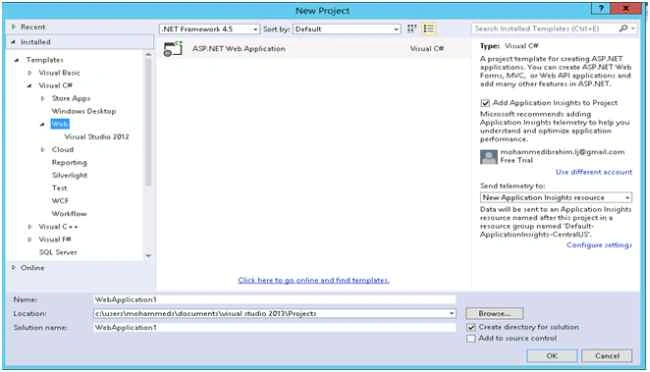
Step 4: Now a template dialog box will be visible, choose MVC and then select Change Authentication option.
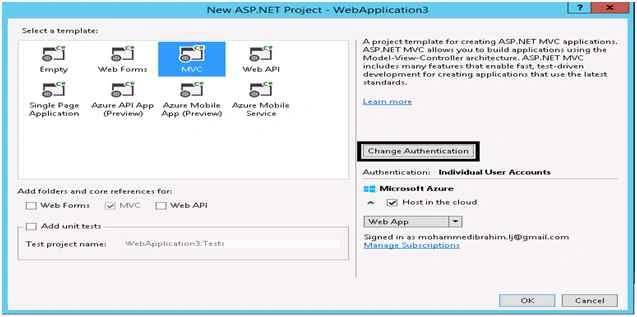
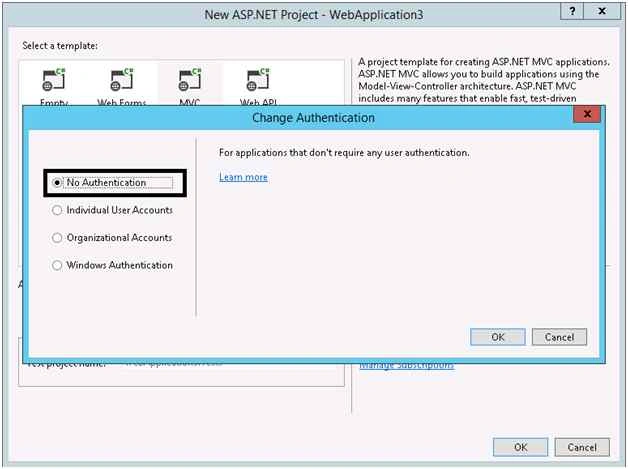
After selecting the Authentication option another dialog will appear. Select No Authentication option and click OK. Now leave the Microsoft Azure option as unchanged.
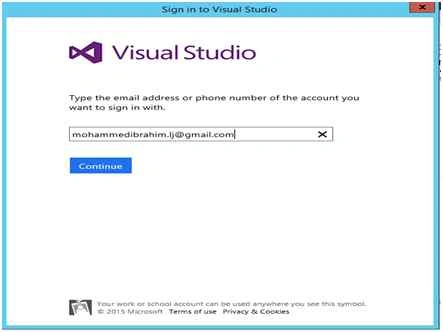
Step 5: A Login Dialog box will appear if we not login into the Azure Subscription
Step 6: After you login to the Account, Configure Microsoft Azure Web App Settings dialog box will appear:
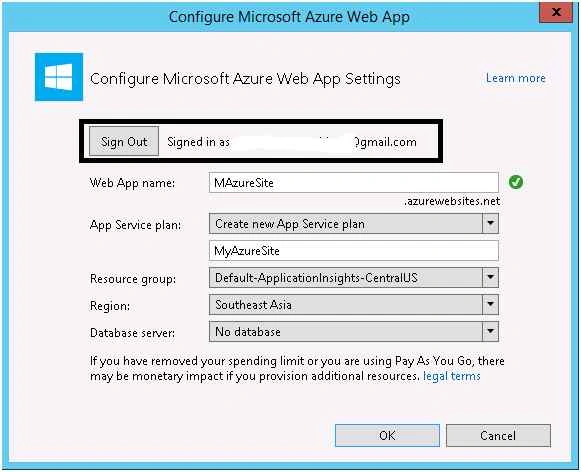
Step 7: Do the following as shown in the preceding diagram:
- In Wep App Name write the name of the site.
- In App Service plan drop down menu select a plan and give a name.
- In Resource group select a resource from the drop down menu or create your own.
- In Region select a region which is close to you.
- Then select your database connection.
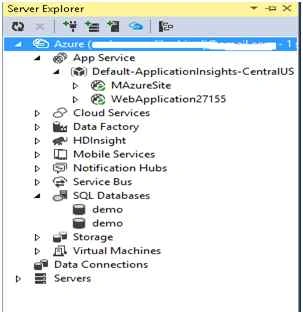
Now the App Service window will be created as in the following screenshot:
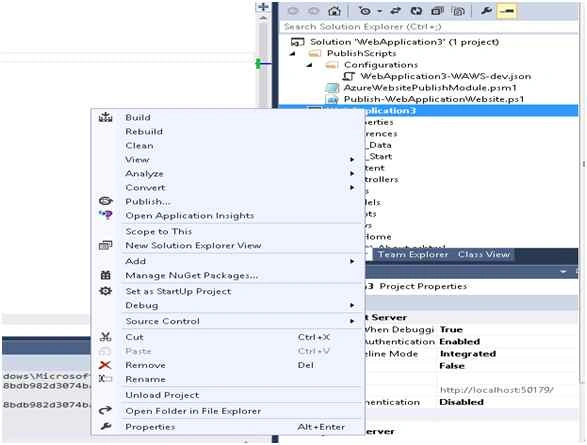
Step 8: Right click the Application and select Publish... option.
Step 9: Publish Web wizard Dialog box will appear, Select Your Profile.
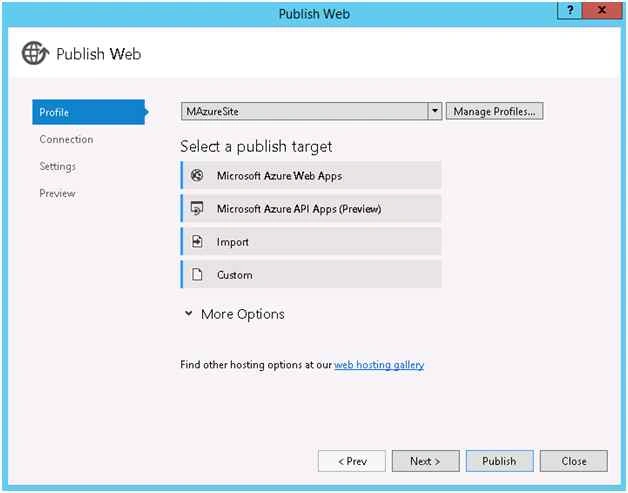
In Connection, Visual Studio will provide all the Settings automatically.
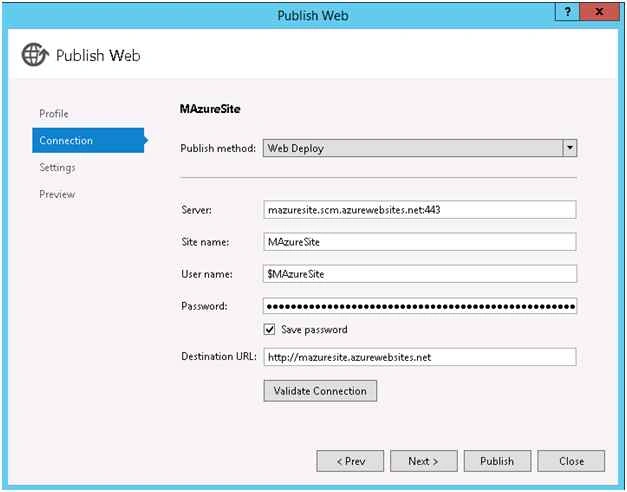
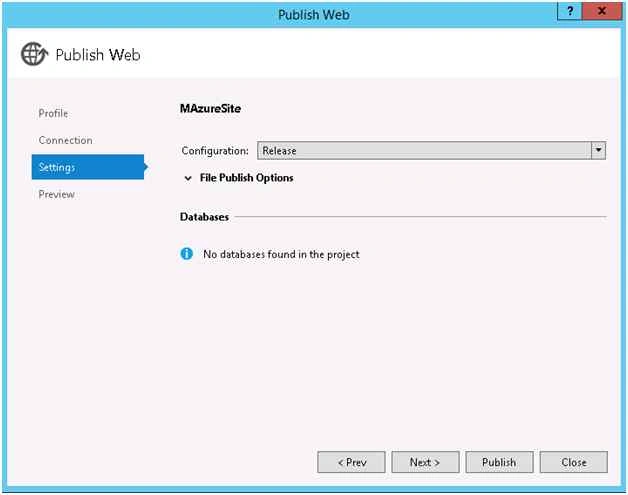
In Settings tab you can change the setting according to the remote connection.
On Preview tab, click Publish.
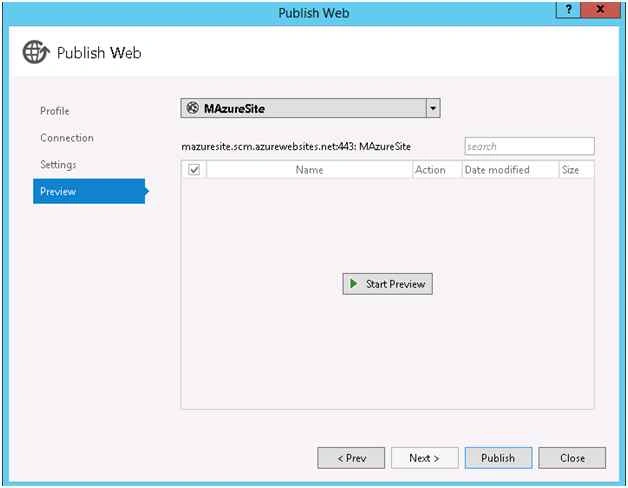
You web page will display.
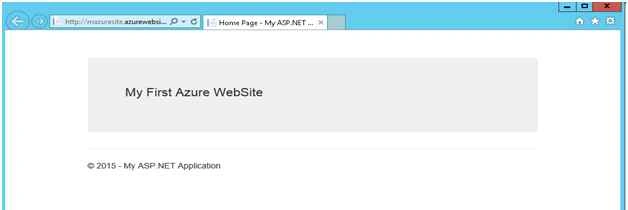
Step 10: Now open Views/Home/Index.cshtml, change the site as u need like the following.
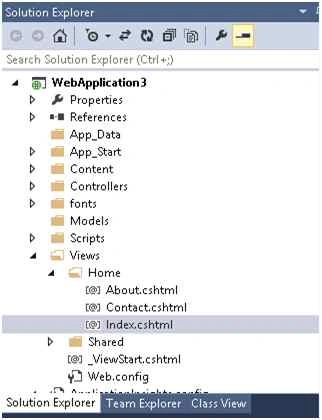

Step 11: Save the changes and again select public by right clicking the Project as in the following screenshot:
Asfend YarPosted Feb 14, 2016, 11:36 PM
very well
Arul RPosted Jan 11, 2016, 8:20 AM
Nice share
Anil KumarPosted Sep 17, 2015, 3:43 AM
nyc
Harshad PansuriyaPosted Sep 12, 2015, 3:47 AM
Nice One
Santhakumar MunuswamyPosted Sep 5, 2015, 4:05 AM
Good one. Thanks for sharing
Sumit JoshiPosted Sep 4, 2015, 11:55 AM
Thanks For Sharing.
Shridhar SharmaPosted Sep 4, 2015, 11:10 AM
nice share.
Pankaj Kumar ChoudharyPosted Sep 4, 2015, 6:51 AM
Nice Explain Mohammed Ibrahim Sir.........
Ankit BansalPosted Sep 4, 2015, 5:04 AM
thanks for sharing...
Rajeesh MenothPosted Sep 4, 2015, 3:02 AM
Good one
Karthikeyan KPosted Sep 4, 2015, 2:18 AM
Thanks for sharing