Introduction
The Angular team has now officially released the latest Angular version 8. There are many new features added to Angular 8. We will see how to create an Angular 8 application in ASP.NET Core and Visual Studio 2017. After creating the Angular application, we will create a Web API controller to fetch the latest C# Corner post details from the RSS feeds and show it in the home page of the Angular application.
Install Node JS version 10 or latest
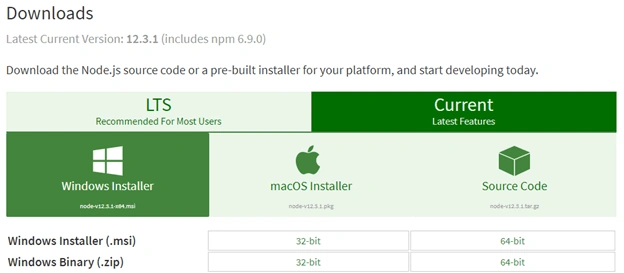
Angular 8 requires node.js version 10 or latest to run properly. We can download the node.js latest version from their
website. Even if you have an earlier version of node.js, the installer will upgrade it to the latest version.
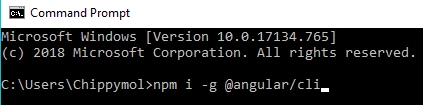
After installing the node.js latest version, we can now upgrade Angular CLI. Please use the below command to upgrade Angular CLI.
npm i -g @angular/cli
This will automatically upgrade our existing Angular version to 8 (current). Please note, this will ask you for a confirmation to share anonymous usage data to Google.
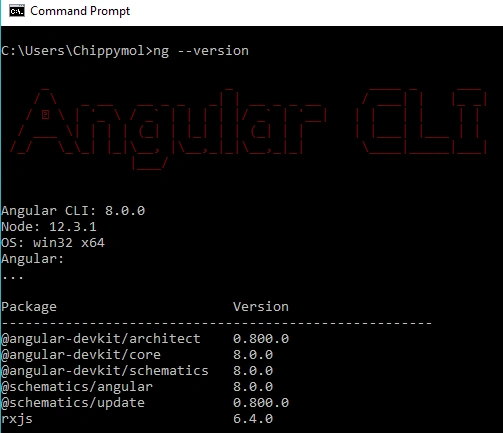
You can say no if you do not wish to share the data. It will take some moments to upgrade our Angular version. After successful upgradation, please verify your current Angular CLI version in command prompt.
We can notice that our Angular CLI is now upgraded to 8.0.0 and Node is also upgraded to 12.3.1.
Create a Web Application with ASP.NET Core and Angular template
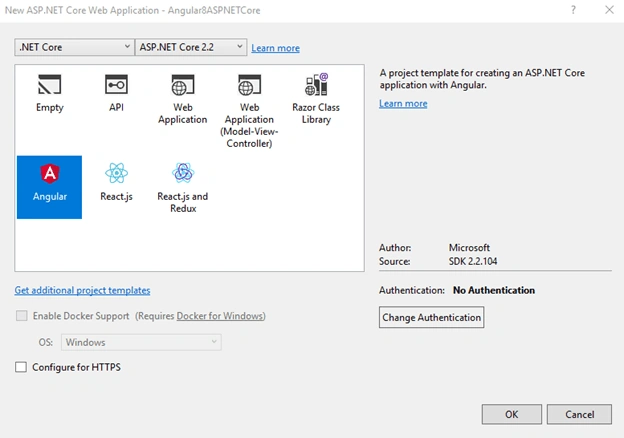
We can create a web application using ASP.NET Core and Angular template in Visual Studio 2017. I often create Angular apps with ASP.NET core in a single project. It will help us to maintain a single application to deploy IIS or Azure. Using this approach, continuous integration and continuous delivery (CI/CD) operations will be very easy.
We can choose ASP.NET Core 2.2 framework and Angular template to create the app. After some time, our project will be ready with all .NET Core dependencies.
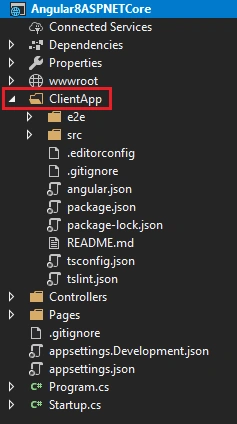
If you look at the project structure, you can see a “ClientApp” folder under “wwwroot”.
This is the Angular project. You can see only some default files like “angular.json” and “package.json” inside “ClientApp” folder.
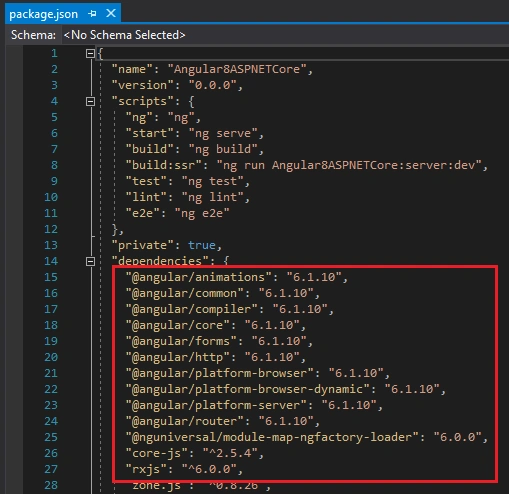
You can open the “package.json” file and find that Angular version is still 6 only. We need to upgrade our application to Angular 8.
We can simply delete the “ClientApp” folder. Using the below command, we can create a new Angular project with the same name “ClientApp”.
It will again take some time to install all the npm packages and our Angular project will be ready after a few moments.
As I informed earlier, we will fetch the latest post details from C# Corner RSS feeds and show it in Angular home page (Inside App component itself).
We can create a new “Models” folder and create a class “Feed” inside it.
Feed.cs
- using System;
-
- namespace Angular8ASPNETCore.Models
- {
- public class Feed
- {
- public string Link { get; set; }
- public string Title { get; set; }
- public string FeedType { get; set; }
- public string Author { get; set; }
- public string Content { get; set; }
- public DateTime PubDate { get; set; }
- public string PublishDate { get; set; }
-
- public Feed()
- {
- Link = "";
- Title = "";
- FeedType = "";
- Author = "";
- Content = "";
- PubDate = DateTime.Today;
- PublishDate = DateTime.Today.ToString("dd-MMM-yyyy");
- }
- }
- }
This class contains all the properties for the latest post details fetched from RSS feed.
We can create the Web API controller “RssFeedsController” inside “Controller” folder.
RssFeedsController.cs
- using Angular8ASPNETCore.Models;
- using Microsoft.AspNetCore.Mvc;
- using System;
- using System.Collections.Generic;
- using System.Globalization;
- using System.Linq;
- using System.Xml.Linq;
-
- namespace Angular8ASPNETCore.Controllers
- {
- [Route("api/[controller]")]
- [ApiController]
- public class RssFeedsController : ControllerBase
- {
- readonly CultureInfo culture = new CultureInfo("en-US");
-
- [HttpGet]
- public IEnumerable<Feed> Get()
- {
- try
- {
- XDocument doc = XDocument.Load("https://www.c-sharpcorner.com/rss/latestcontentall.aspx");
- var entries = from item in doc.Root.Descendants().First(i => i.Name.LocalName == "channel").Elements().Where(i => i.Name.LocalName == "item")
- select new Feed
- {
- Content = item.Elements().First(i => i.Name.LocalName == "description").Value,
- Link = (item.Elements().First(i => i.Name.LocalName == "link").Value).StartsWith("/") ? "https://www.c-sharpcorner.com" + item.Elements().First(i => i.Name.LocalName == "link").Value : item.Elements().First(i => i.Name.LocalName == "link").Value,
- PubDate = Convert.ToDateTime(item.Elements().First(i => i.Name.LocalName == "pubDate").Value, culture),
- PublishDate = Convert.ToDateTime(item.Elements().First(i => i.Name.LocalName == "pubDate").Value, culture).ToString("dd-MMM-yyyy"),
- Title = item.Elements().First(i => i.Name.LocalName == "title").Value,
- FeedType = (item.Elements().First(i => i.Name.LocalName == "link").Value).ToLowerInvariant().Contains("blog") ? "Blog" : (item.Elements().First(i => i.Name.LocalName == "link").Value).ToLowerInvariant().Contains("news") ? "News" : "Article",
- Author = item.Elements().First(i => i.Name.LocalName == "author").Value
- };
-
- return entries.OrderByDescending(o => o.PubDate);
- }
- catch
- {
- List<Feed> feeds = new List<Feed>();
- Feed feed = new Feed();
- feeds.Add(feed);
- return feeds;
- }
- }
- }
- }
We have added all the logic for getting data from C# Corner RSS feed.
Please note that I am using HttpClient in-app component to fetch the data from Web API service. We must include “HttpClientModule” inside the “app.module.ts” file.
app.module.ts
- import { BrowserModule } from '@angular/platform-browser';
- import { HttpClientModule } from '@angular/common/http';
-
- import { NgModule } from '@angular/core';
-
- import { AppRoutingModule } from './app-routing.module';
- import { AppComponent } from './app.component';
-
- @NgModule({
- declarations: [
- AppComponent
- ],
- imports: [
- BrowserModule,
- AppRoutingModule,
- HttpClientModule
- ],
- providers: [],
- bootstrap: [AppComponent]
- })
- export class AppModule { }
We can modify the app component and corresponding HTML file.
app.component.ts
- import { Component, OnInit } from '@angular/core';
- import { HttpClient } from '@angular/common/http';
-
- @Component({
- selector: 'app-root',
- templateUrl: './app.component.html',
- styleUrls: ['./app.component.css']
- })
- export class AppComponent implements OnInit {
- latestPosts: Feed[] = [];
- constructor(private http: HttpClient) { }
-
- ngOnInit() {
- this.http.get<Feed[]>('http://localhost:63330/api/rssfeeds').subscribe(result => {
- this.latestPosts = result;
- }, error => console.error(error));
- }
-
- }
-
- interface Feed {
- link: string;
- title: string;
- feedType: string;
- author: string;
- content: string;
- publishDate: string;
- }
app.component.html
- <!--The content below is only a placeholder and can be replaced.-->
- <div style="text-align:center">
- <h1 style="margin-top:10px;">
- Welcome to Angular<b style="color:crimson">8</b> with ASP.NET Core
- </h1>
- <img width="200" alt="Angular Logo" src="../assets/angular-asp-core.png">
- <div class="card" style="margin-left:50px; margin-right:50px; margin-bottom:50px;">
- <div class="card-header" style="font-weight:bold; font-size:x-large;">
- C# Corner Latest Posts from RSS Feeds
- </div>
- <div class="card-body">
- <div class="table-responsive" style="max-height:385px;">
- <table class="table mb-0" *ngIf="latestPosts && latestPosts.length>0">
- <thead>
- <tr>
- <th>Sl.No</th>
- <th>Post Title(With Link)</th>
- <th>Post Type</th>
- <th>Published Date</th>
- <th>Author</th>
- </tr>
- </thead>
- <tbody>
- <tr *ngFor="let post of latestPosts; let i = index">
- <td>{{ i + 1 }}</td>
- <td style="text-align:left;"><a href="{{post.link}}" target="_blank">{{post.title}}</a></td>
- <td>{{ post.feedType }}</td>
- <td>{{ post.publishDate }}</td>
- <td>{{ post.author}} </td>
- </tr>
- </tbody>
- </table>
- </div>
- </div>
- </div>
- </div>
-
- <router-outlet></router-outlet>
I have used some bootstrap classes to enhance UI experience inside the above HTML file. You must install bootstrap in the Angular project before using it.
You can import bootstrap file inside the “style.css” file to use it in the entire application without further references.
style.css
-
- @import "~bootstrap/dist/css/bootstrap.css";
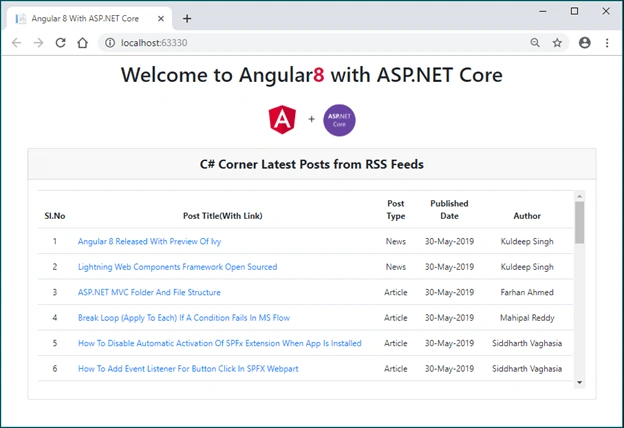
We have completed the coding part. We can run our application now. You can get the details about all the latest posts on the home page.
Conclusion
In this post, we have seen how to upgrade Angular older versions to Angular 8. We have created an Angular 8 app with ASP.NET Core. We have first created a web application with ASP.NET Core 2.2 framework and Angular template. This Angular version was 6. We have deleted the Angular project (ClientApp) and again created a new Angular project using Angular CLI with the same name. We have then created a Web API service to fetch C# Corner RSS feeds for latest post details and showed in Angular component. We will try and create more Angular projects with other new features in upcoming articles.
Please give your valuable feedback about this article.




Hamid KhanPosted Aug 20, 2020, 1:22 PM
Very good explanation..............Can you add paging, filtering, searching & Sorting
Sworup MishraPosted Jul 18, 2020, 5:15 PM
Can you please guide how to host the same project in IIS
Udhayakumar MPosted Mar 20, 2020, 9:26 AM
Access to XMLHttpRequest at 'http://localhost:63330/api/rssfeeds' from origin 'http://localhost:4200' has been blocked by CORS policy: No 'Access-Control-Allow-Origin' header is present on the requested resource.
Udhayakumar MPosted Mar 20, 2020, 9:26 AM
Hi, am getting below error. i tried to fix but not able to do. Please find below error details and help me to resolve this.
Milad ShafikPosted Nov 19, 2019, 3:45 AM
Please how we can deploy this project on IIS ??
Chittaranjan SwainPosted Nov 1, 2019, 3:59 AM
Super article...
michael walshPosted Oct 23, 2019, 6:32 PM
Hi...I've followed the tutorial, which is excellent, but I am not getting back any RSS feed. In console i am getting GET http://localhost:4200/api/rssfeeds 404 (Not Found)
Ralph ZeroPosted Oct 6, 2019, 10:33 AM
TimeoutException: The Angular CLI process did not start listening for requests within the timeout period of 50 seconds. Check the log output for error information. Refreshing the page does not solve anything.
Ray SoyPosted Sep 1, 2019, 8:02 AM
Very useful article, sir. Thank you!
Bidyasagar MishraPosted Jul 29, 2019, 11:32 PM
Great article sir
Amit MohantyPosted Jul 29, 2019, 11:27 PM
Nice thans for sharing.
Jean ECARDPosted Jul 26, 2019, 8:20 AM
Thanks, works perfectly :-)
s sPosted Jun 26, 2019, 2:07 PM
This sample is not using MVC. Please guide how we can use MVC pattern with aps.net core and angular
s sPosted Jun 26, 2019, 1:56 PM
I am getting error in browser: TimeoutException: The Angular CLI process did not start listening for requests within the timeout period of 50 seconds. Microsoft.AspNetCore.SpaServices.Extensions.Util.TaskTimeoutExtensions.WithTimeout<T>(Task<T> task, TimeSpan timeoutDelay, string message).
Edgaras LiepaPosted Jun 25, 2019, 1:59 AM
As per official documentation you are misleading about required Node version. People should use stable LTS 10.x (as of 2019-06-25) version instead of latest. Source: https://angular.io/guide/setup-local#nodejs
a eoPosted Jun 24, 2019, 12:30 PM
Good article, Thanks a lot for your efforts .But how about new article with separated projects, one for core and another for angular 8. it's good practice to do that.
Ravi MakwanaPosted Jun 22, 2019, 8:53 AM
This undoubtedly the best Angular8 with WebAPI implementation article. Thanks a lot with lots of respect!
isaias quezadaPosted Jun 21, 2019, 5:54 PM
Excelent!! Hello, I did it but when I try to publish in local IIS I get Errr HTTP 500.19 Internal Server Error; what can I do to avoid this error? Thanks a lot.
ravi kiranPosted Jun 20, 2019, 10:16 AM
Exclnt Article. How to get this working with Task Runner Explorer as the "package.json" is inside the ClientApp folder. I tried moving to source folder but its not working as expected, can you plz guide me
Michael GledhillPosted Jun 20, 2019, 7:18 AM
Excellent article... really nicely done. Two comments: 1. The "this.http.get" should really load from "../api/rssfeeds" (i.e. remove the hardcoded port number from there!) 2. I was a bit lost as to what to do to install bootstrap. It'd help to mention the command to run: "npm install bootstrap". Great article though !!
Hans-Erik HellbergPosted Jun 12, 2019, 1:59 PM
I cant connect in the my app.component.ts I get outputFailed to load resource: net::ERR_CONNECTION_REFUSED [http://localhost:63330/api/rssfeeds]. I turn of firewall in window to. What do you think? (I just started to learn this)
Hans-Erik HellbergPosted Jun 11, 2019, 12:54 PM
Fantastic job
Roger HsuPosted Jun 9, 2019, 11:52 AM
Great article,
Satyaprakash SamantarayPosted Jun 3, 2019, 10:21 AM
Nice description.
Saravanakumar SekaranPosted Jun 3, 2019, 6:05 AM
Wow very nice !!!
Faisal PathanPosted Jun 2, 2019, 2:36 PM
Excellent ^_^