

Introduction
A Bot Application runs inside an app, like Skype, web chat, Facebook, Message, etc. Users can interact with bots by sending them messages, commands, and inline requests. You control your bots using HTTPS requests to the Bot API. Azure Bot Application Service automatically configures the Web Chat channel while publishing to Azure. Bot channel includes the Web Chat Channel which can be embedded directly onto websites or bloggers for users to interact with.
In this article, we will learn how to integrate our bot application right into your blogger via the Microsoft Bot Web Chat Channel.
Create FAQ Bot Application
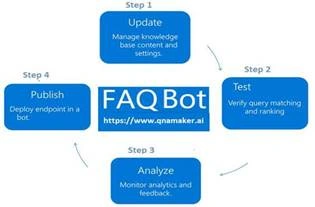
You can refer to my previous article to create and build a Xamarin FAQ Bot using Azure Bot Service and deploy it into Azure. I am not using any coding to develop the Bot application, you can follow the provided steps in the article to create and deploy the FAQ Bot.
Generate WebChat Channel Html Code
Login to Azure portal > Select the “All Resources” >Select Your Web App Bot > Select Channels. As already discussed, it automatically configured the Web Chat channel while publishing to Azure.
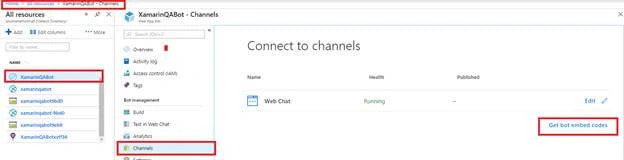
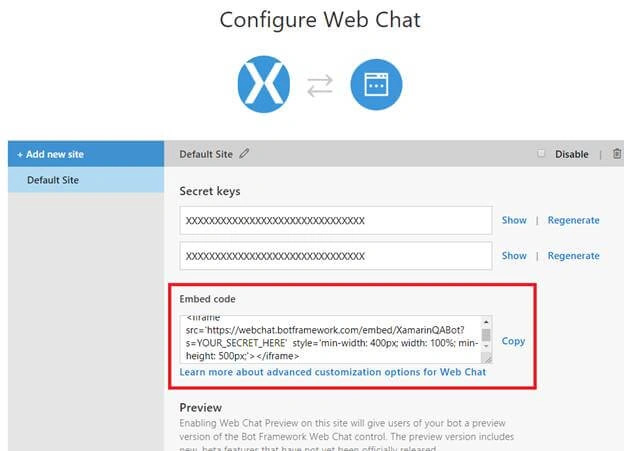
You can click on “Edit” or “Get Bot Embed Codes” and Copy the Iframe HTML code to integrate WebChat Channels to the blogger.
Integrate Bot Application into Blogger
Step 1. Sign in to your Blogger (https://www.blogger.com) account. Blogger opens on the default Dashboard page that displays a list of all your hosted blogs.
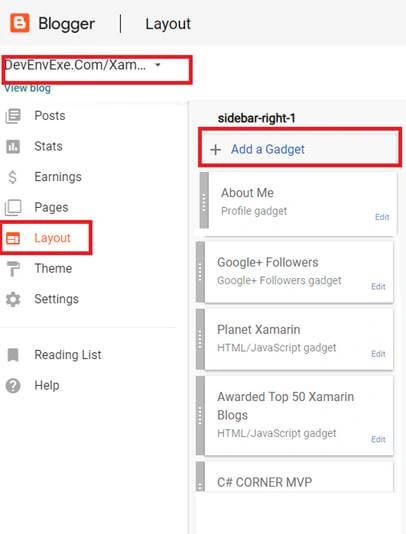
Step 2. Select your Blogger > Select the layout > Click on Add a Gadget > Add HTML and JavaScript Layout component for adding webchat embed code.
Step 3. Paste the iFrame HTML code that you copied from the Azure portal into the input box and provide the title of the Bot.
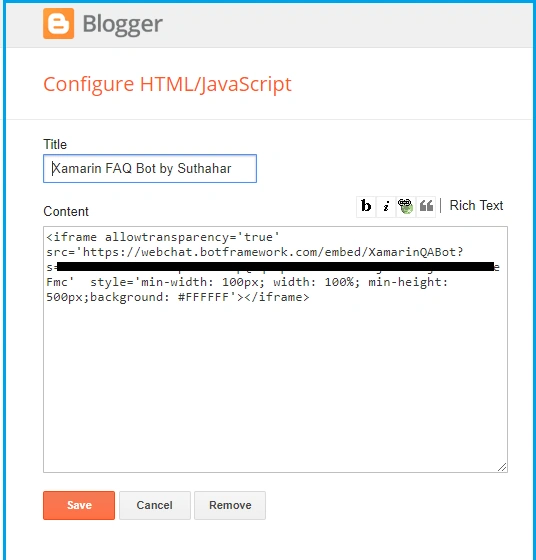
Click on preview and verify that the width and Height are aligned with your blogger layout.
Step 4. Click "Save arrangement “above the layout editor to publish the post containing the Web Chat App to your blog.
Test Web Chat Application

You can click on “View Blog” to view the original layout design and test your Bot Application.
Summary
In this article, you have learned how to integrate bot applications right into your blogger via the Microsoft Bot Framework Web Chat Channel. If you have any questions/feedback/issues, please write in the comment box.
PETER OgunleyePosted May 24, 2022, 2:18 AM
Thanks for sharing this informative article, You've added value to my blog : https://techbrainaic.blogspot.com
tharak nadhPosted Nov 12, 2018, 2:10 AM
Hi Suthahar, Whenever if I click on Test in Web Chat, automatically my bot will respond like in below "Hi Tharak, welcome to Azure , this is IT Bot. How can I help you". Please share the code or article how the bot will identify my name by intial chat itself
Satyaprakash SamantarayPosted Nov 12, 2018, 12:22 AM
That's very helpful article.
durgaprasad rapoluPosted Nov 8, 2018, 1:30 AM
Thank you sir, But how to Chat bot replays with a default message like Facebook user name . It means Hi "Fb username".
tharak nadhPosted Oct 31, 2018, 2:46 AM
Thank you, can you share the code for (Add RichCard to Bot Application Response) the below url https://www.youtube.com/watch?v=WTX9AYhGHu4
Rushi MehtaPosted Oct 30, 2018, 11:25 PM
This will help in my project. Thanks for sharing