

Windows Service is a standalone application which is started automatically or manually as per setting and complete their specific task. We can handle service using start, restart and stop. It does not have any User Interface from where you can handle the service feature. It is created and hosted on the system.
So, we can say basically Windows Service is an application that run in background and work on various tasks. Some time it is started automatically when system boot and sometimes you need to start the service manually. All the Windows Service is controlled through the Service Control Manager.
Create the Windows Service, Open Visual Studio, from the File Menu, select New and then choose Project. It will open a New Project window where you can choose various type of the project.
Go to Visual C# and select Classic Desktop and from the next window, choose Windows Service. Name the service “MyFirstWindowsService” and click to OK.

It will add a Windows Service for you. Rename the Service1.cs to TestService.cs.

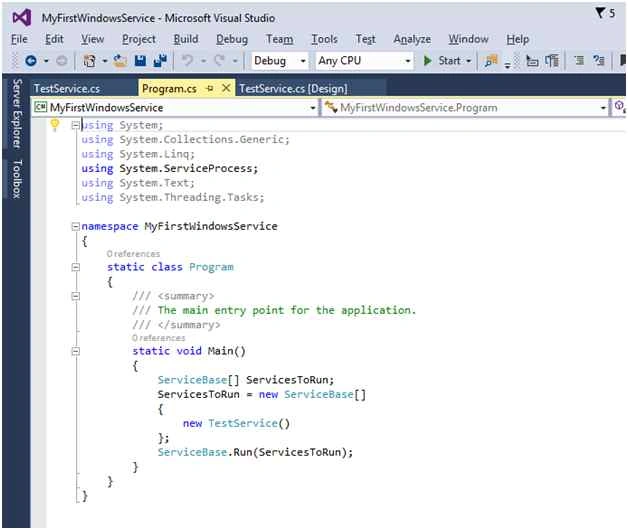
See the following Program.cs code, it is responsible for running the Windows Service.
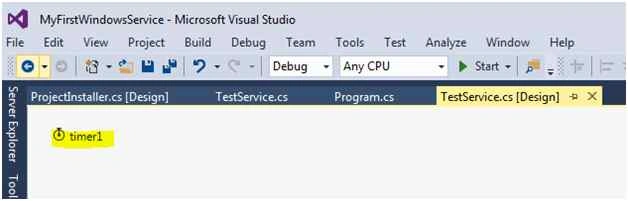
Open TestService.cs [Design] mode and add a Timer control.
Open TestService.cs and made the changes in the code as in the following. You need to write the logic to process some task on OnStart and OnStop.
- using System;
- using System.Collections.Generic;
- using System.ComponentModel;
- using System.Data;
- using System.Diagnostics;
- using System.IO;
- using System.Linq;
- using System.ServiceProcess;
- using System.Text;
- using System.Threading.Tasks;
- namespace MyFirstWindowsService
- {
- public partial class TestService: ServiceBase
- {
- System.Timers.Timer timeDelay;
- int count;
- public TestService()
- {
- InitializeComponent();
- timeDelay = new System.Timers.Timer();
- timeDelay.Elapsed += new System.Timers.ElapsedEventHandler(WorkProcess);
- }
- public void WorkProcess(object sender, System.Timers.ElapsedEventArgs e)
- {
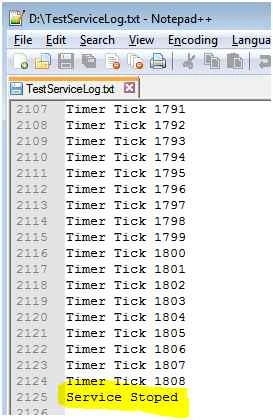
- string process = "Timer Tick " + count;
- LogService(process);
- count++;
- }
- protected override void OnStart(string[] args)
- {
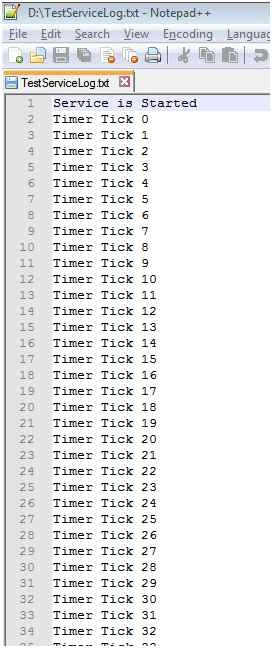
- LogService("Service is Started");
- timeDelay.Enabled = true;
- }
- protected override void OnStop()
- {
- LogService("Service Stoped");
- timeDelay.Enabled = false;
- }
- private void LogService(string content)
- {
- FileStream fs = new FileStream(@ "d:\TestServiceLog.txt", FileMode.OpenOrCreate, FileAccess.Write);
- StreamWriter sw = new StreamWriter(fs);
- sw.BaseStream.Seek(0, SeekOrigin.End);
- sw.WriteLine(content);
- sw.Flush();
- sw.Close();
- }
- }
- }


Mahsam IftikharPosted Dec 18, 2018, 5:55 AM
How to create multiple window services in C#
TPosted Oct 3, 2018, 1:35 AM
Good article! I have one query : Can I have a common service which has functionalities in managed C++/CLI and also some functionalities in c# ?
Vaibhav AgarwalPosted Jun 26, 2018, 12:45 AM
This is one of the best articles for Windows Service Creation in VS 2013/2015/2017 IDE
Ashutosh RjtPosted Feb 13, 2018, 12:13 PM
My service is not getting started as it is not used by any other process...and getting stopped...Please suggest what to do?
Sachin KumarPosted Dec 17, 2017, 7:00 PM
How to install window service in production environment where there is no visual studio command prompt available ?
Gandhi JayPosted Nov 22, 2017, 7:12 AM
How to store timer trick into database instead of .txt file .. pls suggest me
Mansoor AnwarPosted Jul 21, 2017, 4:03 PM
Process QProc = new Process(); QProc.StartInfo.FileName = "cmd"; QProc.StartInfo.Arguments ="/c InstallUtil "+ "\""+ filefullPath +"\""; QProc.StartInfo.WorkingDirectory = Environment.GetEnvironmentVariable("windir") + @"\Microsoft.NET\Framework\v2.0.50727\"; QProc.StartInfo.UseShellExecute = false; // QProc.StartInfo.CreateNoWindow = true; QProc.StartInfo.RedirectStandardOutput = true; QProc.Start(); //QProc.WaitForExit(); QProc.Close();
Venu VijayannaPosted Jun 19, 2017, 5:52 AM
Following Issue : [The installation failed, and the rollback has been performed] . I was facing when i run Command prompt as administrator and executed command . issue resolved .
Humayun Kabir MamunPosted Dec 7, 2015, 3:16 AM
Nice...
Ankit BansalPosted Dec 7, 2015, 12:50 AM
nice one..thanks
Aishwarya DPosted Dec 7, 2015, 12:17 AM
Nice
Ankur MistryPosted Dec 6, 2015, 5:57 AM
good one