

This article is mainly focused on creating applications using the Visual Basic for Applications (VBA) programming language. With Excel VBA you can automate tasks in Excel using what is called a macro. Create a simple macro that will be executed after clicking on a command button.
Chapter 1
In this chapter, learn how to turn on the Developer tab. The Developer tab is not visible by default in Excel, we must configure it to show that tab. This tab contains a variety of tools that allows development and customization of Excel macro applications.
This guidance applies to Excel 2010.
- Start the Excel application.
- On the File tab, click the Options button.
The following figure shows the File tab and Options button in Excel 2010.

- Choose the Customize Ribbon button in the Excel Options dialog box.
- Check the Developer check box.
The following figure shows the Customize Ribbon in Excel 2010.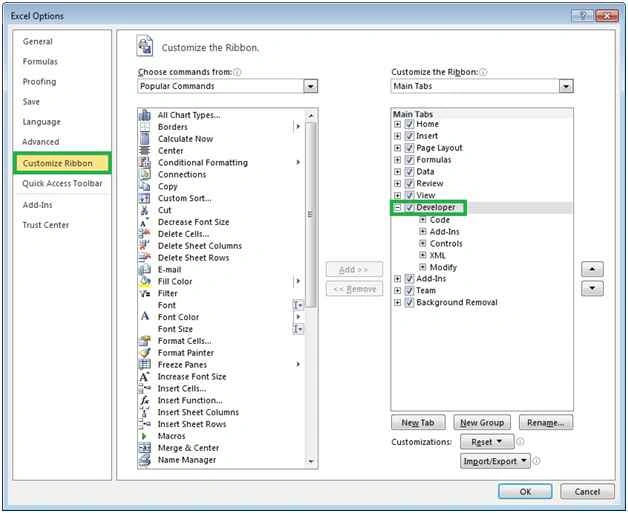
- Click OK to save the selection changes.
Chapter 2
This chapter teaches you how to create a simple login form in Excel VBA. The User form we will create looks as follows.
The following figure shows the simple login form in Excel VBA.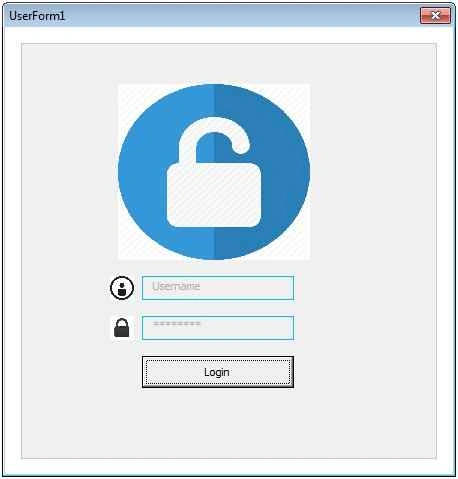
Step 1
To place a command button on your worksheet and assign a macro:
- On the Developer tab click Insert.
- In the ActiveX Controls group click the Command Button.
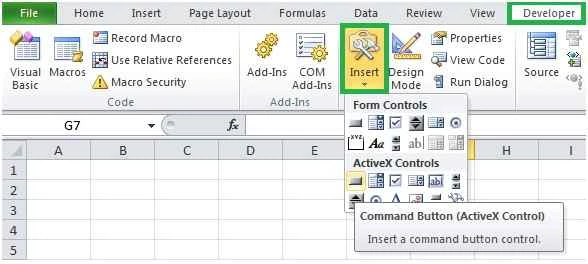
- Drag a Command Button onto your worksheet.
- Right-click CommandButton1 and click View code.
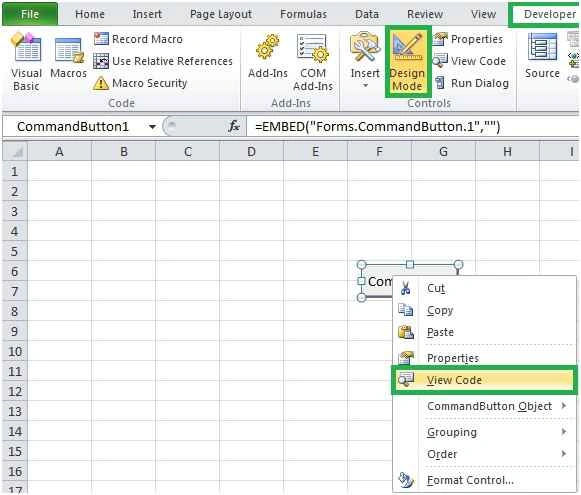
(Hint: be sure Design Mode is selected.)
- On the Insert tab click New User Form.
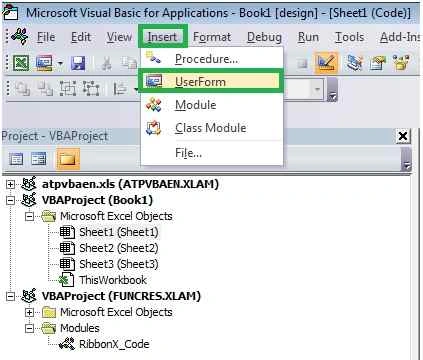
- Right-click Sheet1 and click View code to write the code between Private Sub CommandButton1_Click () and End Sub.
- Add the code line shown below.
- Private Sub CommandButton1_Click ()
- UserForm1.Show
- End Sub
Step 2
Add Controls.
- Add the controls listed in the table below. Clicking on control from the Toolbox next you can drag a control on a User Form:
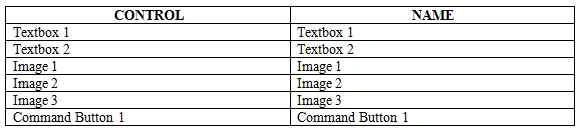
Command Button 1
I modified some of the properties for that control
TextBox 1
I modified some of the properties for that control
TextBox 2
I modified some of the properties for that control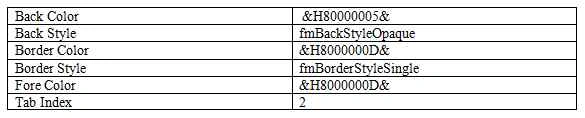
Image 1(Login)
I modified some of the properties for that control
Image 2(Username)
I modified some of the properties for that control
Image 3 (Password)
I modified some of the properties for that control
- In the Project Explorer, right-click on UserForm1 and then click View Code.
- Add the following code lines.
- Public Username As String
- Public Password As String
- Public i As Integer
- Public j As Integer
- Public u As String
- Public p As String
- Private Sub CommandButton1_Click ()
- Application.ScreenUpdating = False
- If Trim (TextBox1.Text) = "" And Trim (TextBox2.Text) = "" Then
- MsgBox "Enter username and password.", vbOKOnly
- Else If Trim (TextBox1.Text) = "" Then
- MsgBox "Enter the username ", vbOKOnly
- Else If Trim(TextBox2.Text) = "" Then
- MsgBox "Enter the Password ", vbOKOnly
- Else
- Username = Trim (TextBox1.Text)
- Password = Trim (TextBox2.Text)
- i = 1
- Do While Cells (1, 1).Value <> ""
- j = 1
- u = Cells (i, j).Value
- j = j + 1
- p = Cells (i, j).Value
- If Username = u And Password = p And Cells (i, 3).Value = "fail" Then
- MsgBox "Your Account temporarily locked", vbCritical
- Exit Do
- Else If Username = u And Password = p Then
- Call clear
- UserForm1.Hide
- UserForm2.Label1.Caption = u
- UserForm2.Label1.ForeColor = &H8000000D
- UserForm2.Show
- Exit Do
- Else If Username <> u And Password = p Then
- MsgBox "Username not matched", vbCritical + vbOKCancel
- Exit Do
- Else If Username = u And Password <> p Then
- If Cells (i, 3).Value = "fail" Then
- MsgBox "Your account is blocked", vbCritical + vbOKCancel
- Exit Do
- Else If Cells (i, 4).Value < 2 Then
- MsgBox "Invalid password", vbCritical
- Cells (i, 4).Value = Cells (i, 4) + 1
- Exit Do
- Else
- Cells (i, 4).Value = Cells (i, 4) + 1
- Cells (i, 3).Value = "fail"
- Cells (i, 2).Interior.ColorIndex = 3
- Exit Do
- End If
- Else
- i = i + 1
- End If
- Loop
- End If
- Application.ScreenUpdating = True
- End Sub
- Sub clear ()
- TextBox1.Value = ""
- TextBox2.Value = ""
- End Sub
- Private Sub TextBox1_Enter ()
- With TextBox1
- .Back Color = &H8000000E
- .Fore Color = &H80000001
- .Border Color = &H8000000D
- End With
- TextBox1.Text = ""
- End Sub
- Private Sub TextBox1_AfterUpdate ()
- If TextBox1.Value = "" Then
- TextBox1.BorderColor = RGB (255, 102, 0)
- End If
- i = 1
- Do Until Is Empty (Cells (i, 1).Value)
- If TextBox1.Value = Cells (i, 1).Value Then
- With TextBox1
- .Border Color = RGB (186, 214, 150)
- .Back Color = RGB (216, 241, 211)
- .Fore Color = RGB (81, 99, 51)
- End With
- End If
- i = i + 1
- Loop
- End Sub
- Private Sub TextBox2_Enter ()
- With TextBox2
- .Back Color = &H8000000E
- .Fore Color = &H80000001
- .Border Color = &H8000000D
- End With
- TextBox2.Text = ""
- End Sub
- Private Sub TextBox2_AfterUpdate ()
- i = 1
- Username = TextBox1.Value
- Password = TextBox2.Value
- If TextBox2.Text = "" Then
- TextBox2.BorderColor = RGB (255, 102, 0)
- End If
- Do Until Is Empty (Cells (i, 1).Value)
- j = 1
- u = Cells (i, j).Value
- j = j + 1
- p = Cells (i, j).Value
- If Username = u and Password = p Then
- With TextBox2
- .Border Color = RGB (186, 214, 150)
- .Back Color = RGB (216, 241, 211)
- .Fore Color = RGB (81, 99, 51)
- End With
- Exit Do
- Else If Username = u and Password <> p Then
- TextBox2.BorderColor = RGB (255, 102, 0)
- Exit Do
- Else
- i = i + 1
- End If
- Loop
- End Sub
- Sub settings ()
- With UserForm1
- TextBox1.ForeColor = &H8000000C
- TextBox2.ForeColor = &H8000000C
- TextBox1.BackColor = &H80000004
- TextBox2.BackColor = &H80000004
- TextBox1.Text = "Username"
- TextBox2.Text = "Password"
- TextBox1.BorderColor = RGB (0, 191, 255)
- TextBox2.BorderColor = RGB (0, 191, 255)
- CommandButton1.SetFocus
- End With
- End Sub
- Private Sub UserForm_Initialize ()
- Call settings
- End Sub
Step 3
Test the user form using the following.
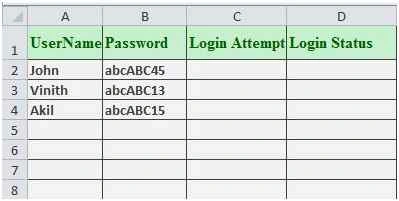
- Exit the Visual Basic Editor, enter the labels and data shown below into rows.
- Deselect the Design mode selection then click Command Button 1 on the sheet.
Demos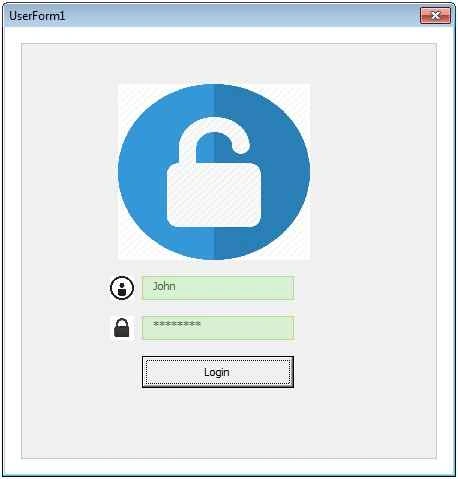
The following figure shows the Welcome page after successful login.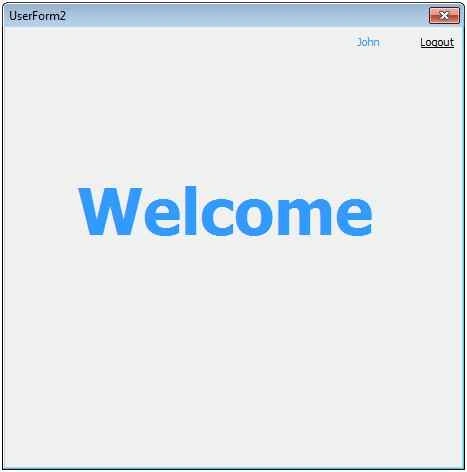
The following figure shows entering an invalid password.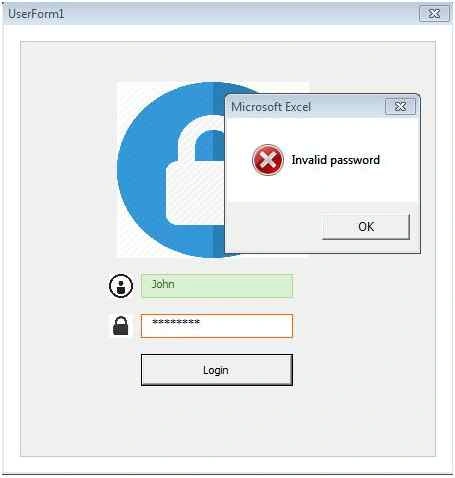
The following figure shows login status and login attempt.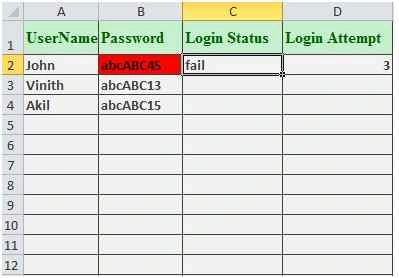
The following figure shows an account blocked after trying the wrong password 3 times.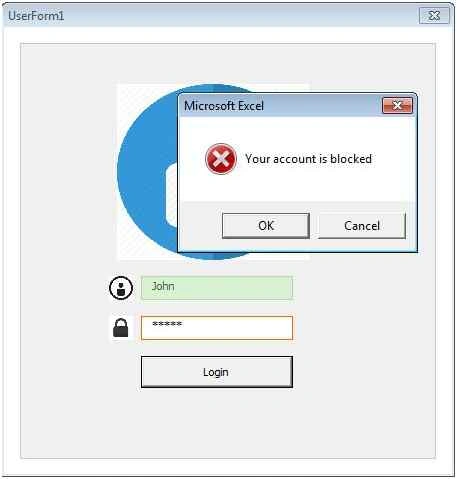
Thanks for reading. I hope this article useful for VBA beginners.
(Hint: Excel source password -> 123987)
Alati PhaPosted Nov 17, 2020, 9:08 AM
Please, the login form is displaying error and asking for the error to be corrected.
Eljhie AllabaPosted May 12, 2020, 4:30 AM
Password for the file please...
chan coinsPosted Mar 30, 2020, 5:08 PM
What is the password sir. it hard to know the hint
R VENKATESHPosted Sep 24, 2019, 3:25 AM
Why u can take i,j,k as string
Bob ManningPosted Mar 12, 2018, 7:49 PM
Hello, I have tried multiple times this password 123987) and it is incorrect. This is password protected upon opening the spreadsheet. Can someone supply the coorect one.
krishna krishPosted Mar 1, 2018, 7:01 AM
Hello iam download a source file need password sir
krishna krishPosted Mar 1, 2018, 7:01 AM
Hello iam download a source file
pavi joyPosted Jan 4, 2018, 12:27 AM
If wrong password and username error overflow fix...
Tiago DefazPosted Dec 28, 2017, 10:38 AM
WHICH IS THE PASSWORD TO EDIT MACROS?
M MallickPosted Nov 30, 2017, 8:58 AM
Its excel login password code is giving error please modify it.
armin BahrainiPosted May 24, 2017, 1:48 AM
Hello please add Buttons : registery and password forgot
Jerome DPosted May 9, 2017, 4:43 AM
HI Karthik, its very useful for me to keep confidential MIS reports etc. but am facing some login issue, by entering a username which is not in this User list. its leading me to the Sheet....
Santosh ReddyPosted Apr 25, 2017, 3:51 AM
WELCOME is not showing rest of them all good..i want if they sign in only they can access my account
Prabakaran ManiPosted Mar 18, 2017, 2:30 PM
If possible to change the sheet 1 to sheet 3
Anna PfenningerPosted Mar 6, 2017, 8:00 AM
I have a question. If a person logs in, should be filtered in the second table certain lines. The person may do only his contribution. All the other contributions, are filtered is (faded out). If this is possible. Thanks for Help
Anna PfenningerPosted Mar 6, 2017, 7:55 AM
Thank you for your post, is very helpful
Ramchander KoliPosted Jan 28, 2017, 2:14 AM
How to download this file
arianfar arianfarPosted Dec 4, 2016, 9:22 AM
Its very very nice thanks for share of this file & this teach... . GOOD LUCK MR Karthikeyan K
LIJIN LOUISPosted Nov 17, 2016, 12:56 AM
Hello Karthikeyan.How are you?Your blog helped me to work Excel smoothly. Now I have a requirement that "Command Button" on Sheet-1 and username and password must be on another sheet. How is it possible to change the code to execute the output? Hopefully awaits for your response
Sandy RachmatPosted Jun 14, 2016, 2:46 AM
why you use u = Cells(i,j) and p = Cells(i,j+1) when i = 1, so we can login using username is UserName and password is Password
Joshua Dela CruzPosted May 30, 2016, 8:29 AM
error when I typed username that is not included in the sheet. error said Runtime Error 6: Overflow i = i + 1
Sr KarthigaPosted Feb 26, 2016, 9:38 AM
good one
Sr KarthigaPosted Feb 26, 2016, 9:38 AM
nice explanation
Gowtham RajamanickamPosted Jan 5, 2016, 7:27 AM
Good article
ruhuddin shaikPosted Dec 6, 2015, 1:22 AM
how toopen the source file?
Sibeesh VenuPosted Aug 7, 2015, 8:22 AM
Nice Share!.
Neeraj KumarPosted Aug 7, 2015, 7:18 AM
Nice Article
Ankit BansalPosted Aug 7, 2015, 2:09 AM
nice...thanks for share..
Karthikeyan KPosted Aug 7, 2015, 1:29 AM
Thanks Debasis sir
Karthikeyan KPosted Aug 7, 2015, 1:28 AM
Thanks Rajessh sir
Debasis SahaPosted Aug 7, 2015, 12:54 AM
Nice one...
Rajeesh MenothPosted Aug 7, 2015, 12:29 AM
Welcome to c# corner community..Good Start
Karthikeyan KPosted Aug 7, 2015, 12:14 AM
Thanks Gopi sir
Gopi ChandPosted Aug 6, 2015, 11:54 PM
Excellent...!!!
Karthikeyan KPosted Aug 6, 2015, 11:08 PM
Thanks Rakesh sir
RakeshPosted Aug 6, 2015, 10:53 PM
Good one