

Previously, in this series, I wrote:
This article shows how to connect get data from a Microsoft Access data source and create a report using Power BI Desktop.
Getting Started
Start Power BI Desktop and click on the Get Data link in the left side bar as you can see in Figure 1.
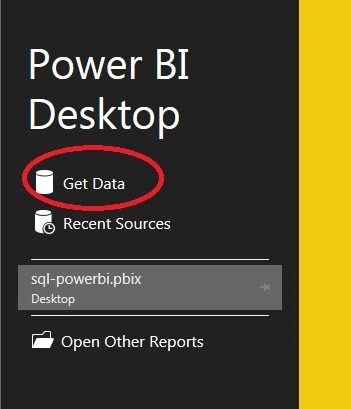
Figure 1
On the Get Data dialog, you can see a list of available data sources. Select Database in the left bar and select Access Database and click the Connect button as in Figure 2.
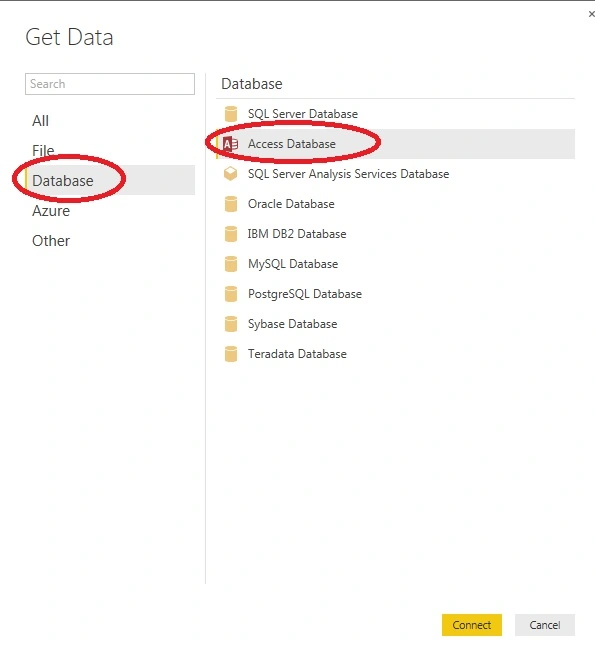
Figure 2
Browse to the Microsoft Access database file in the system and click Open.
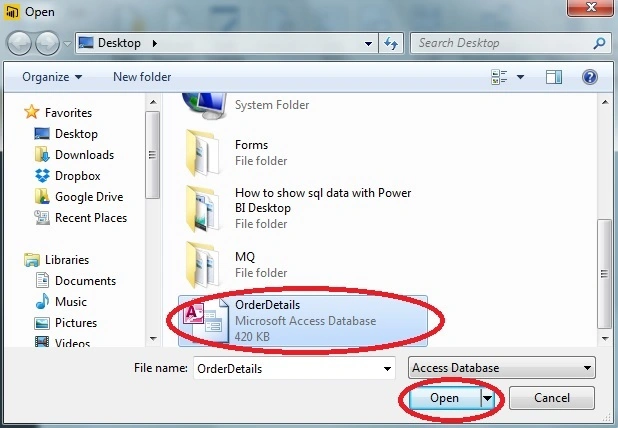
Figure 3
You might the error message shown in Figure 4 if you don’t have the Microsoft Access 64-bit service pack. Go through with this link to install Service Pack 1 and redistributable. https://go.microsoft.com/fwlink/?LinkID=285987
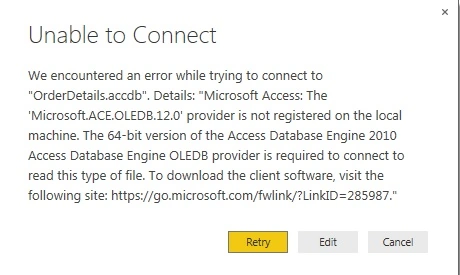
Figure 4
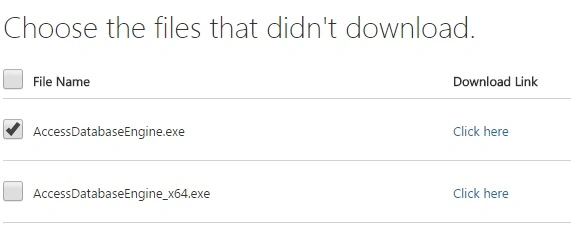
Figure 5
Once done everything is all done. You can see your database and click Load.
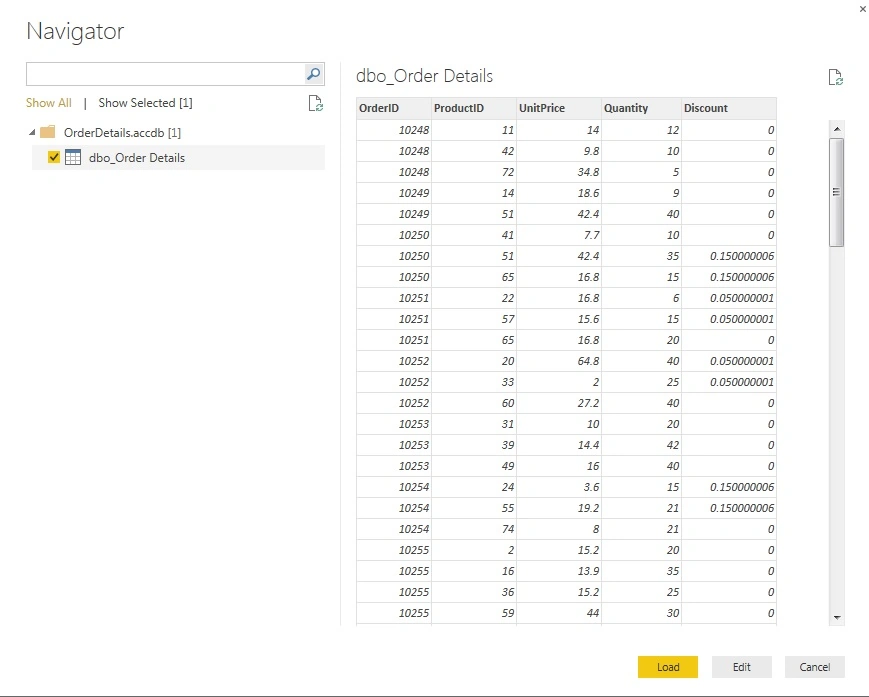
Figure 6
Now select that columns you want to display in report and select visualization. I am selecting Discount, Quantity and UnitPrice columns.
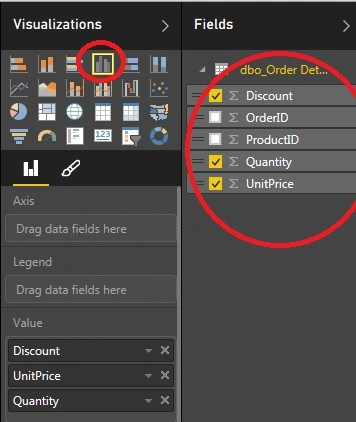
Figure 7
And my visualization is Clustered Column Chart. In the result you can see the unit price.
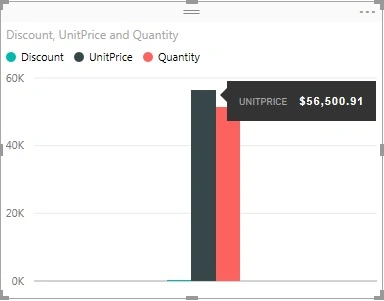
Figure 8
And here is the quantity chart.
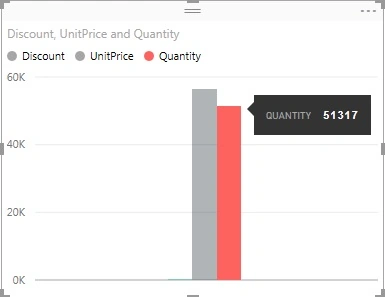
Figure 9
And the little one is the discount chart.
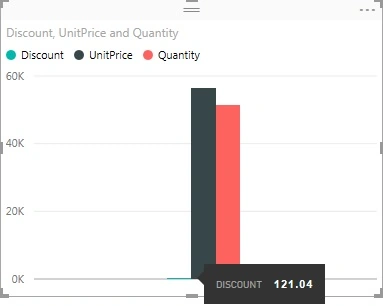
Figure 10
In this article, we saw how to connect with an Microsoft Access data source to get data and generate charts and reports in Power BI.
In my next article, we will see how to publish Power BI Reports.
Kuppurasu NagarajPosted Apr 11, 2016, 1:39 PM
Nice Sharing
Kuppurasu NagarajPosted Apr 11, 2016, 1:37 PM
Nice Sharing
Gopi ChandPosted Aug 25, 2015, 10:11 AM
Good work
Raj KumarPosted Aug 25, 2015, 8:39 AM
Thank you guys
Ankit BansalPosted Aug 25, 2015, 6:18 AM
good..
Nilesh JadavPosted Aug 25, 2015, 12:17 AM
Good Article thanks for sharng
Karthikeyan KPosted Aug 24, 2015, 11:18 PM
Good one sir...Thanks for sharing
Gowtham KPosted Aug 24, 2015, 11:10 PM
Thanks for sharing
Mahesh ChandPosted Aug 24, 2015, 7:07 PM
Great. Power BI is going to be one of the most demanding skiilset in coming year or so. Microsoft's entire BI team is working on this. Cheers!
Raj KumarPosted Aug 24, 2015, 4:53 PM
Thanks Guys
Atul GuptaPosted Aug 24, 2015, 12:12 PM
Very Informative, thanks for sharing!
Sumit JoshiPosted Aug 24, 2015, 9:54 AM
thanks for sharing.
Gowtham KPosted Aug 24, 2015, 9:29 AM
Good one, Thanks for sharing
Sibeesh VenuPosted Aug 24, 2015, 9:22 AM
Nice Share :)
Rajeesh MenothPosted Aug 24, 2015, 6:45 AM
Nice One
Mohammed IbrahimPosted Aug 24, 2015, 6:36 AM
nice