
Introduction
Creating a list of customers is very common task. When creating applications in Windows Mobile environment, programmer has a difficult task to cope with a device that has small memory, small display and slow processor. Therefore, designing an application for a mobile device can be a lot more tricky compared to desktop designing a desktop application. In this article I will demonstrate how easy it is to design and program Resco AdvancedList control on Microsoft .NET Compact Framework platform, in an application that displays a list of customers. Main features of this application will be:
- Short loading time (display the list as soon as possible)
- Ability to search for a particular customer in the list
- Ability to use the hardware keys in the application
- Highlighting the search results in the list
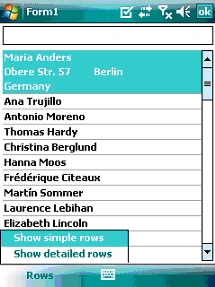
- Ability to choose the level of details in the list
- All this in several tens lines of code
Designing AdvancedList
Resco MobileForms Toolkit, which contains the AdvancedList control, can be downloaded here. After succesful installation, AdvancedList control should be present in the Visual Studio's Toolbox. Drag it on the form together with one TextBox and design the main menu so that it looks like on the picture below:
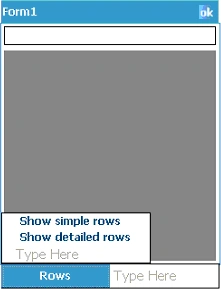
Now we will use AdvancedList's strong support for Visual Studio's designer and thus have the most of the code generated. Go to the properties of AdvancedList control and edit its Templates property.
In the Row Template collection editor add a Row Template to AdvancedList. Set its height to 16 and name it ‚Simple. From now on I will refer to this Row Template as to simple Row Template. Edit the CellTemplates property. Add one TextCell to this simple Row Template. Set its CellSource and Name properties to 'ContactName' and change the TextFont so it is bold. This simple Row Template will only display the name of our customer.
Once the user selects a row, we want additional information to be displayed about the customer. Besides his name, we want to display the Address, City and Country. We need to create a new Row Template that will be used to display this data from a row. Go back to Row Template collection editor and add one more Row Template. Name it 'Selected'. Change ForeColor to 'HighlightText' and BackColor to 'HighLight'. Change its Height to 48. Add four TextCells to this Row Template. Name them:
- ContactName
- Address
- City
- Country
The size of the used font is 8 points by default. Having one row 16 pixels high is adequate to display text using an 8 point sized font. We will therefore make 4 TextCells 16 pixels high. It is now up to you to set their Bounds property so that they do not overlay (although they may) and that every TextCell's Text is readable. I used these values for Bounds:
- 0; 0; -1; 16
- 0; 16; 100; 16
- 100; 16; -1; 16
- 0; 32; -1; 16
In this sample, we will display data from a SqlCe database file called Northwind.sdf which you can download here. Then add it to your solution as a content.
You can now inspect the Northwind.sdf database in the Server Explorer tool of Visual Studio. You will find out that it contains a 'customers' table which contains the same column names as we gave to the TextCells in the Selected Row Template. The CellSource property defines the name of the columns which will be used to take the data from for the TextCells. Assign the CellSource properties of the TextCells in Selected Row Template accordingly. Also change their TextFont property to bold style. Confirm the changes.
We now need to let AdvancedList know that we want to use the simple Row Template to display unselected rows and the selected Row Template to display the selected rows. Set AdvancedList's TemplateIndex property to 0 and SelectedTemplateIndex property to 1. Those are indices of our Row Templates in their RowTemplate collection.
AdvancedList is now ready to load the data.
Loading the data
To load the data from SQL CE databse, create the SqlCeConnection object and a SqlCeCommand object. Use this SQL command: "SELECT ContactName, Address, City, Country FROM customers"
Here is the code to make AdvancedList load the data. You can put it into the constructor of your form just below the InitializeComponent() call:
Me.AdvancedList1.DbConnector.Command = m_Command
Me.AdvancedList1.LoadData()
m_Command is the name of your SqlCeCommand object. The result can be seen on the following screenshot:
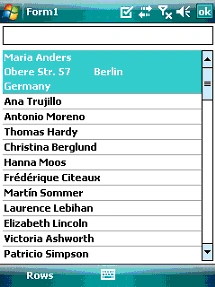
These two lines of code(except of those that you used to create the SqlCeConnection and SqlCeCommand objects) allowed us to display the list of customers. Now we want to shorten the loading time.
DelayLoad
What we created so far is just a simple list that allows the user to scroll it and select the customers to view further information about them. Let's make the list more sophisticated by using AdvancedList's DelayLoad functionality. Simply go to the designer of you form and on the properties pane of AdvancedList, turn the DelayLoad property on. Re-run the application and observe the results. The list gets loaded much faster, because it only loads a screenful of records. As soon as the user scrolls down, AdvancedList loads additional records and displays them.
Adding filter
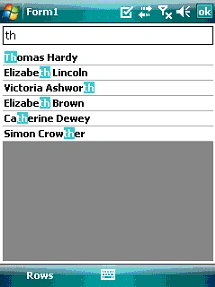
The TextBox at the top of the form will serve as a filter input textbox. As soon as user types any string into the textbox, the filter will display only those records, which contain the typed string. The filter will use the SQL CE database to get the results. We will now handle the TextChanged event of the TextBox. Following code will do the trick:
Me.AdvancedList1.DataRows.Clear()
m_Command.CommandText = "SELECT ContactName, Address, City, Country FROM customers WHERE ContactName LIKE '%" + Me.TextBox1.Text + "%'"
Me.AdvancedList1.DbConnector.Command = m_Command
Me.AdvancedList1.LoadData()
CType(Me.AdvancedList1.Templates(0)(0), TextCell).SelectedText = Me.TextBox1.Text
CType(Me.AdvancedList1.Templates(1)(0), TextCell).SelectedText = Me.TextBox1.Text
 Refining the application
To increase the user's comfort and make the application usable on Smartphone platform, we will add support for hardware keys. To make AdvancedList support the hardware keys, simply use Visual Studio's designer to turn on the KeyNavigation property. Since we want the user to be able to use the hardware keys also if the TextBox has focus, we will use this code in TextBox's KeyDown event handler:

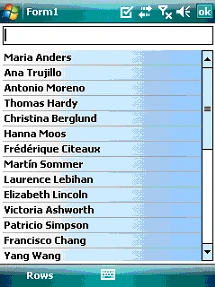
 To make the whole application look more attractive, you can use the ability of AdvancedList to gradient fill the background of the Row Template objects:

jerome ligerPosted Feb 26, 2009, 12:30 PM
It's me again... I'm testing the Resco developper tool Demo. I don't use any SQL database but only XML files... Is it possible to use this filtered list with data from XML ? I suppose that I'll load the data in a datarow but I don't have any idea how to do... If it work, I'll include the Resco licence in the customer offer ;-) Thanks
jerome ligerPosted Feb 26, 2009, 11:06 AM
Hi ! This article is exactly what I search for developping a customer application... but the Resco tools is quite expensive ! I'm in a small company and I don't think they will accept to buy it... Do you know some article or free component to do that ? I just need a filtered list on the FirstName & LastName... If not, I think that I'll do it myself but I don't like to do something that already exist ! Thanks in advance.