

Introduction
This article will help you go into detail with SharePoint, joining hands with Office 365, and create a Site Collection on it.
Note: You should have an Office 365 account with SharePoint access to work on this article. Surf my previous article to get a free temporary SharePoint access via Office 365 and also, to understand what SharePoint is, and the ways by which we can access SharePoint, click the below link to access it.
Requirements
- Office 365 subscription with SharePoint enabled.
SharePoint in detail
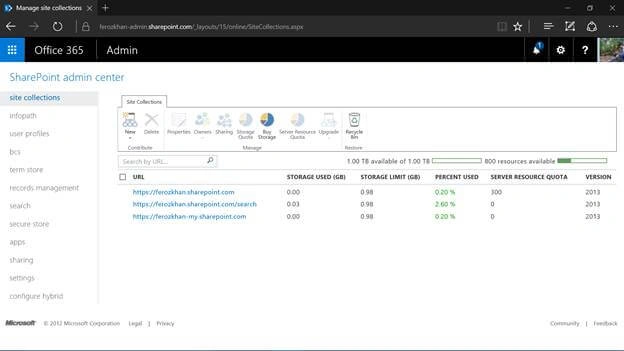
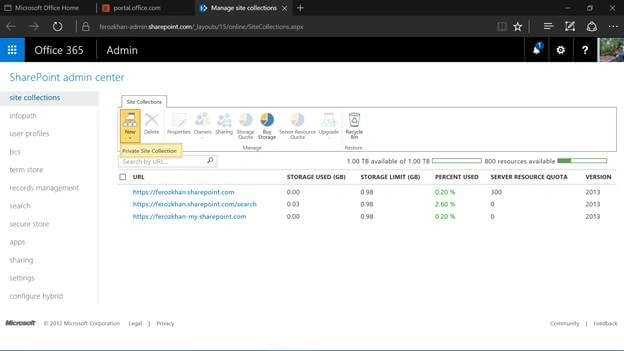
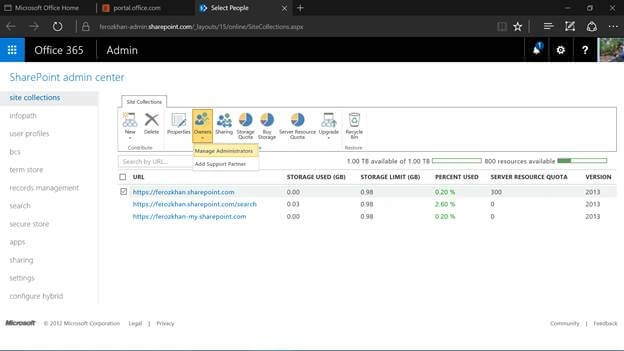
As discussed before, SharePoint is where you share content/data from one particular point and your crew works on it from different place. Here, in the below image of my SharePoint URL, you can find the domain name as ferozkhan-admin.sharepoint.com/….. which means that my SharePoint domain name is named after ferozkhan as m sub domain and it holds a site collection which helps us to make sense about the storage used, storage limit, percent used, server resource quota, and version of all individual collections.
You have two entities for SharePoint to work with:
- Site Collection that defines the level of hierarchy.
- Admin Panel which defines the control over data on SharePoint.
Note: So, this is the access of SharePoint admin panel which you should have ready before you start learning SharePoint.
SharePoint is a Web Portal application which helps you share data or content from one point and collaborate with the content from different people to work on it in a crew.
Let's take a scenario to explain the SharePoint in detail. Imagine you have an Organization and you have to work with one project where you have to access it from various departments, like HR, Accounts, Management, Sales, etc.
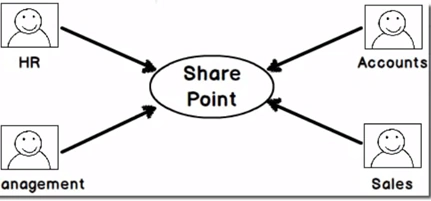
Now, imagine you are in need of creating different websites for each department provided. At least, it should fall under the same company website domain and here, it’s the same -- you have to work with a Site Collection which will hold all your data in it.
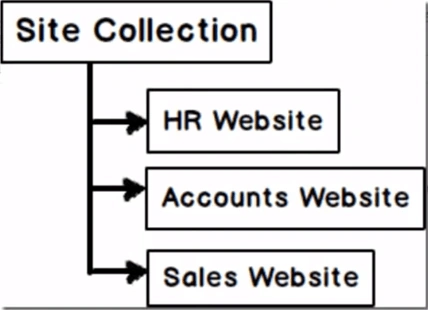
Follow the below steps to create a Site Collection.
Step 1: Login to your Office 365 portal by clicking here and entering your login credentials.
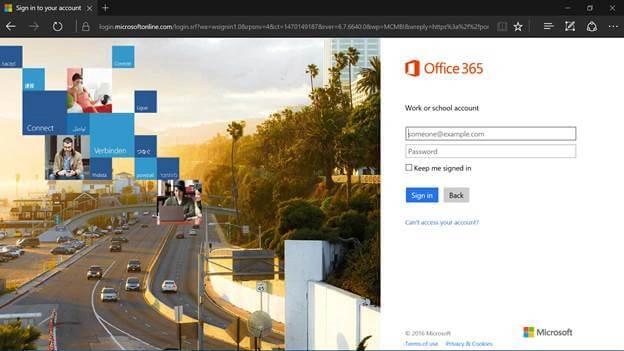
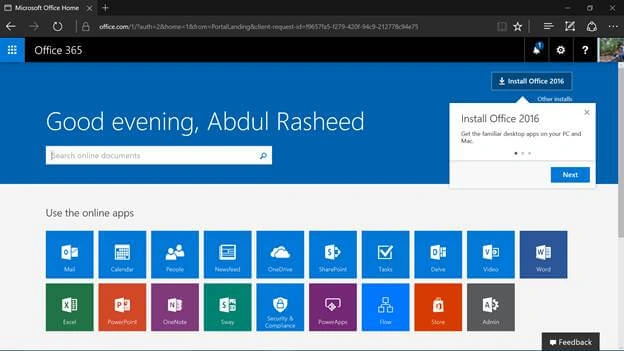
Step 2: Click on Admin at the home page screen of Office 365.
Now, you will be getting the Admin Centre (I will be working with the old admin center).
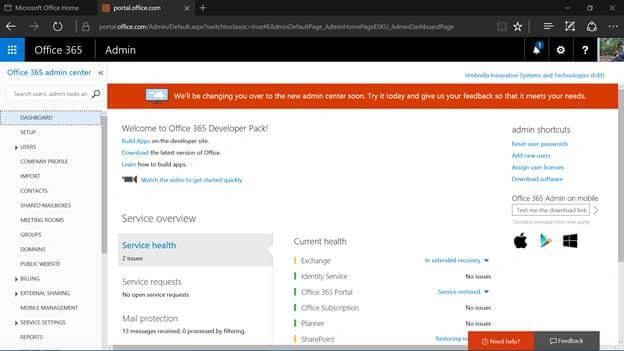
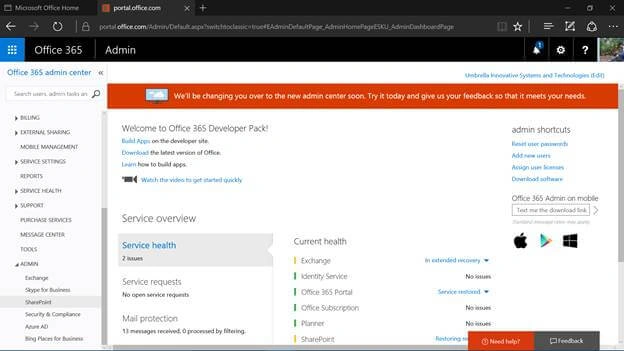
Step 3: Scroll down and click on SharePoint under Admin at the left pane of your Office 365 Admin Center Panel.
Here comes your home page of SharePoint Collection.
Step 4: Click on New - Private Site Collection.
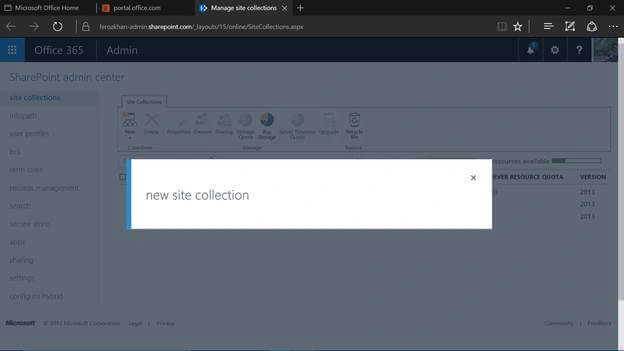
Step 5: Here comes your page where you have to add all your data for a new site collection.
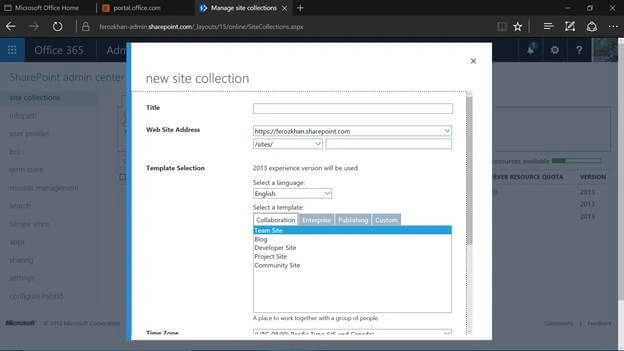
Now, I will fill in the following details (you can add your own data, this will be my new site collection name and site address with template).
- Title – ferozkhan
Note: Title of my new site collection. - Website address – ends with ferozkhan.
- Template Section – Select a template which will be helpful to your portal or web application depending upon the usage.
I will select Developer Site here.
Note: This article will be going with developer track and not with Admin or End Users. So, I will be selecting Developer Site. - For Administrator, add an admin which has been already added at your Office 365 portal. If you haven’t added any Admin, add now, using User Profiles. Give Storage Quota limitations and click on OK.
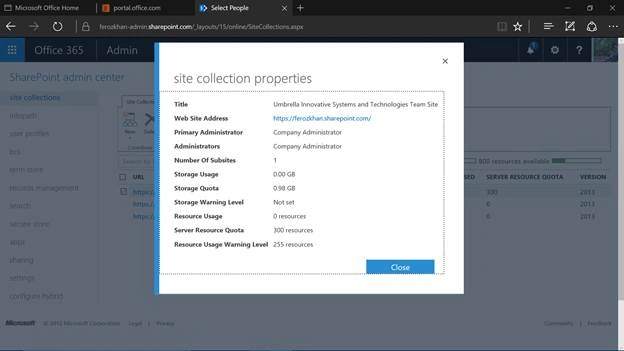
Now, the Site Collection will be created. Once the site collection is created, you can manage the administrators by clicking on Owners - Manage Administrators and accessing the properties of the Site Collection created which gives the complete details about the site collection created.
Prasanna MuraliPosted Aug 4, 2016, 10:56 AM
Nice share..
Vignesh ManiPosted Aug 4, 2016, 7:33 AM
Nice
Anu VPosted Aug 4, 2016, 6:25 AM
Nice