

There are multiple ways to create an Angular app with Visual Studio and this article explains one of the easiest and the simplest ways to create Angular 5 app with Visual Studio 2017 using a template.
Let’s start creating an Angular 5 app with Visual Studio 2017 step by step.
Step 1
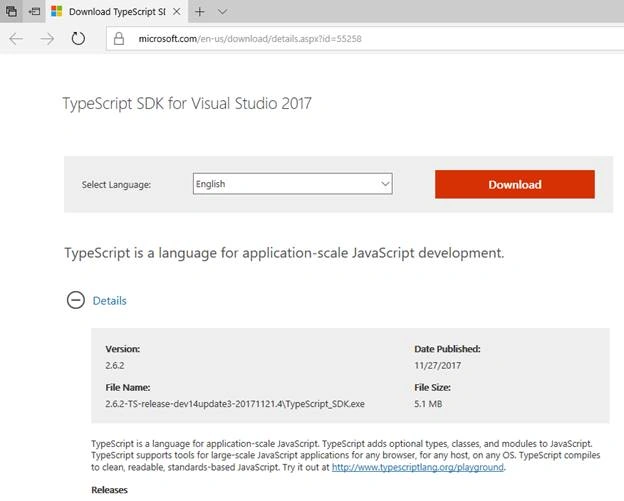
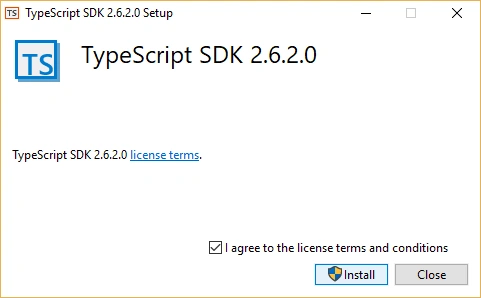
Download and install the latest version of TypeScript. Following are some screenshots of the same.
Step 2
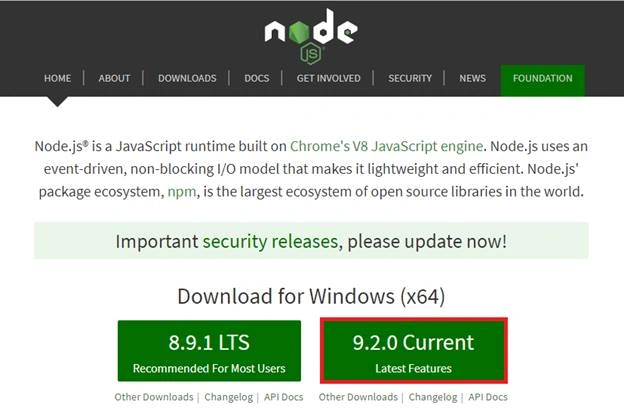
Download and install the latest version of Node.js (9.2.0 Current) as shown in the below screenshot.
Step 3
Open Visual Studio 2017 and create a project. Now, open Visual Studio 2017 and go to File >> New >> Project…
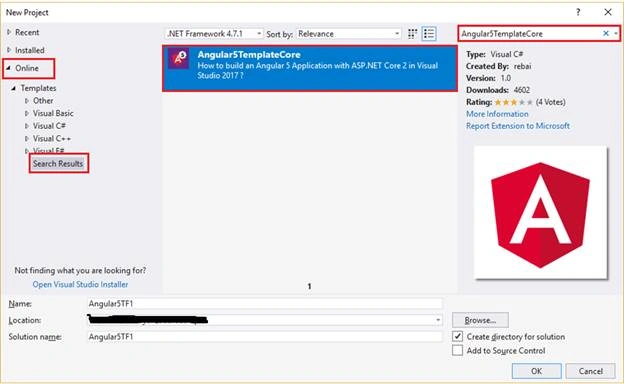
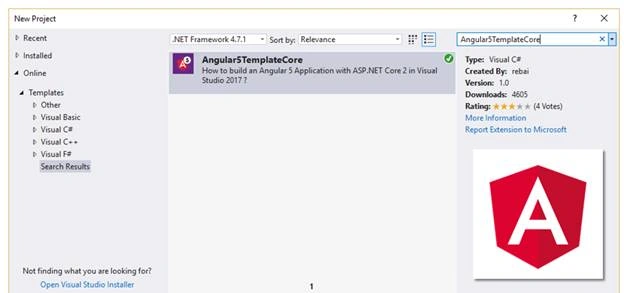
It will open a "New Project" window. Search for “Angular5TemplateCore” from the online template, as shown in the following screenshot.
Click on OK.
It will install the selected template if it is not installed already. You need to close the application (Visual Studio 2017) in order to complete the installation of “Angular5TemplateCore”. Once the installation is completed, re-open the Visual Studio 2017 and select File >> New >> Project… and search “Angular5TemplateCore” again. This time, it will be displayed with a green tick mark indicating that it has been installed. Select it and click on OK button to continue.
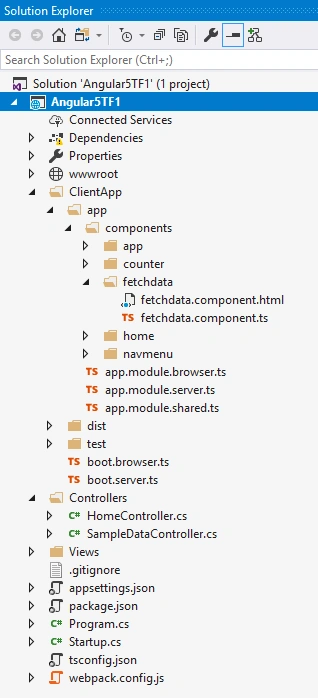
It will create a new application. Following is the folder structure of the newly created application.
Step 4 - Re-build the application.
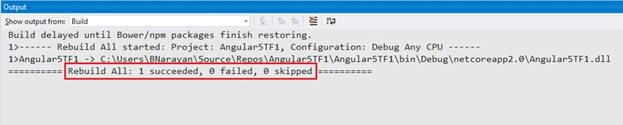
Re-build the application and wait until build completed. It may take several minutes. You can check build progress in the output window.
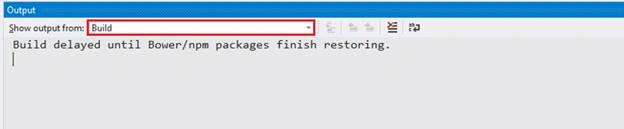
As you can see in the preceding screenshot it saying that “build delayed until Bower/npm ……….”. Select Bower/npm from the dropdown list of the output window.
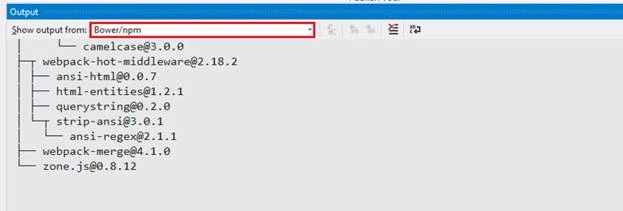
Once “Bower/npm” install completed you will find that build get succeeded.
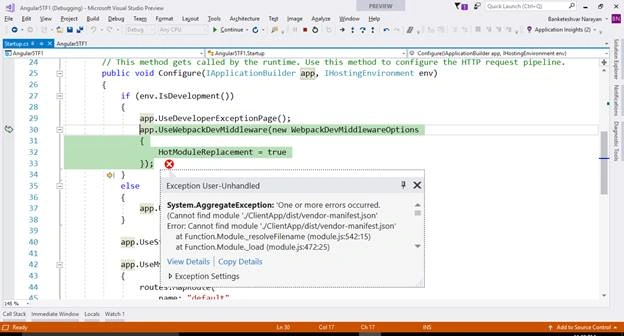
Once build is completed run the application. You may get some exception as shown in the below screenshot but you do not need to worry about it. It will get resolved by making a single change.
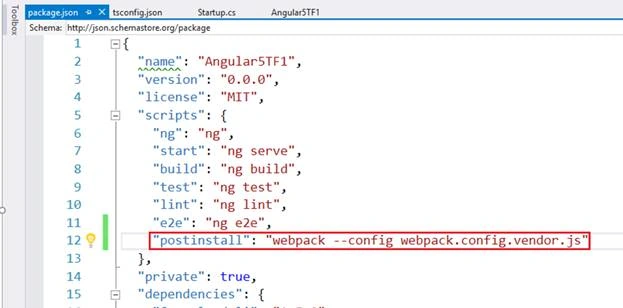
Just add below line in the file package.json.
"postinstall": "webpack --config webpack.config.vendor.js"
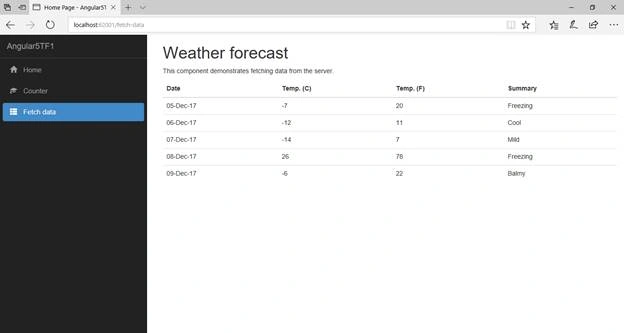
Re-build and run the application. Following is a screenshot of the running application.
Arnold SmithPosted Aug 15, 2018, 4:10 PM
Hi Banketeshvar! Thank you for the ddmonstration. I followed all the steps seemingly with success, however, I am getting this error message in vendor.js.: Unhandled exception at line 33893, column 5 in http://localhost:62001/dist/vendor.js?v=ZqNPQaHByBnAu71aMfmw1AFP-r4wxXc6-Bp1PzzR3WU0x800a138f - JavaScript runtime error: Unable to get property 'apply' of undefined or null reference occurred. The error occurs in this function: function combine(options) { return ((Object)).assign.apply(((Object)), [{}].concat(options)); } -Arnold
Arnold SmithPosted Aug 15, 2018, 4:06 PM
Hi Banketeshvar,Unhandled exception at line 33893, column 5 in http://localhost:62001/dist/vendor.js?v=ZqNPQaHByBnAu71aMfmw1AFP-r4wxXc6-Bp1PzzR3WU0x800a138f - JavaScript runtime error: Unable to get property 'apply' of undefined or null reference occurred
Maulesh PatelPosted Aug 14, 2018, 12:18 AM
Hi Thanks for this article really useful. Appreciate it.
PrageethPosted May 26, 2018, 11:21 AM
I have follow the steps and stuck on when build where it taking long time and I cant see any progress I tried to change the out put form but even then also I cant see any progress ...I am using vs 2017(15.4 release)
Max DiBiagioPosted May 3, 2018, 10:05 AM
Hi, thanks for the article, but I want to let you know that after I followed all the steps and even restart the computer I still getting an error right after I create a new Angular5 project. "Project file is incomplete. Expected imports are missing." The folder for the project is created but it contains only the .sln file :(( I am using VS2017 15.6.7 It seems to me that actually the easiest way will be to use VS Code instead VS2017
Raymond GentryPosted Apr 26, 2018, 1:24 PM
Thank You for this post. It helped me to get started in Angular. An article on how to publish this project to a remote IIS server would be very helpful. I have been unable to get this to work on test server.
Boncho ValkovPosted Apr 25, 2018, 4:22 AM
Very usefull article. You can check https://asptemplatestack.com/Templates/GetAll?id=17 for source code and templates.
Vishesh MahalePosted Mar 28, 2018, 9:43 AM
Sir did you try to publish this application. I am not able to publish it i am getting the error node node_modules/webpack/bin/webpack.js --env.prod Please help us all to resolve this.
Raymond GentryPosted Mar 21, 2018, 4:09 PM
After adding "postinstall": "webpack --config webpack.config.vendor.js"I am getting an error for Webpack dev middleware failed because of an error while loading 'aspnet-webpack'. Error was: Error: Cannot find module 'aspnet-webpack'
Wilson DuvanPosted Mar 16, 2018, 2:27 PM
Hellow and now, How do I publish the application?
ליאל פלדמןPosted Dec 17, 2017, 10:08 AM
I added '"postinstall": "webpack --config webpack.config.vendor.js"' to my package.json file and the exception still appears. what should I do?
John DuboisPosted Dec 14, 2017, 11:09 AM
Great start! Now I want to add more components, services, etc. Is there an easy way to do this from Visual Studio? Can I use the cli to do that? If I use the cli do I do it from the ClientApp folder?
Yaduveer SainiPosted Dec 7, 2017, 5:45 AM
Very nice article Banke sir...
Satyaprakash SamantarayPosted Dec 6, 2017, 2:04 PM
Nice one................
Kagiso MahlobogoanePosted Dec 6, 2017, 4:25 AM
Would have been good if there were links to the downoload as part of the article.
Tridip BhattacharjeePosted Dec 6, 2017, 3:57 AM
Nice write up. what is the meaning of "postinstall": "webpack --config webpack.config.vendor.js" ?