
In my previous article Create a SharePoint Site Page, we learned how to create a site page, in this article I would like to share the procedure for deleting a site page in SharePoint.
How to delete a Site page
Use the following procedure to delete a page.
Step 1
Go to your site and click on site contents from your left navigation as shown below: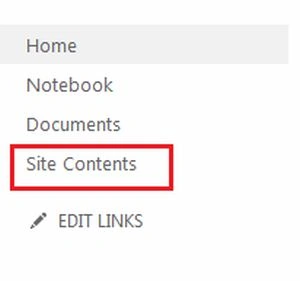
Step 2
On the site content page you can see “site pages” under the Lists, Libraries and other Apps section and then click on the site pages to delete a page as shown below: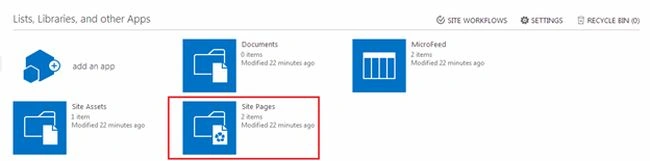
Step 3
When you click on the site pages you will be navigated to site pages, where you can delete a site page: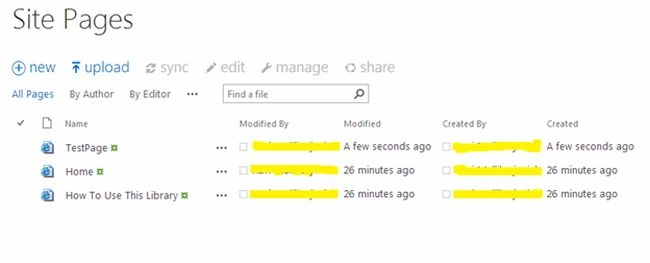
Step 4
Then select a page to delete as shown below: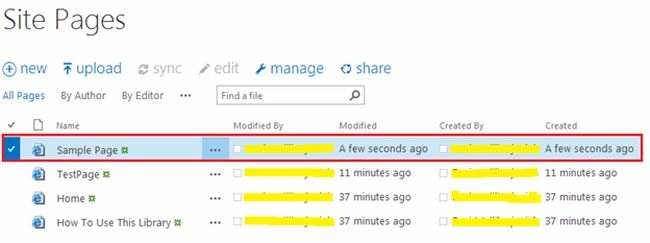
Step 5
Select the “File” command from the top ribbon bar as in the following:
Step 7
Click on the delete document from your top ribbon bar as shown below: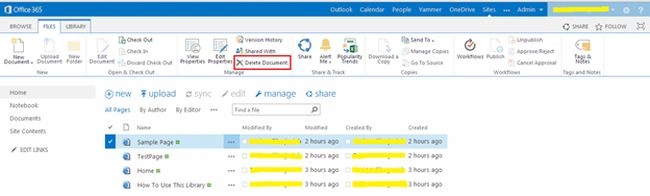
Step 8
When you click on delete document, you will get the confirmation pop-up to delete a document. Then click on the “Ok” button. 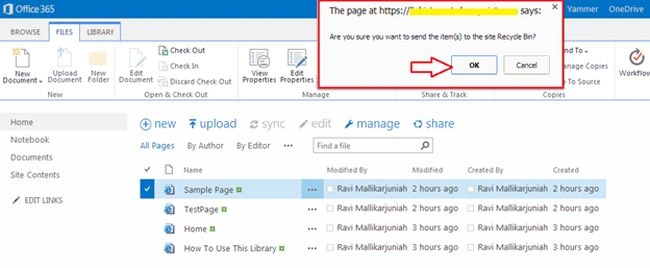
Finally the page will be deleted from your site.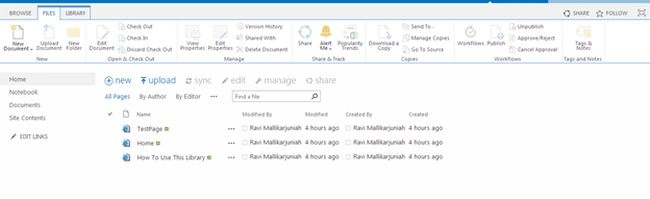
Summary
In this article we explored how to delete a SharePoint site page. Happy Learning.

Join the conversation! Your thoughts help the community grow.