

Introduction
In this article, you'll learn how to create a virtual machine (VM) in Azure. Follow these steps to guide you through creating a virtual machine using the Azure portal.
What is Cloud Computing?
Cloud computing is the delivery of computing services over the internet, including servers, storage, databases, networking software, and services.
What is Azure?
Azure is Microsoft's cloud computing platform. It offers a comprehensive suite of over 200 products and services, including computing, analytics, storage, networking, and more.
Create a Virtual Machine using the Azure Portal
Step 1. Accessing the Azure Portal
- Go to the Azure portal by following this link: https://portal.azure.com/
- Log in to the Azure portal using your admin credentials.
- Then, click "Next."
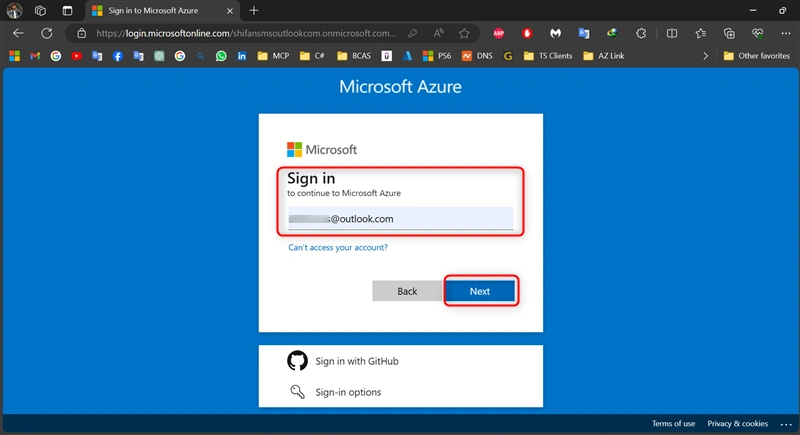
Step 2. Navigating to the Virtual Machine Creation Page
- Click "Show Portal Menu".
- Then, click "Create a resource".
- Next, click "Create" for Virtual Machine.
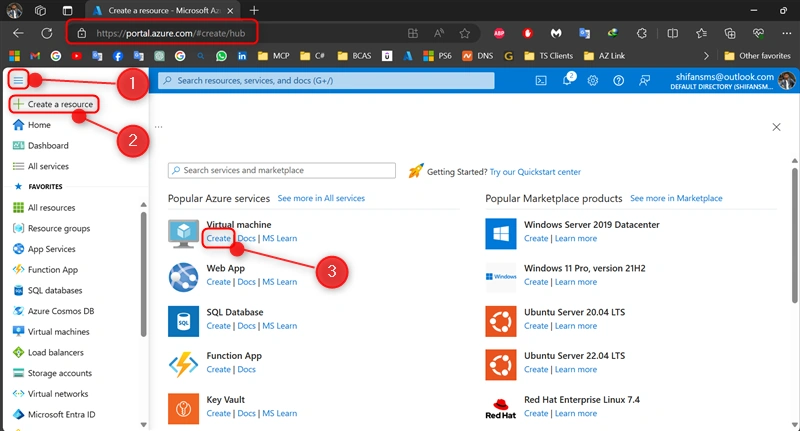
Step 3. Configuring Basics
Enter basic details such as VM name, region, availability options, Security type, and operating system image. and VM architecture.
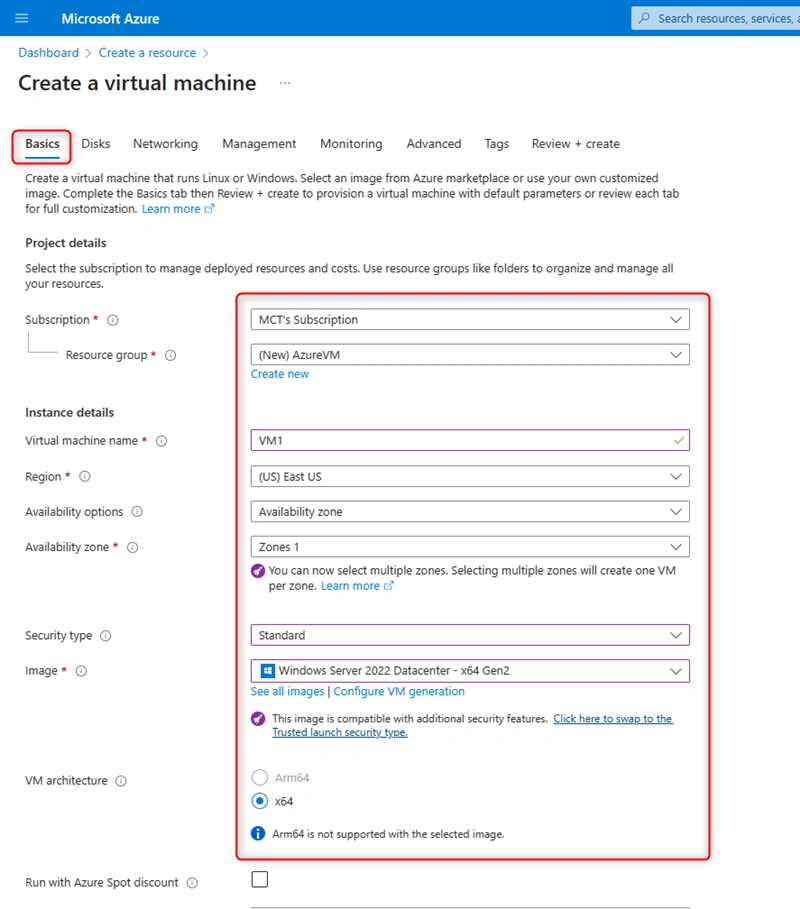
Step 4. Administrative Credentials
- Provide the administrative username and password for the VM.
- Then, allow the inbound port rule to access the VM by RDP connection.
- Finally, click "Next: Disk."
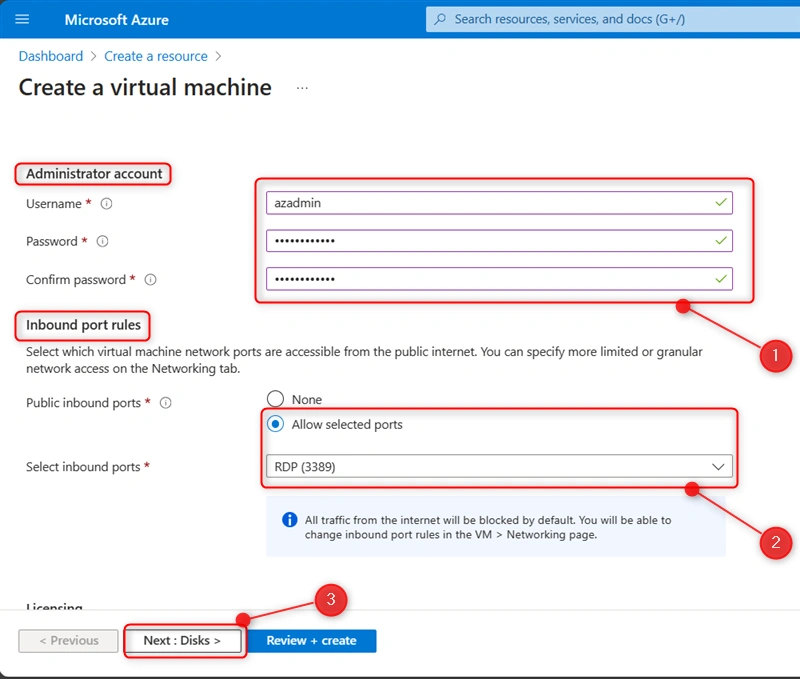
Step 5. Choosing VM Size
- Select the VM size based on your workload requirements and budget constraints.
- Then click "Next: Networking."
For this demo, keep the settings as default.
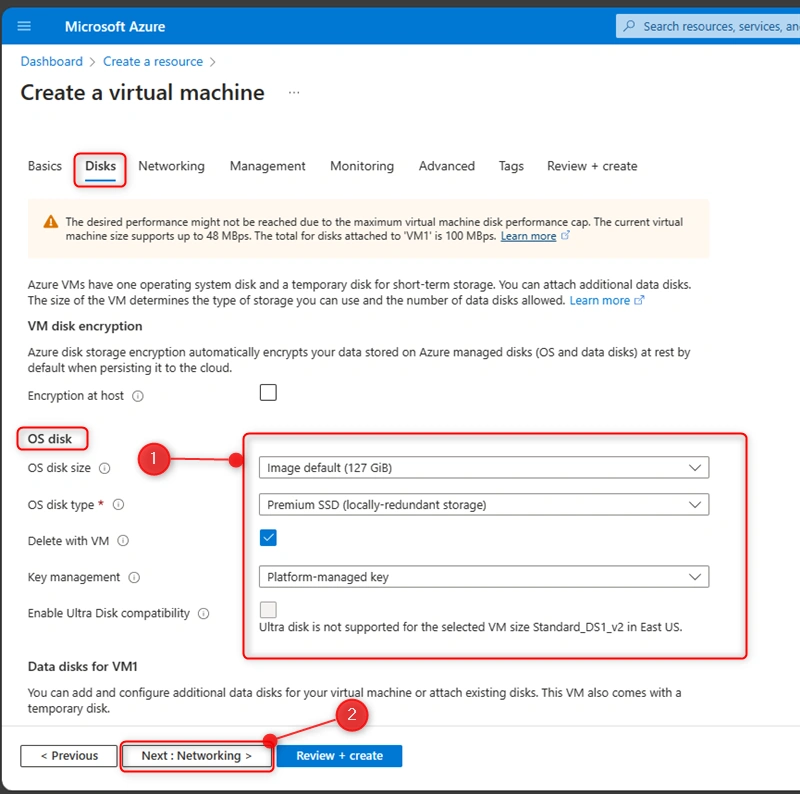
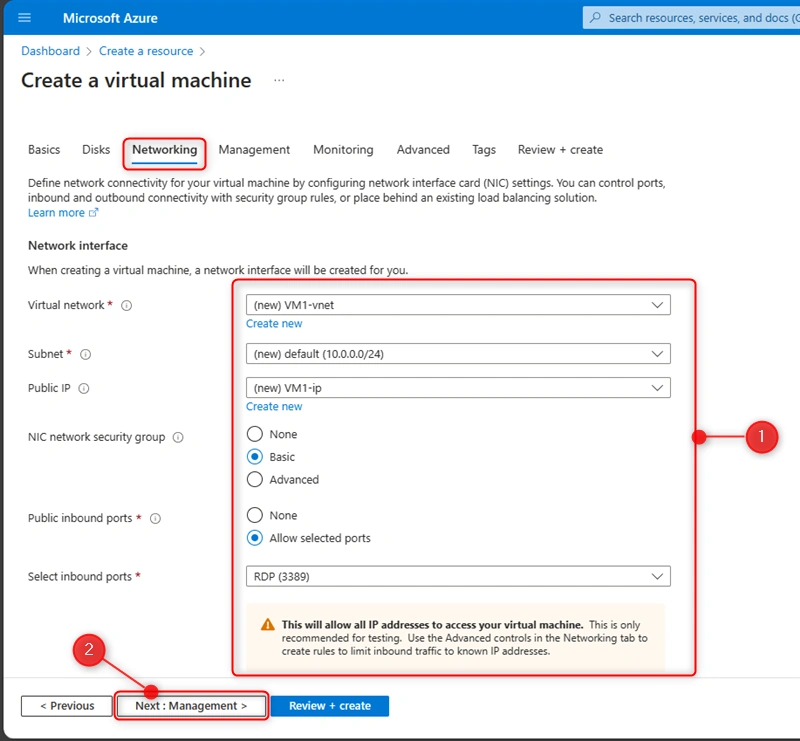
Step 6.Configuring Networking
- Configure networking settings, including virtual network, subnet, public IP address, and network security group (NSG), to control inbound and outbound traffic.
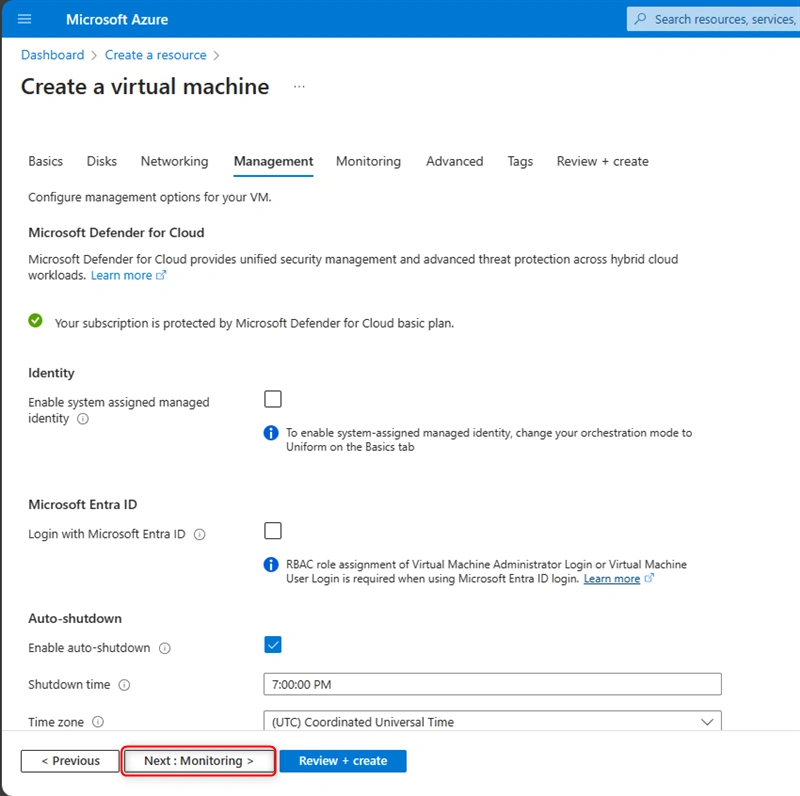
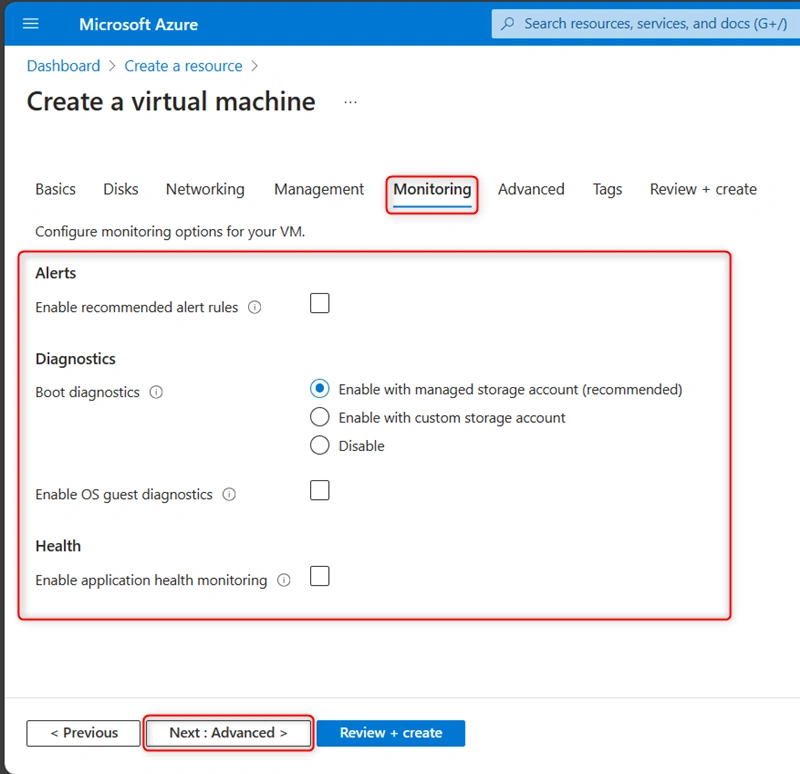
- Then click "Next: Management."
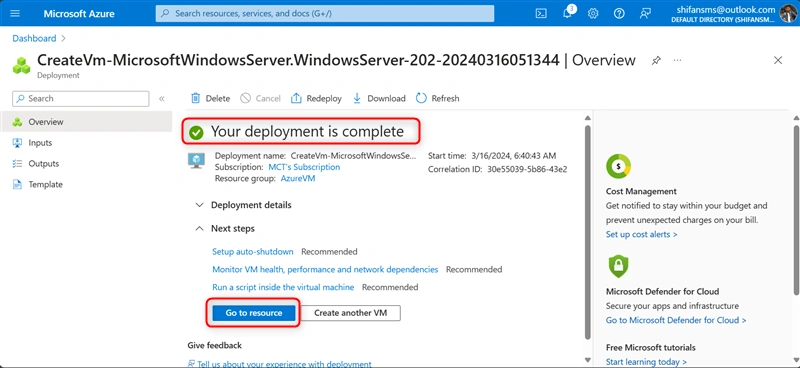
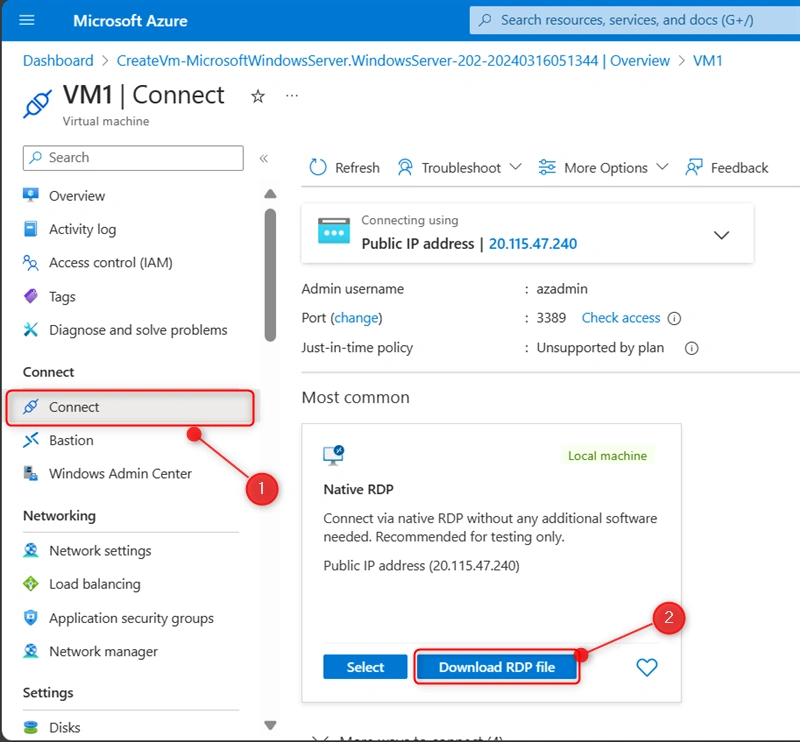
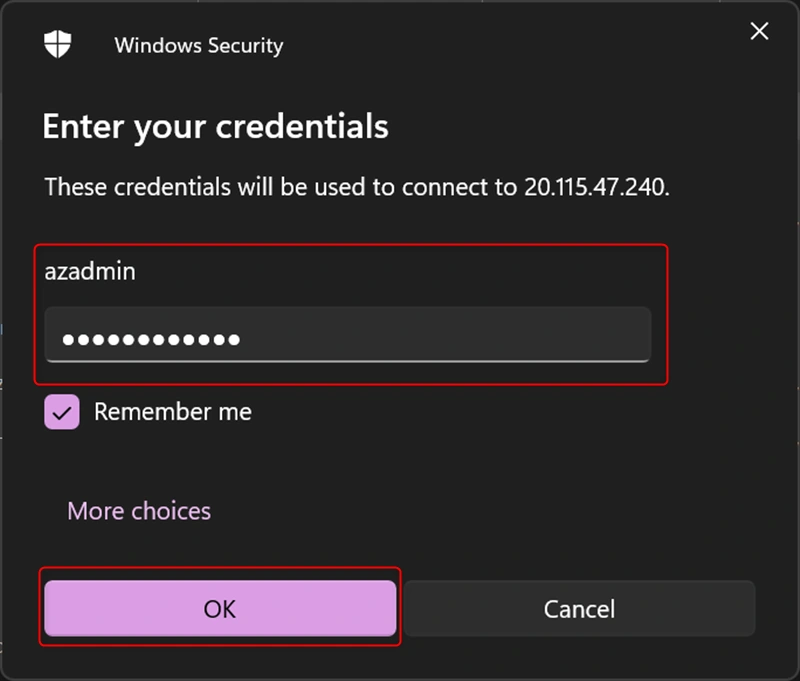
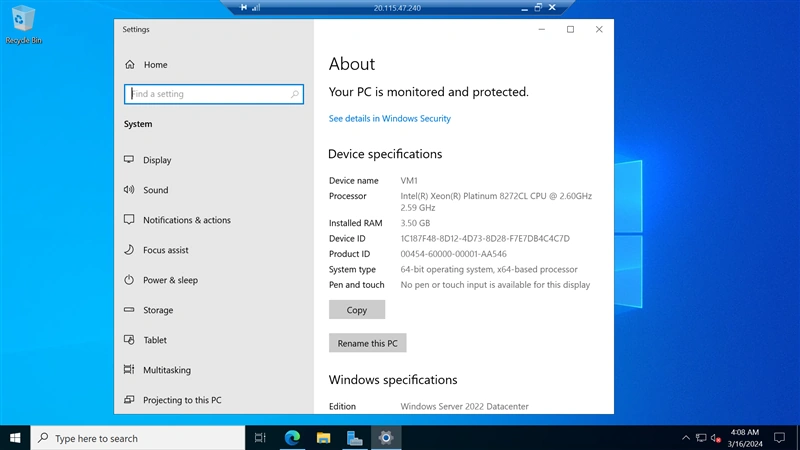
Join the conversation! Your thoughts help the community grow.