

Introduction
I have always been a great admirer of Visual Studio IDE(Interactive Development Environment) . Visual Studio has proved to be the best IDE for me and I use it for almost all my coding as well as debugging work. My love for the IDE has forced me to start a series of articles to explain what more Visual Studio 2015 now offers to a developer in terms of cross-platform development, cloud-based development, code assistance, refactoring, debugging and a lot more. The power of Visual Studio is now not only limited to development and coding but it offers a one-stop solution to all the requirements needed while coding, development, code analysis or deployment. I’ll use Visual Studio Enterprise 2015 throughout the series and explain how one can leverage Visual Studio to be more productive. In this section of the series I’ll cover how development with Visual Studio 2015 can increase your productivity to n times and enables you to write more cleaner and optimized code.
Series
- Day #2: Code Analyzers in Visual Studio 2015
- Day #3: Renaming Assistance in Visual Studio 2015
- Day #4: Code Refactoring in Visual Studio 2015
- Day #5: Debugging Improvements in Visual Studio 2015 (Breakpoint Configuration and New Error List)
- Day #6: Debugging Improvements in Visual Studio 2015 (Tool Window Support for LINQ and Lambda)
- Day #7: PerfTip in Visual Studio 2015
- Day #8: New Diagnostic Tool Window in Visual Studio 2015
Code Assistance
In earlier versions of Visual studio, you must have seen that whenever you write a buggy code, the code editor provides suggestion with the help of a tool tip. This feature have improved a lot and is shown as a light bulb icon in Visual Studio code editor.This option provides you the real time suggestions while coding in Visual Studio code editor to improve code quality or fix the coding issues. It helps you in identifying syntax errors, provides useful code hints and assist you with static code analysis.I am using a sample code to explain the enhancements, for that I have created a console application in my Visual Studio and named it VisualStudio2015ConsoleApplication.
Syntax Error Suggestions
Suppose there is syntax error in your code like I purposely did in the below image,
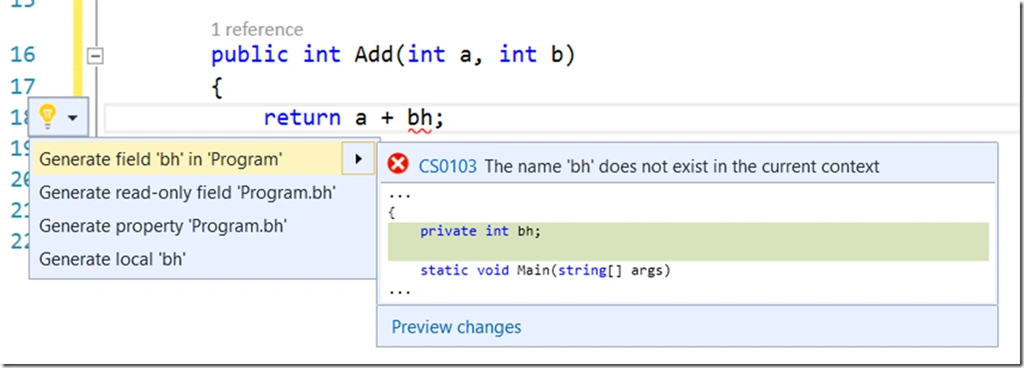
The light bulb icon immediately shows up when you click your mouse over the erroneous variable having red line and displays an issue summary, an error code with a link to documentation. It also displays a possible list of code fixes and refactoring’s. In above mentioned example I am writing an add method taking two parameters a and b,but I am trying to return a result as a+bh. Now since “bh” is not declared anywhere in the method or passed as a parameter, the light biulb icon shows up and provides certain possible options or suggestions about how this variable can be taken care of.It suggests to generate a variable named “bh” , create a field or property as well.
If you hover on the error line you’ll be shown a light bulb icon showing error and potential fixes.
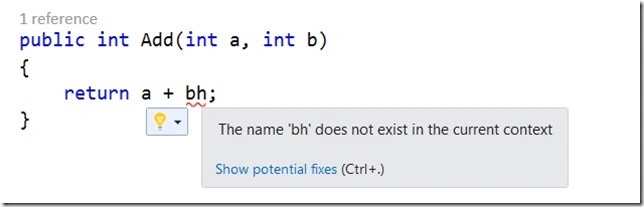
Note that you can also use Ctrl+. to see the error using your keyboard. If you click on Show potential fixes, you’ll get the same options as shown in the first image. Alternatively if by any chance you doubt light bulb icon and build your console application, you’ll again be shown the same error as follow.
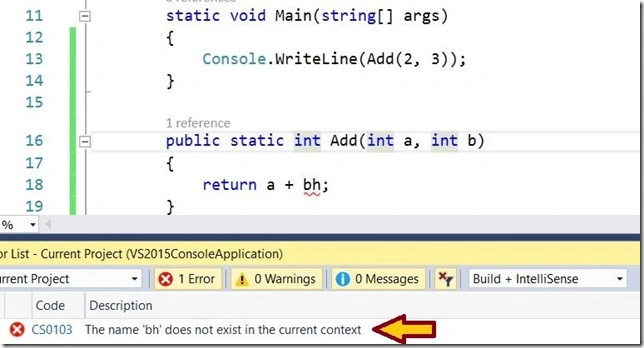
The syntax error assistance displays a light bulb icon, a description of the error, and a link to show possible fixes as well. When you click on the error code i.e. CS0103 you’ll be redirected to the documentation of the error code. It also offers to preview changes once you go for any of the suggestions provided by light bulb icon. So if I click on Preview changes it shows me the preview of the option that I have chosen as shown below.
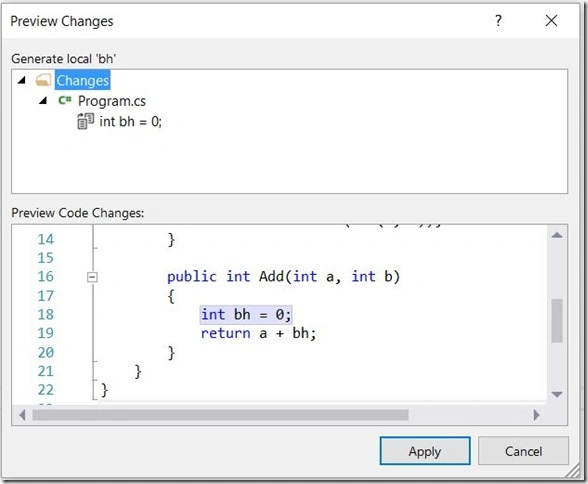
Now we don’t have to go to code and explicitly define that variable. Just click on Apply button and Visual Studio takes care of everything. Therefore the first option that I chose is now reflected in my code.
I remember that I used to do these on the fly modifications to improve productivity using ReSharper. We saw that we got the same error on compiling the application which proves that light bulb icon’s code suggestion can help us write error free code before even compiling the application and getting to know about the actual error after a compile.Therefore we don’t have to wait to compile the application to know about compile time error. You can test different scenarios to explore syntax error suggestions given by light bulb icon in our day to day programming.
Code Suggestions
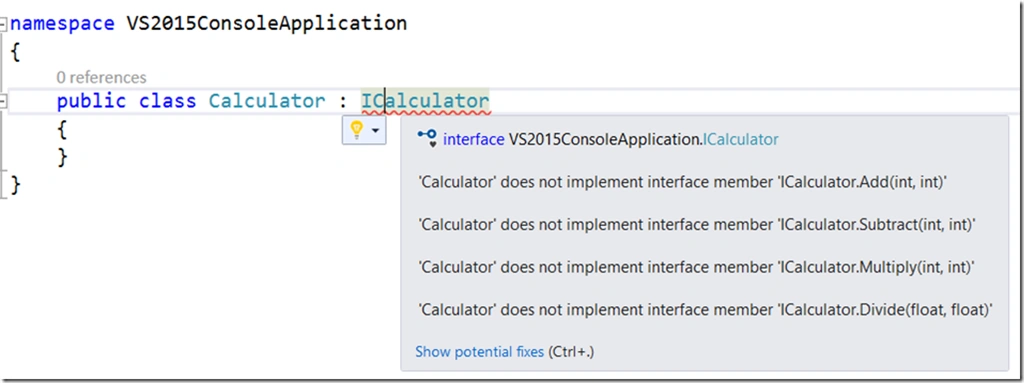
Let’s take another scenario. Suppose I define an interface named ICalculator and add a class named Calculator and inherit the calculator.csclass from that interface.
Interface
- interface ICalculator
- {
- int Add(int a, int b);
- int Subtract(int a, int b);
- int Multiply(int a, int b);
- float Divide(float a, float b);
- }
- public class Calculator ICalculator {}
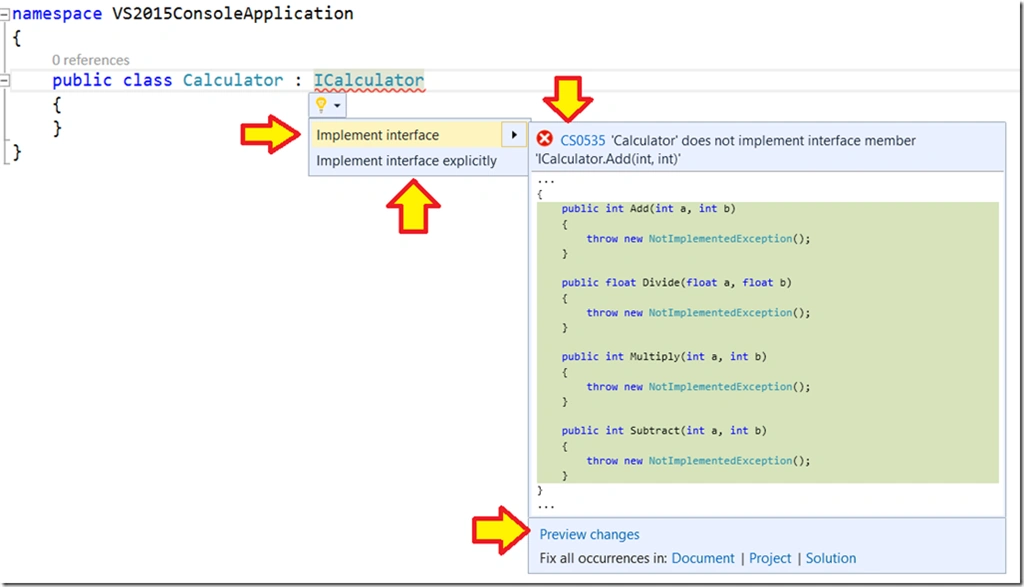
Therefore we see that light bulb not only assists us in finding syntax error but also suggests conceptual or logical resolution of mistakes we do in programming. When you show on “Show potential fixes link” it will show all the possible fixes for this error in a detailed user friendly manner with an option to resolve and fix it with preview as well.
In the above image you can see that the code assistance is providing option to either implicitly and explicitly implement interface ICalculator, and if we analyze we can clearly say that these are the only possible options that a developer may opt for in this scenario.moreover it shows the error doe link referring to its description. If you choose first option and choose preview changes link, you’ll see following preview and you can choose to apply that if it is what you need.
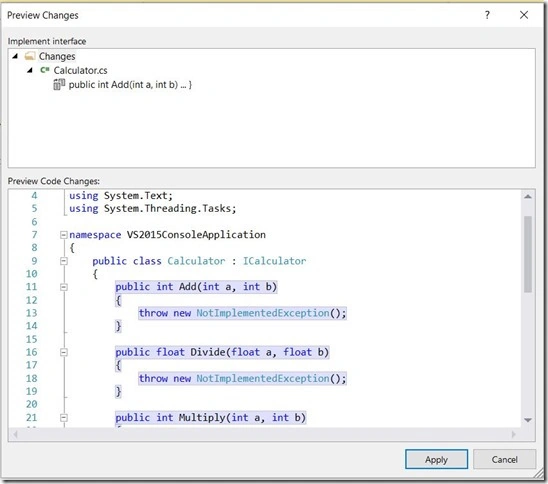
So click apply and we get following class with all the interface methods having default implementations.
- public class Calculator ICalculator
- {
- public int Add(int a, int b)
- {
- throw new NotImplementedException();
- }
- public float Divide(float a, float b)
- {
- throw new NotImplementedException();
- }
- public int Multiply(int a, int b)
- {
- throw new NotImplementedException();
- }
- public int Subtract(int a, int b)
- {
- throw new NotImplementedException();
- }
- }
Refactoring Suggestions
Light bulb icon is not only limited to code suggestions and syntax error suggestions but also comes with a great capability of refactoring techniques. When I added the calculator class, the class was added with few default namespaces as shown below.
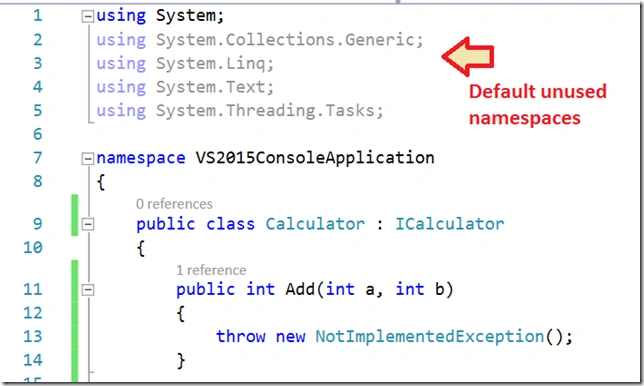
In the above scenario as we can see there are few namespaces added by default in the class that are currently not used. When you hover the mouse over those namespaces, light bulb icon shows up with some refactoring suggestions as shown below.
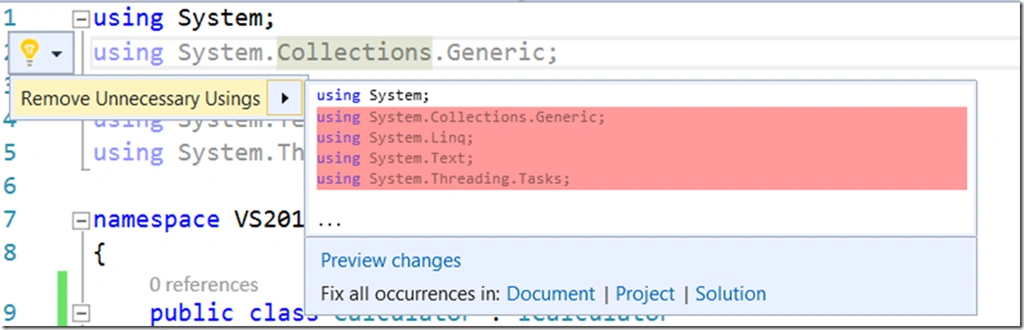
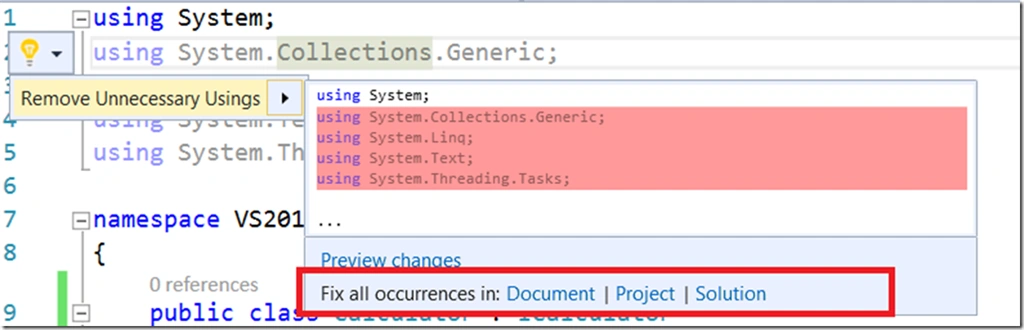
The above image shows the suggestion of Light bulb icon asking to remove “unnecessary usings”. We see here that Visual Studio is smart enough to know what refactoring is required in the code and accordingly can suggest a developer to optimize the code.If you apply the suggestion it will remove the unnecessary “usings” from your code.You can also select to fix all occurrences of this issue in the current document, the project, or the solution. If we just want to make this local change, we can select Remove Unnecessary Usings here, and the unused usings are removed.
Quick Suggestions and Refactoring
Now when I go to my Calculator.cs class and define the Add method as follows.
- public int Add(int a, int b)
- {
- int c = a + b;
- return c;
- }
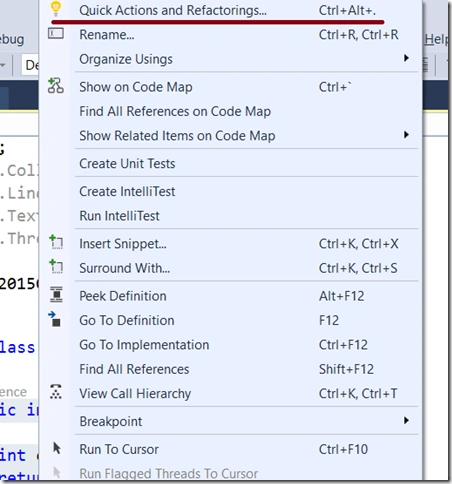
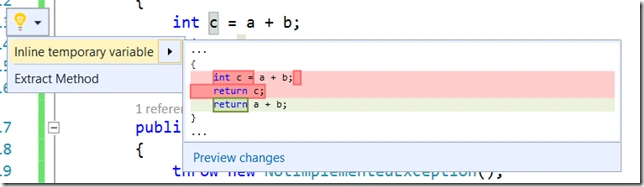
Note that in above code block, Visual Studio didn’t suggest any thing implicitly and due to some syntax error but we have an option to choose and ask for Visual Studio’s help explicitly to know if a particular written code could be enhanced, optimized, refactored more or not.There could be cases that choosing this option too does not show any suggestion to improve code which means your code is already refactored and optimized. But in the above mentioned scenario if we select the “Quick Actions and Refactorings…” option, VS gives us two options to further optimize the code.
or,
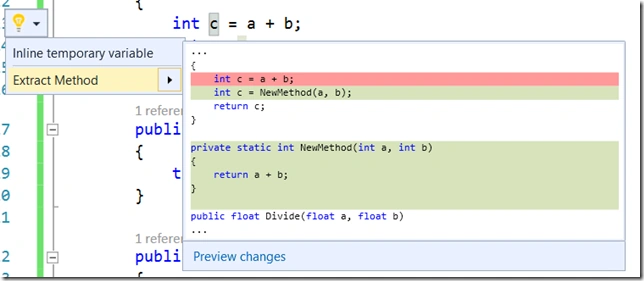
If we have a glance over both the options, the first says to skip using temporary variable and just return (a+b) which is a good suggestion by the way and second option says to extract a method out of the code and put (a+b) in any other method and return from there.Now in these situations its choice of developer on what option he chooses.I choose first option and apply the changes that it showed me in preview and I got following code which looks better that the earlier one.
- public int Add(int a, int b)
- {
- return a + b;
- }
Conclusion
I took few representative examples from a large set of possible scenarios where Code assistant of Visual Studio 2015 can help you. You can explore the IDE and play around to see more such situations where you feel the change from earlier versions of Visual Studio to this one.In my next section I’ll talk about Live Static Code Analysis.
References
Asad AliPosted Jun 14, 2016, 3:32 PM
good one
Ravi PatelPosted Jun 14, 2016, 9:20 AM
nice share
Neeraj KumarPosted May 6, 2016, 4:29 PM
Good
Kuppurasu NagarajPosted May 6, 2016, 9:09 AM
Nice Sharing..
Sonu ChaudharyPosted May 6, 2016, 8:17 AM
nice article]
Vignesh ManiPosted May 4, 2016, 4:28 PM
Good one
Navratna PawalePosted May 4, 2016, 8:06 AM
Nice
NitinPosted May 4, 2016, 7:39 AM
Thanks for sharing
Surya KantPosted May 4, 2016, 12:49 AM
Very helpful information..good one
Bhavik PatelPosted May 3, 2016, 9:38 PM
good share
Pankaj Kumar ChoudharyPosted May 3, 2016, 7:25 PM
Nice Explain Sir.........
Muhammad Aqib ShehzadPosted May 3, 2016, 3:44 PM
nice share
Bhuvanesh MohankumarPosted May 3, 2016, 12:51 PM
Good one..