

A Dock Panel is used to dock child elements in the left, right, top, and bottom positions of the relative elements. The position of child elements is determined by the Dock property of the respective child elements and the relative order of those child elements. The default value of Dock property is left. The Dock property is of type Dock enumeration that has Left, Right, Top, and Bottom values.
The code listed in below creates a DockPanel with five Button elements. Four buttons are docked and the last one has no docking set that fills the entire remaining area.
- <DockPanel Name="dcPanel">
- <Button Name="TopRect" DockPanel.Dock="Top" Background="LightGreen" Height="50" Content="Top" />
- <Button Name="LeftRect" DockPanel.Dock="Left" Background="LightBlue" Width="50" Content="Left" />
- <Button Name="RightRect" DockPanel.Dock="Right" Background="LightSalmon" Width="50" Content="Right" />
- <Button Name="BottomRect" DockPanel.Dock="Bottom" Background="LightCyan" Height="50" />
- <Button Name="Fill" Background="LightGray" />
- </DockPanel>
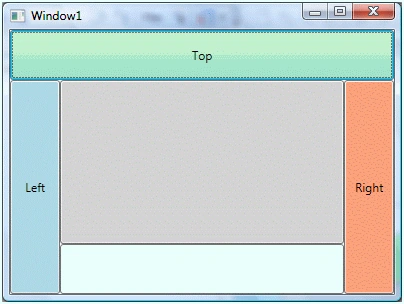
Figure 1
The DockPanel class in WPF represents a DockPanel control. The code listed below creates a Dock Panel dynamically, add five Button controls to it, and sets their docking properties by using SetDock method. The output of Listing generates Figure 1.
- private void CreateADockPanelDynamically() {
- // Create a DockPanel
- DockPanel dcPanel = new DockPanel();
- // Create a button
- Button TopRect = new Button();
- TopRect.Background = new SolidColorBrush(Colors.LightGreen);
- TopRect.Height = 50;
- TopRect.Content = "Top";
- // Dock button to top
- DockPanel.SetDock(TopRect, Dock.Top);
- // Add docked button to DockPanel
- dcPanel.Children.Add(TopRect);
- // Create a button
- Button LeftRect = new Button();
- LeftRect.Background = new SolidColorBrush(Colors.LightBlue);
- LeftRect.Width = 50;
- LeftRect.Content = "Left";
- // Dock button to left
- DockPanel.SetDock(LeftRect, Dock.Left);
- // Add docked button to DockPanel
- dcPanel.Children.Add(LeftRect);
- // Create a button
- Button RightRect = new Button();
- RightRect.Background = new SolidColorBrush(Colors.LightSalmon);
- RightRect.Width = 50;
- RightRect.Content = "Right";
- // Dock button to left
- DockPanel.SetDock(RightRect, Dock.Right);
- // Add docked button to DockPanel
- dcPanel.Children.Add(RightRect);
- // Create a button
- Button BottomRect = new Button();
- BottomRect.Background = new SolidColorBrush(Colors.LightCyan);
- BottomRect.Height = 50;
- BottomRect.Content = "Bottom";
- // Dock button to left
- DockPanel.SetDock(BottomRect, Dock.Bottom);
- // Add docked button to DockPanel
- dcPanel.Children.Add(BottomRect);
- // Create a fill button
- Button FillRect = new Button();
- BottomRect.Background = new SolidColorBrush(Colors.LightGray);
- // Add docked button to DockPanel
- dcPanel.Children.Add(FillRect);
- RootWindow.Content = dcPanel;
- }
Dinesh KudalePosted Mar 28, 2022, 12:54 PM
Thank you for sharing a knowledgeable example with us. Note: As per my knowledge, I think that there will be something different preview (related to three "Left-Aligned Bottom Button") of the above 5th image from the top while comparing their relative code.