

I have seen many articles for downloading and uploading files and in nearly everyone, the old way of copying the stream data was used. In the .Net Framework 4.0 there is a new method, Stream.CopyTo that makes it really easy for copying the stream data. Also, I have not seen any article that uploads/downloads a file using a Windows authenticated WCF REST service hosted on IIS. So, I thought of writing one with all that.
In this article share how to easily download and upload a file using a Windows Authenticated WCF service hosted in IIS. The client will be a C# windows client that will send the request for downloading and uploading the file.
The source code is attached with the article.
WCF REST Service
The first step is to create a WCF REST service that will be used for downloading and uploading the file. I prefer to keep all my services in a separate WCF project. This project is then hosted in the IIS.
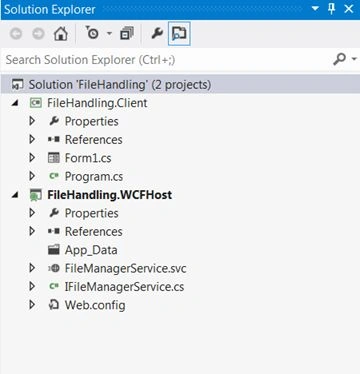
- Add a new Blank solution by the name of “FileHandling”.
- Add a new WCF Service Application and give it the name FileHandling.WCFHost.
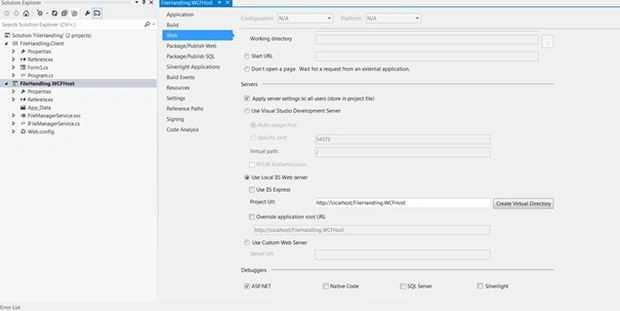
- Right-click the FileHandling.WCFHost project in Visual Studio and go to the properties. Under the Web tab click on “Use local IIS WebServer” and under the Project URL, write “http://localhost/FileHandling.WCFHost” and click on the button “Create Virtual Directory”. This will create a Virtual Directory for FileHandling.WCFHost in IIS.
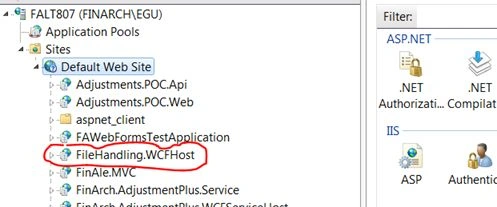
- Go to IIS and check if the Virtual Directory is created.
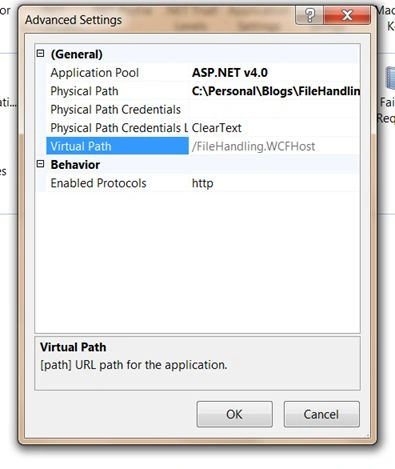
- Ensure that the App Pool associated to the account is of .Net Framework 4.0. Also, the App Pool should be running under the identity of the user that has Read/write rights on any folder of the server. WCF uses this identity for doing all its network operations. In this case I run the App Pool under my account, but it is not mandatory, you can choose a different account having permissions as well.

- Ensure that for the FileHandling.WCFHost, only Windows Authentication is enabled.
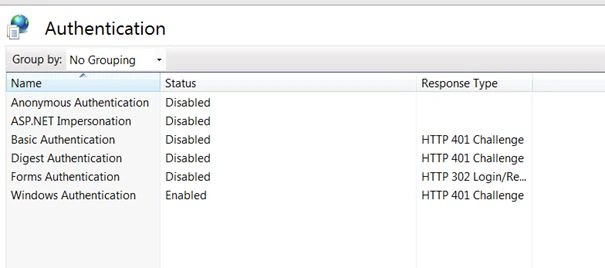
With the preceding steps the IIS configuration is complete. Now it's time to add the service.
- Add a new WCFService in the FileHost.WCFHost project in VisualStudio and give it the name FileManagerService.
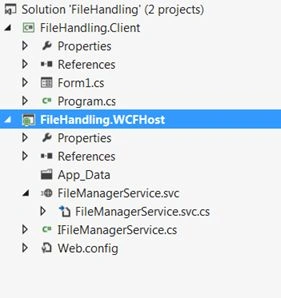
- In the IFileManagerService add the following methods.
- using System.IO;
- using System.ServiceModel;
- using System.ServiceModel.Web;
- namespace FileHandling.WCFHost
- {
- [ServiceContract]
- public interface IFileManagerService
- {
- [OperationContract]
- [WebGet(UriTemplate = "RetrieveFile?Path={path}")]
- Stream RetrieveFile(string path);
- [OperationContract]
- [WebInvoke(UriTemplate = "UploadFile?Path={path}")]
- void UploadFile(string path, Stream stream);
- }
- }
- In the FileManagerService.svc.cs add the following code:
The RetrieveFile method is used for downloading the file. The method takes the parameter “path”, that is the location of the file for downloading from the WCF server. The method itself is pretty simple, it sets the ContentType and filename in the Response Header and then sends the FileStream back. Do not worry about how this FileStream will be disposed. WCF automatically takes care of it and at the end of the method disposes of it.- using System;
- using System.IO;
- using System.ServiceModel.Web;
- namespace FileHandling.WCFHost
- {
- public class FileManagerService : IFileManagerService
- {
- public Stream RetrieveFile(string path)
- {
- if(WebOperationContext.Current == null) throw new Exception("WebOperationContext not set");
- // As the current service is being used by a windows client, there is no browser interactivity.
- // In case you are using the code Web, please use the appropriate content type.
- var fileName = Path.GetFileName(path);
- WebOperationContext.Current.OutgoingResponse.ContentType= "application/octet-stream";
- WebOperationContext.Current.OutgoingResponse.Headers.Add("content-disposition", "inline; filename=" + fileName);
- return File.OpenRead(path);
- }
- public void UploadFile(string path, Stream stream)
- {
- CreateDirectoryIfNotExists(path);
- using (var file = File.Create(path))
- {
- stream.CopyTo(file);
- }
- }
- private void CreateDirectoryIfNotExists(string filePath)
- {
- var directory = new FileInfo(filePath).Directory;
- if (directory == null) throw new Exception("Directory could not be determined for the filePath");
- Directory.CreateDirectory(directory.FullName);
- }
- }
- }
The UploadFile is also pretty simple. It takes the following two parameters:
- path: Path where the uploaded file should be saved
- stream: Stream represents the Uploaded file.
The method creates the Directory if it does not already exist and then creates the file in the location specified by “path”. For copying the uploaded file in the “path” location, Stream.CopyTo has been used.
- It's time to add the configuration settings for the service. In the Web.Config add the following configuration.
Please note that the Transfermode has been set to “Streamed”. This will ensure that the file is streamed to the client. And also, notice that I have given maximum values to maxReceivedMessageSize, maxArrayLength, maxStringContentLength. This will ensure that large files can be transferred as well.- <system.serviceModel>
- <serviceHostingEnvironment multipleSiteBindingsEnabled="true" />
- <bindings>
- <webHttpBinding>
- <binding name="ServiceWebBindingName" transferMode="Streamed" maxReceivedMessageSize="2147483647" >
- <readerQuotas maxArrayLength="2147483647" maxStringContentLength="2147483647" />
- <security mode="TransportCredentialOnly">
- <transport clientCredentialType="Windows"></transport>
- </security>
- </binding>
- </webHttpBinding>
- </bindings>
- <behaviors>
- <endpointBehaviors>
- <behavior name="DefaultRestServiceBehavior">
- <webHttp defaultOutgoingResponseFormat="Json" defaultBodyStyle="Wrapped" automaticFormatSelectionEnabled="false"/>
- </behavior>
- </endpointBehaviors>
- <serviceBehaviors>
- <behavior name="">
- <serviceMetadata httpGetEnabled="true" />
- <serviceDebug includeExceptionDetailInFaults="true" />
- </behavior>
- </serviceBehaviors>
- </behaviors>
- <services>
- <service name="FileHandling.WCFHost.FileManagerService">
- <endpoint address=""
- binding="webHttpBinding"
- bindingConfiguration="ServiceWebBindingName"
- behaviorConfiguration="DefaultRestServiceBehavior"
- name="FileManagerServiceEndpoint"
- contract="FileHandling.WCFHost.IFileManagerService"/>
- </service>
- </services>
- </system.serviceModel>
- </configuration>
Also note that for Security mode has been set to TransportCredentialsOnly and the ClientCredentialType has been set to Windows.- <binding name="ServiceWebBindingName" transferMode="Streamed" maxReceivedMessageSize="2147483647" >
- <readerQuotas maxArrayLength="2147483647" maxStringContentLength="2147483647" />
- <security mode="TransportCredentialOnly">
- <transport clientCredentialType="Windows"></transport>
- </security>
- </binding>
- </webHttpBinding>
- </bindings>
Fremy JosePosted Apr 24, 2017, 1:39 PM
It is working for me thanks
Fremy JosePosted Apr 24, 2017, 1:38 PM
Thanks dear it is working great for me. But i have to comment the below line on webconfig as i run the service in iss express
arbind kumarPosted Apr 17, 2017, 8:05 AM
Hi sir can u please help me
arbind kumarPosted Apr 17, 2017, 8:04 AM
Hi i am getting error remote server return 500
MaddyPosted Mar 23, 2017, 3:06 AM
Nicely explained Article
Mansur HaiderPosted Nov 11, 2016, 4:56 AM
An ExceptionDetail, likely created by IncludeExceptionDetailInFaults=true, whose value is:System.InvalidOperationException: An exception was thrown in a call to a WSDL export extension: System.ServiceModel.Description.DataContractSerializerOperationBehavior contract: http://tempuri.org/:IFileManagerService ----> System.InvalidOperationException: For request in operation UploadFile to be a stream the operation must have a single parameter whose type is Stream. at System.ServiceModel.Dispatcher.StreamFormatter.ValidateAndGetStreamPart(MessageDescription messageDescription, Boolean isRequest, String operationName) at System.ServiceModel.Dispatcher.StreamFormatter.Create(MessageDescription messageDescription, String operationName, Boolean isRequest) at System.ServiceModel.Description.MessageContractExporter.ExportMessage(Int32 messageIndex, Object state) at System.ServiceModel.Description.MessageContractExporter.ExportMessageContract() at System.ServiceModel.Description.WsdlExporter.CallExtension(WsdlContractConversionContext contractContext, IWsdlExportExtension extension) --- End of inner ExceptionDetail stack trace --- at System.ServiceModel.Description.ServiceMetadataBehavior.MetadataExtensionInitializer.GenerateMetadata() at System.ServiceModel.Description.ServiceMetadataExtension.EnsureInitialized() at System.ServiceModel.Description.ServiceMetadataExtension.HttpGetImpl.InitializationData.InitializeFrom(ServiceMetadataExtension extension) at System.ServiceModel.Description.ServiceMetadataExtension.HttpGetImpl.GetInitData() at System.ServiceModel.Description.ServiceMetadataExtension.HttpGetImpl.TryHandleDocumentationRequest(Message httpGetRequest, String[] queries, Message& replyMessage) at System.ServiceModel.Description.ServiceMetadataExtension.HttpGetImpl.ProcessHttpRequest(Message httpGetRequest) at SyncInvokeGet(Object , Object[] , Object[] ) at System.ServiceModel.Dispatcher.SyncMethodInvoker.Invoke(Object instance, Object[] inputs, Object[]& outputs) at System.ServiceModel.Dispatcher.DispatchOperationRuntime.InvokeBegin(MessageRpc& rpc) at System.ServiceModel.Dispatcher.ImmutableDispatchRuntime.ProcessMessage5(MessageRpc& rpc) at System.ServiceModel.Dispatcher.ImmutableDispatchRuntime.ProcessMessage11(MessageRpc& rpc) at System.ServiceModel.Dispatcher.MessageRpc.Process(Boolean isOperationContextSet)
S KumaranPosted Jul 29, 2016, 7:07 AM
Got error IIS hosting the service and it throws below error. Tried a lot of googling and got stuckup in mid way :( "For request in operation UploadFile to be a stream the operation must have a single parameter whose type is Stream."
Rahul RPosted Apr 27, 2016, 4:30 AM
I am getting "The remote server returned an error: (404) Not Found. for both upload and download. Plz help
hej farvelPosted Nov 18, 2015, 5:53 AM
i keep getting this exception "section=responsestatusline" when trying to upload.. any can help getting this working???
Naresh MesineniPosted Sep 12, 2014, 5:09 AM
Downloading working fine. Uploading getting error for more than 400MB file. For downloading how to know the progress info
Mithun PatraPosted Sep 10, 2014, 7:19 AM
i have an another example which may help you http://mithunpatra.blogspot.in/2014/08/upload-documents-to-server-from-windows.html
Mithun PatraPosted Sep 10, 2014, 7:18 AM
really good article
Sourabh SomaniPosted Jun 18, 2014, 3:33 AM
Nice Article :)
Shweta LodhaPosted Jun 17, 2014, 3:49 AM
Very well explained
Lakshmanan Sethu SankaranarayanPosted Jun 16, 2014, 2:27 AM
Good One :)