

What are jQuery selectors?
One of the most important concepts are jQuery selectors. jQuery selector allows you to manipulate HTML elements.
Here, we have a list of jQuery selectors. jQuery selector allows you to select HTML elements in DOM, as given below.
- Element ID
- Element TagName
- Element ClassName
- Element Attribute
- Element Attribute values and Many More
First, we discuss about jQuery ID selector. Look at the example.
First, we create the Web project in Visual Studio. We can create project methods given below.
First, open Visual Studio. Click File menu -> New -> Project ->Open new pop up, which we choose under C# and click Web Enter Project name (My Project Name JQuery Selector).
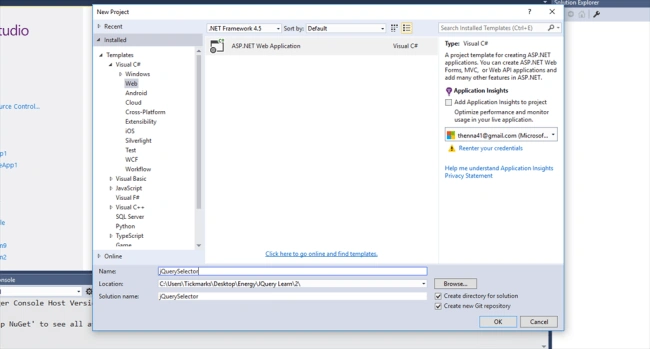
Now, click OK again. The template pop up will open, as shown below.
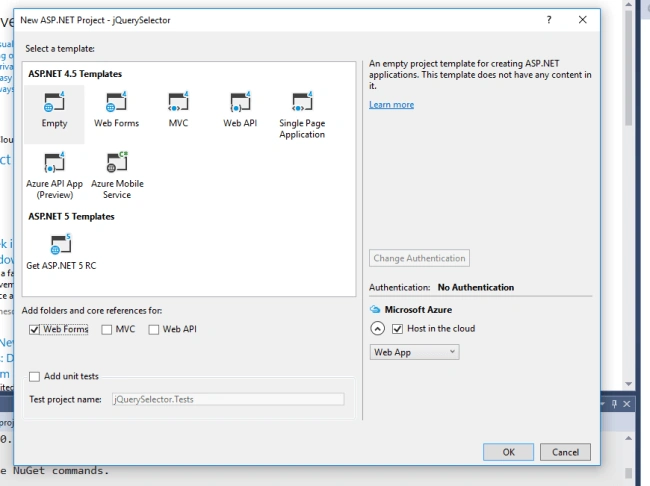
Click Empty under HTML Template and choose Under Core Reference WebForm. Now, click OK and the new project is created. Now, right click on Project Solution Explorer. Select Add and choose HTML page. Now, install jQuery package, using NuGet Package Manager Console.
using Following Comment
Install-Package jQuery
Now, click OK again. The template pop up will open, as shown below.
Click Empty under HTML Template and choose Under Core Reference WebForm. Now, click OK and the new project is created. Now, right click on Project Solution Explorer. Select Add and choose HTML page. Now, install jQuery package, using NuGet Package Manager Console.
using Following Comment
Install-Package jQuery
Now, I will explain about ID selector, using jQuery. First, we look at an example which uses jQuery ID Selector. I have pasted my HTML code with ID Selector jQuery Script.
- <!DOCTYPE html>
- <html>
- <head>
- <title></title>
- <script src="Scripts/jquery-3.1.1.js"></script>
- <script type="text/javascript">
- $(document).ready(function () {
- $('#button1').click(function () {
- alert('Jquery ALert');
- });
- });
- </script>
- </head>
- <body>
- <input id="button1" type="button" value="Clickme"/>
- </body>
- </html>
Now, lets me explain about button ID selector.
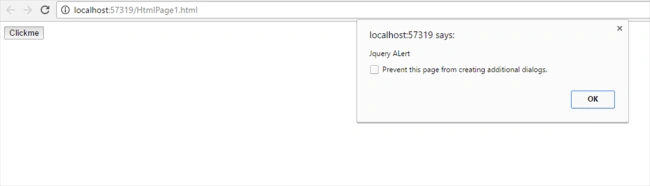
# is the symbol for jQuery ID Selector. I created my sample code input button, where I set the name of the input box "button1". Now, I am going to explain how to add a button to jQuery element. First, we should add jQuery Reference in between <Head></Head>. I used jQuery version 3. In this script, the document is ready in the starting process to script fully loaded DOM objects. Now, we add Reference button to script it by using Click event function. Now, run the script. Click the button, which shows an output alert box.
# is the symbol for jQuery ID Selector. I created my sample code input button, where I set the name of the input box "button1". Now, I am going to explain how to add a button to jQuery element. First, we should add jQuery Reference in between <Head></Head>. I used jQuery version 3. In this script, the document is ready in the starting process to script fully loaded DOM objects. Now, we add Reference button to script it by using Click event function. Now, run the script. Click the button, which shows an output alert box.
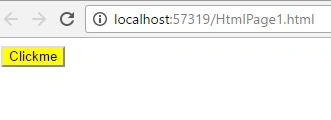
Now, we can change the button's background color, using jQuery Selector. Now, simply change to our Script by adding CSS class for background color Button.
- <script src="Scripts/jquery-3.1.1.js"></script>
- lt;script type="text/javascript">
- $(document).ready(function (){
- $('#button1').css('background-color', 'yellow');
- });
- </script>
Now, let us continue discussing about jQuery element Selector. Select the element in jQuery, using tag name selector
Syntax
$(Element)
$(Element)
Examples
- $('td') // Select the 'td' Elements
- $(‘Div a’) // select all td Elements
- $(‘div a’) // select All anchor elements That are Descendants of Div Element
- $(‘div,span,a’) // selects all div,span and anchor elements
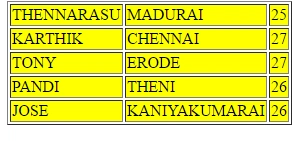
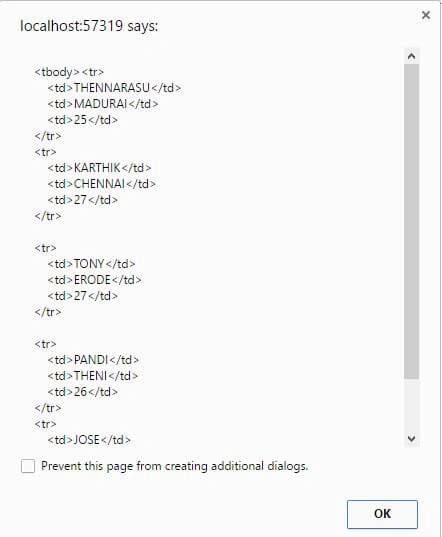
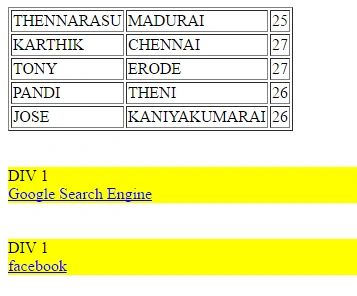
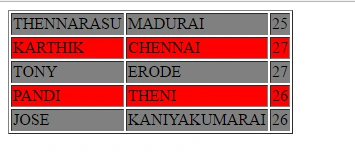
Now, first we need to look up the sample code. Tag all JQuery elements. First we look up the Td function. Now we can look up how to count td function in the HTML code. First, we need to look at the code given below. - <!DOCTYPE html>
- <html>
- <head>
- <title></title>
- <script src="Scripts/jquery-3.1.1.js"></script>
- <script type="text/javascript">
- $(document).ready(function () {
- alert($('td').length); // td Count script
- });
- </script>
- </head>
- <body>
- <table border="1">
- <tr>
- <td>THENNARASU</td>
- <td>MADURAI</td>
- <td>25</td>
- </tr>
- <tr>
- <td>KARTHIK</td>
- <td>CHENNAI</td>
- <td>27</td>
- </tr>
- <tr>
- <td>TONY</td>
- <td>ERODE</td>
- <td>27</td>
- </tr>
- <tr>
- <td>PANDI</td>
- <td>THENI</td>
- <td>26</td>
- </tr>
- <tr>
- <td>JOSE</td>
- <td>KANIYAKUMARAI</td>
- <td>26</td>
- </tr>
- </table>
- <br/>
- <br/>
- <div>
- DIV 1
- <br/>
- <a href="www.google.com">Google Search Engine</a>
- </div>
- <br /><br/>
- <div>
- DIV 1
- <br />
- <a href="www.facebook.com">facebook</a>
- </div>
- </body>
- </html>

Join the conversation! Your thoughts help the community grow.