

Search is an important aspect of SharePoint. It is one of the key features of the product and one of the major functionalities. Let’s see how to configure Farm search in this configuration.
How to configure it?
Let’s open Central Admin of SharePoint on your machine. On your Windows desktop screen, click Start >> Administrative Tools >> SharePoint 2013 Central Administration.
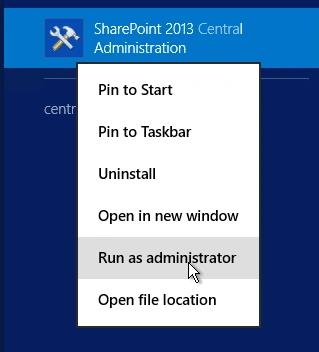
- Run it as an administrator to have the elevated privileges.
- You will see the screenshot given below.
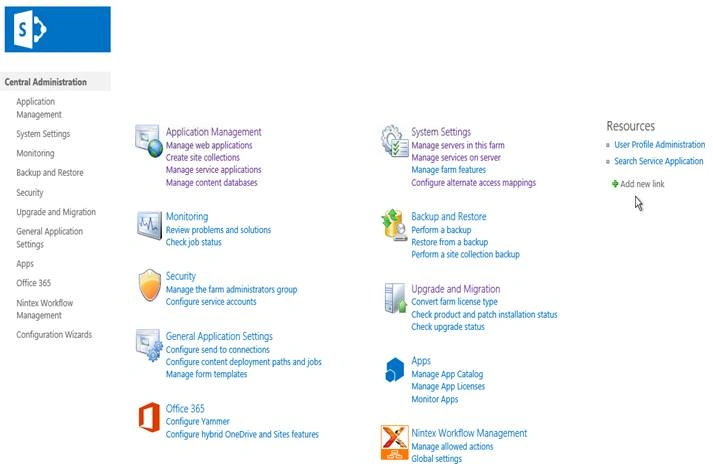
- Central Admin is configured under the categories given above.
- Click General Application Settings.
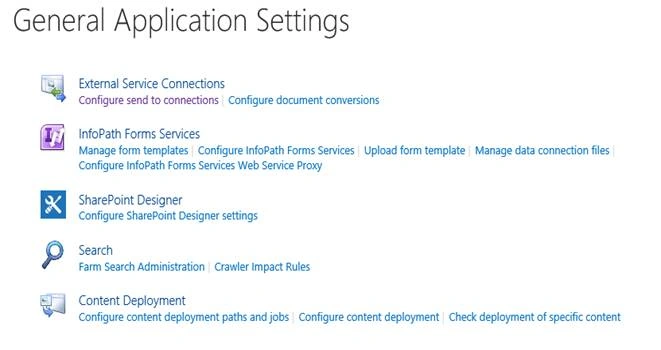
- Go to Search.
- Click Farm Search Administration.
- You will see the screen given below.
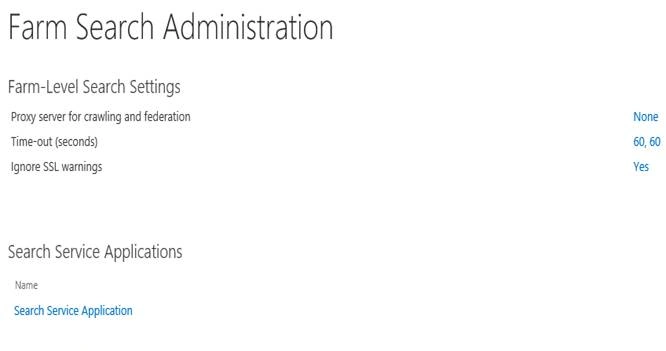
In this part of the article, we will see the search Service Application. As in our case, we have a default search Service Application.
- Click it.
- You will see the screen given below.
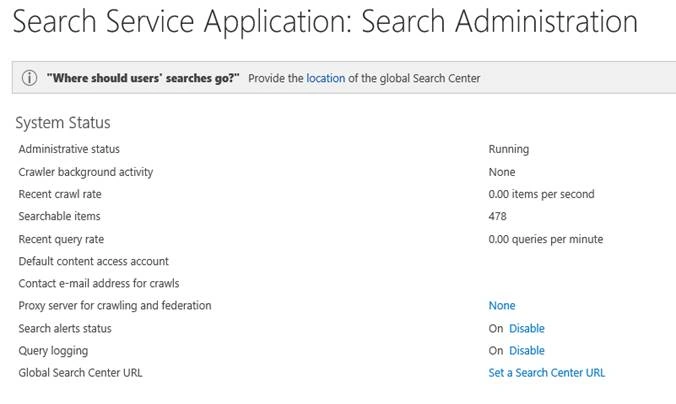
1st Option
Specify where you want the users to go for search. In this case, you can specify the location by clicking it.
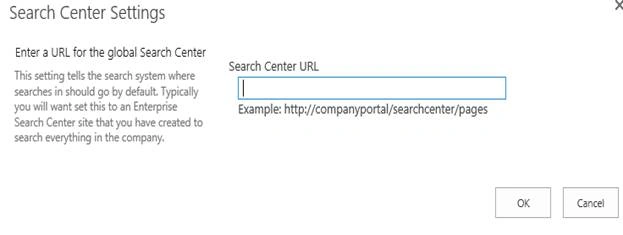
Once you assign a link, click OK and this will be a default search center for the complete Farm.
System Status
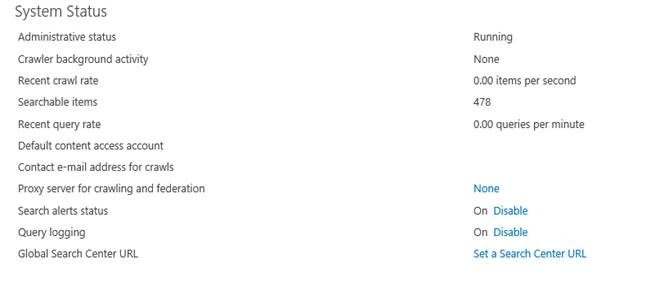
Here, you can see the complete running status of your search Farm.
Configuration
- Administrative status - It provides the current status of the search Farm.
- Crawler background activity – There is none or in progress, if something is running behind.
- Recent crawl rate – The crawl speed.
- Searchable items – It states how many items have been searched.
- Recent query rate – Provides a rate of query.
- Default content access account – Here, you can specify the default access account by clicking.
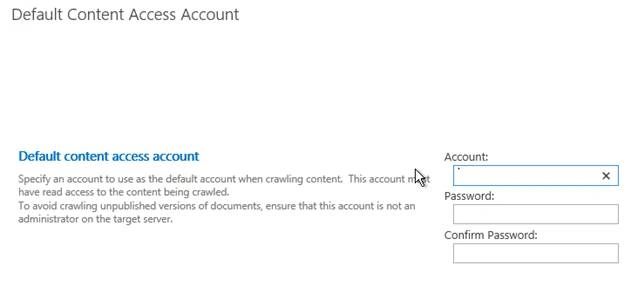
- Contact e-mail address for crawls
In a similar way, you can provide a contact email address for crawls to send the emails.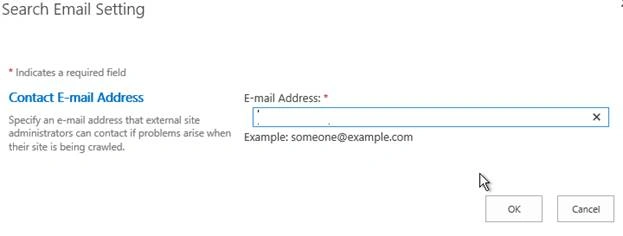
- Proxy Server for crawling and federation.
You can also provide a proxy Server, if required.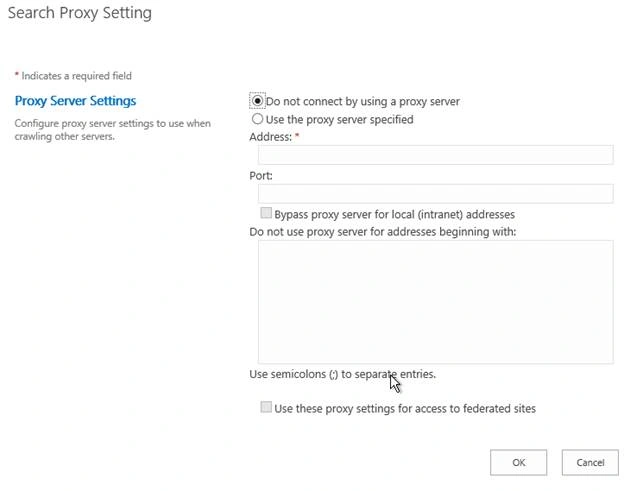
Once this configuration is done, the proxy Server is for crawling and federation. Time-out (seconds) settings and SSL warning settings will be available, as per your configuration on Farm search, which will imply to all the Web Applications and the sites within them.
- Search alerts status - You can allow or disable the alert status.
- Query logging - You can allow or disable the query logging.
- Global Search Center URL - Here, you can provide the location of global search center.
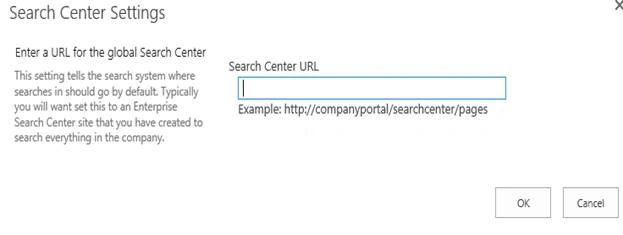
Once configured, click OK and the setting will be changed for the search farm center and will be applicable to all the sites on the Web Application under the Farm.
In this article, we saw how to manage Farm Search Administration in SharePoint 2013 Central Administration. There are more articles to come on Central Administration. Until then, keep reading and keep learning.
Join the conversation! Your thoughts help the community grow.