

Introduction
In this article, am explaining how to Generate Word Template using Power Automate with Back End as SharePoint.
And am covering how to add Repeating Controller and Plain Text Content Controller in Word Document.
Implementation Steps
Step 1
Navigate to your SharePoint Site and create SharePoint List
Step 2
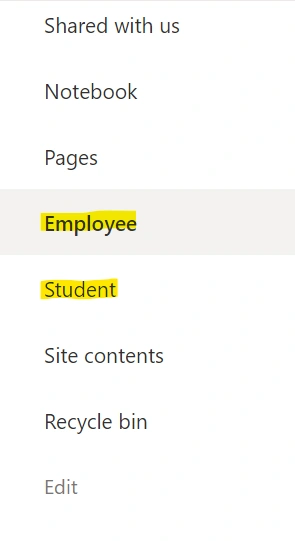
In my case I have created 2 SharePoint Lists, one is Employee and another Student
Step 3
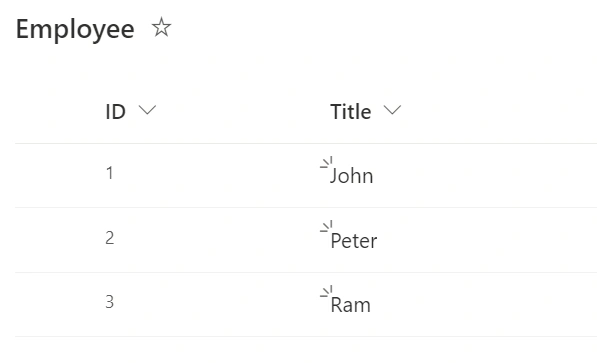
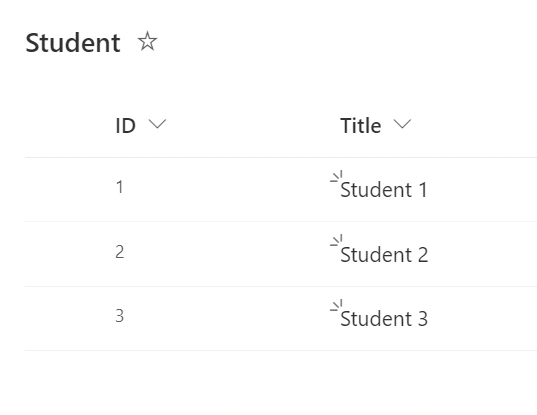
Add records to Employee list and Student list
Step 4
Now open Microsoft Word Document
Step 5
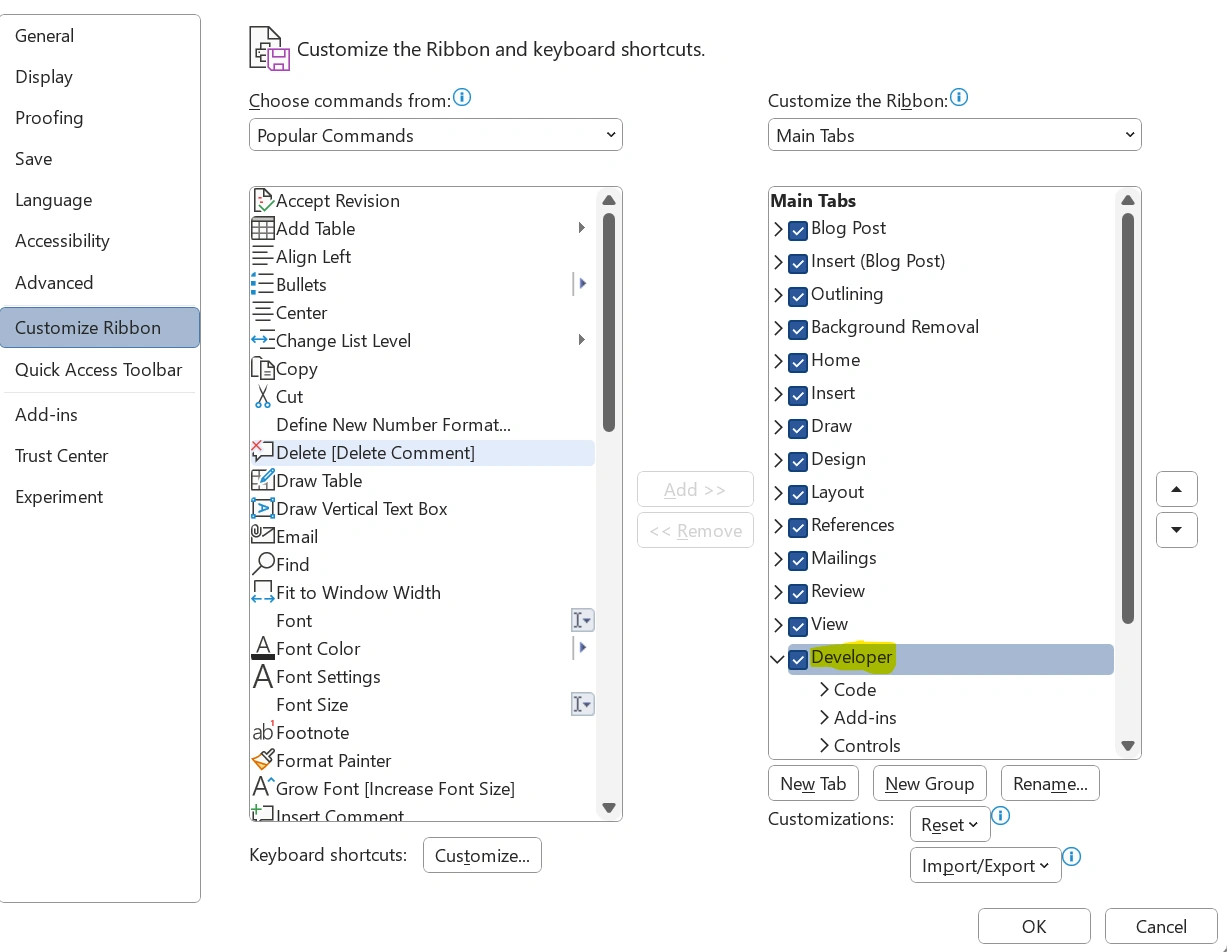
Once Microsoft Word opens click on Developer in Ribbon Tool Bar

Step 6
If the Developer is not available then Click File --> Select Options --> Click Customize Ribbon and Select Developer --> and Click OK
Step 7
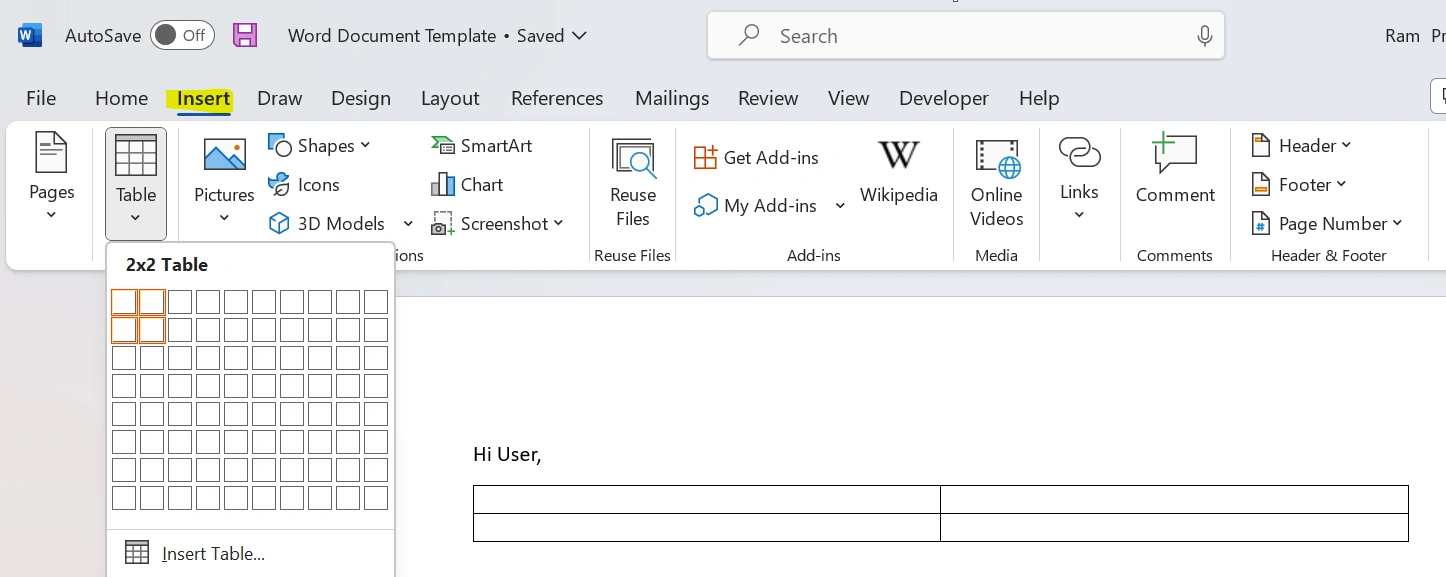
Once done click Insert and Select Table
Step 8
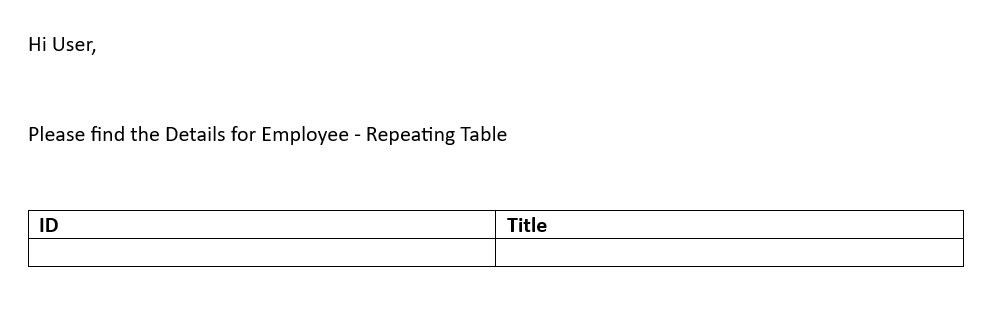
Now input the Name in the First Column
Step 9
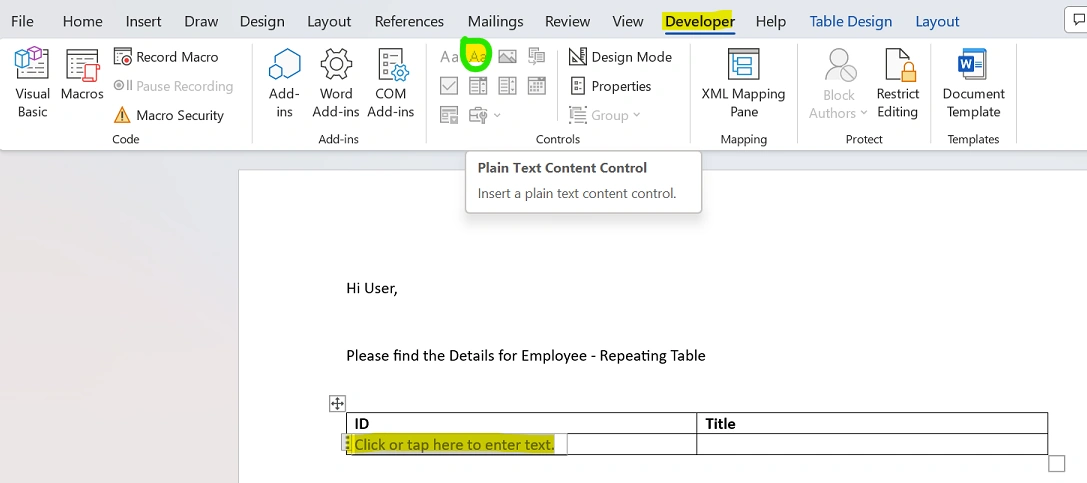
Now select the ID then Click On Developer Ribbon Tab at the TOP then select Plain Text Content Controller
Step 10
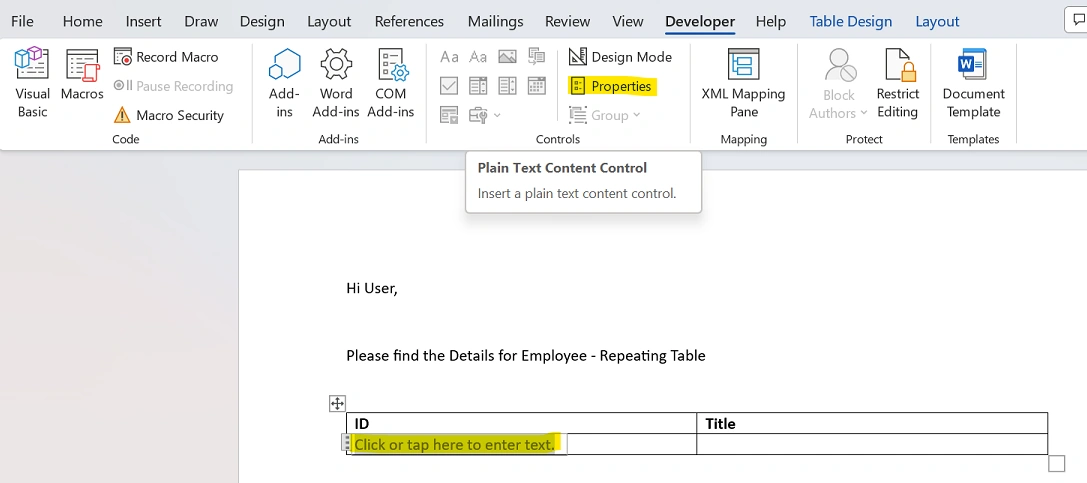
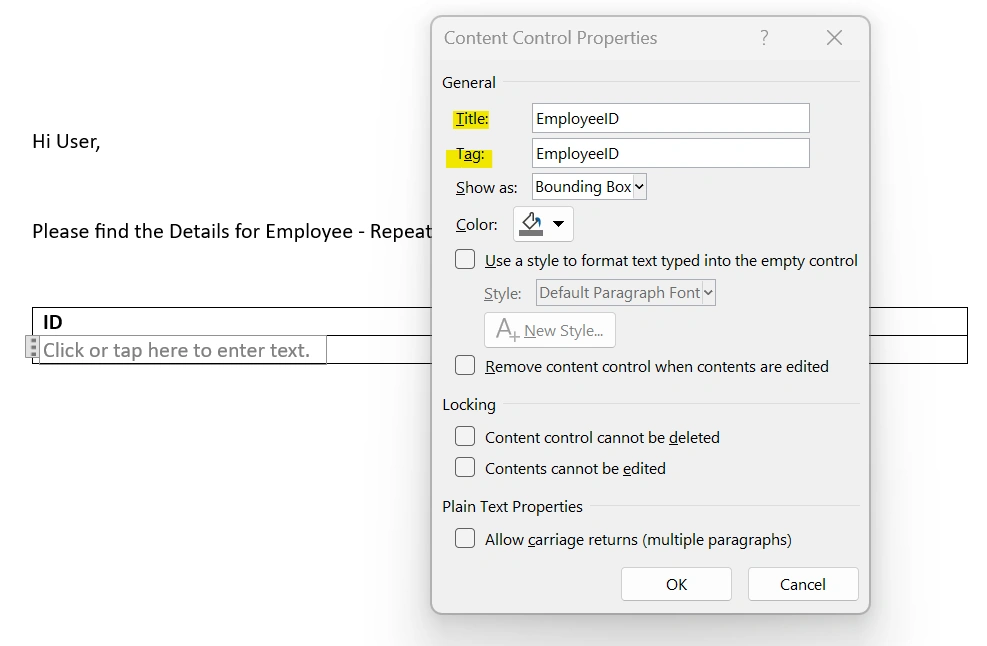
Once done select the ID Column then click Properties
Step 11
After clicking Properties it will open Popup, enter Title and Tag
Step 12
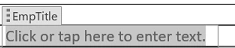
Once done, do the same for other Column as Well
Step 13
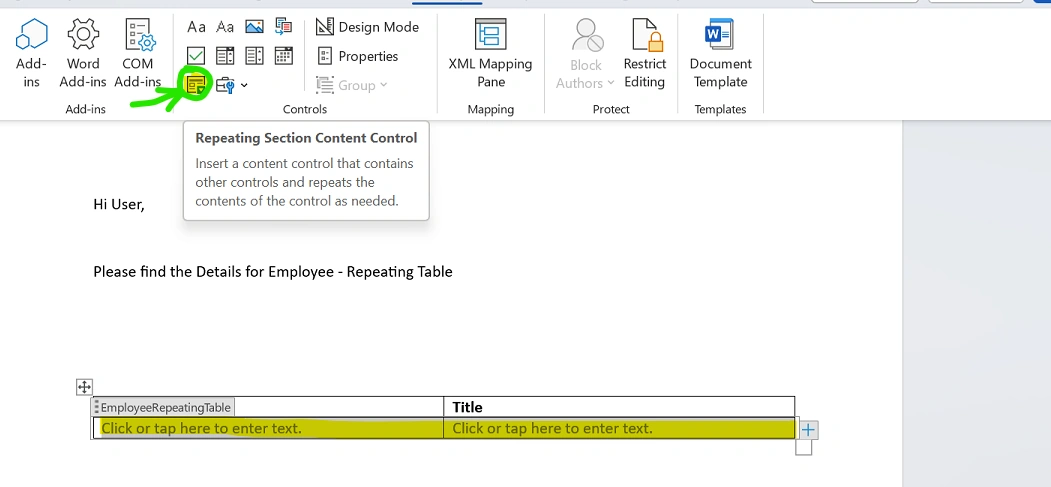
Once done, now we are ready to add Repeating Content Controller for the Table so that it will display all the values from the List
Step 14
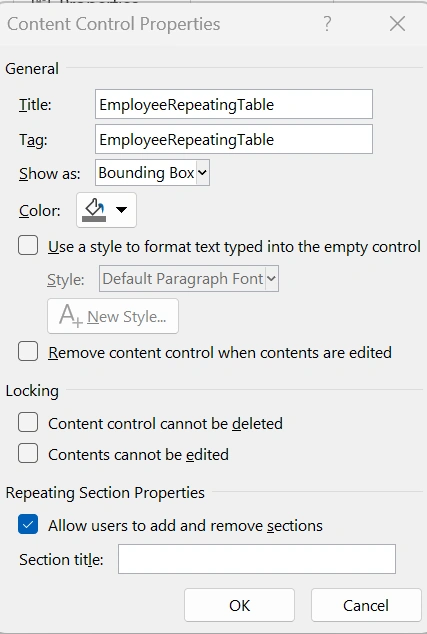
Now click on Properties and provide the Tag and Title for Repeating Table
Step 15
In the same way create a new Table for Student and add the ID and Title

Step 16
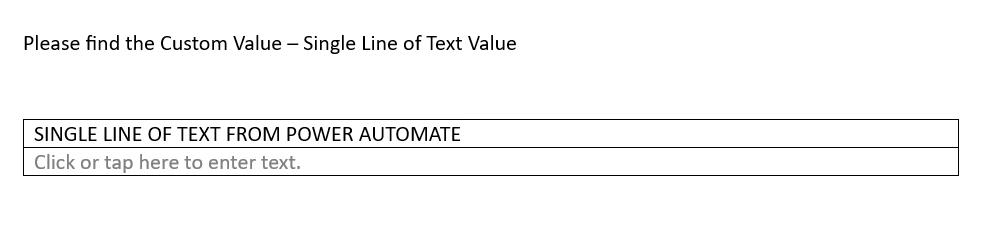
Now am adding a single line of Text Value as well--> Simply add a single line of Text
Step 17
Once done save the file in your SharePoint Site
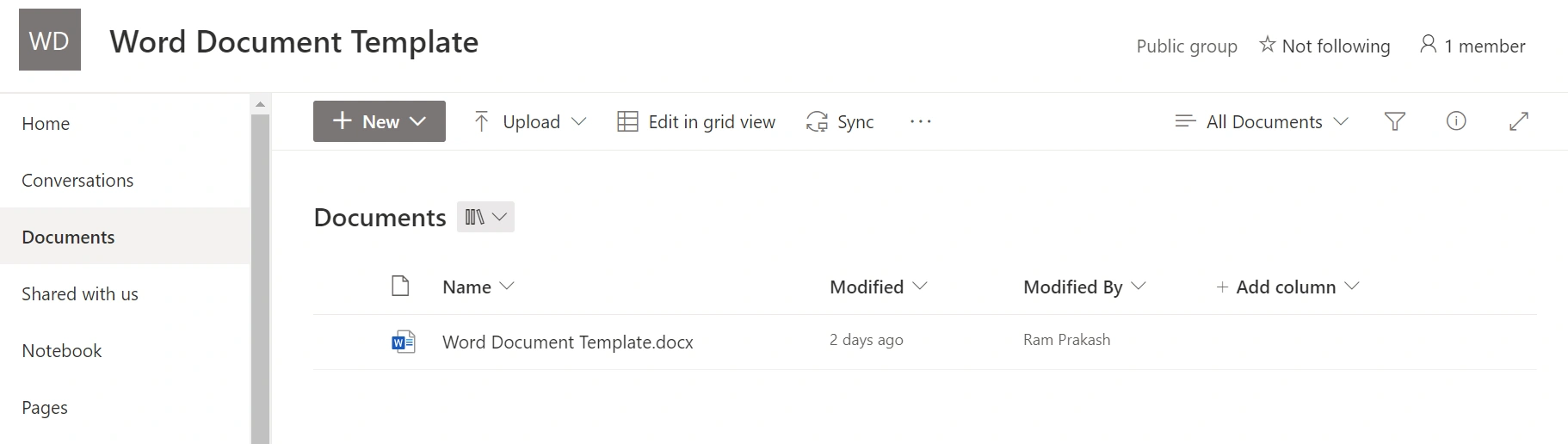
Once after Record gets created navigate to https://flow.powerautomate.com
Step 18
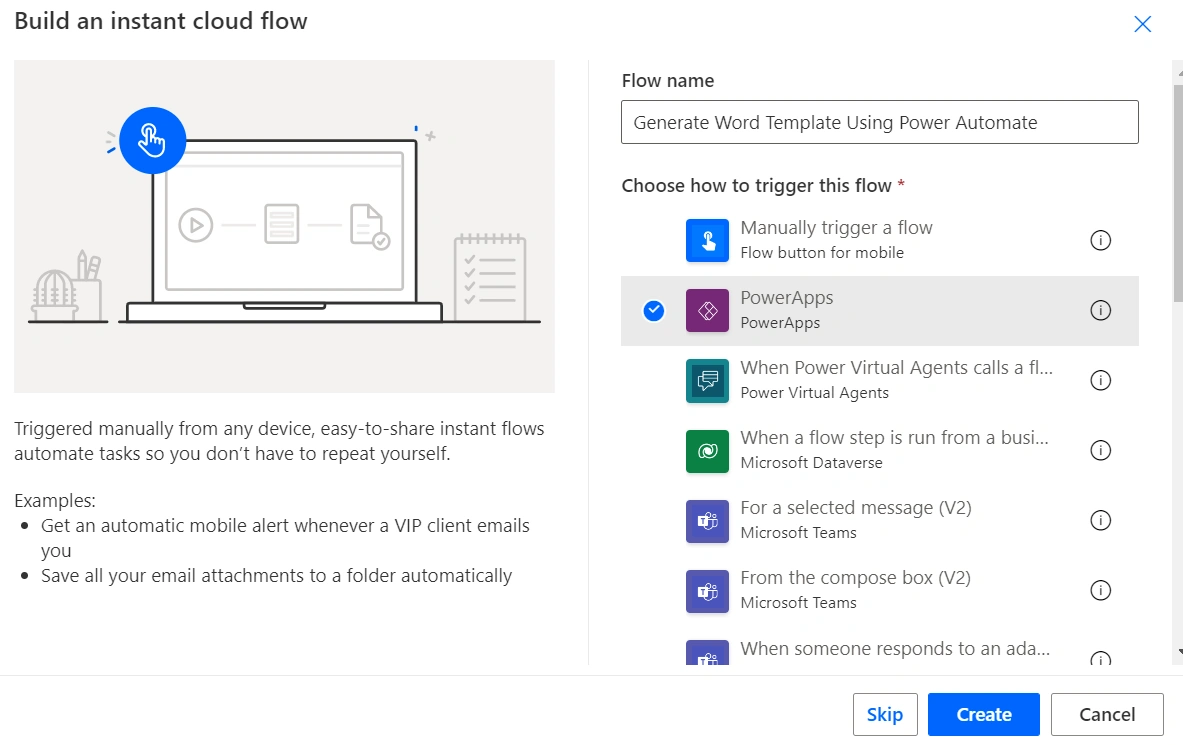
Click Apps --> Select New Flow --> Select Instant Cloud Flow and Input the name as (Generate Word Template Using Power Automate) and click Create.
Step 19
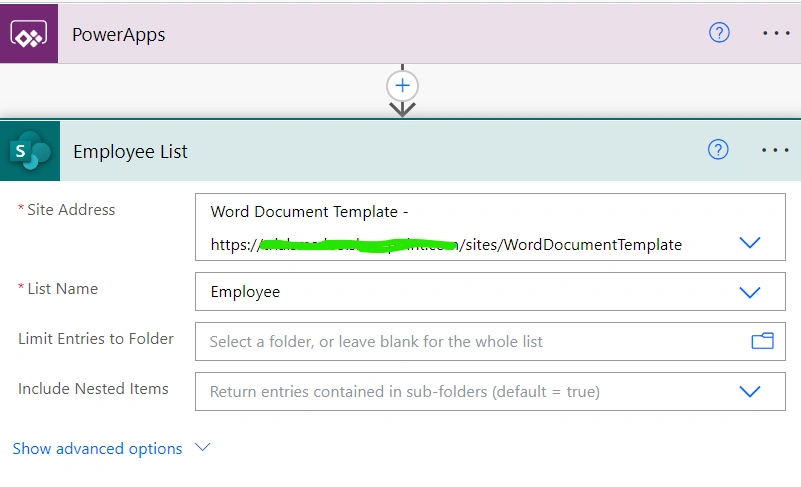
Now click Add Step, select SharePoint and search for Get Items and add the SharePoint Site and select List Name
Step 20
Now add Get Items Again and get the Student List
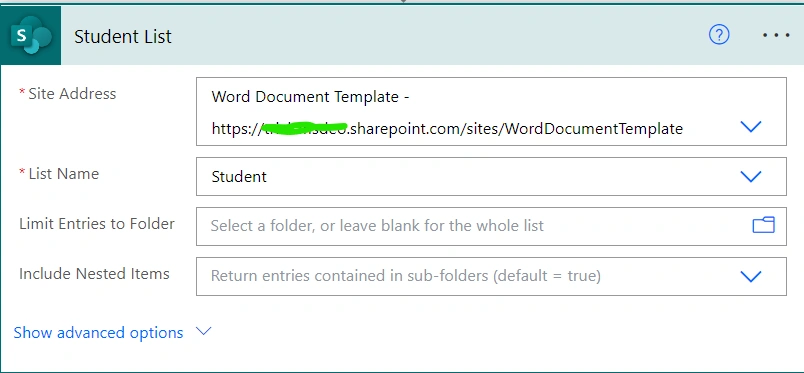
Step 21
Once done click add step and search for SELECT
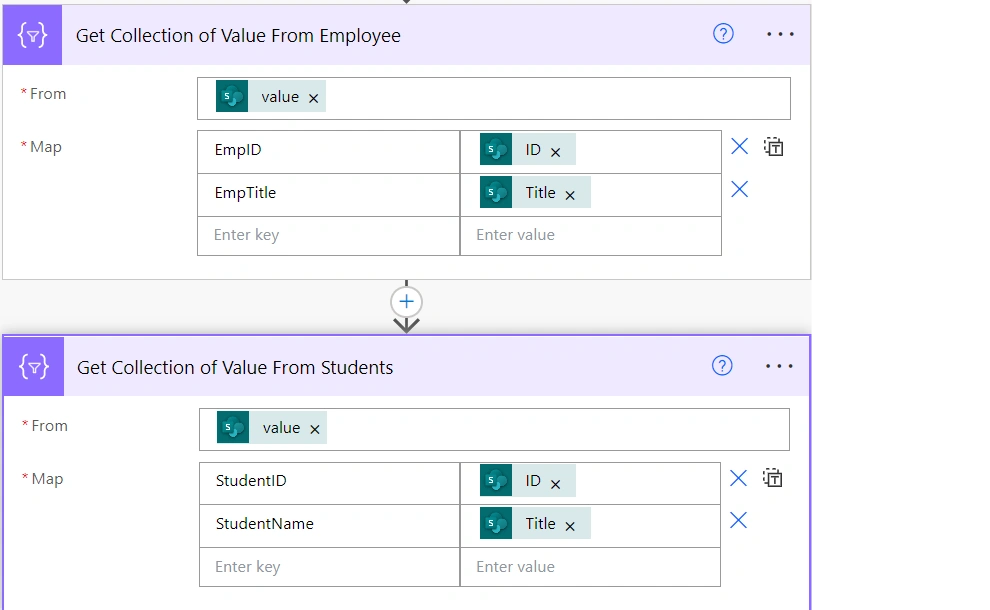
Step 22
Now select the Respective Values then please make sure the EMPID and EMPTITLE As like as Properties which we have created in step 11
Step 23
Now select Add Steps --> Search for Word then Select POPULATE A MICROSOFT WORD TEMPALTE then select the Locations
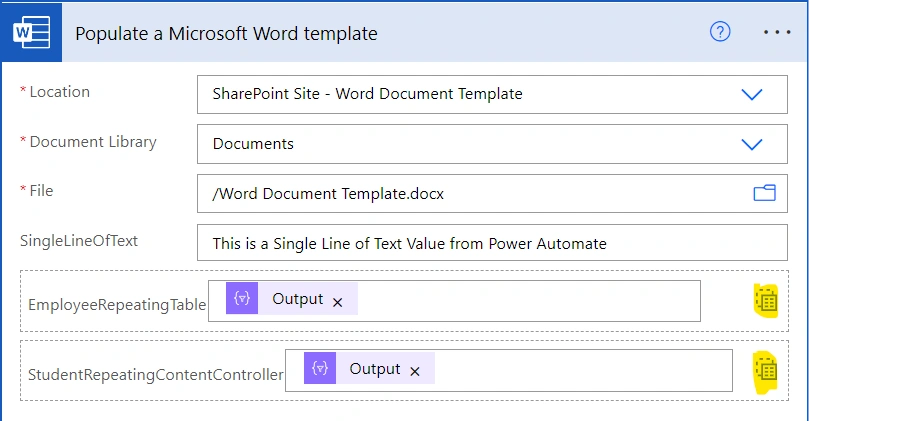
Step 24
Now for Populating REPEATING TABLE click the HIGHLIGHTED BUTTON and select the OUTPUT Values from Point 21.
Step 25
Now add some Custom Values in single line of Text.
Step 26
Now send an Email
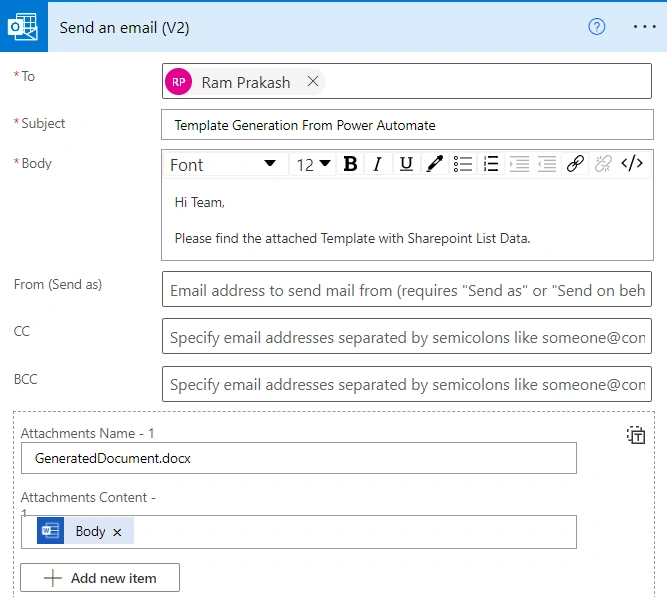
That's it :)
Now we are good to start the Process
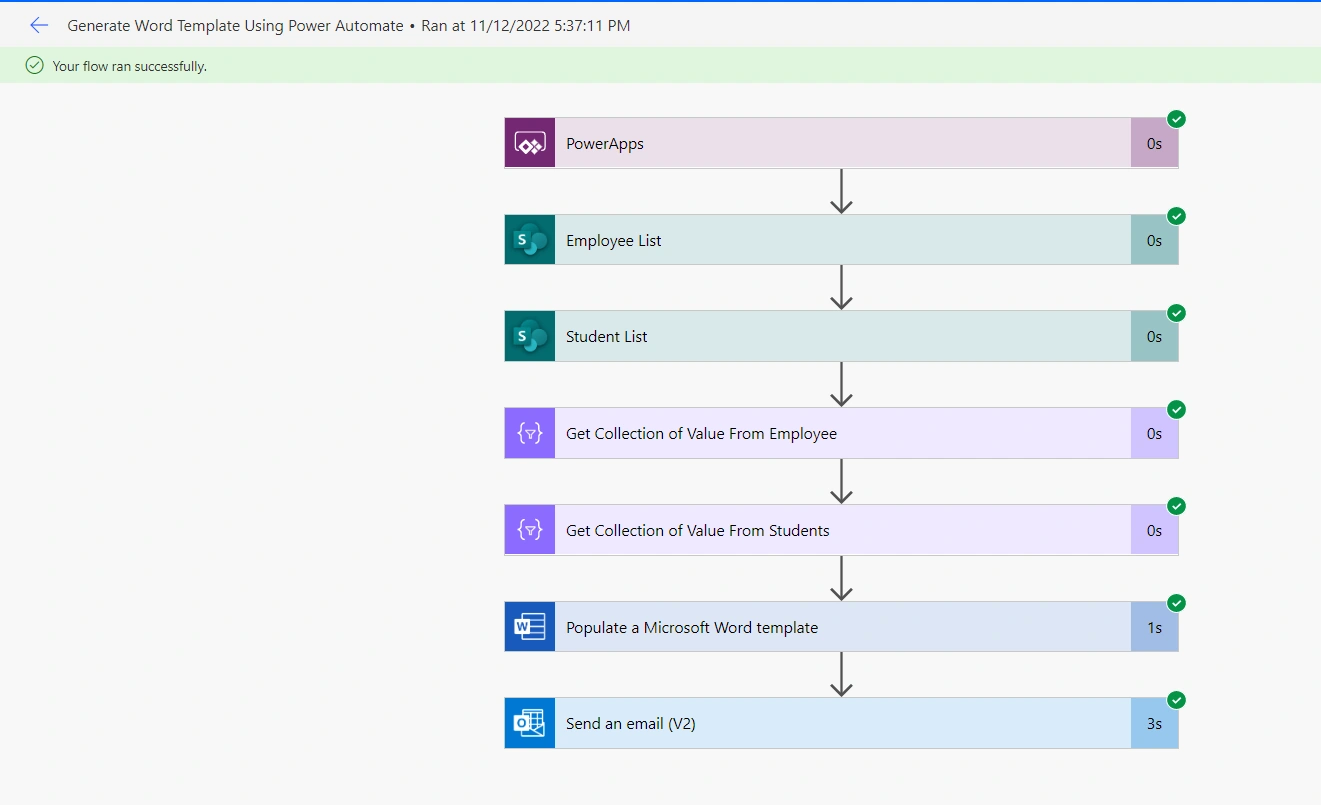
Now the Flow is created successfully. Now am opening my Email and downloading the file
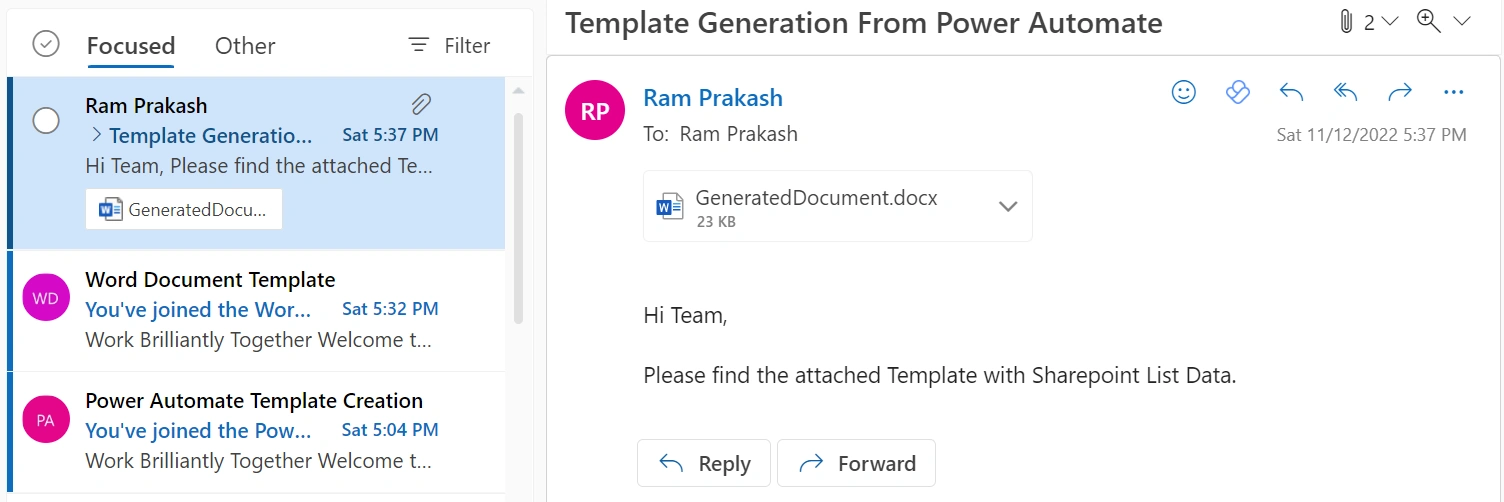
Open the downloaded file
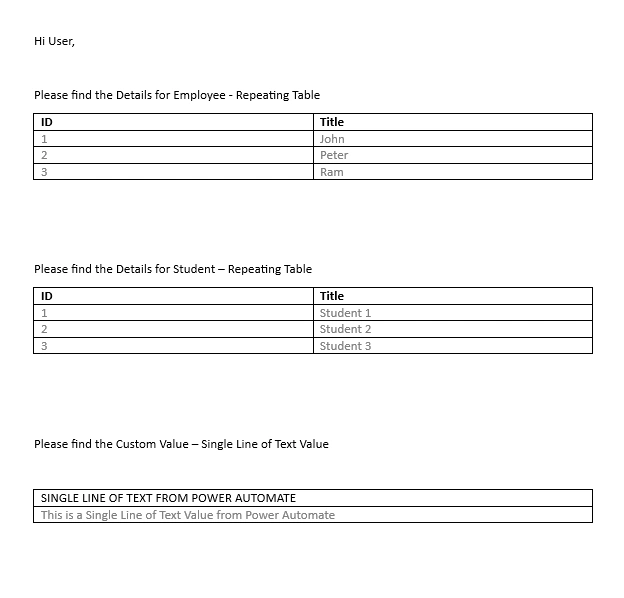
That's it :)
I have mentioned Step by Step method for how to generate Word Document Template using Power Automate :)
Join the conversation! Your thoughts help the community grow.