Introduction
In this article, I will explain how to get the user's screen resolution or client machine's resolution using TypeScript.
Use the following procedure.
Step 1
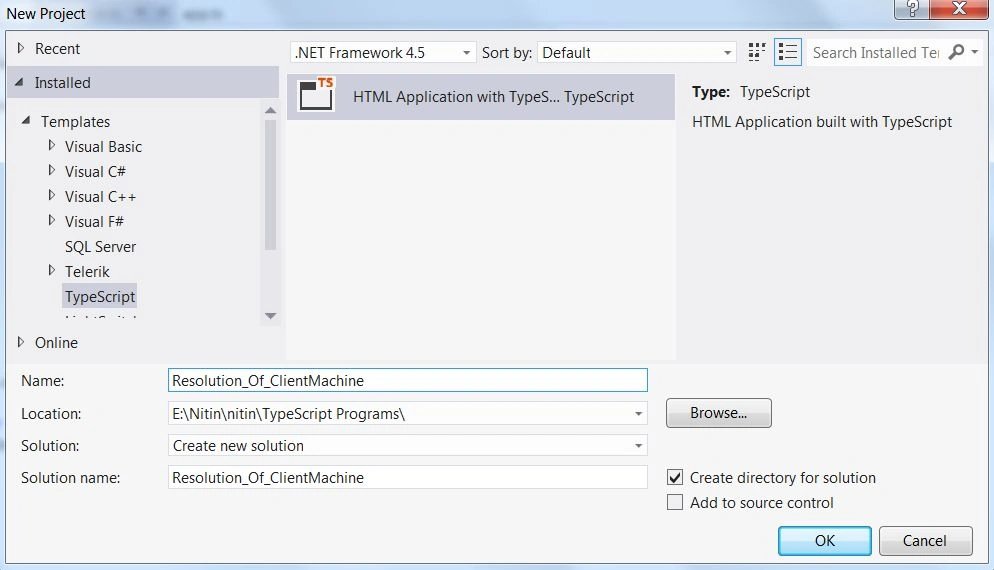
Open Visual Studio 2012 and click "File" -> "New" -> "Project...". A window is opened. In this window, click "HTML Application for TypeScript" under Visual C#.
Give the name of your application as "Resolution_Of_ClientMachine" and then click "Ok".
Step 2
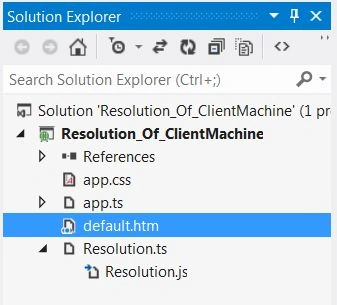
After this session the project has been created; a new window is opened on the right side. This window is called the Solution Explorer. The Solution Explorer contains the ts file, js file and CSS files and the aspx page.
Program Coding
Resolution.ts
- class Get_Resolution
- {
- Resolution()
- {
- var txtwidth = ( < HTMLTextAreaElement > document.getElementById("txtwidth"));
- var txtheight = ( < HTMLTextAreaElement > document.getElementById("txtheight"));
- txtwidth.value = screen.width.toString();
- txtheight.value = screen.height.toString();
- }
- }
- window.onload = () =>
- {
- var bttnshow = document.getElementById("show");
- bttnshow.onclick = function()
- {
- var obj = new Get_Resolution();
- obj.Resolution();
- }
- };
default.htm
- <!DOCTYPE html>
- <html lang="en"
- xmlns="http://www.w3.org/1999/xhtml">
- <head>
- <meta charset="utf-8" />
- <title>TypeScript HTML App</title>
- <link rel="stylesheet" href="app.css" type="text/css" />
- <script src="Resolution.js"></script>
- <style type="text/css">
- #txtwidth
- {
- width: 71px;
- }
- #txtheight
- {
- width: 68px;
- }
- </style>
- </head>
- <body>
- <form id="form1" runat="server">
- <h3 style="color: #FF3300">Resolution of Local Machine in TypeScript</h3>
- <div id="showdiv" style="font-weight: bold; height: 90px;";>
- Screen Width:
- <input id="txtwidth" type="text" />px
- <br />
- <br />
- Screen Height:
- <input id="txtheight" type="text" />px
- <br />
- <br />
- </div>
- </form>
- <p>
- <input id="show" type="button" value="Get Resolution" />
- </p>
- </body>
- </html>
Resolution.js
- var Get_Resolution = (function() {
- function Get_Resolution() {}
- Get_Resolution.prototype.Resolution = function() {
- var txtwidth = (document.getElementById("txtwidth"));
- var txtheight = (document.getElementById("txtheight"));
- txtwidth.value = screen.width.toString();
- txtheight.value = screen.height.toString();
- };
- return Get_Resolution;
- })();
- window.onload = function() {
- var bttnshow = document.getElementById("show");
- bttnshow.onclick = function() {
- var obj = new Get_Resolution();
- obj.Resolution();
- };
- };
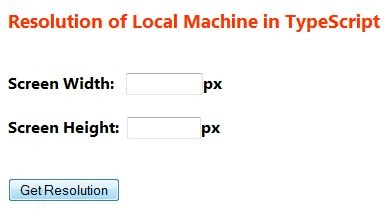
Output 1
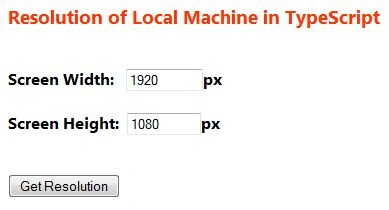
Click on the "Get Resolution" button.
Output 2
For more information, download the attached sample applications.


Join the conversation! Your thoughts help the community grow.