

Introduction
In this article, we will focus on the board section of Azure DevOps and on Wiki, these two features are alternatives for JIRA and Confluence (Atlassian products).
Please refer to the previous articles to understand the basics of Azure DevOps and a hands-on lab.
- Hands-on Lab – Create work items of different types + Assign
- Hands-on Lab – Try moving work items across the board
- Hands-on Lab – Create a sprint and move the work item into it
- Hands-on Lab – Show the usage of queries
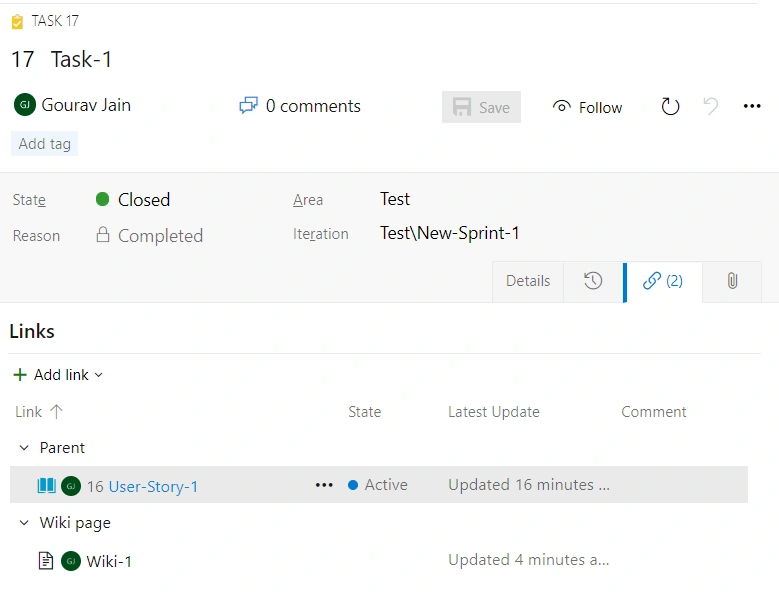
- Hands-on Lab – Create a WIKI and link it to the work item
Hands-on Lab – Create work items of different types + assign
Steps to be followed:
Open https://dev.azure.com/ and log in using your Azure credentials.
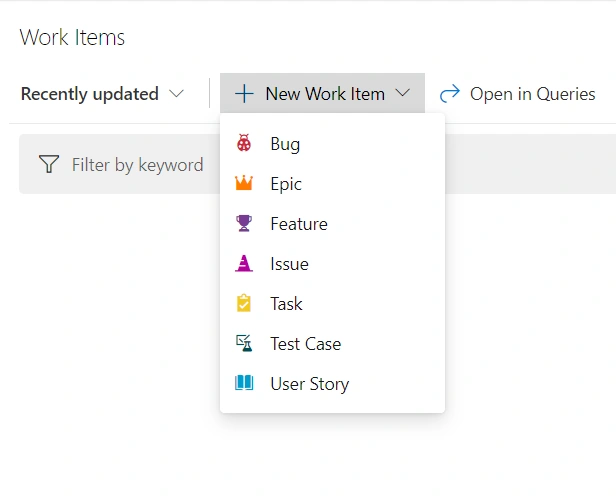
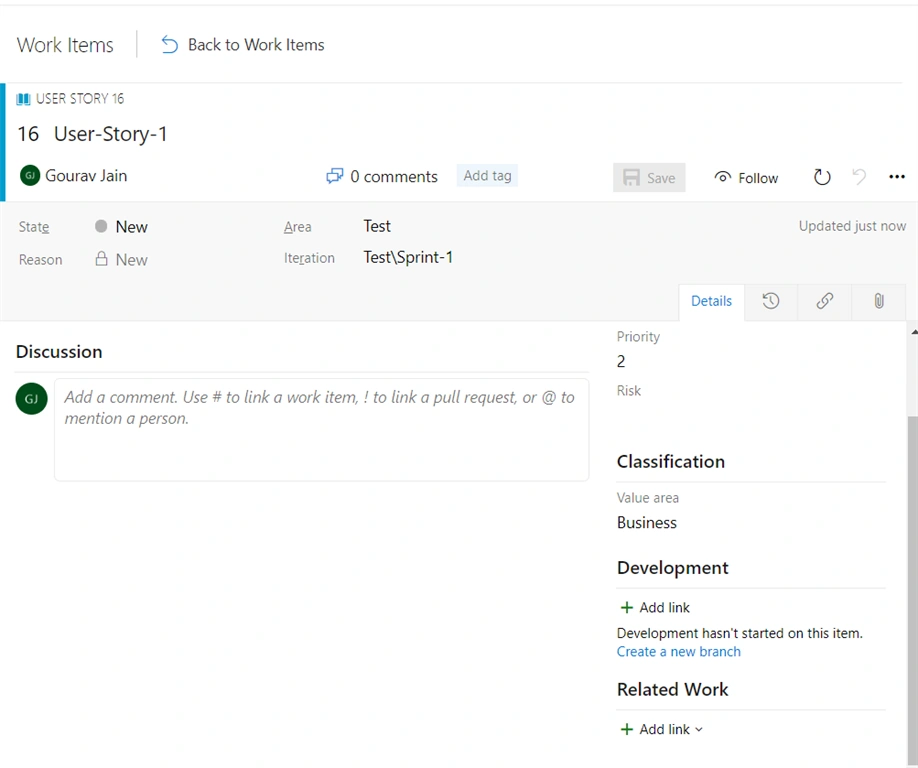
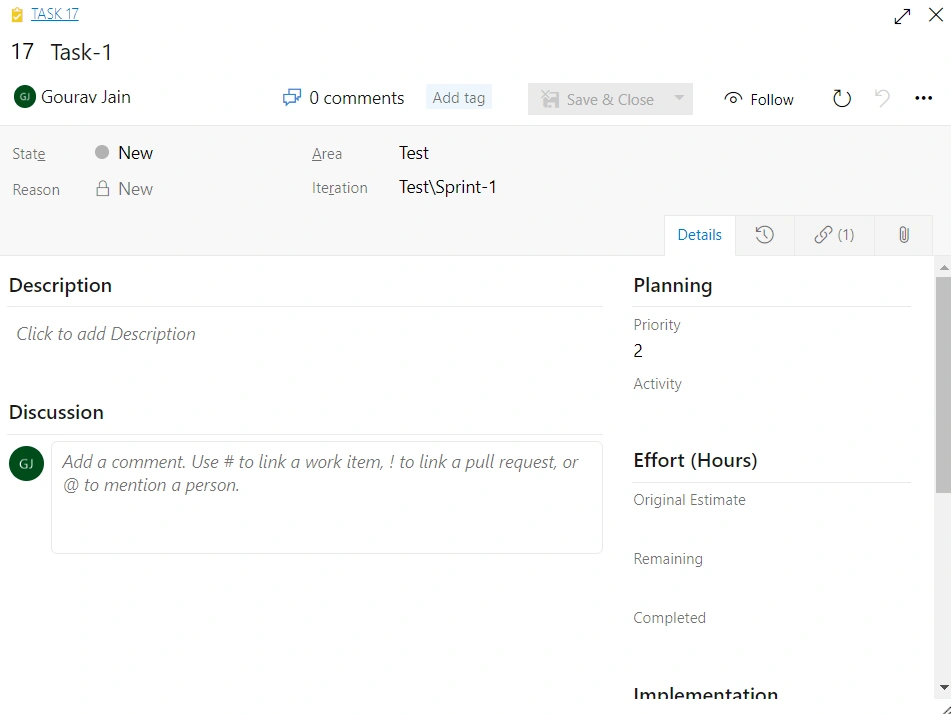
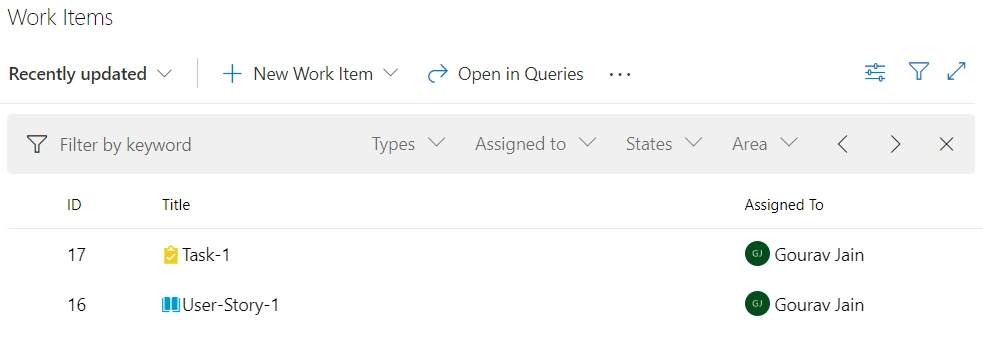
Go to the boards tab and select the “Work Items” tab and add a new work item to see the options.
Hands-on Lab – Try moving work items across the board
Steps to be followed:
Open https://dev.azure.com/ and log in using your Azure credentials.
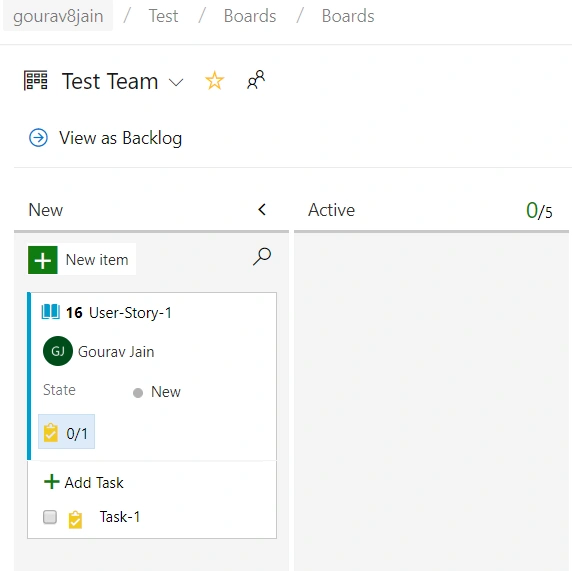
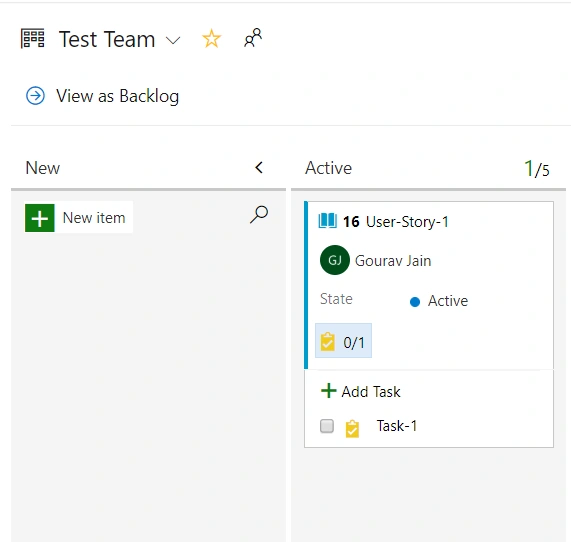
Go to the Boards tab, open the board tab and see the work items there in the New section.
Hands-on Lab – Create a sprint and move the work items into it
Steps to be followed:
Open https://dev.azure.com/ and log in using your Azure credentials.
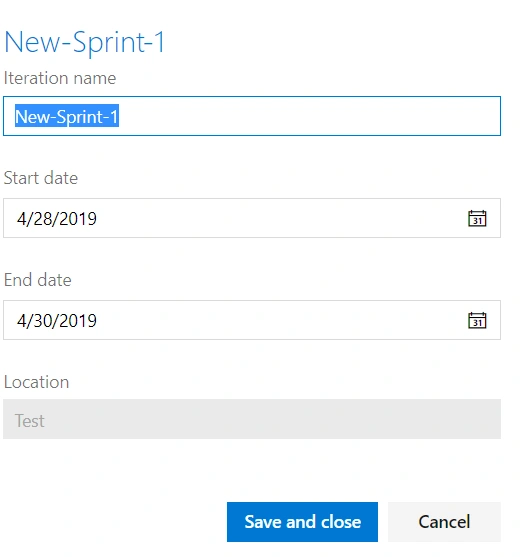
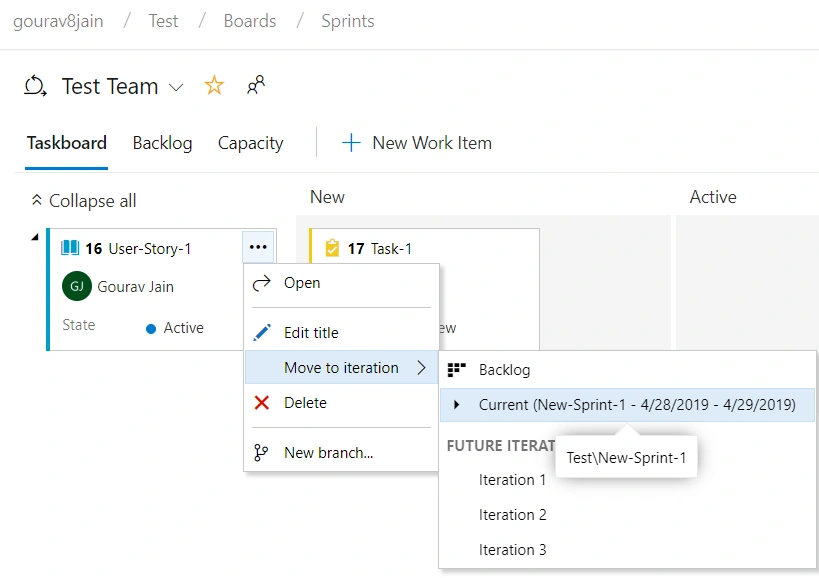
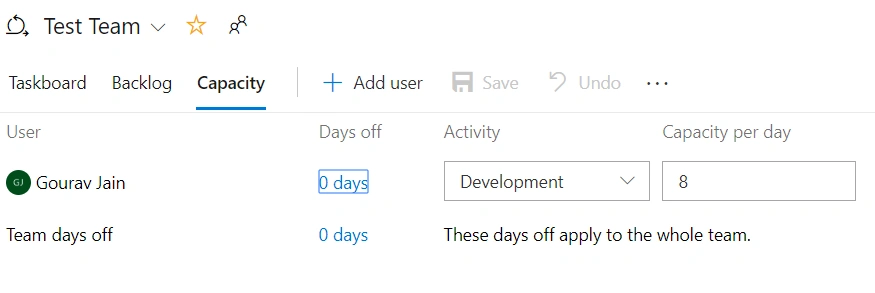
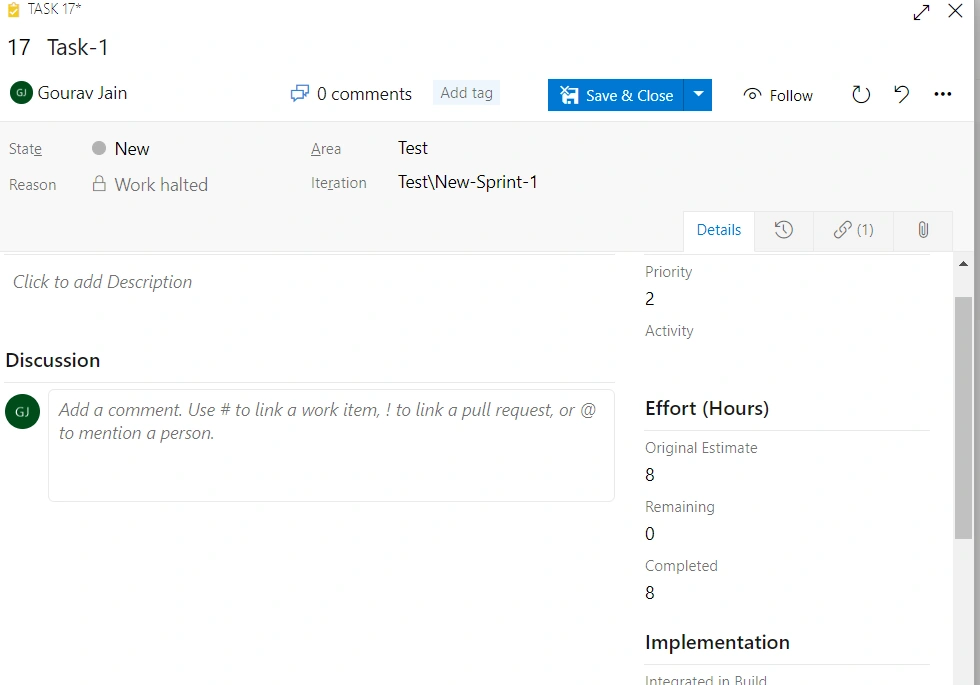
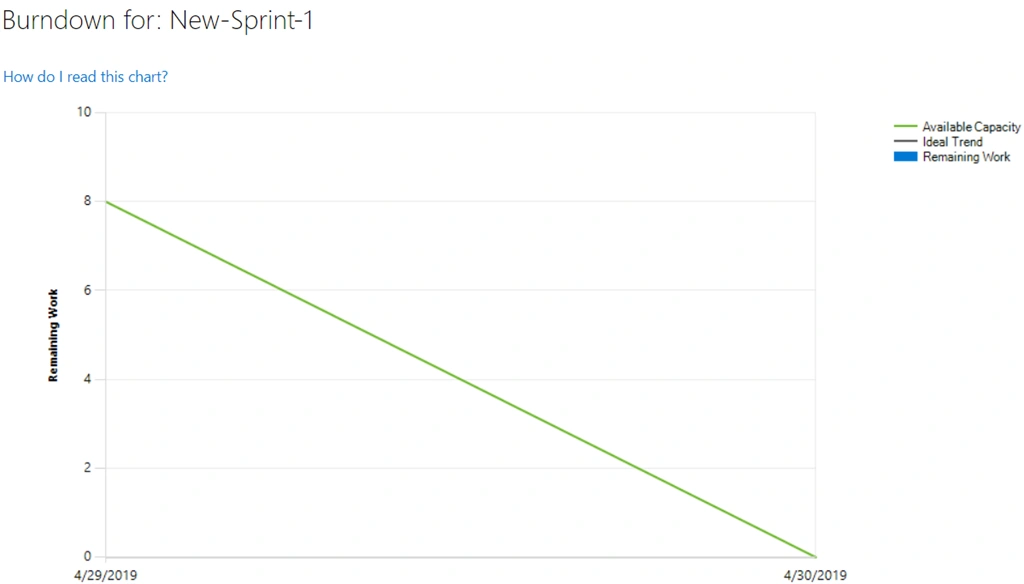
Go to the Boards tab and select “Sprint” tab and add a sprint with the current date to one more day, i.e., sprint will last for two days – tomorrow and the day after.
Hands-on Lab – Show the usage of queries
Steps to be followed:
Open https://dev.azure.com/ and log in using your Azure credentials
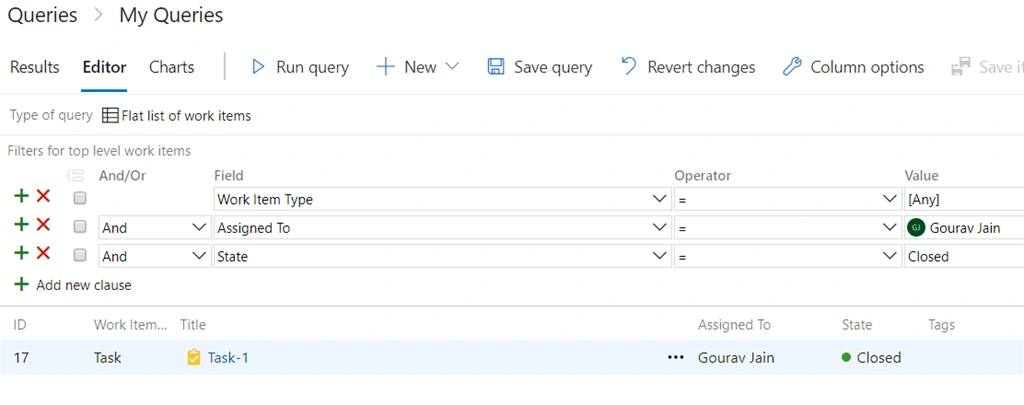
Go to the Boards tab and select the “Queries” tab and create a query to show all work items assigned to me which are in ‘CLOSED’ state. There, we will see only one item; i.e. task which has been closed by us.
Hands-on Lab – Create a WIKI and link it to the work item
Steps to be followed,
Open https://dev.azure.com/ and log in using your Azure credentials
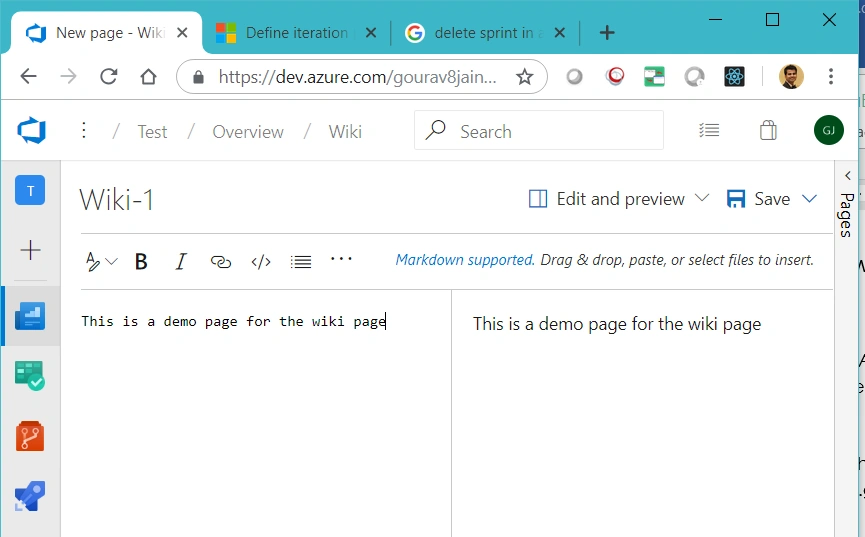
Go to the Overview tab and select “WIKI” tab and create a WIKI page there named “Wiki-1” and save it.
Comments
Join the conversation! Your thoughts help the community grow.