

Introduction
In this article, I am describing authentication and authorization for intranet applications using the ASP.NET Web application based on the MVC project template. This intranet application is developed with MVC 4.
There are two main processes used in this application. When a user visits a website, the process of identifying the user is called Authentication. It is used in combination with Authorization. Authorization is the process of granting permission to the user. At first, any user is authenticated by ASP.NET and then authorized for the resource.
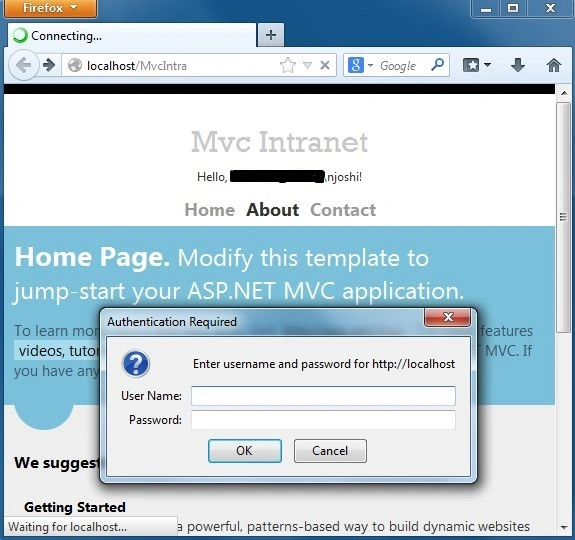
In that context, Windows Authentication is used to access the Intranet Application. If the user is not authorized for the web application, then you do not use Windows Authentication.
Prerequisites
- Microsoft Visual Studio 2010
- MVC 3 or MVC 4
- IIS 7
Let's start to develop the application with the following sections.
- Intranet Application
- IIS Configuration
- Windows Authentication Configuration
- Accessing Controller
Intranet Application
Create an ASP.NET Web Application using the intranet with the following steps.
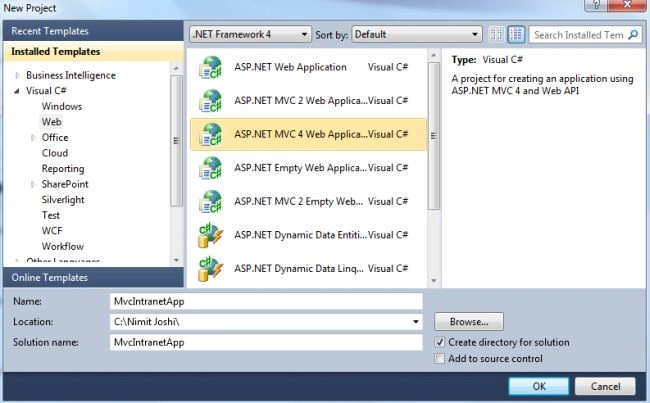
Step 1. Open Visual Studio and create a new project as in the following.
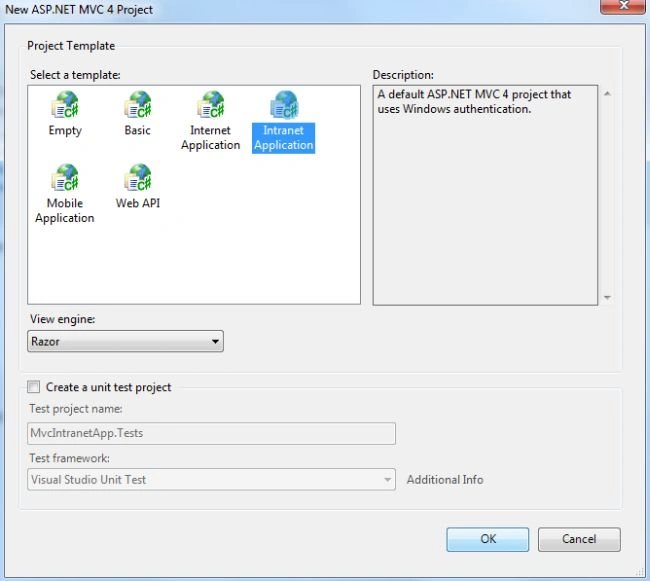
Step 2. Select an Intranet Application.
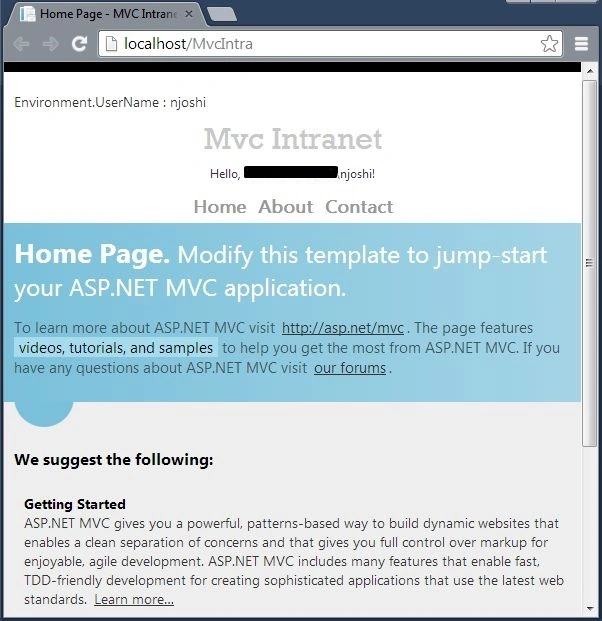
Step 3. Debug your application.
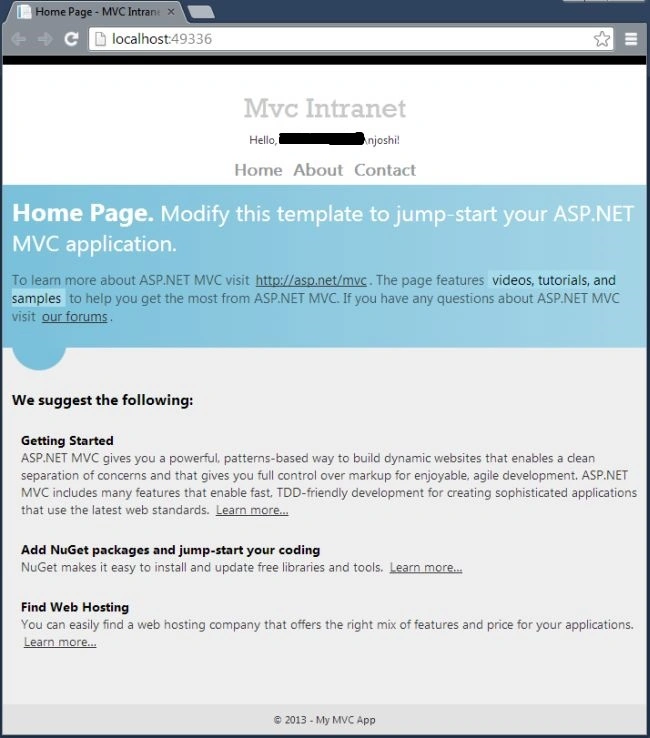
You can see your workgroup name on the top-right corner of the page.
Step 4. Open the _Layout.cshtml page from the View\Shared folder and modify your <header> code with the following code.
<header>
    <div class="content-wrapper">
        <div class="float-left">
            Environment.UserName : @Environment.UserName
            <p class="site-title">@Html.ActionLink("Mvc Intranet", "Index", "Home")</p>
        </div>
        <div class="float-right">
            <section id="login">Hello, <span class="username">@User.Identity.Name</span>!</section>
            <nav>
                <ul id="menu">
                    <li>@Html.ActionLink("Home", "Index", "Home")</li>
                    <li>@Html.ActionLink("About", "About", "Home")</li>
                    <li>@Html.ActionLink("Contact", "Contact", "Home")</li>
                </ul>
            </nav>
        </div>
    </div>
</header>
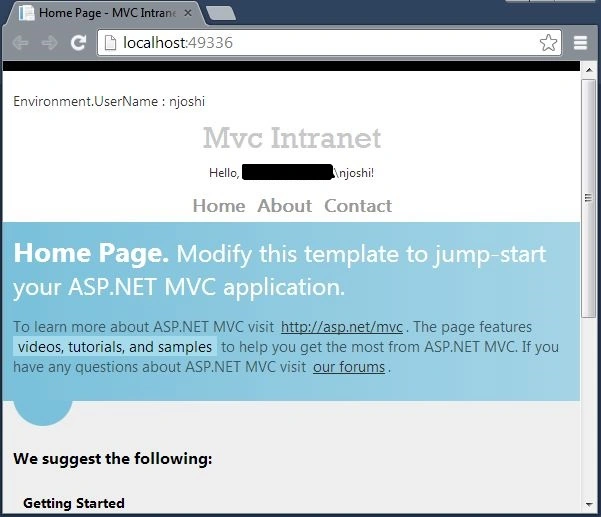
Step 5. Debug your application
IIS Configuration
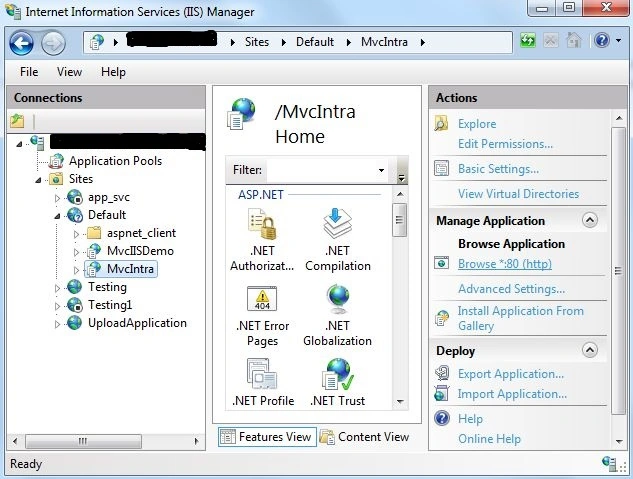
Let's start the IIS Configuration using the following procedure.
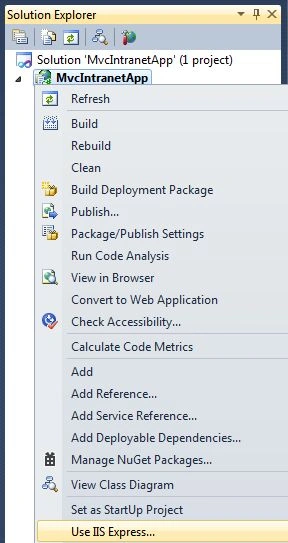
Step 1. Choose IIS Express by right-clicking on your project in the Solution Explorer.
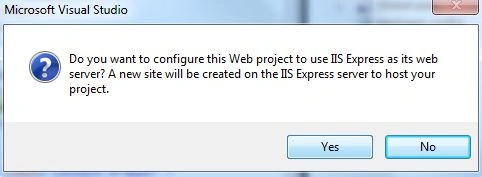
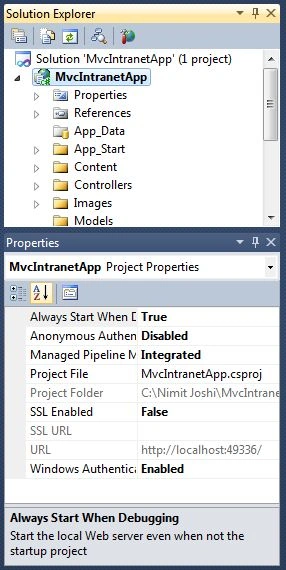
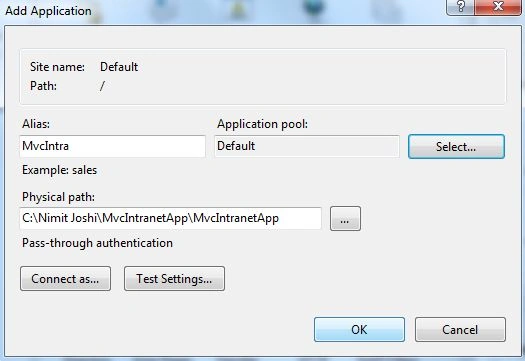
Step 2. The wizard appears, to confirm the configuration. Click on Yes.





Bill JensenPosted Oct 28, 2015, 2:05 PM
Why does this use MVC 4 rather than MVC 5? I am trying to figure out how to create an intranet application in MVC 4 but use a MySQL server, is this even possible? I can't find any updated information on this.
allwyn christopherPosted Aug 5, 2015, 6:33 AM
http://www.c-sharpcorner.com/UploadFile/4b0136/getting-started-with-intranet-application-in-mvc-4/Images/BrowseAuthentication.jpg