

OpenCV (Open-Source Computer Vision Library) is an open-source library specially designed for computer vision, image processing, and machine learning tasks. It provides a comprehensive set of tools and functions to analyze, process, and manipulate images and videos. This library has more than 2500 optimized algorithms, which include a comprehensive set of both classic and state-of-the-art computer vision and machine learning algorithms.
It can be easily used with programming languages like Python, C++, etc, and is currently widely used in Healthcare (Medical image analysis), Surveillance and security (Motion detection and Face detection), Robotics, the Automotive industry, etc. OpenCV is primarily developed in C++. Let's work through some hands-on examples with OpenCV.
Installing OpenCV using pip
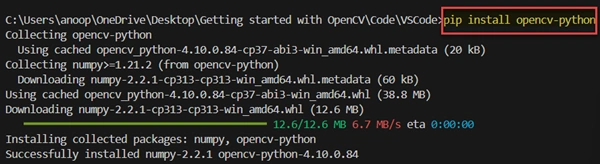
To get started, your system must have Python and the VS Code editor installed. I already have them installed on my system. Run the below command from the terminal in order to install the OpenCV using pip.
pip install opencv-python
Verifying the installation
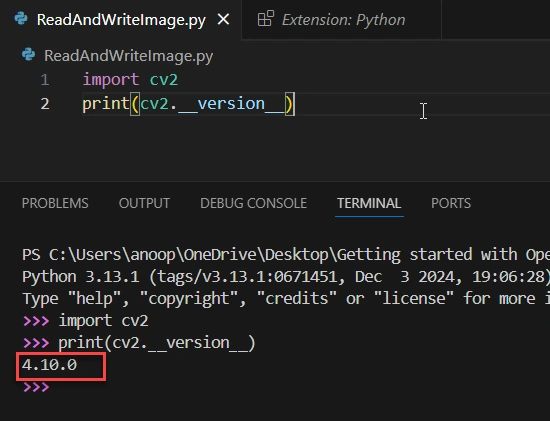
After installation, you can verify it using the command below.
import cv2
print(cv2.__version__)
Reading and showing the image using OpenCV
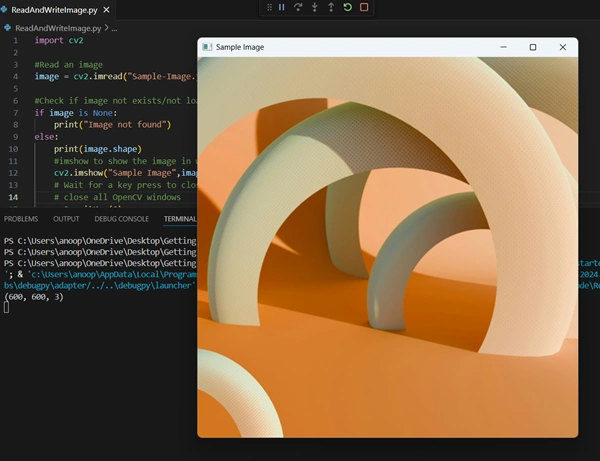
In the below code, first, we have imported the OpenCV library which provides functions for reading, processing, and displaying images. The imread function reads the image and returns a NumPy array, which contains the pixel-wise data of the image. If the image is not loaded successfully, an error message will be shown to the user else, the shape of the image will be printed, which provides the dimensions(height, width, channel).
Then, the image is displayed in a window named “Sample Image” with the help of imshow function. I used the waitKey(0) to pause the program and wait for a user to press any key. After that, the destroyAllWindows is called to close all the OpenCV windows created during the execution of the program.
import cv2

#Read an image
image = cv2.imread("Sample-Image.jpg")

#Check if image not exists/not loaded successfully
if image is None:
    print("Image not found")
else:
    print(image.shape)
    #imshow to show the image in window
    cv2.imshow("Sample Image",image)
    # Wait for a key press to close the window and
    # close all OpenCV windows
    cv2.waitKey(0)
    cv2.destroyAllWindows()
The imread(filename, flag) function accepts a flag that specifies how the image should be read. The flag can be one of the following:
- cv2.IMREAD_COLOR: It is used to load a color image but it ignores the transparency of the image. This is the default flag and loads the image as a 3-channel BGR image
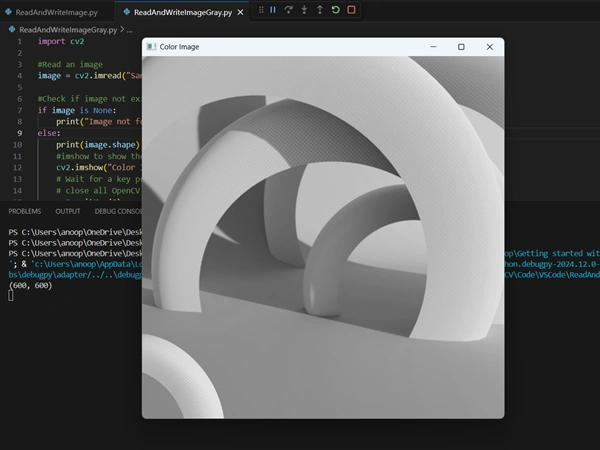
- cv2.IMREAD_GRAYSCALE: It is used to load an image in grayscale mode. You can also pass its value as 0 in the function. It converts the image into a single channel(black and white)
- cv2.IMREAD_UNCHANGED: It reads the image with transparency (including the alpha channel). If the image has 4 channels (RGBA), all 4 channels will be loaded.
Let’s try to open colored image to grayscale using OpenCV.
import cv2

#Read an image
image = cv2.imread("Sample-Image.jpg", cv2.IMREAD_GRAYSCALE)

#Check if image not exists/not loaded successfully
if image is None:
    print("Image not found")
else:
    print(image.shape)
    #imshow to show the image in window
    cv2.imshow("Color Image",image)
    # Wait for a key press to close the window and
    # close all OpenCV windows
    cv2.waitKey(0)
    cv2.destroyAllWindows()
Convert/Save an image to a different format/extension using OpenCV
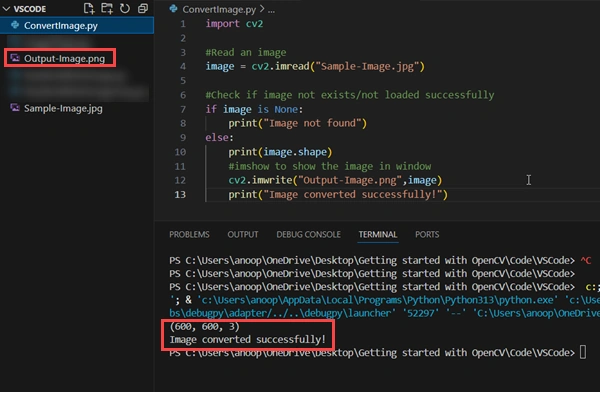
In the below code, we save the image from jpg format to png. The imwrite function accepts the filename with the desired extension as the first parameter, and the image to be saved as the second parameter. It returns True if the image is saved successfully.
import cv2

#Read an image
image = cv2.imread("Sample-Image.jpg")

#Check if image not exists/not loaded successfully
if image is None:
    print("Image not found")
else:
    print(image.shape)
    #imshow to show the image in window
    cv2.imwrite("Output-Image.png",image)
    print("Image converted successfully!")
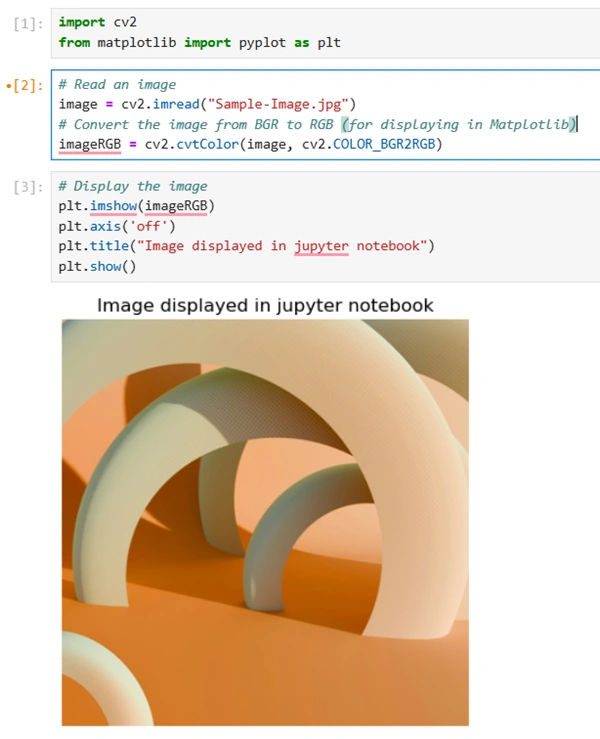
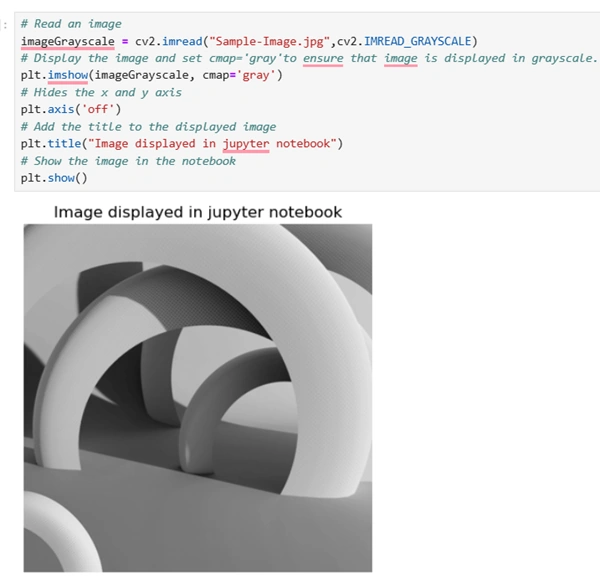
If you are working with Jupyter Notebook, then the use of the cv2.imshow() function is not recommended, as it creates a separate window to show the image, which is not well suited and ideal for the notebook. Instead of displaying the image in a separate window, you can show images directly in the notebook using Matplotlib. In the screenshot below, I have shown how to display both color and grayscale images in Jupyter Notebook.
Show grayscale image in Jupyter Notebook
I hope you found this article informative and enjoyable. Below are links to a few articles I have written that are related to AI and Data Science.
Join the conversation! Your thoughts help the community grow.