

Introduction
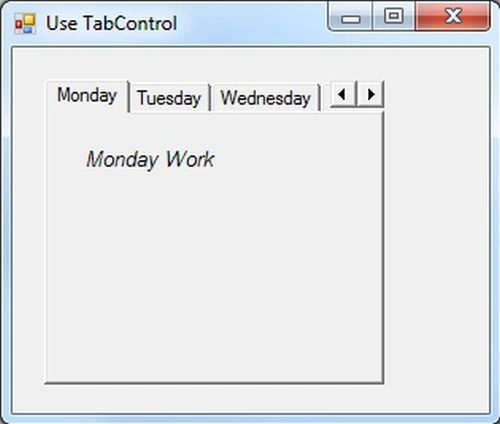
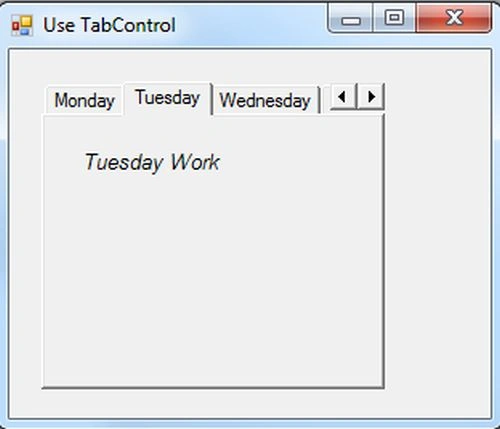
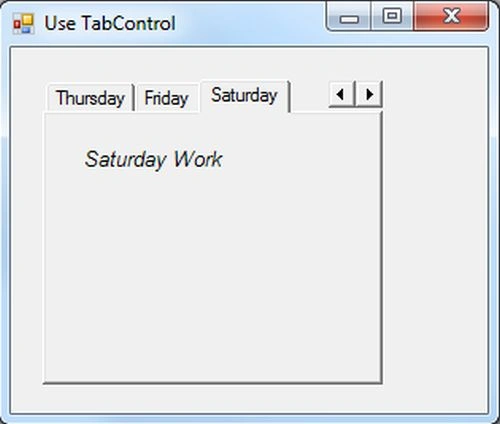
In this article you'll see how to create a TabControl. The .NET Framework provides the versatile server Control in Window Forms applications to manage the user layout. This article explains how to add the TabControl to a Windows Forms form. If your application is complex enough to need to arrange the information then you can use the TabPage property to add a number of tabs to the TabControl Control.
TabControl Class
The TabControl Class provides multiple tabs at a time in a single Windows Forms form. You can manage your information in the application. Each tab contains the specific information that is easy to manage the data in the application. A TabControl is just like a container that holds the data in a systematic way. Once the TabControl control is defined with its properties, we need to add it to a Windows Forms form by calling the "Form.Controls.Add" method.
Namespace for TabControl Class: System.Windows.Forms.TabControl
TabPage Property
The TabPage Property provides the list of tabs in the TabControl. The TabPage Property has the ability to add a new tab, remove a tab and set the order of tabs in the application.
Namespace for Tappage: System.Windows.Forms.TabPage
Now let's use the following procedure.
Step 1:
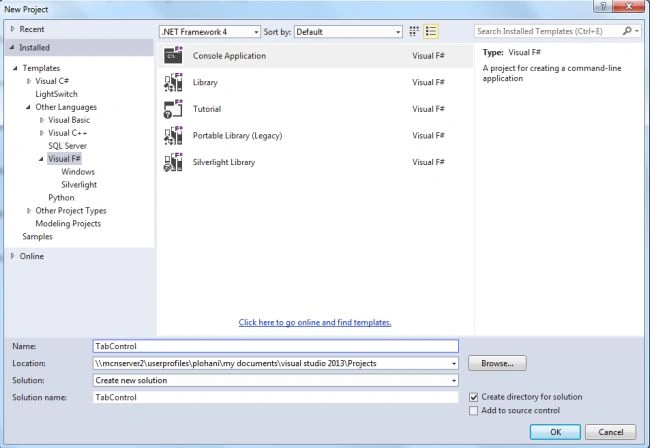
Open Visual Studio then select "Create New Project" --> "F# Console Application".
Step 2:
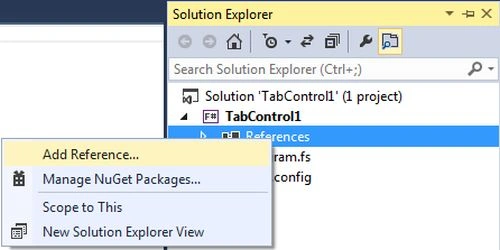
Now go to the Solution Explorer on the right side of the application. Select the references and right-click on it and select "Add references".
Step 3:
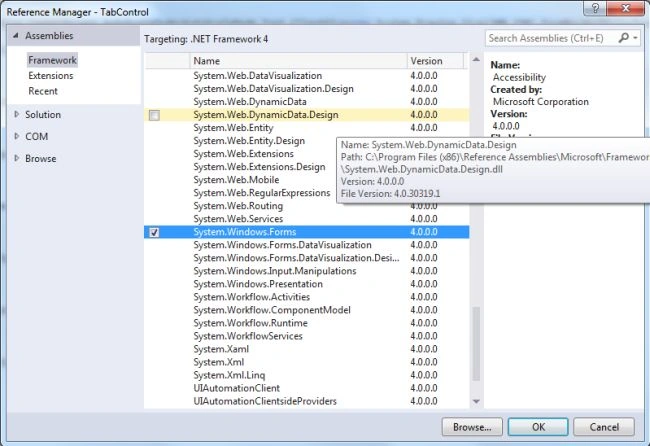
After selecting "Add References", in the framework template you need to select "System.Windows.Forms" and "System.Drawing" while holding down the "Ctrl" key and click on "Ok".
Step 4:
Provide the following code for the F# application:
// Learn more about F# at http://fsharp.net
//use the F# library
open System
//use the drawing classes
open System.Drawing
//specifies the location of the form class
open System.Windows.Forms
//specifies the font face and style
let ffont=new Font("Arial", 9.75F,FontStyle.Italic, GraphicsUnit.Point)
//creates a form
let tabform=new Form(Text="Use TabControl",StartPosition=FormStartPosition.CenterScreen,AutoScaleMode=AutoScaleMode.Font,ClientSize=new System.Drawing.Size(350,350),FormBorderStyle=FormBorderStyle.FixedSingle)
//creates a tab control set its TabSizeMode to fixed
let tabcontrol=new TabControl(Location=new System.Drawing.Point(20, 20),Size=new System.Drawing.Size(214, 192))
//creates a new tab page
let page1=new TabPage(Text="Monday",Cursor=Cursors.Hand)
//creates a new label
let page1label=new Label(Text="Monday Work",Font=ffont,Location=new System.Drawing.Point(20, 20))
//creates another tab page
let page2=new TabPage(Text="Tuesday",Cursor=Cursors.Hand)
//creates another label
let page2label=new Label(Text="Tuesday Work",Font=ffont,Location=new System.Drawing.Point(20, 20))
Join the conversation! Your thoughts help the community grow.