

In this article you will learn how to render a Google Map from table. In this we receive dynamically Lat, Long from Gridview and GridView is received from database table we transfer value into JavaScript function. The rest of the things are done by our JavaScript and html under ASP.NET project.
We having friend list grids where user click on particular friend row (Select Button). Selected friend map will display just below of the grid.
- <script>
- function MyFunction(latval, longval)
- {
- document.getElementById("MapArea").style.display = "block";
- initialize(latval, longval);
- }
- </script>
- <script>
- function initialize(latvalue, longvalue) {
- var latvar = latvalue
- var longvar = longvalue
- var mapProp = {
- center: new google.maps.LatLng(latvar, longvalue),
- zoom: 15,
- mapTypeId: google.maps.MapTypeId.ROADMAP
- };
- var map = new google.maps.Map(document.getElementById("MapArea"), mapProp);
- }
- </script>
In initialize method you can see:
- We give value of Lat and Long value.
- Zoom property you can change according to your requirement.
- mapTypeId: google.maps.MapTypeId.ROADMAP
Map Type Id given below with description.
There are the following types of MapTypeId you can change:
| GOOGLE MAP TYPE | DESCRIPTION |
| HYBRID | To display roads and city names |
| ROADMAP | To displays normal map (Default type of map) |
| SATELLITE | To displays satellite map |
| TERRAIN | To displays terrain, mountains, rivers, etc. |
In this whole process we have used the following things:
- DBML: Linq to SQL: To fetch the records from database table.
You can use classic ADO.NET code also. - WebForm: HTML code and JavaScript function.
- GridView inside WebForm: To display data in GridView.
- JavaScript code: Which execute map on webform.
Step by Step implementation of Google Map:
- Create a new website project named “GoogleMap”,
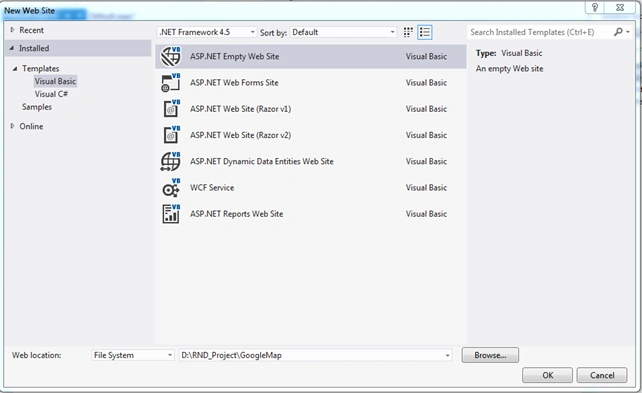
- Insert a new WebForm called : “Default.aspx”
Right click on solution explorer, Select Add, Add New Item, then insert a New WebForm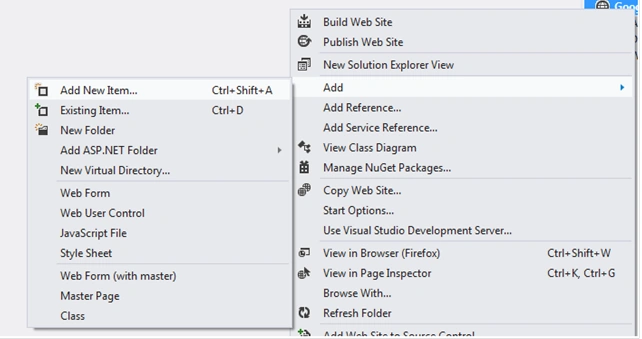
- Double click on Web.config file and Configure database connectionstring settings in WEB.CONFIG
- <connectionStrings>
- <add name="GoogleMapConnectionString" connectionString="Data Source=112.118.AB.50A\sa;Initial Catalog=MBKTest;Persist Security Info=True;User ID=sa;Password=mbkerver" providerName="System.Data.SqlClient"/>
- </connectionStrings>
- Insert a new “LINQ to SQL Classes”,
As you click for inserting LINQ to SQL classes this will asked for put DBML inside APP_CODE , select YES...
NOTE: Always put your DBML inside APP_CODE folder thats better.
Default.aspx file code
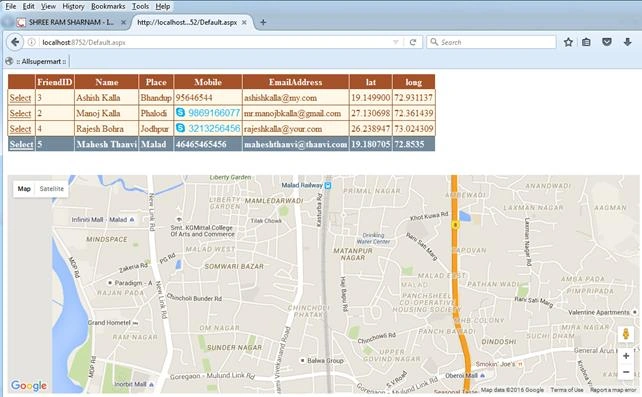
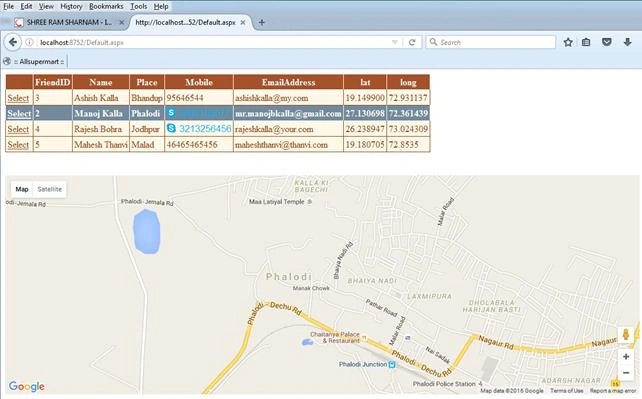
Manoj KallaPosted Aug 29, 2016, 9:44 AM
Thank you, Shobana J, Subash, Deepak Hire
deepak hirePosted Aug 26, 2016, 8:14 AM
Good One
SubashPosted Aug 1, 2016, 12:11 PM
Nice
Shobana JPosted Jul 7, 2016, 6:52 AM
Good share
Kuppurasu NagarajPosted May 18, 2016, 1:42 PM
Nice Sharing..
Pankaj Kumar ChoudharyPosted May 18, 2016, 1:04 PM
Useful Article........