

Introduction
MongoDB has a big disadvantage that it doesn't provide any GUI-style interface for developers. In MongoDB, all administration works are done from command line tools such as the Mongo shell. If we are using other powerful GUI tools like Visual Studio, and Eclipse then it is very difficult or odd to work with a command line without any GUI interface. But there are several third-party tools that provide a GUI interface for MongoDB. Some important GUI tools are the following:
You can download any GUI tool, but I suggest you download the Robomongo GUI tool because it is simple to use and also provide more functionality.
Today I will explain how to install Robomongo and also explain some important features of Robomongo.
How To Install Robomongo?
We can install Robomongo on our machine using some simple steps.
Step 1. First, go to Robomongo's official website and download the Robomongo Management Tools.

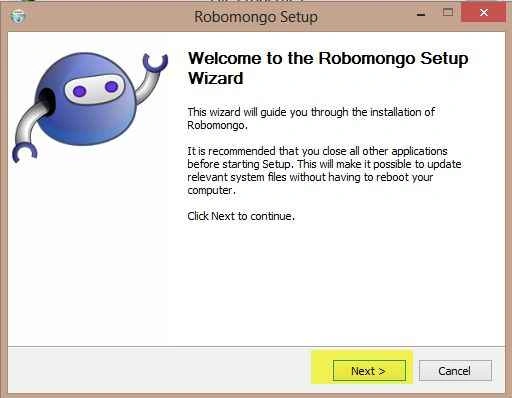
Step 2. Now run the .exe file of Robomongo and start the installation process.
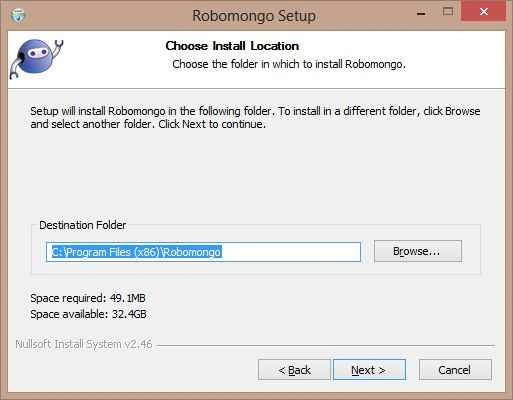
Step 3. Select the installation location for Robomongo.
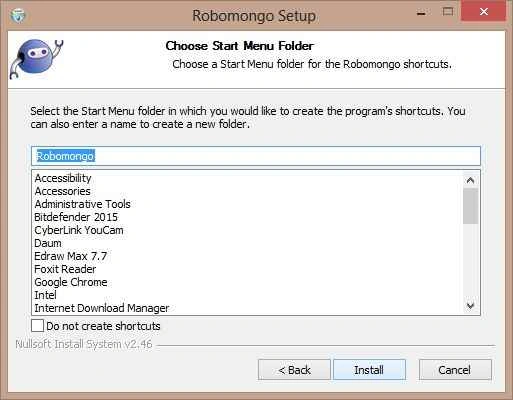
Step 4. Select the start menu folder for Robomongo shortcuts.
Step 5. Complete the installation process.
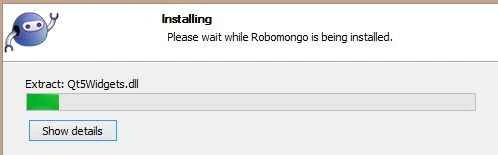
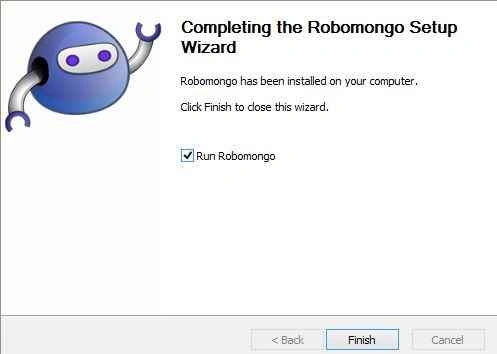
I hope Robomongo has been installed successfully.
How to run RoboMongo?
Before starting the Robomongo, we require to first run a MongoDB server instance, otherwise, RoboMongo will not work.
For this open the command prompt and run the Mongod command.

When you run Robomongo the first time, it requires a MongoDB connection. So click on Create option and generate a MongoDB connection.
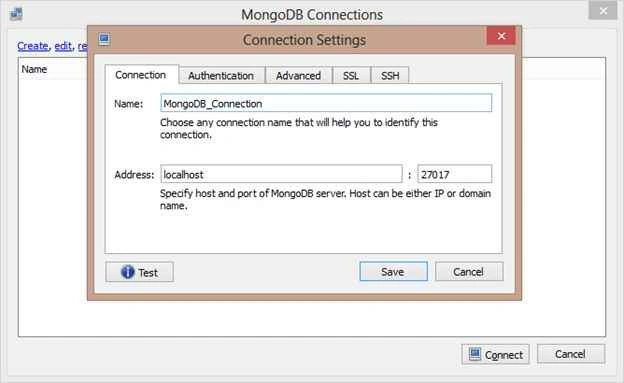
After creating a MongoDB connection, now you can connect with this connection and start work with Robomongo.
Features of Robomongo
RoboMongo provides some great features like other GUI tools (i.e. syntax highlight, autocomplete, different views mode). But Robomongo doesn't stop to execute the undesired code. Be careful, as you do with the MongoDB shell.
Let us see some important features of Robomongo.
Show All MongoDB Objects
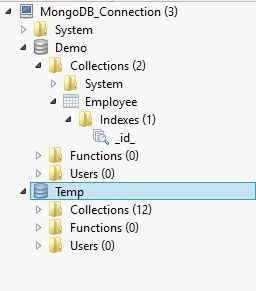
Robomongo shows all the database that are present in the MongoDB server and also show the list of Collections and function of the database. So we can select any database or collection easily and use that.
Multiple Shell
We can open as many shells as we need, each tab in Robomongo contains a MongoDB shell, and all the shells are fully isolated from each other. Press Ctrl + T to open a new tab.
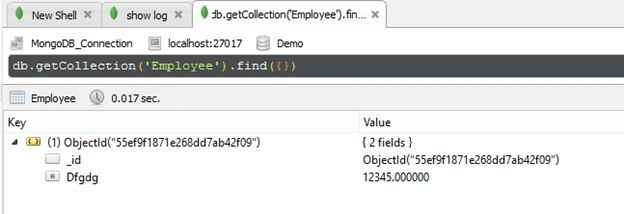
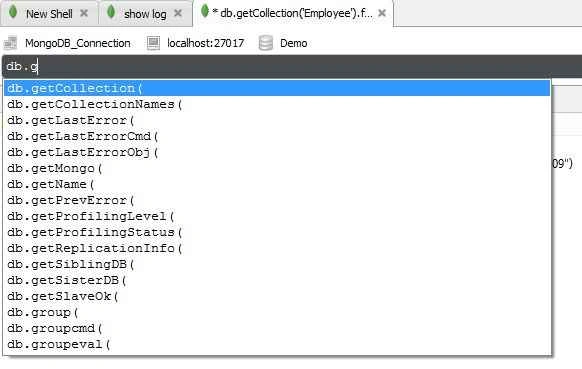
Robomongo provides autocomplete for all objects that are known by JavaScipt runtime. Robomongo also provides autocomplete for database, collection, and document objects.
Default View Mode
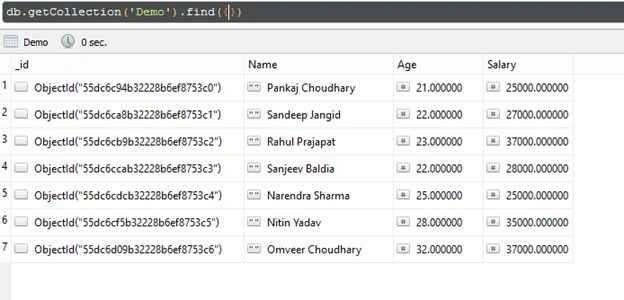
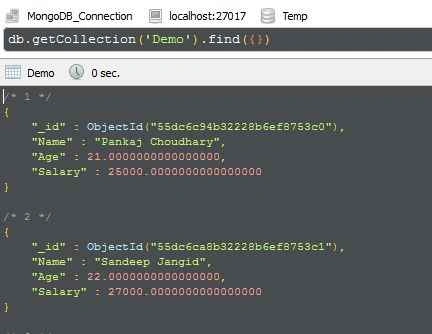
Robomongo provides the following three Views mode ( tree mode, table mode, text mode ) for documents that makes it easy to read and understand any document.
Tree Mode
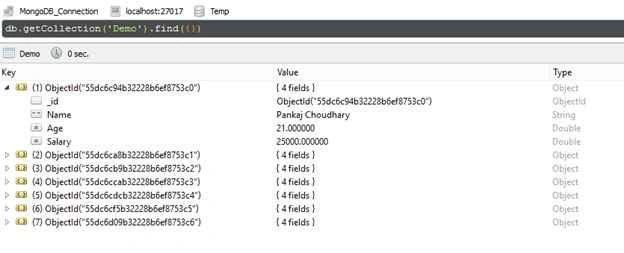
Table Mode
Text Mode
Easy to Execute
In Robomongo we can execute the command by pressing Ctrl +Enter. We can execute all the queries that are written in the shell or select any specific command.
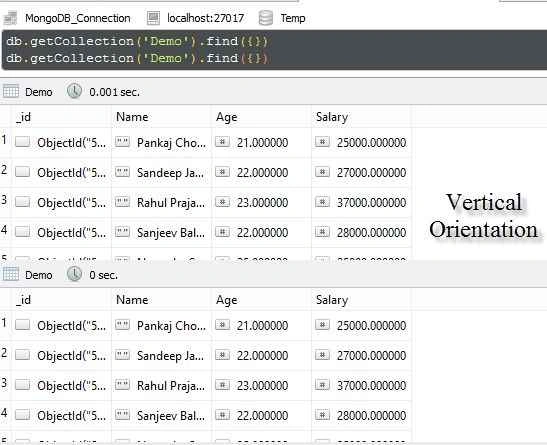
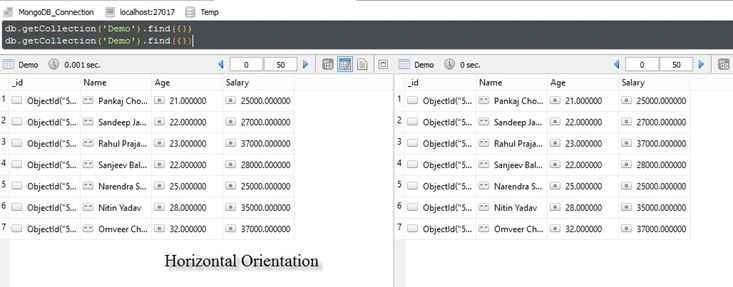
If we use multiple commands, then Robomongo shows the result of each command in a vertical orientation, but we can toggle the result from vertical to horizontal or vice versa using the F10 key.
Vertical Orientation
Vertical Orientation
Edit Document Directly
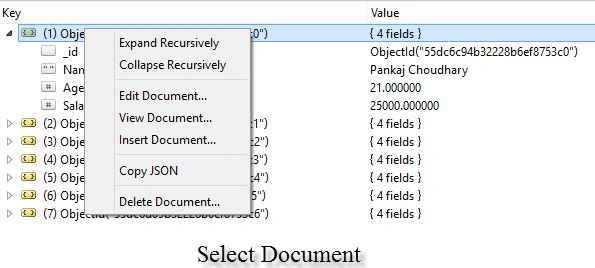
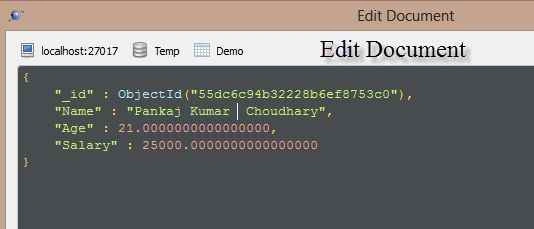
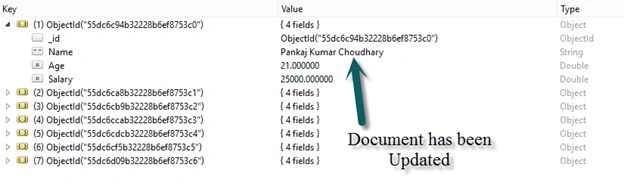
In Robomongo we can edit any document directly, we don't require to use the update command. So Robomongo provides an easy and very fast method to edit any document. To edit any document just right-click on the document and select the Edit document option.
Select Edit Document Option
Edit Document
Save or Open Script
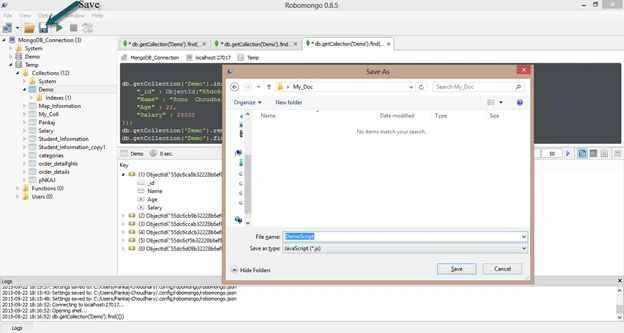
Robomongo provides a great feature in that we can save all the commands of the current open shell as a JavaScript file and further use this JavaScript file and execute all the commands that are written in the JavaScript file.
Save Script: Either press Ctrl+S or use Toolbar to save the script.
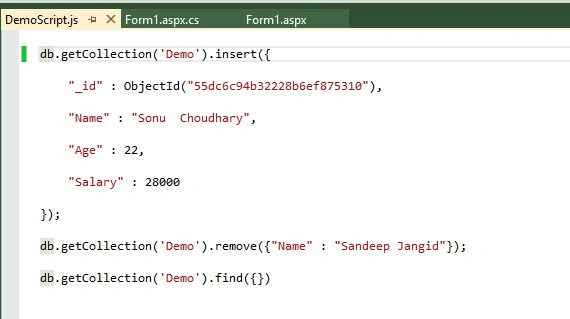
When we check this JavaScript file that all the commands of Shell are present in this file.
Open Script: In the same way either use Ctrl +O or use Toolbar to open a script.
Summary
Today we learned how to install Robomongo on the system and read some features of Robomongo. If you are a beginner in MongoDB, then I suggest you use the command line tool MongoDB because it will develop your command on programming. If we use any GUI tool in starting then we cant understand programming concepts in an efficient way. So first learn the basics of MongoDB command and after that use any GUI tool.
Thanks for reading this article.
Santhakumar MunuswamyPosted Sep 26, 2015, 12:29 PM
Nice share
Pankaj Kumar ChoudharyPosted Sep 25, 2015, 3:43 AM
Thanks Aniket Samanta Sir...........
Pankaj Kumar ChoudharyPosted Sep 25, 2015, 3:43 AM
Thanks Gopi Chand Sir......
Pankaj Kumar ChoudharyPosted Sep 25, 2015, 3:43 AM
Thanks Sibeesh Venu Sir........
Pankaj Kumar ChoudharyPosted Sep 25, 2015, 3:42 AM
Thanks Sachin Kalia Sir......
Pankaj Kumar ChoudharyPosted Sep 25, 2015, 3:42 AM
Thanks Rajeesh Menoth Sir.........
Pankaj Kumar ChoudharyPosted Sep 25, 2015, 3:38 AM
Thanks Ankit Bansal Sir.....
Pankaj Kumar ChoudharyPosted Sep 25, 2015, 3:37 AM
Thanks Harshad Pansuriya Sir.......
Pankaj Kumar ChoudharyPosted Sep 25, 2015, 3:37 AM
Thanks Humayun Kabir Mamun Sir.........
Pankaj Kumar ChoudharyPosted Sep 25, 2015, 3:36 AM
Thanks Manas Mohapatra Sir.....
Aniket SamantaPosted Sep 25, 2015, 3:32 AM
helpfull mongo tools for new non sql user like us :)
Gopi ChandPosted Sep 24, 2015, 5:00 AM
Good effort made :)
Sibeesh VenuPosted Sep 24, 2015, 2:18 AM
Nice Share
Sachin KaliaPosted Sep 23, 2015, 4:08 PM
Very Helpful knowing about this :)
Rajeesh MenothPosted Sep 23, 2015, 10:55 AM
Good One Pankaj Kumar Choudhary
Mahesh ChandPosted Sep 23, 2015, 9:30 AM
Great Pankaj. Good to know these tools. Very helpful.
Ankit BansalPosted Sep 23, 2015, 8:42 AM
thanks for sharing..
Harshad PansuriyaPosted Sep 23, 2015, 8:38 AM
Nice Share
Humayun Kabir MamunPosted Sep 23, 2015, 7:09 AM
Nice...
Manas MohapatraPosted Sep 23, 2015, 5:53 AM
Informative one..I came to know that GUI is also there for MongoDB...