

Background
To make any application accessible to the end-user, we need to host it on a server. So, in this article, we will learn how to host ASP.NET Web API REST Service in IIS 10. The following steps are required to host any application.

If you don't know how to develop or create an ASP.NET Web API REST Service, please refer to my video as well as the article, using the following link.
Creating ASP.NET Web API REST Service (Article )
After creating Web API REST Service, if you don't know how to publish ASP.NET Web API REST Service, please refer to my following article.
Publishing ASP.NET Web API REST Service Using File System Method
I hope you have learned how to create and publish ASP.NET Web API REST Service. Now, let's start hosting Web API REST Service in IIS 10.
Step 1. Install IIS
Before hosting any application, make sure that IIS (Internet Information Services) is installed on your Hosting Server. If it is not installed or enabled, then follow the below steps.
- Click on the Windows icon at the bottom left corner find the "Control Panel" menu and click on it.
- In the "Control Panel", find the "Program and Features" option from the displayed list.
- This shows the list of installed programs. Find and click the "Turn Windows feature on or off" option from the left pane, as shown in the following image.

- Now, in the next popup, find Internet Information Services (IIS) and check on it.
- Click the "Next" button and then "Finish". It takes a few minutes to install IIS.
- After installing IIS, restart your machine.
Note. I have Windows 10 OS and the above process is for Windows 10 PC. The steps might differ depending on your Operating System version.
Step 2. Install .NET framework
Although Visual Studio is not required on your hosting Server, it must have .NET Framework installed, as per the .NET framework used to develop the application. If it is not installed, then please install the appropriate .NET Framework available on Microsoft's official website.
I assume you have installed the .NET framework on your Hosting Server.
Step 3. Move the published code to the Hosting Server
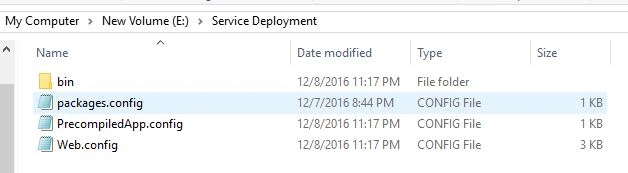
Copy the "Published files" and paste those on the respective Servers where you want to host the Web API REST Service. In our last article, we published Web API REST Service in the E drive of my Server, as shown in the following image.
Step 4. Open IIS manager
Now, open the IIS Manager from the Windows menu or in any other way you have known.
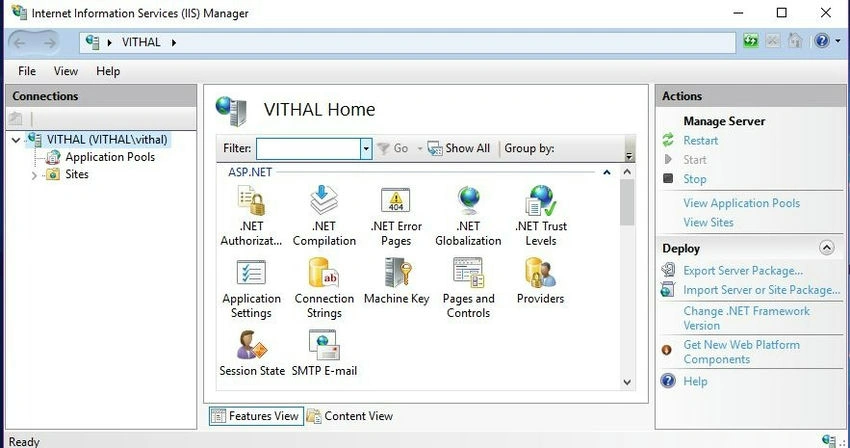
The above image is of the IIS 10 Manager of my Windows 10 machine. The view as well as options might be different on your machine depending on the OS version.
Step 5. Add Website
Right-click on "Site" in IIS and click on Add New Website, as shown in the following screenshot.

After clicking on the "Add Website" option, it displays the following configuration window.

I hope you understood the preceding configuration by highlighting the text.
Step 6. Define site name & application pool
Define the site name which will be useful to uniquely identify the site within the IIS Server. After specifying the site name, choose the Application Pool from available pools. You can even create a custom application pool with any desired name. Currently, our IIS Manager has the following Application Pools.
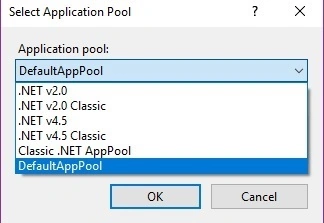
Choose the application pool depending on your application configuration. In this article, we are going to choose DefaultAppPool.
Step 7. Browse and select the published folder path
Now, choose the physical location of published code files by clicking on the "Browse" button, as shown in the following image.

Now, click on the "OK" button.
Step 8. Define IP address & port
Choose one IP address from the list of available IP addresses and define the unique port number for the application, which will be unique within the defined IP address.
Step 9. Choose protocol & hostname (optional )
Choose the protocol for your application i.e. HTTP or HTTPS which requires port 443 to be open and choose the Host name which will be used publicly to access the application. After defining all the configurations, the website configuration window will look like this.

Now, click on the OK button. It will create and add the application in IIS.

Step 10. Browse the URL with REST client
Browse the hosted application using REST client with base URL along with API, Controller name, and Action method name, with a pattern defined in the routing template inside the webapiconfig.cs file.
We can browse applications using the browser but then, we can only test the GET method. So, to test all types of Action Methods, we are using an advanced REST client which is a developer extension tool in Firefox browser.
Our hosted Web API REST Service includes these two methods, as given below.
- GetAllEmployees (GET )
- GetEmployeeById (POST ) which takes id as the input parameter
Browse the GetAllEmployees method using the Advanced REST client which has uses the HTTP GET verb.

In the preceding screenshot, the GetAllEmployees hosted Web API REST method returns all the employee lists.
Now, browse the GetEmployeeById method using the Advanced REST client which uses the HTTP POST verb and takes id as input parameter.

From the above-desired output, it's clear that our Web API REST Service is hosted on IIS successfully.
Note
- Download the Zip file of the Published code to learn and start quickly.
- This article is just a guideline to show how to host Web API REST Service on IIS.
- Optimize the speed by setting debug as false etc., from the web. config file as per your skills.
- In this article, the optimization is not covered in depth.
- Configure the authentication in IIS as per your REST Service.
Summary
I hope this article is useful for all readers. If you have any suggestions, please mention them in the comments section.
Read more articles on ASP.NET.
aashwin bhushalPosted Aug 7, 2024, 5:18 PM
Isnt this available by default inside visual studio 2022 .
Letuka NtsieloPosted Jan 31, 2023, 2:51 PM
Hello I've been struggling to access my sql server database through api on iis server, it throws target machine actively refused it, but it works when I test it on IDE
Holger AndrePosted Mar 31, 2022, 3:48 PM
TNX very useful.
naresh nayakPosted Oct 18, 2021, 6:50 AM
Very Helpful. Thank You
Boga SPosted Mar 17, 2021, 1:21 PM
I'm getting 500.21 error - Handler "aspNetCore" has a bad module "AspNetCoreModule" in its module list.
Dawid GrzeszukPosted Dec 9, 2020, 5:41 AM
Nothing about security. This is useless.
Sarika RansubhePosted Mar 13, 2020, 12:09 PM
Many thanks... it's a nightmare for newbies like me.
Bubble BubPosted Jan 8, 2020, 12:13 AM
When my connection string is sit under appsetting.json, and deploy to IIS, it work fine. When I try to move the connection string to Environment variable and deploy the web api to IIS, it not work. Keep show me "The page isn't working" in the browser. What mistake I make?
Deepak KumarPosted May 11, 2019, 11:38 AM
Every thing is fine, but I have an issue that how to deploy asp.net core web api with swagger in IIS?
Toto KotunjoPosted Sep 19, 2018, 3:13 PM
Incomplete article at best. No mentioning of the folder rights of the app, ++.
Simona ElenaPosted May 24, 2018, 12:02 PM
Sorry...didn't finish the writing.. I have an existing site and I want to deploy/add the API files under. I looked on the Internet and I found nothing, except to put it under a brand new site or localhost. I would highly appreciate your help or at least pointing to an article as good as the ones on this site! Many thanks...
Simona ElenaPosted May 24, 2018, 12:01 PM
Excellent articles, based on your articles I have my first API built and running today.
Dennis ThomasPosted Feb 27, 2018, 1:31 AM
Informative article, thank you....!
Pedro ToledoPosted Jan 19, 2018, 12:30 PM
Hello, a query if I put https (443) as I call the url to the api? since I gave https: // ** IP **: 5555 / api / HOME / GetEmployeeDetails according to your example, but it does not answer me. Thank you
NivinPosted Nov 7, 2017, 10:01 AM
Got it : Follow : Step 9 Choose Protocol & Host name (optional ) as described http://**IP**:5555/api/HOME/GetEmployeeDetails - Done !!
NivinPosted Nov 6, 2017, 4:35 PM
Vithal , Could you please help me understanding the "EMPLOYEE" ( after api) , from where you are getting this Employee ? http://ip:5555/api/EMPLOYEE/GetAllEmployees
Mysura ReddyPosted Sep 29, 2017, 2:52 AM
Can we access Web api rest service remotely from another system that hosted in my system?
AparajitaPosted Aug 21, 2017, 10:12 AM
The Zip file of the Published code does not contain the actual source code. Can you please provide the rest API service which is used for this case?