

Background
When you want any application available publicly, you need to host it on the server and before hosting, it requires certain processes in terms of making an Application code suitable to the host. Thus, in this article, we will learn how to publish ASP.NET Web API Applications, using File system method. Therefore, let's start step by step, so beginners can also understand .
What is Publishing ?
Publishing is the process to make an Application code suitable to host on the Server by merging multiple class codes into DLLs and by keeping only the required UI code .
The Web Application goes through the steps, mentioned below before hosting to the Server.
Develop an Application -- Publish an Application - Host an Application on IIS.
Now, just demonstrate the preceding concept step by step; i.e, how to publish ASP.NET Web API Applications practically.
Step 1
Create ASP.NET Web API application
If you want to publish any Application, first we need to create the Application. If you don't know how to create ASP.NET Web API Application, please refer to my previous article, mentioned below.
I hope, you have created ASP.NET Application by reading the preceding article .
Step 2
Publish an Application
Right click on the created ASP.NET Web API project solution, as shown below.
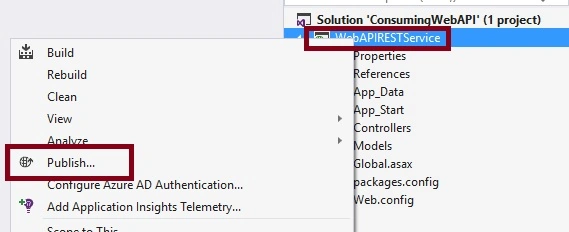
Now, click the previously shown Publish option. It will open the Windows, mentioned below.
Step 3
Select Publish Target
Now, select the option, where you want to save the published file. There are lots of options given by Visual Studio to save the published files, as shown below.
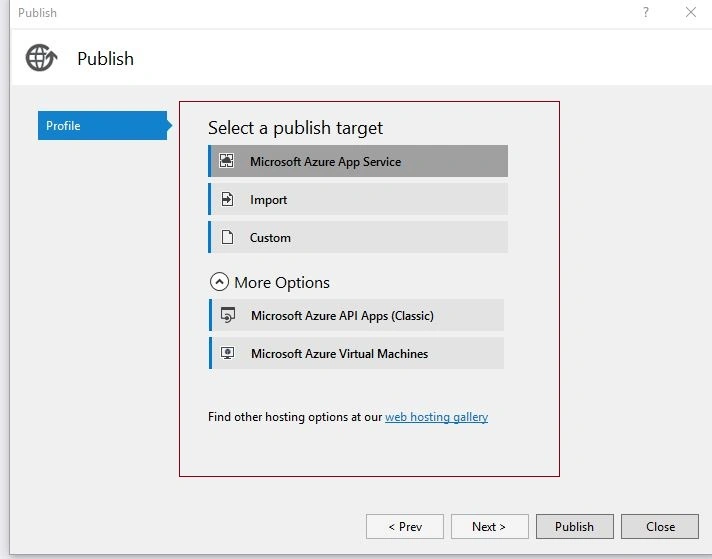
In the preceding image, we have seen that there are many options listed to publish the application, let's learn about them in brief.
In the preceding image, we have seen that there are many options listed to publish the application, let's learn about them in brief.
- Microsoft Azure App Service
This is one of the services provided by Microsoft Azure to publish the different types of the Application such as Web, mobile, REST and other into Azure (Cloud). You need a Microsoft Azure subscription to use this option.
- Import
This option is used to publish the Application, which is based on the predefined configuration files given by your hosting provider , which will directly publish the files in your hosting provider environment.
- Custom
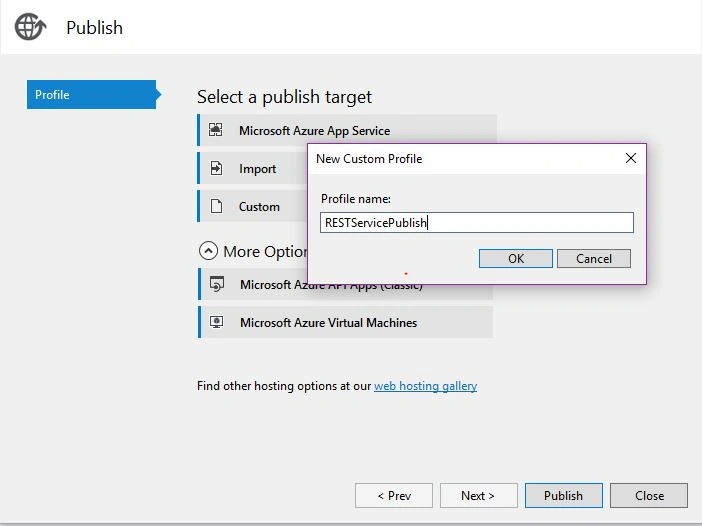
This option is used to publish the Application into your own machine location or FTP Server, as per your most convenient way.
- Microsoft Azure API apps
This option is used to publish REST API's Services in Cloud.
- Microsoft Azure virtual machine
This option is used to publish the Application in Microsoft Azure virtual machine (Cloud), which requires an Azure subscription .
There are many other options to publish the Application, using which we can publish .NET Application.
Step 4
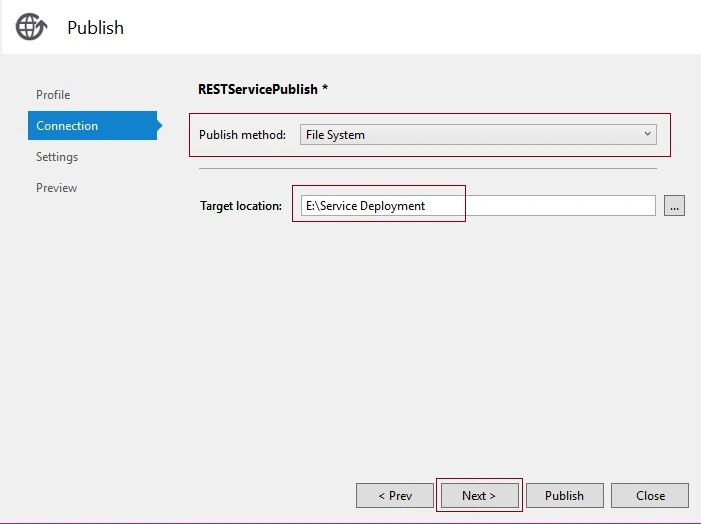
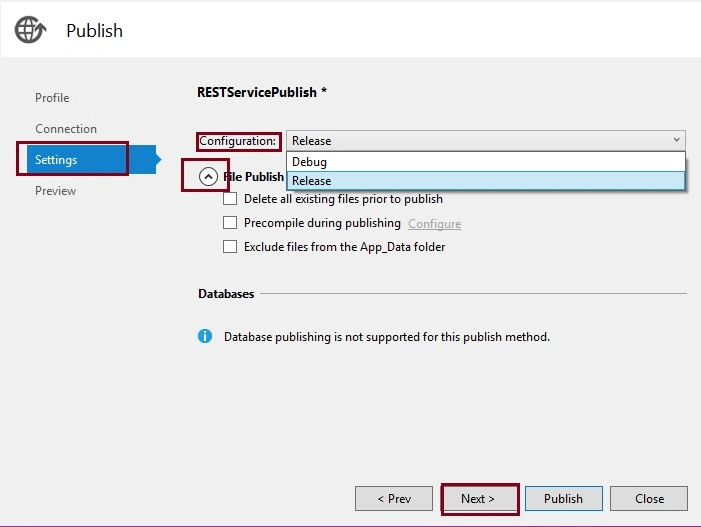
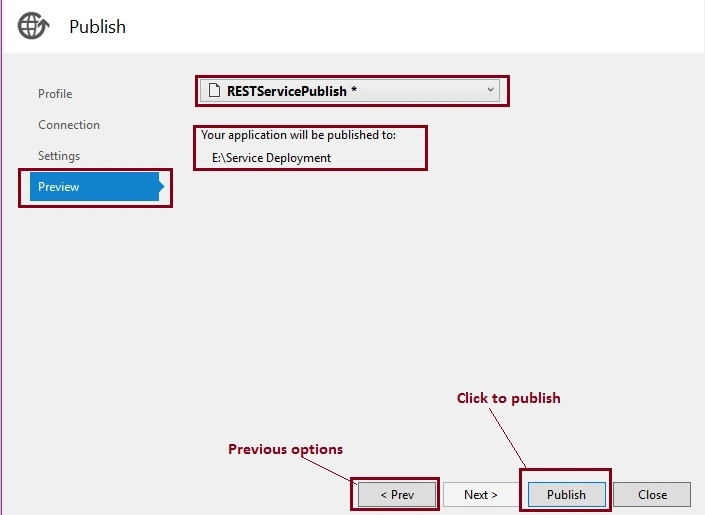
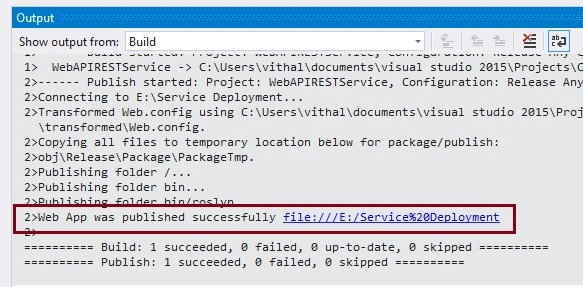
Ahmet BilgicPosted Jul 13, 2018, 8:04 AM
Hi Vithal. I tried these steps couple of times but it gives the same error. HTTP Error 500.19 - Internal Server Error.