In this article, we are going to see how to access data from Azure table storage using Rest API in ASP.NET core. The ASP.NET core is an open source web framework by Microsoft which can be run on MAC, Windows, and Linux. Azure Tables is a NoSQL cloud database and it is not a relational database. It can store, just without any other kind of relations like foreign keys.
Prerequisite
Before you begin to utilize your ASP.NET Core application, the following must be installed in your system.
- .NET Core SDK
- Integrated Development Environment (IDE)
Creating ASP.NET Core Application
Here, we will see how to create .NET core 2.1 application, and we will use Visual Studio 2017 to create an ASP.NET Core 2.1 application.
- Open Visual Studio, Click on File -> New Project.
- In New Project dialog box expand Visual C# and click Web template. Select ASP.NET Core Web Application.
- Give an appropriate Name, solution name, location and click OK.
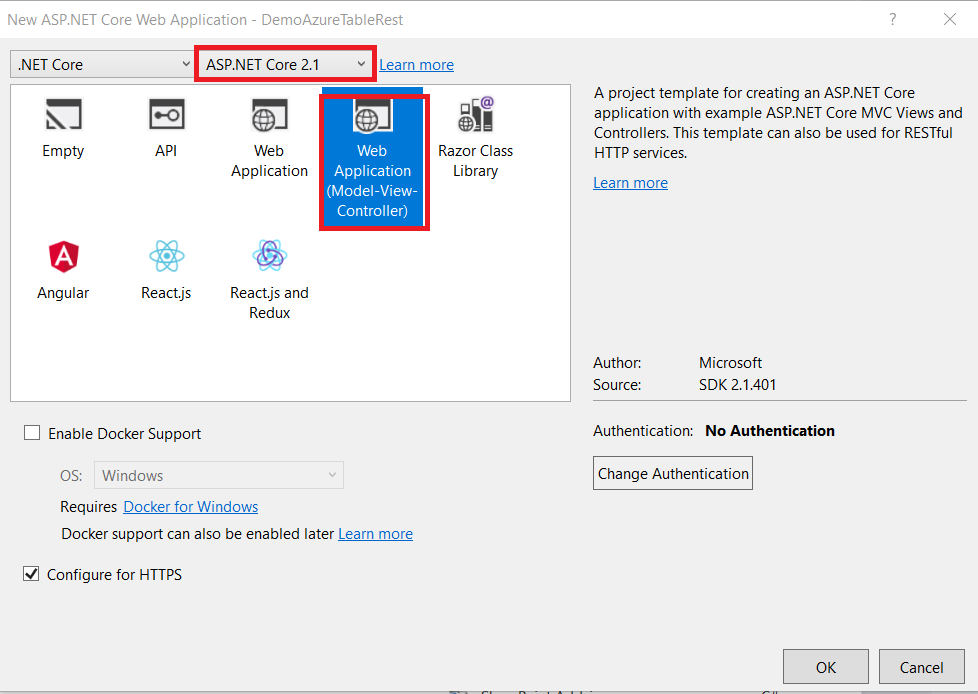
- Then, the other pop up will open as below, Select ASP.NET Core 2.1 and Web Application (Model-View-Controller).
- Click OK to create an ASP.NET Core Web Application as shown below.
Get Access Key & Storage account name from Azure Portal
Now, open the HomeController.cs and type the below code.
- using System.Diagnostics;
- using Microsoft.AspNetCore.Mvc;
- using DemoAzureTableRest.Models;
- using DemoAzureTableRest.Helpers;
- using Newtonsoft.Json;
-
- namespace DemoAzureTableRest.Controllers
- {
- public class HomeController : Controller
- {
-
- string StorageName = "Enter your storage name";
- string StorageKey = "Enter the storage key";
- string TableName = "CraneMachineMaterialUsage()";
-
- public IActionResult Index()
- {
- string jsonData;
- AzureTables.GetAllEntity(StorageName, StorageKey, TableName, out jsonData);
- MaterialUsage materialUsage = JsonConvert.DeserializeObject<MaterialUsage>(jsonData);
-
- return View(materialUsage);
- }
-
- }
- }
-
Then, create a new class AzureTables.cs file and type the below code.
- using System;
- using System.Net;
- using System.Security.Cryptography;
- using System.Text;
-
- namespace DemoAzureTableRest.Helpers
- {
- public class AzureTables
- {
- public static int GetAllEntity(string storageAccount, string accessKey, string resourcePath, out string jsonData)
- {
- string uri = @"https://" + storageAccount + ".table.core.windows.net/" + resourcePath;
-
-
- HttpWebRequest request = (HttpWebRequest)HttpWebRequest.Create(uri);
-
- int query = resourcePath.IndexOf("?");
- if (query > 0)
- {
- resourcePath = resourcePath.Substring(0, query);
- }
-
- request = getRequestHeaders("GET", request, storageAccount, accessKey, resourcePath);
-
-
- try
- {
- using (HttpWebResponse response = (HttpWebResponse)request.GetResponse())
- {
- using (System.IO.StreamReader r = new System.IO.StreamReader(response.GetResponseStream()))
- {
- jsonData = r.ReadToEnd();
- return (int)response.StatusCode;
- }
- }
- }
- catch (WebException ex)
- {
-
- using (System.IO.StreamReader sr = new System.IO.StreamReader(ex.Response.GetResponseStream()))
- {
- jsonData = sr.ReadToEnd();
-
- }
-
- return (int)ex.Status;
- }
- }
-
-
- public static HttpWebRequest getRequestHeaders(string requestType, HttpWebRequest Newrequest, string storageAccount, string accessKey, string resource, int Length = 0)
- {
- HttpWebRequest request = Newrequest;
-
- switch (requestType.ToUpper())
- {
- case "GET":
- request.Method = "GET";
- request.ContentType = "application/json";
- request.ContentLength = Length;
- request.Accept = "application/json;odata=nometadata";
- request.Headers.Add("x-ms-date", DateTime.UtcNow.ToString("R", System.Globalization.CultureInfo.InvariantCulture));
- request.Headers.Add("x-ms-version", "2015-04-05");
- request.Headers.Add("Accept-Charset", "UTF-8");
- request.Headers.Add("MaxDataServiceVersion", "3.0;NetFx");
- request.Headers.Add("DataServiceVersion", "1.0;NetFx");
- break;
-
- }
-
- string sAuthorization = getAuthToken(request, storageAccount, accessKey, resource);
- request.Headers.Add("Authorization", sAuthorization);
- return request;
- }
-
-
- public static string getAuthToken(HttpWebRequest request, string storageAccount, string accessKey, string resource)
- {
- try
- {
- string sAuthTokn = "";
-
- string stringToSign = request.Headers["x-ms-date"] + "\n";
-
- stringToSign += "/" + storageAccount + "/" + resource;
-
- HMACSHA256 hasher = new HMACSHA256(Convert.FromBase64String(accessKey));
-
- sAuthTokn = "SharedKeyLite " + storageAccount + ":" + Convert.ToBase64String(hasher.ComputeHash(Encoding.UTF8.GetBytes(stringToSign)));
-
- return sAuthTokn;
- }
- catch (Exception ex)
- {
- throw ex;
- }
- }
- }
- }
Then, create the model class name called MaterialUsage.cs file.
- using System;
- using System.Collections.Generic;
-
- namespace DemoAzureTableRest.Models
- {
- public class MaterialUsage
- {
- public List<MaterialUsageDetails> Value { get; set; }
- }
-
- public class MaterialUsageDetails
- {
- public string PartitionKey { get; set; }
- public string RowKey { get; set; }
- public DateTime Timestamp { get; set; }
- public string deviceId { get; set; }
- public string messageId { get; set; }
- public string furnace { get; set; }
- public string material { get; set; }
- public DateTime time { get; set; }
- public float weight { get; set; }
- public DateTime DateTime { get; set; }
-
- }
- }
Then open the Index.cshtml and type the below code,
- @{
- ViewData["Title"] = "Home Page";
- }
-
- @model DemoAzureTableRest.Models.MaterialUsage
-
- <div class="row">
- <div class="col-md-12">
- <h2>Azure Tables</h2>
- <table class="table table-striped">
- <thead>
- <tr>
- <th>Device Id</th>
- <th>Furnace Name</th>
- <th>Material Name</th>
- <th>Weight</th>
- <th>Time</th>
- </tr>
- </thead>
- <tbody>
- @if (Model.Value != null)
- {
- foreach (var item in Model.Value)
- {
- <tr>
- <td>@item.deviceId</td>
- <td>@item.furnace</td>
- <td>@item.material</td>
- <td>@item.weight</td>
- <td>@item.Timestamp</td>
- </tr>
- }
- }
- else
- {
- <tr>
- <td>No Data</td>
- </tr>
- }
- </tbody>
- </table>
- </div>
- </div>
That's it. Now run the web application , go to Debug menu and click on Start without Debugging , or press F5. This will open the browser and display the following result.
I hope you have learned how to access data from Azure table storage using Rest API in an ASP.NET core web application. Feel free to fill up the comment box below if you need any assistance.





Shubham SrivastavPosted Oct 3, 2023, 4:32 AM
But In this we fetch only 1000 data a single request , if there are more then 1000 data then how can i do this
Scott WilkinsonPosted Mar 18, 2019, 6:52 PM
This is the first working example of the REST Tables API I have found! Thank you! My one problem is trying to do a PUT or POST to insert an entity. It always returns 403 Forbidden. Wondering if you have sample code for insert/delete/or update?
Rushi MehtaPosted Oct 31, 2018, 11:03 PM
Nicely Explain
Sarathlal SaseendranPosted Oct 31, 2018, 11:09 AM
Great article Ravi. Keep it up :)