

Prologue:
In this article, we shall discuss how to access the Methods of
LightSwitch from Silverlight Application using button Interaction triggers in
Xaml.
Let us create a demo Visual Studio LightSwitch 2011 application to explain the above
point.
Preparing LightSwitch Solution:
Start the Visual Studio LightSwitch 2011; create a LightSwitch project as shown
in the below figure.
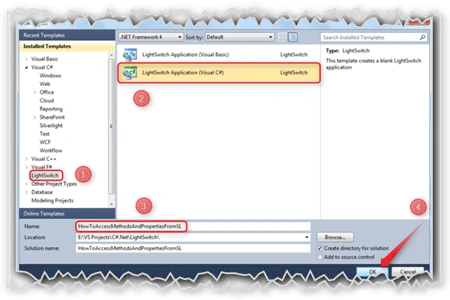
In this demo application, we will simply define a method to say Hello to world
when we click on a Silverlight button control.
Designing Entity:
As we are simply saying hello to world, we don't need an entity.
Designing Screen:
Create a Search Screen as show in the figure given below.
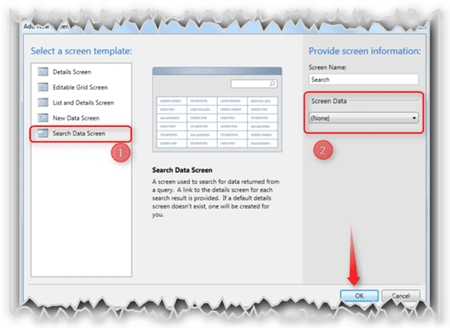
Here,
- Select the "Search Data Screen" template from the Screen template panel.
- As we have not designed an entity, simply select "None" from the "Screen Data" dropdown list.
Adding LightSwitch Method:
Add the LightSwitch method as shown in the below figure.
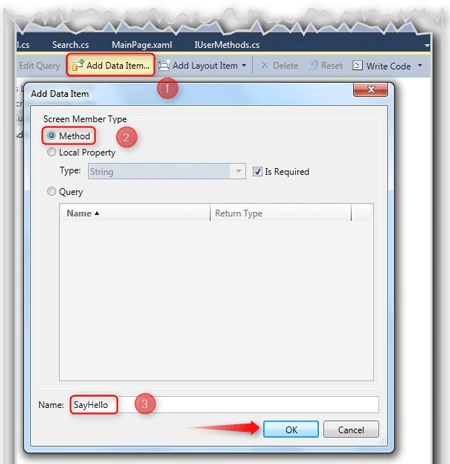
Here,
Open the screen designer then,
- Click on the "Add Data Item..." button, which is at the top of the screen designer.
- It will show a dialog box. In that, select the "Method" option from the "Screen Member Type" group.
- Give the method a name like "SayHello" and click on OK.
Editing the Method:
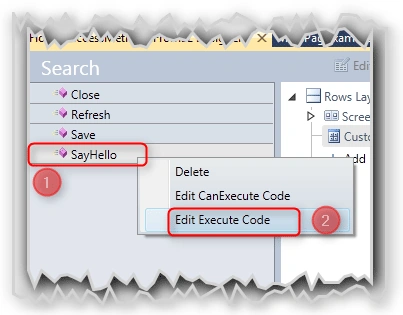
Here,
- In the "Screen Member Panel" which is at the left side of the screen tree. From this select the "SayHello" method and Right click it.
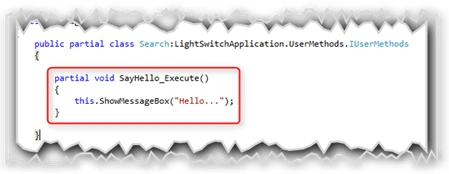
- From the Right click option, select "Edit Execute Code" which will create a method like below one.
Alok PandeyPosted Sep 2, 2011, 6:24 AM
Nice article,Thanks
Dan SullivanPosted Sep 1, 2011, 2:51 PM
Jaganathan, This is a great primer on how to extend LigthSwitch applications with our own code. Thanks!, ~Dan
Rohatash KumarPosted Sep 1, 2011, 4:32 AM
Good article. Thanks