

Introduction
As organizations generate more data over time, keeping SharePoint lists, Dataverse tables, or other data sources clean and efficient becomes increasingly important. Old or inactive records can impact performance, make searches more difficult, and clutter business applications.
An Archival Flow in Power Automate helps solve this problem by automatically moving old records from an active data source to an archive location while preserving the information for future reference. This approach improves system performance, simplifies data management, and supports compliance requirements.
What is an Archival Flow?
An Archival Flow is an automated process that:
Identifies records that meet archive criteria (such as records older than a specific date)
Copies the records to an archive location
Optionally deletes the original records
Logs the archive activity for auditing
Common archive locations include:
SharePoint Archive List
Dataverse Archive Table
SQL Database
Excel File
Azure Blob Storage
Why Use an Archival Flow?
Benefits include:
Improves SharePoint list performance
Reduces active data size
Keeps applications organized
Preserves historical information
Supports compliance and auditing
Eliminates manual archive work
Example Scenario
Suppose you have a SharePoint list named Employee Requests.
| Employee | Request Type | Status | Completed Date |
|---|---|---|---|
| Emp101 | Leave | Completed | 15-Jan-2024 |
| Emp102 | Travel | Completed | 10-Feb-2024 |
| Emp103 | Equipment | Open | — |
Business Requirement:
Archive requests completed more than 180 days ago.
Move them to Employee Requests Archive.
Remove them from the active list.
How the Flow Works
Trigger
   ↓
Recurrence (Runs Daily)
   ↓
Get Items from SharePoint
   ↓
Filter Completed Records Older Than 180 Days
   ↓
Apply to Each Item
   ↓
Create Item in Archive List
   ↓
Delete Original Item
   ↓
Send Summary Email (Optional)
Step-by-Step Implementation
Step 1: Create a Scheduled Flow
Open Power Automate.
Select Scheduled Cloud Flow.
Configure:
Runs once every day.
Choose the preferred execution time.
Step 2: Get SharePoint Items
Add the Get items action.
Configuration:
Site Address
List Name: Employee Requests
Step 3: Filter Old Records
Example Filter Query:
Status eq 'Completed'You can also filter using Power Automate conditions.
Example Condition:
Completed Date <= addDays(utcNow(),-180)Step 4: Archive the Record
Inside Apply to each:
Add Create item
Destination:
SharePoint Archive List
Copy all columns:
Employee
Request Type
Status
Completed Date
Comments
Step 5: Delete Original Record
After successful archive:
Add
Delete itemThis keeps the active list clean.
Step 6: Send Notification (Optional)
Send an email to the administrator.
Example:
Subject:
Employee Requests Archived

Body:
25 completed requests have been archived successfully.
Flow Diagram
Schedule Trigger
        │
        ▼
Get Items
        │
        ▼
Completed?
        │
   Yes ─┘
        │
        ▼
Older than 180 Days?
        │
   Yes ─┘
        │
        ▼
Create Item in Archive List
        │
        ▼
Delete Original Item
        │
        ▼
Log Success / Send Email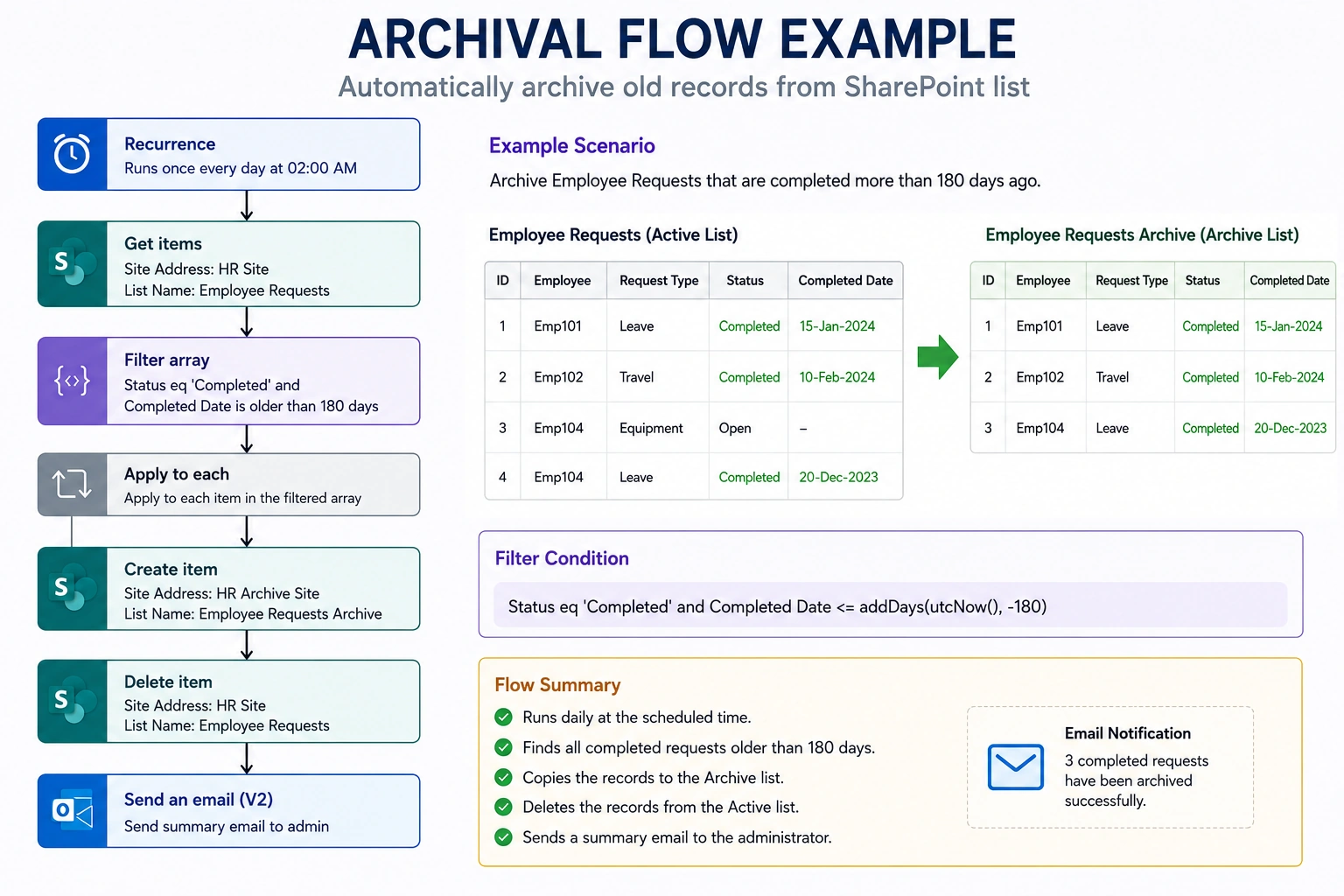
Best Practices
Always archive before deleting records.
Test the flow with a small dataset first.
Use pagination when processing large SharePoint lists.
Maintain an archive log for auditing.
Include error handling with Configure run after or Scopes.
Schedule the flow during off-peak hours.
Back up critical data before enabling automatic deletion.
Common Use Cases
Archive completed employee requests
Move closed help desk tickets
Archive completed purchase orders
Store historical project records
Archive old customer support cases
Move completed approval requests
Archive inactive asset records
Conclusion
An Archival Flow in Power Automate is an effective way to keep business applications fast, organized, and maintainable. By automatically moving inactive records to an archive location while preserving historical data, organizations can improve performance, simplify maintenance, and meet data retention policies with minimal manual effort.
Join the conversation! Your thoughts help the community grow.