

Introduction
Building a dashboard in any BI tool has been a hassle due to different complexities. Traditional BI tools always demanded the deep integration of IT through the extract, transform, and load process. For a while, there has been a hustle in the BI area to build visualizations, dashboards, data cleaning, etc. This is where Power BI has simplified the area with its user-friendly interface along with mobility to build dashboards without actually doing any core coding. It has various advantages in building dashboards, data visualization, and creating reports.
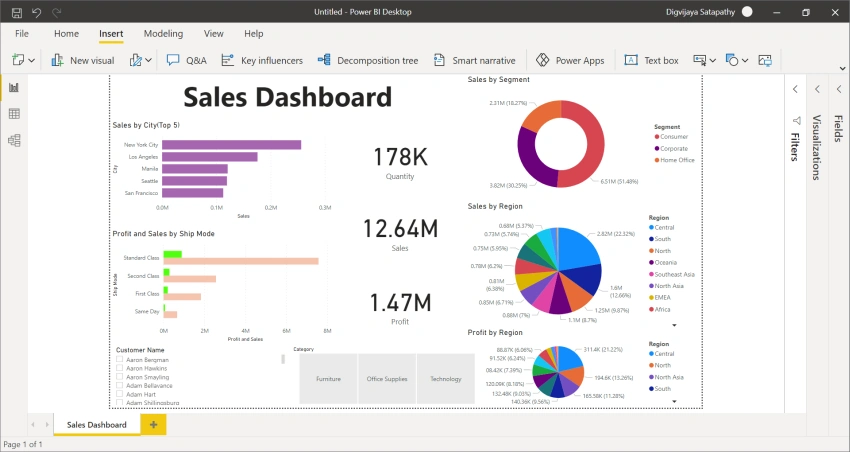
Here we will see how we can build a simple dashboard in less than 10 minutes of time. Going on we will use Global Superstore.xls as the dataset to build a Sales Dashboard.
Dataset
Global Superstore.xls (Available to download from Google).
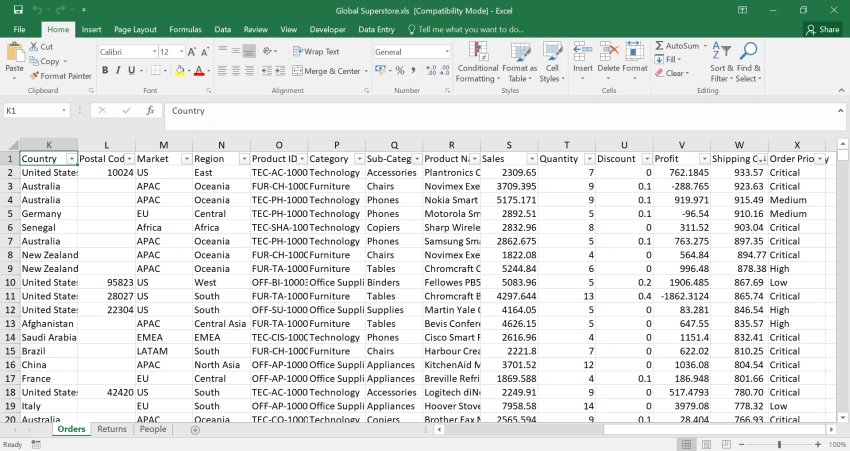
Step 1. Loading of Data in Power BI
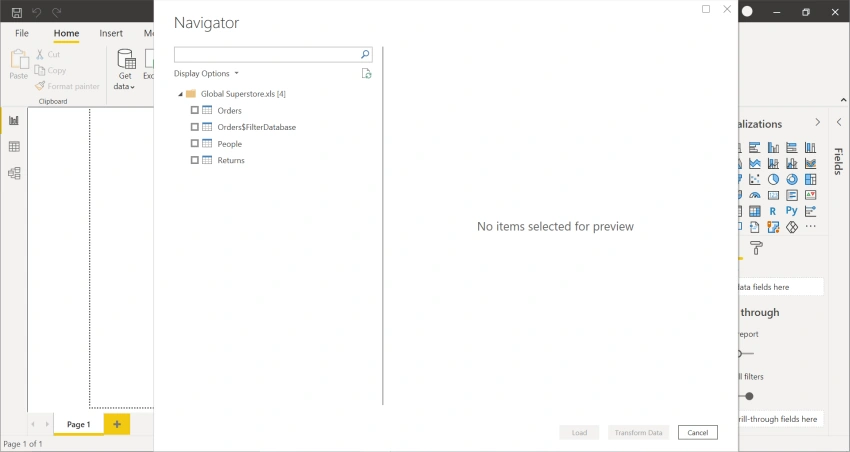
After opening the Power BI app, it prompts you to select the data source. Here, we have chosen a dataset present in an Excel file, we need to choose Excel as a data source. After choosing the file from the folder containing the dataset, we can see the preview of all the tabs in Excel on the screen.
By clicking on the first tab; i.e. Orders, we can preview the data.
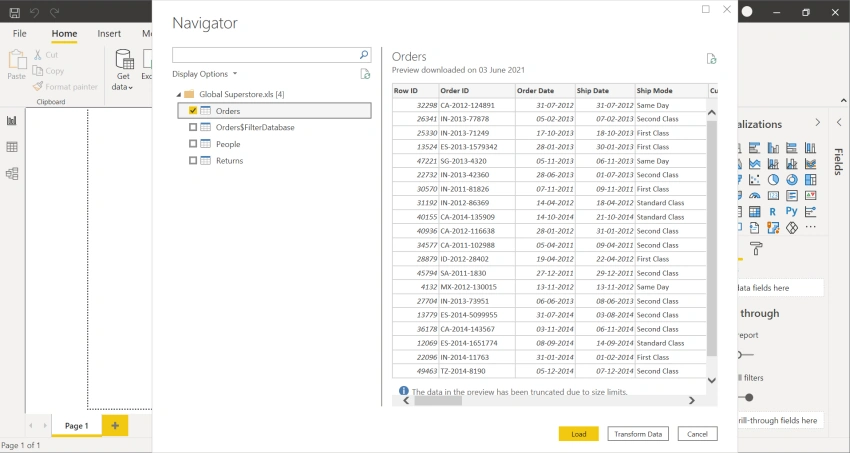
Here we need to take note of two options shown in the bottom right corner of the dialog box i.e. Load & Transform Data.
The load can be clicked on directly if we do not need any alteration in data or the headings of the columns are detected correctly.
It will take some time to load the data from a source.
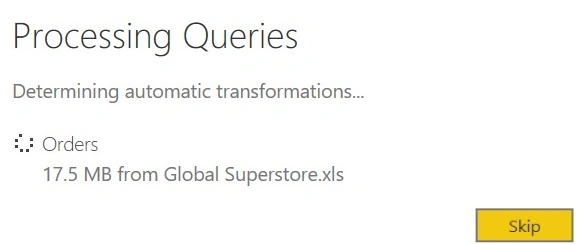
After the data is loaded, we are ready to build the dashboard in full swing.
Using Charts to see Sales figures
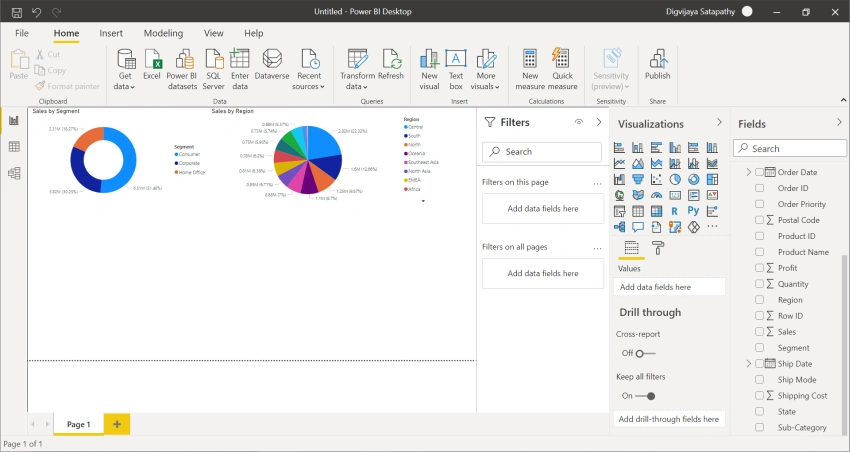
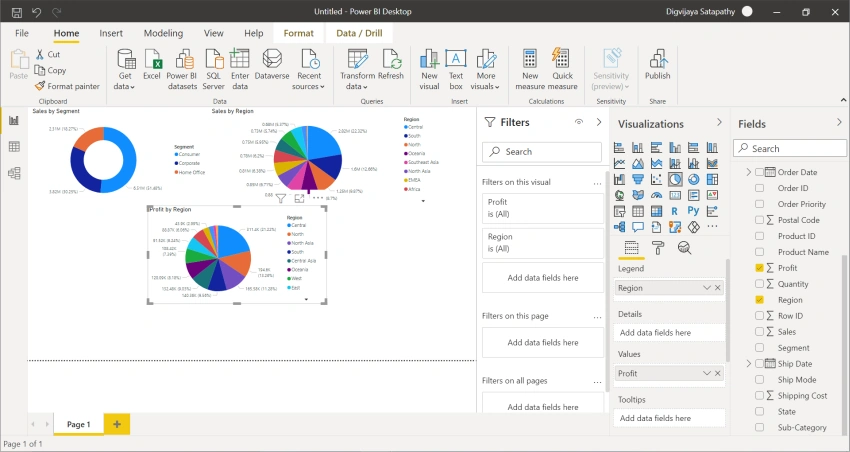
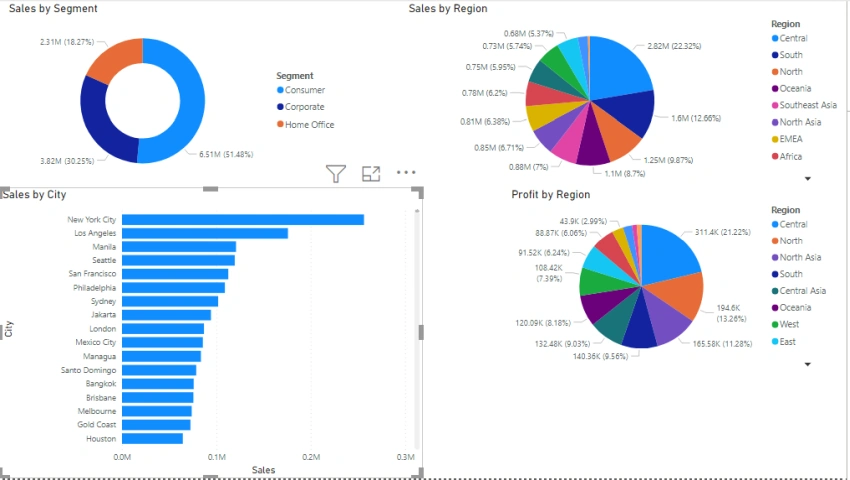
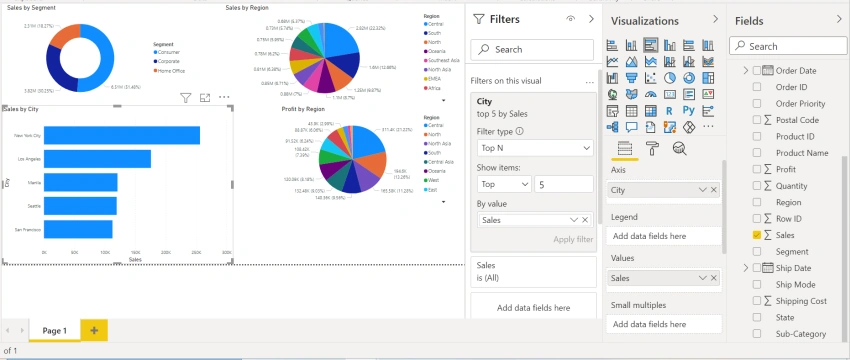
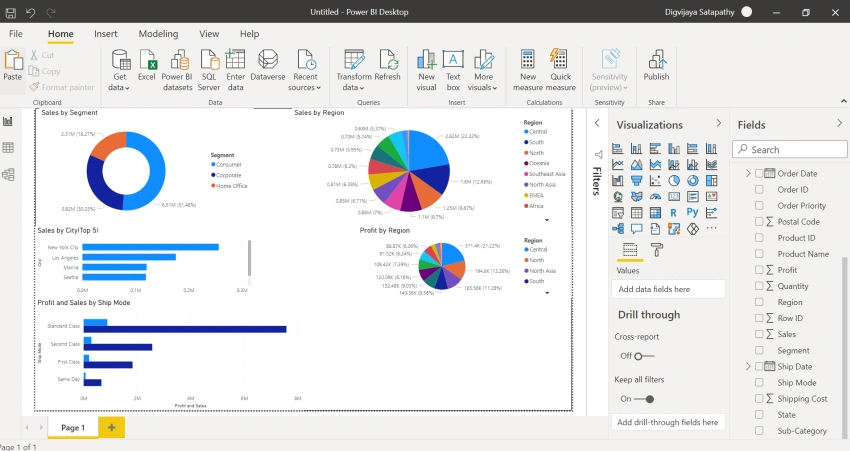
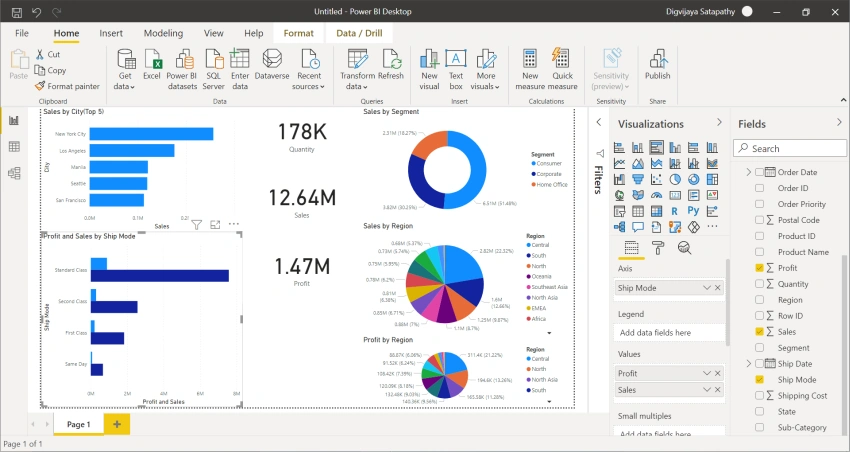
To see the sales figures we can pull two pie charts and segment them by the following,
- Sales by Segment: Select Sales & Segment from the Fields section.
- Sales by Region: Select Sales & Region from the Fields section.

PrajnyaPosted Jun 21, 2021, 5:22 PM
Wonderfully Explained!! Very good work .. Keep it up!