

Introduction
This article explains the DataGridviewTextBoxColumn class and how to use it in a Windows Forms application and how to change the HeaderText of the DataGridView. I have used the DataGridView Control to bind the datasource database table values.
DataGridviewTextBoxColumn Class
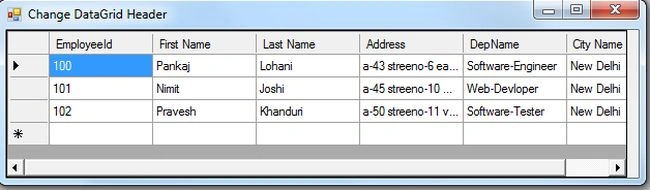
The DataGridviewTextBoxColum class allows us to display and edit the text of a column. The DataGridViewTextBoxColumn class derives from the abstract class DataGridColumnStyle. The DataGridviewTextBoxColumn is automatically associated with the various data types like decimal, double, Byte, string, Int16, Int32, Int64, UInt16, UInt32 and Uint64. The sort mode for this column type defaults to automatic. The HeaderText property of the DataGridviewTextBoxColumn class allows the user to display the caption that is different from the mapping name value, when the mapping value is not understandable then you can use the HeaderText property to reset the name, for example you can change the "EID" to "EmployeeId".
Namespace : System.Windows.Forms
Syntax:
let varname=new DataGridViewTextBoxColumn()
DataPropertyName Property
When the AutoGenerateColumns property of the DataGridView class is true then each column is automatically set with a DataPropertyName property to the name of a property or you can say database column in the datasource specified by the DataSource property.
Properties of DataGridviewTextBoxColumn class
The following are some of the properties of the DataGridviewTextBoxColumn class:
-
AutosizeMode: This property allows user to set the width size automatically.
-
HeaderText: Using the HeaderText property you can set the caption on the header.
-
DataPropertyName: Change the data source database column-name that is bound by the DataTextBoxColumn.
-
Visible: It determines whether the column is visible.
-
Width: Get or sets the width of the column.
-
SortMode: Using this property you can get or set the sort mode for the column and the default sort mode of the column is automatic.
Create Database & Tables
Create Database Details
use Details
create table EmployeeInfo(
EmpId int primary key identity(100,1),
EmpName varchar(max),
EmpLastName varchar(max),
EmpAddress nvarchar(max),
EmpDepartment varchar(max),
EmpCity varchar(max)
)
To execute the schema of the table use the following query and press F5:
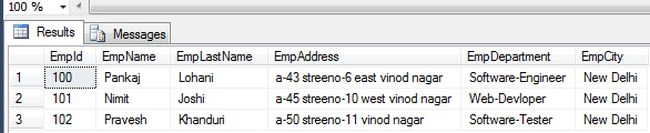
SELECT * FROM EmployeeInfo

Insert the values into the fields columns using the following:
insert into EmployeeInfo(EmpName,EmpLastName,EmpAddress,EmpDepartment,EmpCity)values('Pankaj','Lohani','a-43 streeno-6 east vinod nagar','Software-Engineer','New Delhi')
insert into EmployeeInfo(EmpName,EmpLastName,EmpAddress,EmpDepartment,EmpCity)values('Nimit','Joshi','a-45 streeno-10 west vinod nagar','Web-Devloper','New Delhi')
insert into EmployeeInfo(EmpName,EmpLastName,EmpAddress,EmpDepartment,EmpCity)values('Pravesh','Khanduri','a-50 streeno-11 vinod nagar','Software-Tester','New Delhi')
Join the conversation! Your thoughts help the community grow.