Amazon EC2 Auto Scaling allows you to automatically adjust the number of Amazon Elastic Compute Cloud (EC2) instances running in your application according to traffic demand. With EC2 Auto Scaling, you can maintain a desired performance level and minimize costs by dynamically adding or terminating EC2 instances based on predefined conditions. In this article, we'll walk through the steps required to set up EC2 Auto Scaling, helping you scale your infrastructure seamlessly.
What is EC2 Auto Scaling?
EC2 Auto Scaling is a service that automatically adjusts the number of EC2 instances in your application in response to demand. This service ensures that you maintain application performance and reduce operational overhead without manually scaling your infrastructure. EC2 Auto Scaling helps with:
- Cost Management: By scaling down during low-demand periods, you minimize costs.
- High Availability: EC2 Auto Scaling ensures your application has the right number of instances running to handle traffic spikes and maintain high availability.
- Improved Performance: The service scales in or out based on traffic load, maintaining the performance of your application.
Steps to Set Up Amazon EC2 Auto Scaling
Follow these steps to create an EC2 Auto Scaling setup for your application.
1. Create a Launch Template or Launch Configuration
The first step is to define the EC2 instance configuration that will be used by your Auto Scaling group. You can use a Launch Template or Launch Configuration. Launch Templates are preferred since they offer more features.
- In the AWS Management Console, go to the EC2 service.
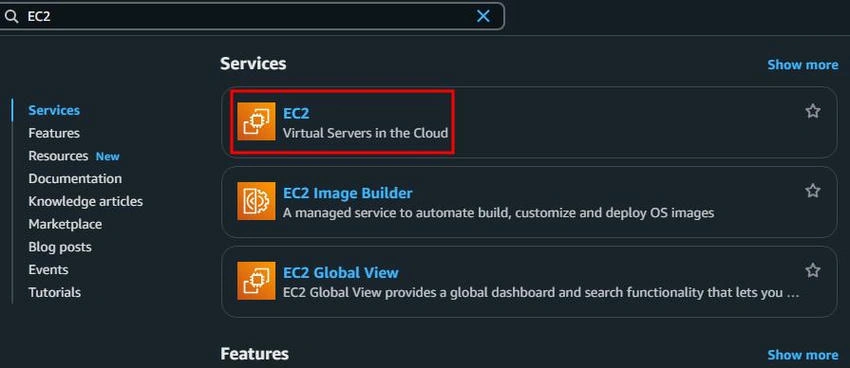
- In the left navigation pane, select Launch Templates under Instances.

- Click on Create launch template.
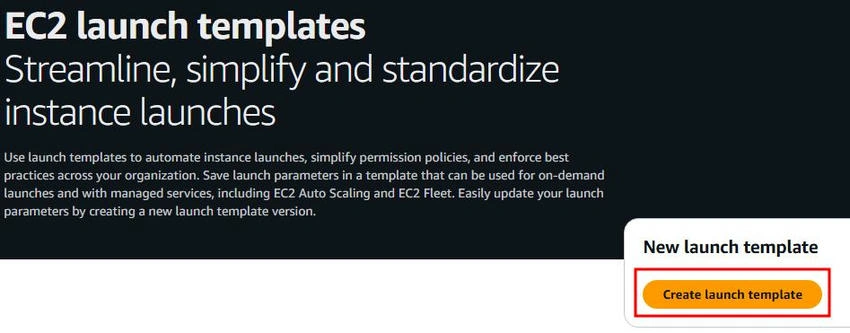
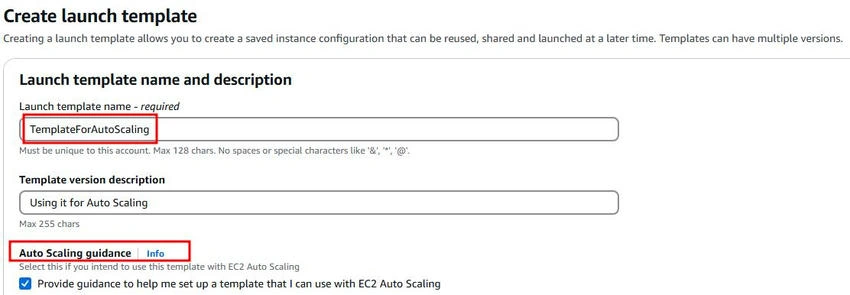
- Provide a name for your launch template, and configure the desired instance settings.
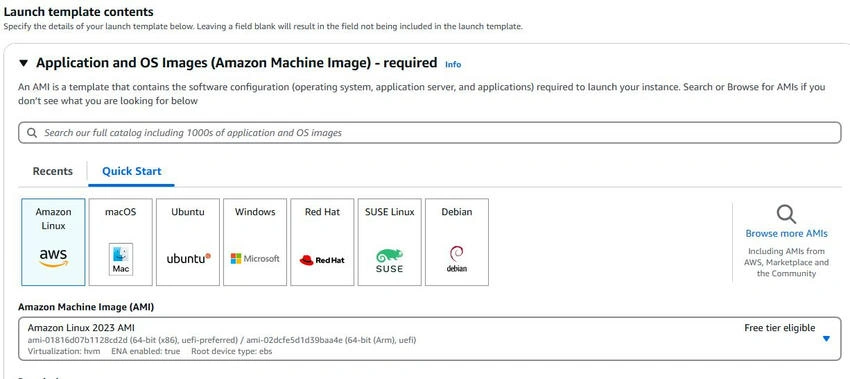
- AMI (Amazon Machine Image): You can either use a pre-configured AMI provided by AWS or create a custom AMI based on your requirements.
- Instance Type: Select the appropriate instance type based on your performance requirements. In my article, I have utilized the t2.micro instance type.

- Security Groups: Security groupsact as a virtual firewall that controls inbound and outbound traffic to your EC2 instances. When creating the launch template, you will associate one or more security groups that define the allowed traffic. You can either create new ones or use existing ones.
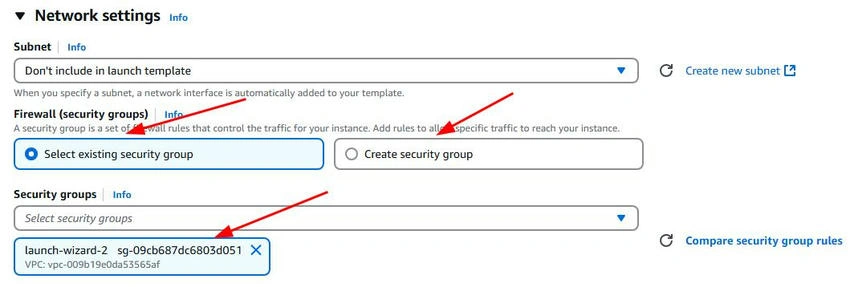
- Key Pair: A key pair is used to securely SSH into your EC2 instances. You will need to either create a new key pair or select an existing one. In my article, I am using an already created key pair.

- Click Create Launch template.

2. Create an Auto Scaling Group (ASG)
The Auto Scaling group defines the minimum, maximum, and desired number of EC2 instances that should run at any given time. It also defines the subnets in which EC2 instances will be launched and terminated.
- In the EC2 Dashboard, click on Auto Scaling Groups.
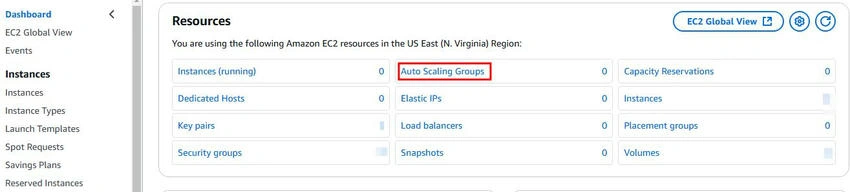
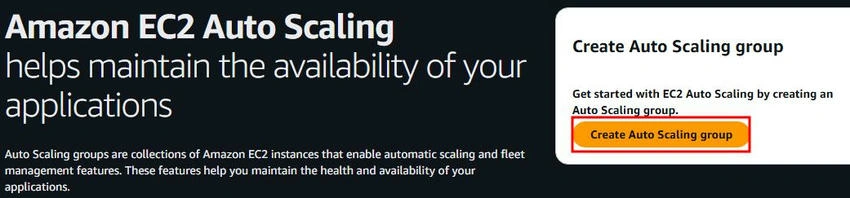
- Click Create Auto Scaling group.
- Define the Auto Scaling Group name and choose the launch template or launch configuration you created earlier.
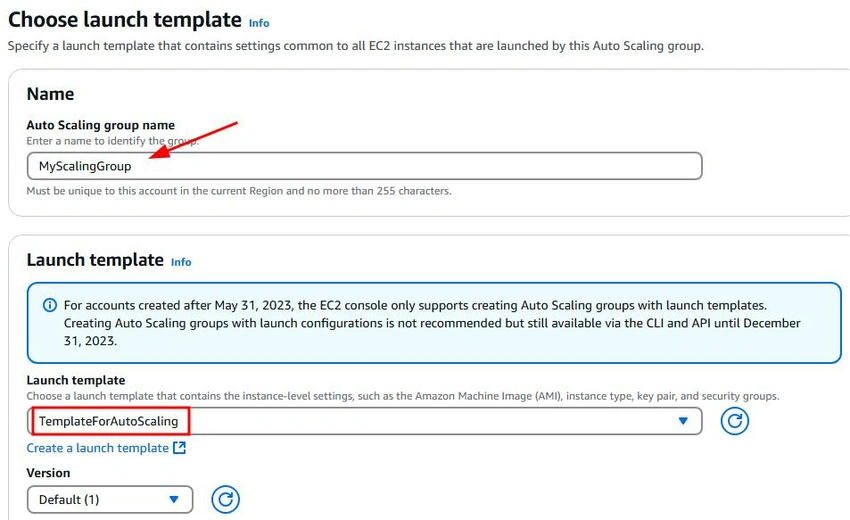
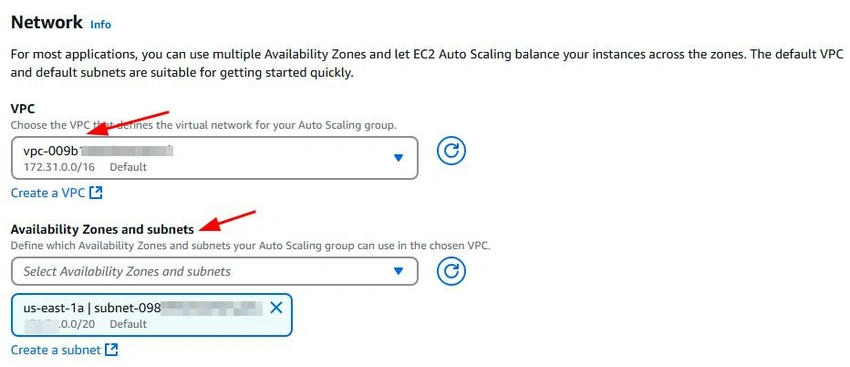
- Select the VPC, and choose the subnets where the instances should run.
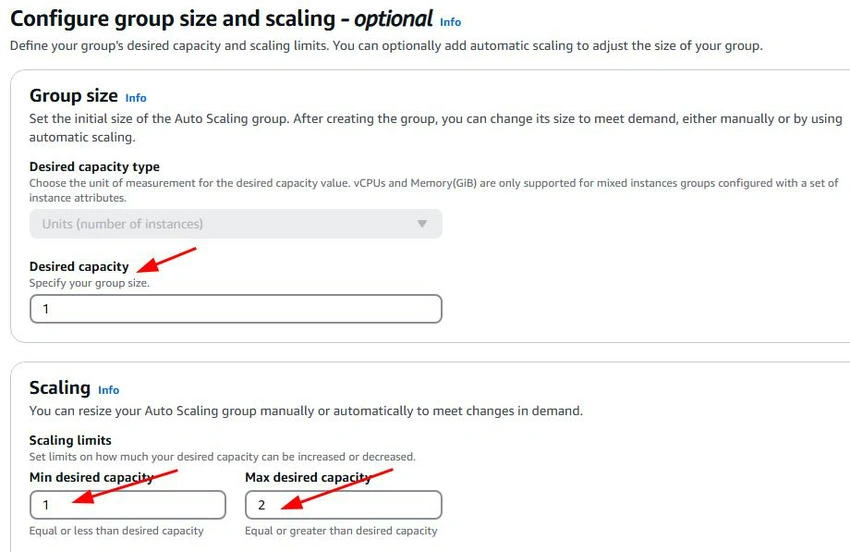
- Set the desired capacity, minimum size, and maximum size. These values define the range of EC2 instances your Auto Scaling group will scale between.
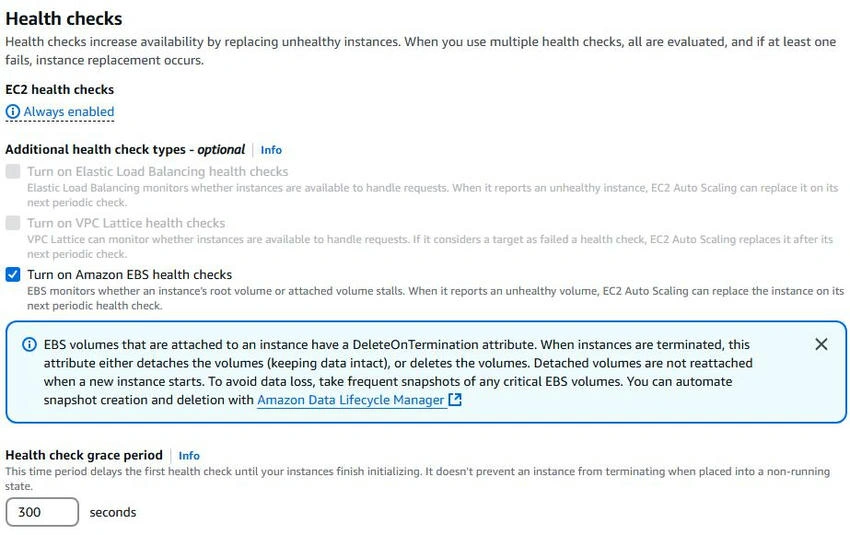
- Optionally, configure health checks for your instances. These checks will help Auto Scaling detect unhealthy instances and replace them automatically.
- Click Next to proceed.
3. Configure Scaling Policies
Next, you’ll configure scaling policies that tell Auto Scaling when to add or remove EC2 instances based on specific conditions (CPU utilization, request count).
- In the Scaling policies section, choose the Target tracking scaling policy or the Step scaling policy.
- Step scaling policy allows you to define different scaling actions based on different metric thresholds.
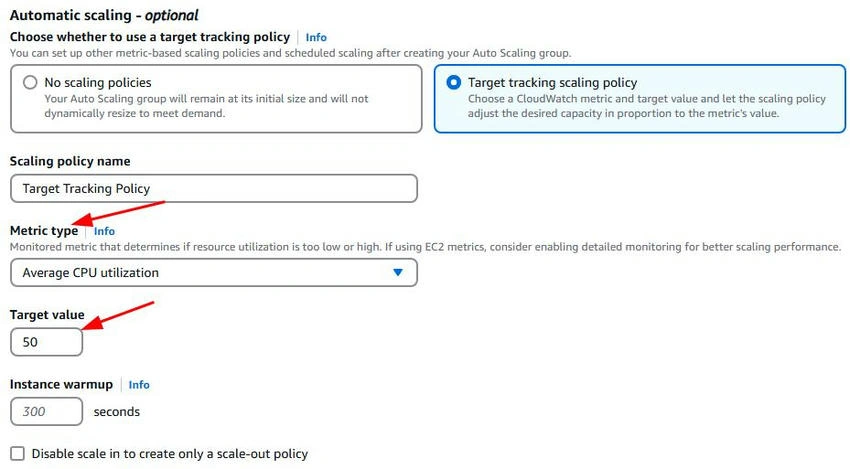
- Target tracking scaling policyautomatically adjusts capacity to maintain a specific metric value.
- If using target tracking, select a metric (CPU utilization) and set the target value (50%).
- Click Next to proceed
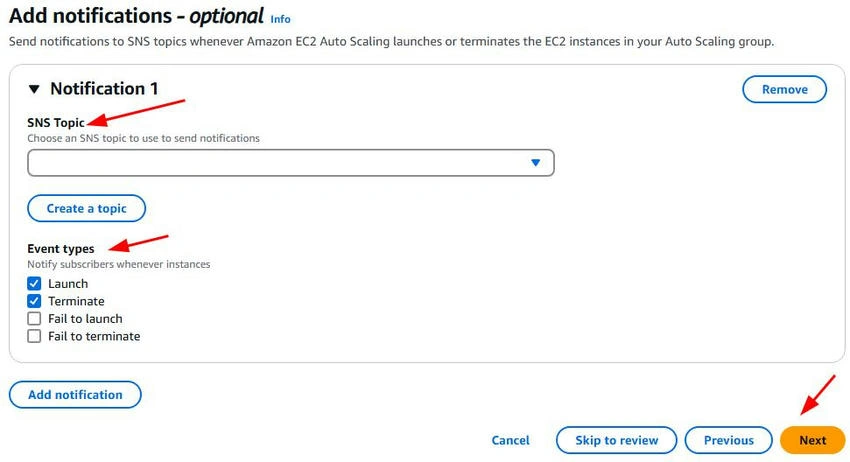
4. Set Notifications (Optional)
It’s helpful to set up notifications to alert you when Auto Scaling performs scaling activities. However, in my article, I haven’t set any notifications. You can set them if you wish.
- Choose Create a new SNS topic or Select an existing one to receive notifications.
- Select the desired events (instance launch, termination).
- Click Next to proceed.
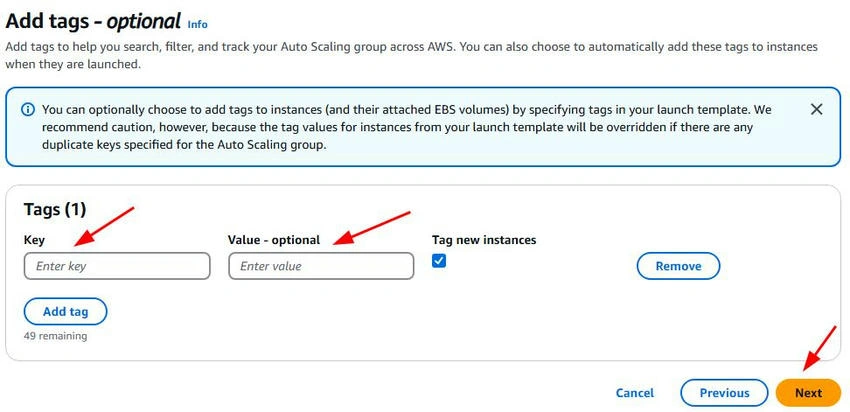
5. Add Tags (Optional)
Assign descriptive tags to your Auto Scaling Group to improve resource organization, enable easier identification of instances, and facilitate cost tracking.
6. Review and Create the Auto Scaling Group
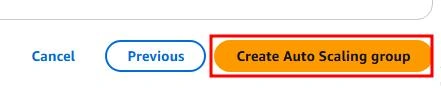
Review all your settings, including the Auto Scaling group, launch template, scaling policies, and notifications.
Once reviewed, click Create Auto Scaling group.
7. Monitor and Adjust the Auto Scaling Group
After creating the Auto Scaling group, you can monitor its performance and modify settings as necessary.
- Go to the Auto Scaling Groups section in the EC2 dashboard.

- You can view the Activity History to monitor scaling actions.

- Modify scaling policies or instance configurations if needed.
Conclusion
Amazon EC2 Auto Scaling is a powerful tool that helps you maintain high performance while minimizing costs by dynamically adjusting the number of EC2 instances. By following the steps outlined above, you can create an Auto Scaling setup that adapts to your application’s traffic demand, ensuring smooth operation and cost-efficiency. With monitoring, testing, and adjustments over time, you’ll be able to fine-tune your Auto Scaling configuration to best meet the needs of your business.


Join the conversation! Your thoughts help the community grow.