

Introduction
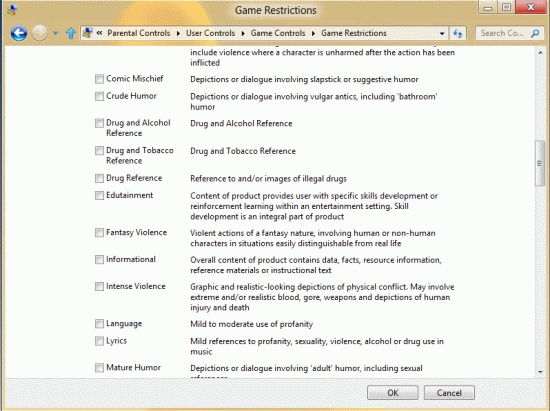
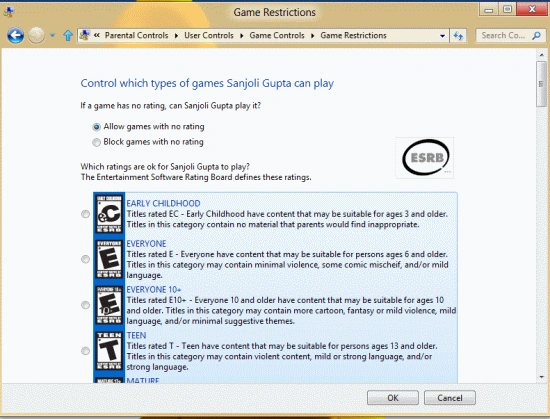
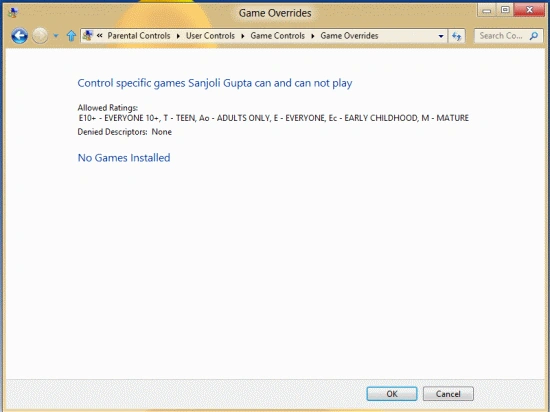
In this tutorial, we will introduce you to one of the features of windows 8 operating system Parental control. This control has the ability to make your system more secure, through this control, we applied such limits on our computer. Suppose you want to block some sites which could be harmful and not suitable for your children you can do this through it. Another one you can fix a time interval for login user and after this duration time user automatically logs out. You can also restrict the games, so according to your children age to permit and restrict those games which have violence and other explicit content. Instead of games and web site you can also block/allow particular applications.
Step 1
Click on Start and open the metro apps screen, now click on search from the right corner of the screen.

Step 2
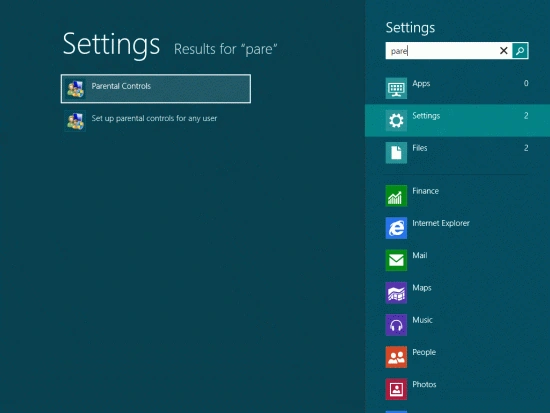
New window will be open select setting tab and type parental control 0n search box, parental control icons will appear on the left side of the screen.
Step 3
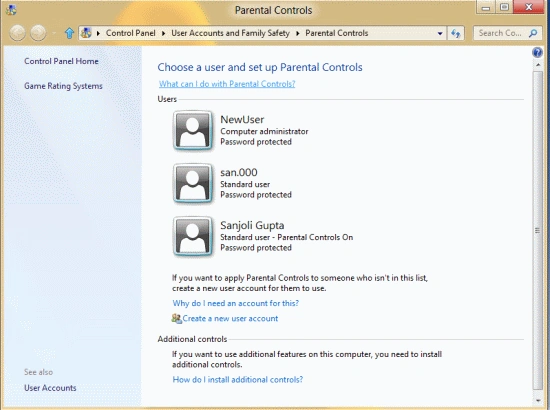
Now a new window will be open, then you will select the user for which you want to use parental control.
Step 4
In the new window select the radio button to enable parental control.
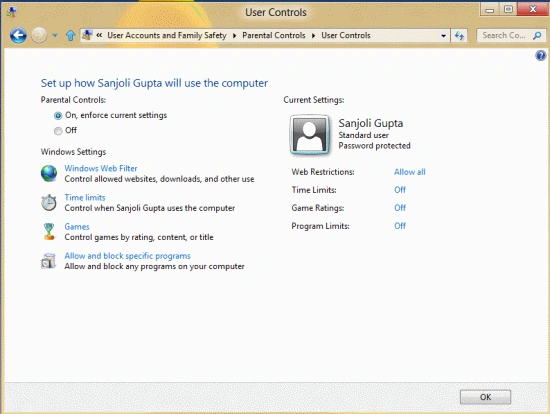
These are the main steps to enable
Parental Control in Windows 8. Now we are left with three major steps in configuring Parental Controls in Windows 8.
The main three steps are:
- Time limits
- Games
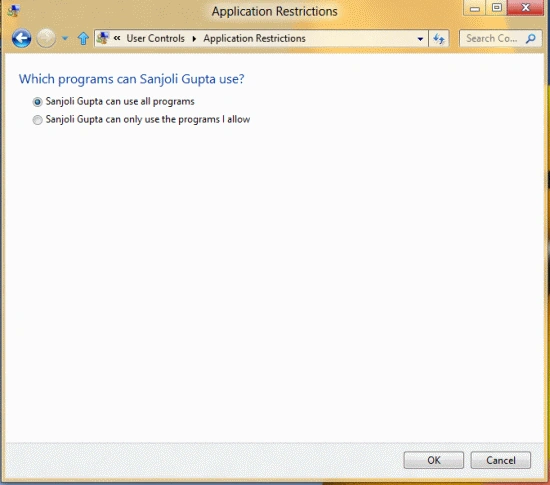
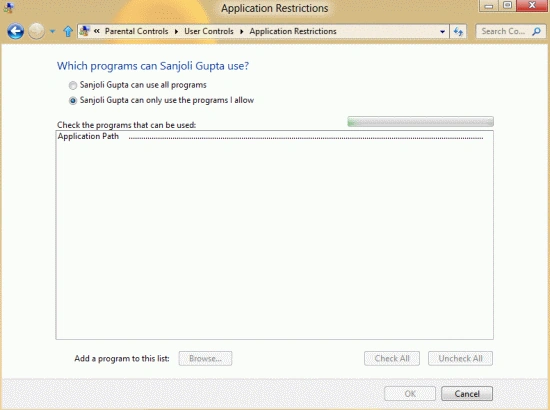
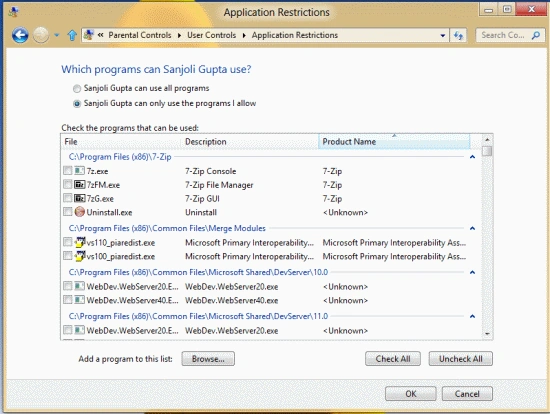
- Allow and block specific programs
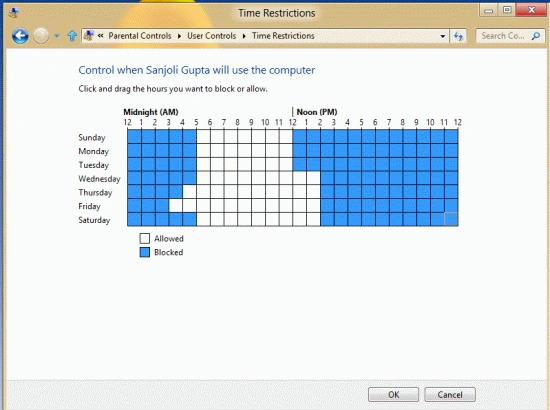
Time Limits
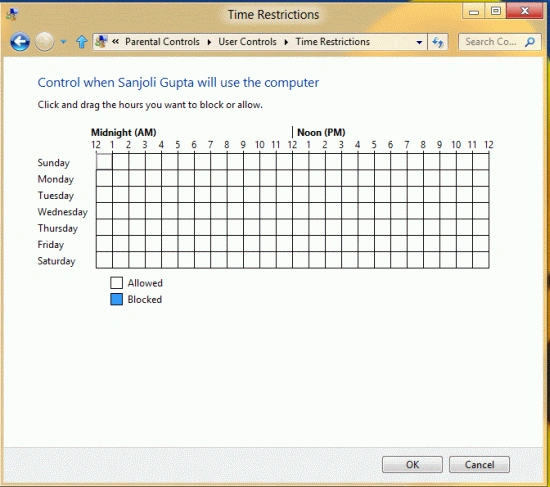
Through this, you can allocate your
system for a fix interval time to use it and rest time to restrict for
use. Click on the OK button to go for the next window.
Sam HobbseditedPosted Apr 8, 2012, 12:56 PMEdited Apr 8, 2012, 12:58 PM
I think parents should be warned that many children might know more about computers than adults. That does not apply to you but those of us that are familiar with computers should warn other parents. The significance is that young people could potentially execute a Virtual Machine and then all parental controls are gone. Perhaps instructions such as this should explain how to prevent access to VMs. Another possibility is for someone to boot to a different operating system, such as Linux, from a flash drive and then all controls would be gone. So parents should have computers with a password for altering the BIOS configuration and that does not allow booting from anywhere except the specified drive.