

Azure Logic Apps
Logic App is a cloud-based service that allows us to react to an event in one service (such as SharePoint online) and do something with the data from that event in another service (such as Twitter). It makes it practical and simple for business processes. The users build workflows that automatically do some business tasks and processes across applications and services. We can connect our business-critical apps and services with Azure Logic Apps, automating our workflows without writing a single line of code.
Before reading this article, please go through some important article links mentioned below.
- Deep Dive Into Azure Logic Apps
- Connect OneDrive To Google Drive With Azure Logic Apps
- Connect Facebook To Twitter With Azure Logic App
- Connect Outlook Mail To Excel Sheets With Azure Logic App
- Save Email Attachment From Outlook To Dropbox With Microsoft Azure Logic
- Save Specific Twitter Tweet To Excel Spreadsheet With Azure Logic App
- Connect Box To OneDrive Using Azure Logic Apps
- Save Only A Positive Tweet To Excel Spreadsheet Using Microsoft Cognitive
- Using Cognitive Service Face API with Azure Logic App
- Convert Tweet Into Audio File Using Cognitive Service With Azure Logic App
- Using Cognitive Service Computer Vision API, Text Analytics API With Azure
- Get Daily Weather Reports Delivered To Your Phone Using Azure Logic Apps
- How To Retweet A Specific Tweet With An Approval Email In Azure Logic App
- Set Auto Tier Azure Blobs Using Azure Logic App
- Set The Auto Delete For Old Azure Blobs Based On The Last Modified Time Us...
- How To Move The Specific Email To a Specific Folder Using Azure Logic App
- Email Yourself New Tweet With Specific Keyword Using Azure Logic App
- Connect Dropbox To OneDrive Using Azure Logic App
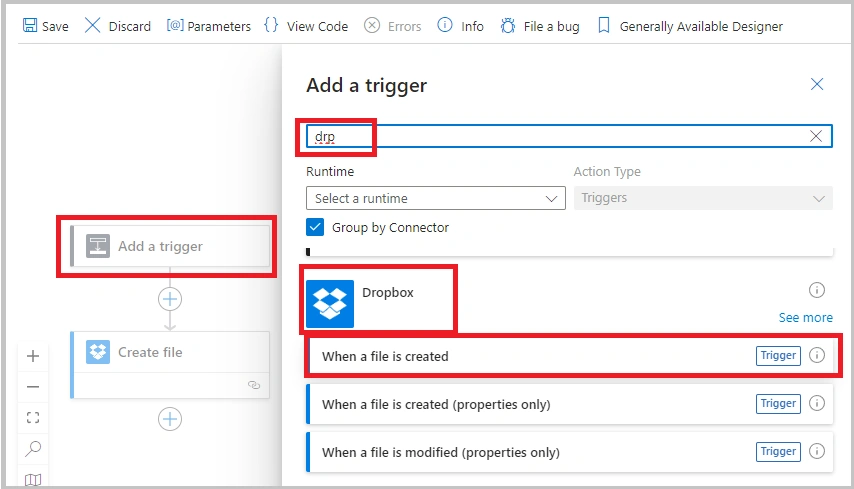
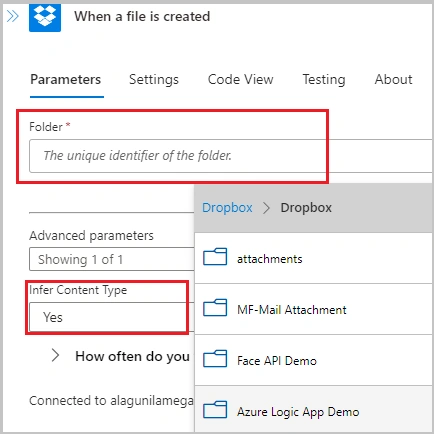
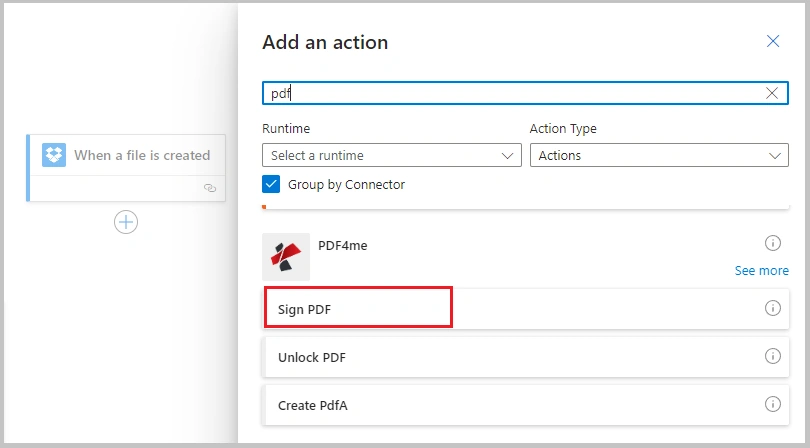
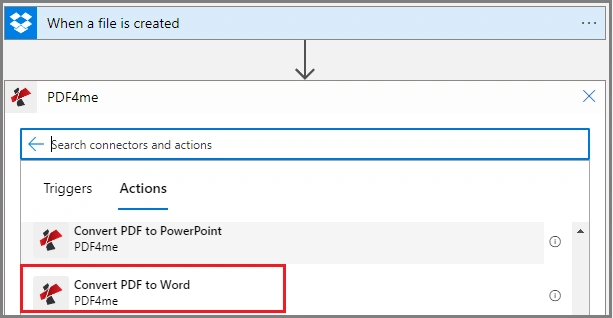
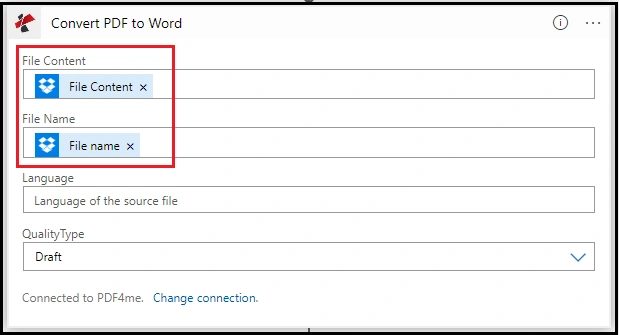
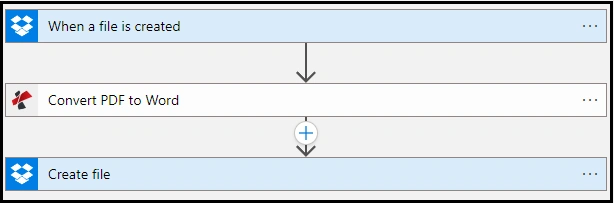
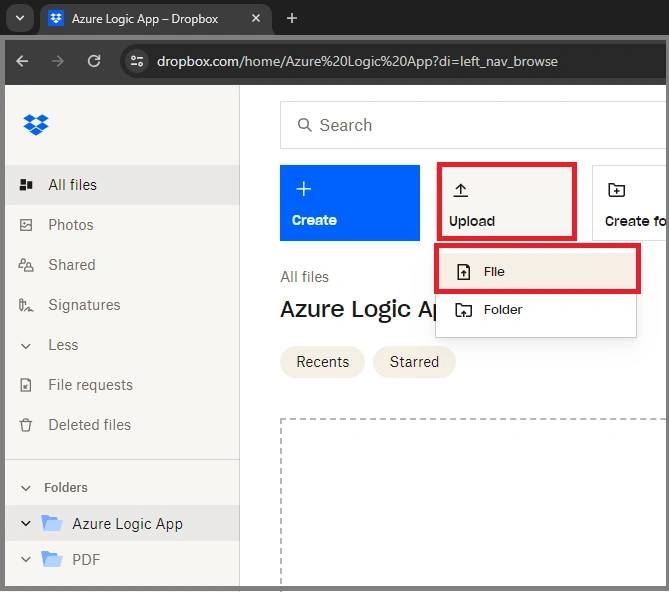
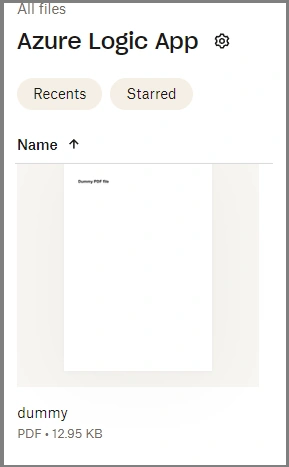
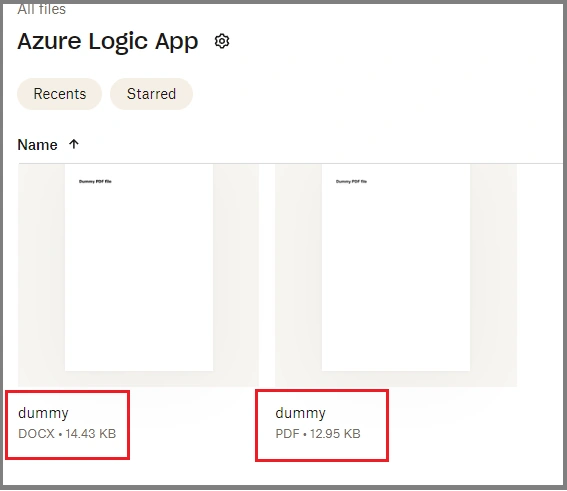
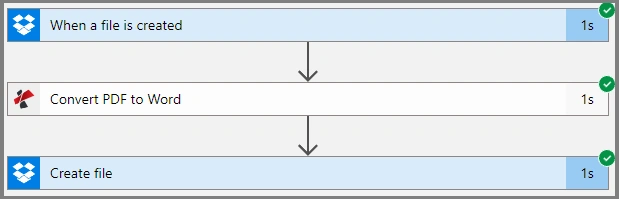
Here, we will see how we can convert PDFs into docs and store them in Dropbox automatically.
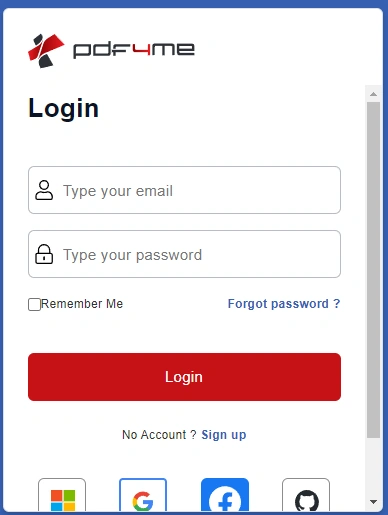
Here, we need to connect PDF4 and Dropbox.
Prerequisites
- Microsoft Azure Account
- DropBox Account
- PDF4me Account




Dr GomathiPosted Jan 4, 2024, 3:08 AM
Well written article. Thank you, Alagunila