

In this article, I will guide how to create an Image Slider in Vue.js using daisyUI library.
Prerequisites
- node.js installed
- Tailwind CSS
- Basic knowledge of Vue.js
- You can check how to install Tailwind CSS in vue.js from below link
How To Add Tailwind CSS n Vue.js
Create Vue.js Project
To create a Vue.js app, use the following command in the terminal
vue create tailwindcss
Install daisyUI using following npm command
npm i daisyui
Open tailwind.config.js and add the following code.
module.exports = {
  content: [
    "./index.html",
    "./src/**/*.{vue,js,ts,jsx,tsx}",

  ],
  theme: {
    extend: {},
  },
  plugins: [require("daisyui")],
}
Now right-click on the assets folder and add a new folder named 'Images' and some images in this folder
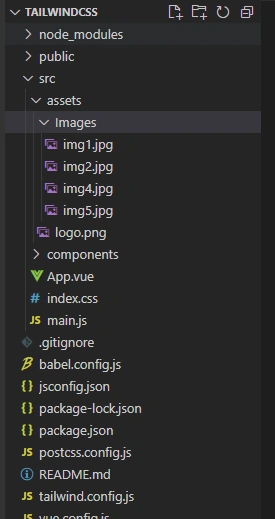
Now right-click on the components folder and add a new component named 'imagesliderdemo.vue'. Now open imagesliderdemo.vue component and add the following code
<template>
    <div class="cointainer">
        <div class="carousel w-full" style="margin-top: 30px;">
            <div id="item1" class="carousel-item w-full">
               <img src="../assets/Images/img1.jpg" style="height:480px" class="w-full" />
            </div>
            <div id="item2" class="carousel-item w-full">
               <img src="../assets/Images/img2.jpg" style="height:480px" class="w-full" />
            </div>
            <div id="item3" class="carousel-item w-full">
                <img src="../assets/Images/img4.jpg" style="height:480px" class="w-full" />
            </div>
            <div id="item4" class="carousel-item w-full">
                <img src="../assets/Images/img5.jpg" style="height:480px" class="w-full" />
            </div>
        </div>
        <div class="flex justify-center w-full py-2 gap-2">
            <a href="#item1" class="btn btn-xs">1</a>
            <a href="#item2" class="btn btn-xs">2</a>
            <a href="#item3" class="btn btn-xs">3</a>
            <a href="#item4" class="btn btn-xs">4</a>
        </div>
    </div>
</template>
<script>
export default {
    name: 'imagesliderdemo',
    props: {
        msg: String
    }
}
</script>
Now open App.vue componen. add the following code in App.vue component
<template>
  <div id="app">
    <imagesliderdemo />
  </div>
</template>

<script>
import imagesliderdemo from './components/imagesliderdemo.vue'

export default {
  name: 'App',
  components: {
    imagesliderdemo
  }
}

</script>

<style>
#app {
  font-family: Avenir, Helvetica, Arial, sans-serif;
  -webkit-font-smoothing: antialiased;
  -moz-osx-font-smoothing: grayscale;
  text-align: center;
  color: #2c3e50;
}
</style>
Now run the application by using following command.
npm run serve


Summary
In this article, we learned how to create an Image Slider in Vue.js using daisyUI library.
Join the conversation! Your thoughts help the community grow.