

In this article I will discuss how to create a code snippet. Visual Studio allows developers to save snippets of code which can be inserted at a later time. This saves on retyping blocks of code that are used often. I also find it very useful when I have to show code during presentations. Instead of typing everything live, I find it far easier to simply add the code block by block using code snippets.
Fallow the steps to create a code snippet using Visual Studio 2010.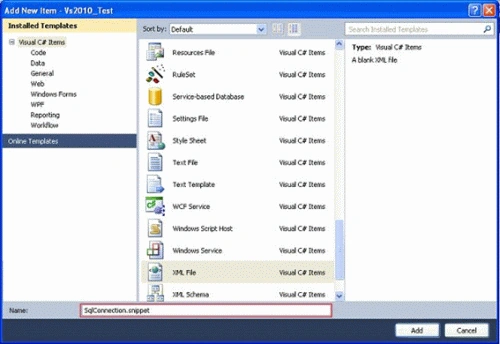
Default Blank XML:
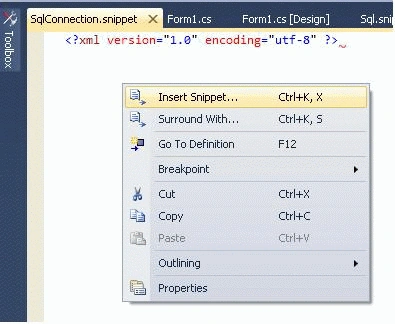
Default snippet generated XML tags: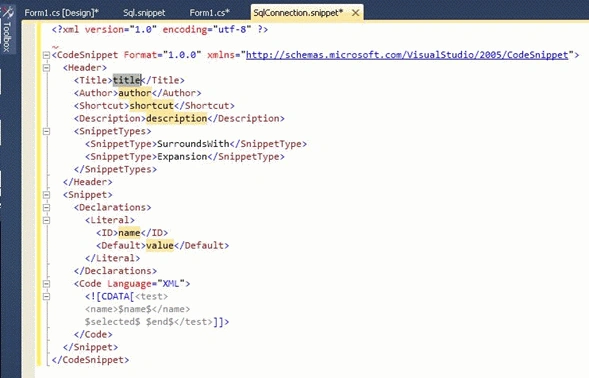
Modified XML tags.
Add the SQL Connection Code to ![CDATA[]]
<?xml version="1.0" encoding="utf-8" ?>
<CodeSnippet Format="1.0.0" xmlns="http://schemas.microsoft.com/VisualStudio/2005/CodeSnippet">
<Header>
<Title>SqlInsert</Title>
<Author>Ravindra</Author>
<Shortcut>SqlIns</Shortcut>
<Description>Sql Connection</Description>
<SnippetTypes>
<SnippetType>SurroundsWith</SnippetType>
<SnippetType>Expansion</SnippetType>
</SnippetTypes>
</Header>
<Snippet>
<Declarations>
<Literal>
<ID>message</ID>
<Default>my function</Default>
</Literal>
</Declarations>
<Code Language="CSharp">
<![CDATA[
SqlConnection con = new SqlConnection();
try
{
con.Open();
SqlCommand cmd = con.CreateCommand();
cmd.CommandText = "";
cmd.Parameters.AddWithValue("", "");
cmd.Parameters.AddWithValue("", "");
cmd.Parameters.AddWithValue("", "");
cmd.ExecuteNonQuery();
}
catch (Exception)
{
throw;
}
finally
{
con.Close();
}]]>
</Code>
</Snippet>
</CodeSnippet>
Snippet IntelliSense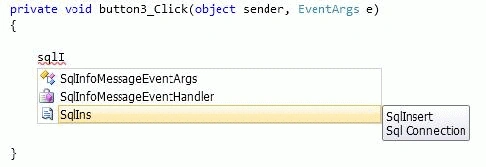
Snippet generated C# code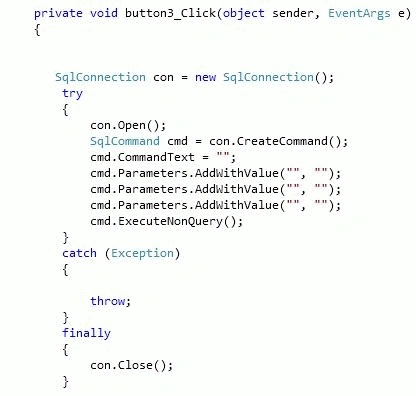
Gopi KrishnanPosted Mar 19, 2019, 2:12 AM
This could be very helpful to many of us
SubashPosted Nov 24, 2016, 11:37 AM
Crisp and very clear explanation..............
Surya KantPosted Nov 22, 2016, 3:56 AM
Nice post...but you need to tell all the step's that how to add the XML file to code snippet folder;then it might look good.
omendra gangwarPosted Oct 15, 2012, 5:11 AM
c
Vineet Kumar SainieditedPosted Mar 25, 2012, 6:55 AMEdited Mar 25, 2012, 6:55 AM
Thanks for sharing this post........
Lajapathy ArunPosted Mar 21, 2012, 4:23 AM
Please could you attach the source code and also let me know it works in .net 2.0
Nanda KishorPosted Feb 25, 2012, 12:50 AM
Thanx...Author for the Code Which reduces the retyping of many lines in our projects.Which in turn increases the Execution speed of the project..