Introduction
 
This article explains how to create an editable notepad in Java.
 
Description
 
The main purpose for designing this type of notepad is to show how to make a notepad that enables us to cut, copy, paste and select all the text. For the development of this notepad we need to use the following procedure.
 
Step 1
 
Import the following packages:
  1. import java.awt.event.*;  
  2.   
  3. import javax.swing.*;  
Step 2
 
Create a MenuBar, MenuItem, TextArea and Menu as in the following:
  1. public class EditableNotepadEx implements ActionListener  
  2. {  
  3.     JFrame frm;  
  4.     JMenuBar mnubr;  
  5.     JMenu fileMenu, editMenu, helpMenu;  
  6.     JMenuItem cutItem, copyItem, pasteItem, selectAll;  
  7.     JTextArea txtarea;  
Step 3
 
Create a frame and sub-menu bar items, like cut, copy, paste and Select All. The following frame contains cut, copy, select and paste in the edit menu bar.
  1. EditableNotepadEx()  
  2. {  
  3.     frm = new JFrame();  
  4.     cutItem = new JMenuItem("cutItem");  
  5.     copyItem = new JMenuItem("copyItem");  
  6.     pasteItem = new JMenuItem("pasteItem");  
  7.     selectAll = new JMenuItem("selectAllItem");  
Step 4
 
Create and add a menu bar and sub bar items in the frame and set the bounds as in the following:
  1. copyItem.addActionListener(this);  
  2. cutItem.addActionListener(this);  
  3. selectAll.addActionListener(this);  
  4. pasteItem.addActionListener(this);  
  5. mnubr = new JMenuBar();  
  6. mnubr.setBounds(5540040);  
  7. fileMenu = new JMenu("File");  
  8. editMenu = new JMenu("Edit");  
  9. helpMenu = new JMenu("Help");  
  10. editMenu.add(cutItem);  
  11. editMenu.add(copyItem);  
  12. editMenu.add(pasteItem);  
  13. editMenu.add(selectAll);  
  14. mnubr.add(fileMenu);  
  15. mnubr.add(editMenu);  
  16. mnubr.add(helpMenu);  
  17. txtarea = new JTextArea();  
  18. txtarea.setBounds(530460460);  
  19. frm.add(mnubr);  
  20. frm.add(txtarea);  
  21. frm.setLayout(null);  
  22. frm.setSize(500500);  
  23. frm.setVisible(true);  
Step 5
 
Create an actionPerformed method to perform several actions, such as cut, copy, paste and selectAll depending on the user's click.
  1. public void actionPerformed(ActionEvent ae)  
  2. {  
  3.     if (ae.getSource() == cutItem)  
  4.         txtarea.cut();  
  5.     if (ae.getSource() == pasteItem)  
  6.         txtarea.paste();  
  7.     if (ae.getSource() == copyItem)  
  8.         txtarea.copy();  
  9.     if (ae.getSource() == selectAll)  
  10.         txtarea.selectAll();  
  11. }  
Step 6
 
Display the editable notepad by creating a main function.
  1. public static void main(String[] args)  
  2. {  
  3.     new EditableNotepadEx();  
  4. }  
Step 7
 
The following is the complete Code.
 
EditableNotepadEx.java
  1. import java.awt.event.*;  
  2. import javax.swing.*;  
  3. public class EditableNotepadEx implements ActionListener  
  4. {  
  5.     JFrame frm;  
  6.     JMenuBar mnubr;  
  7.     JMenu fileMenu, editMenu, helpMenu;  
  8.     JMenuItem cutItem, copyItem, pasteItem, selectAll  
  9.     JTextArea txtarea;  
  10.     EditableNotepadEx()  
  11.     {  
  12.         frm = new JFrame();  
  13.         cutItem = new JMenuItem("cutItem");  
  14.         copyItem = new JMenuItem("copyItem");  
  15.         pasteItem = new JMenuItem("pasteItem");  
  16.         selectAll = new JMenuItem("selectAllItem");  
  17.         copyItem.addActionListener(this);  
  18.         cutItem.addActionListener(this);  
  19.         selectAll.addActionListener(this);  
  20.         pasteItem.addActionListener(this);  
  21.         mnubr = new JMenuBar();  
  22.         mnubr.setBounds(5540040);  
  23.         fileMenu = new JMenu("File");  
  24.         editMenu = new JMenu("Edit");  
  25.         helpMenu = new JMenu("Help");  
  26.         editMenu.add(cutItem);  
  27.         editMenu.add(copyItem);  
  28.         editMenu.add(pasteItem);  
  29.         editMenu.add(selectAll);  
  30.         mnubr.add(fileMenu);  
  31.         mnubr.add(editMenu);  
  32.         mnubr.add(helpMenu);  
  33.         txtarea = new JTextArea();  
  34.         txtarea.setBounds(530460460);  
  35.         frm.add(mnubr);  
  36.         frm.add(txtarea);  
  37.         frm.setLayout(null);  
  38.         frm.setSize(500500);  
  39.         frm.setVisible(true);  
  40.     }  
  41.     public void actionPerformed(ActionEvent ae)  
  42.     {  
  43.         if (ae.getSource() == cutItem)  
  44.             txtarea.cut();  
  45.         if (ae.getSource() == pasteItem)  
  46.             txtarea.paste();  
  47.         if (ae.getSource() == copyItem)  
  48.             txtarea.copy();  
  49.         if (ae.getSource() == selectAll)  
  50.             txtarea.selectAll();  
  51.     }  
  52.     public static void main(String[] args)  
  53.     {  
  54.         new EditableNotepadEx();  
  55.     }  
  56. }  
Output
 
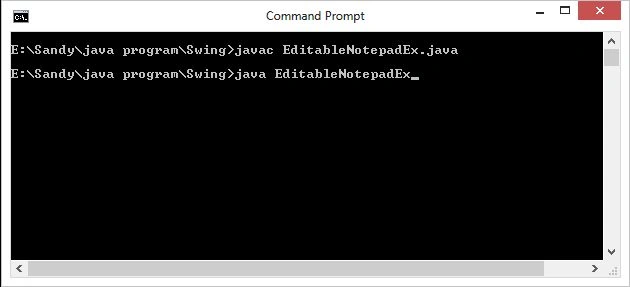
fig-1.jpg
 
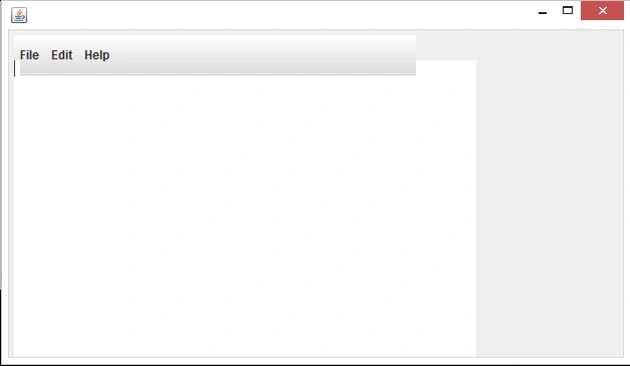
After pressing enter, a new window is generated called notepad (in which we can write text) that contains file, edit and a help button.
 
fig-2.jpg
 
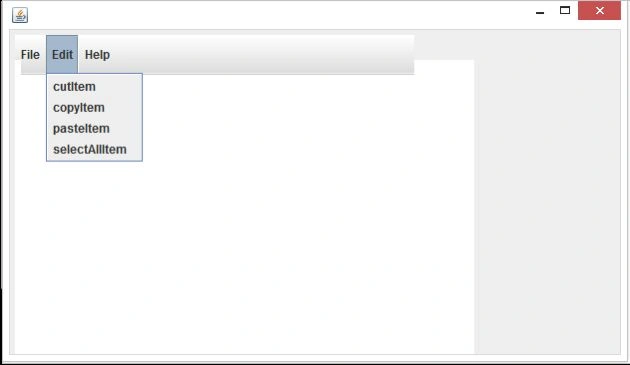
When we click on the edit button we have four choices; through that we can cut, copy, paste and selectAll of our text in the notepad.
 
fig-3.jpg