

Introduction
Business mail ID is basically associated with a domain which is used for enterprise or company level. Because of the domain being bound, we can easily identify which company or firm it belongs to, like the ones we use are gmail.com or outlook.com, but any company mail id is like xyz.domain.com.
Ex: Like I have a company thedreamtech.com and I want to distribute mail id in the company so I can create mail id with custom domain like my name is Saurabh and my company is thedreamtech.com so my mail id will look something like this [email protected]
How to Create Bussiness or Domain mailID?
- Bussiness mail id or admin mail id is same, after that from the portal from which we have taken the mail id server, we can create more mail ids for the same group, for this many platforms provide service like godaddy which can also provide business mail id along with domain and all the domain providers also provide business mail id.
- For mail ID, we can either access the C-panel, in which we get the option to add storage and mail ID and the number of mail IDs required.
- Or the best way is in which we get storage mail id or office access for which we can take microsoft office enterprise license along with which we also get exchange server for handling mail ids in which we can migrate data and can also migrate mail ids from other domain server to microsoft domain for which first we would need a business mail id or we will either get business mail id admin mail id from azure portal or would have to take an admin id after that we can create multiple mail ids by accessing exchange server.
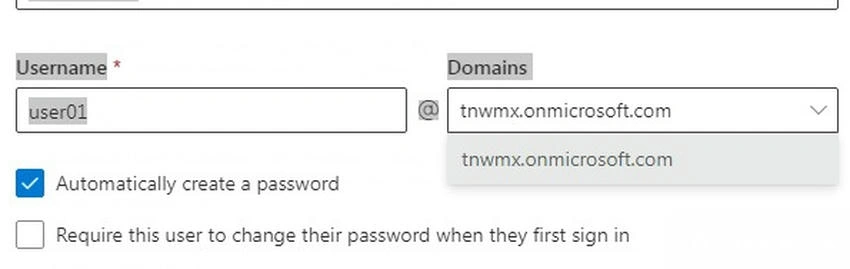
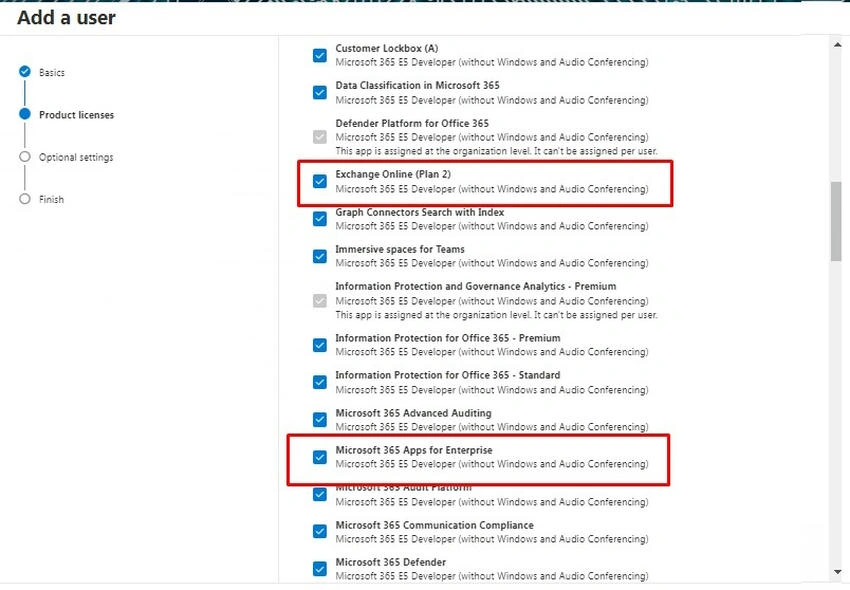
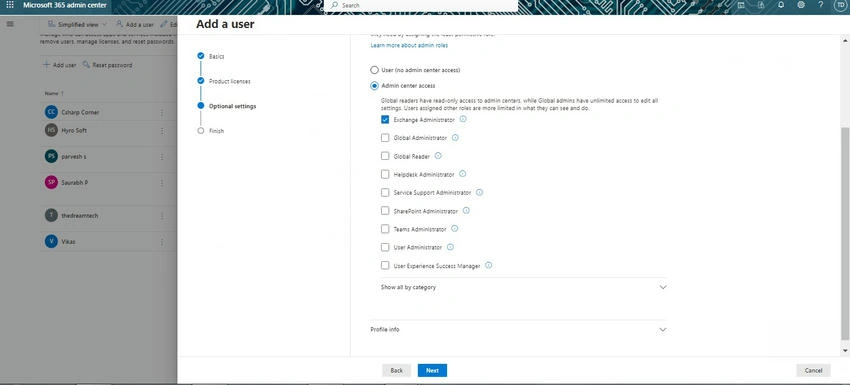
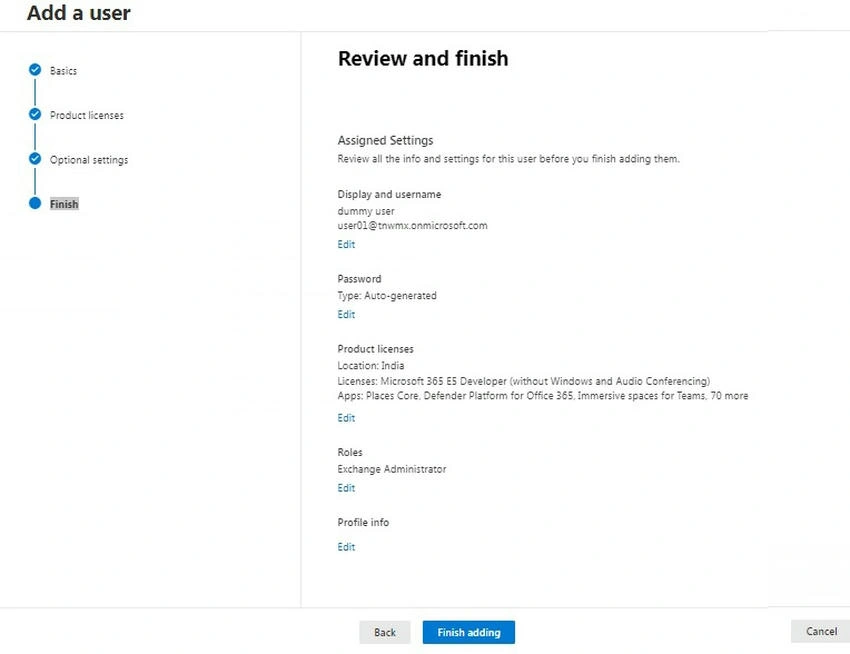
Now, we will see how to create a mailbox from the Microsoft Admin Portal and where to get the custom domain option.
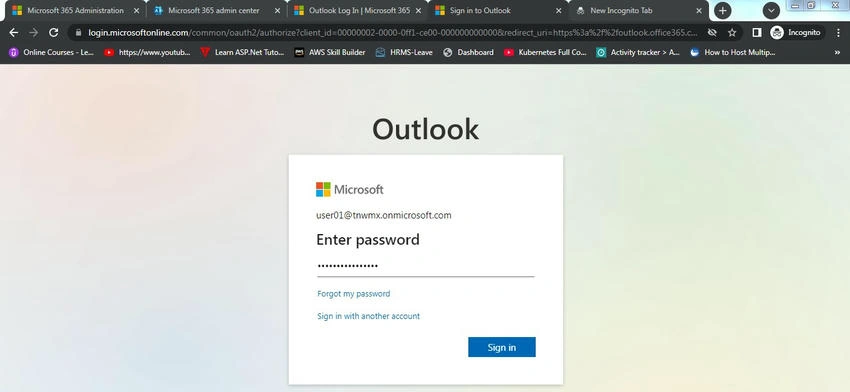
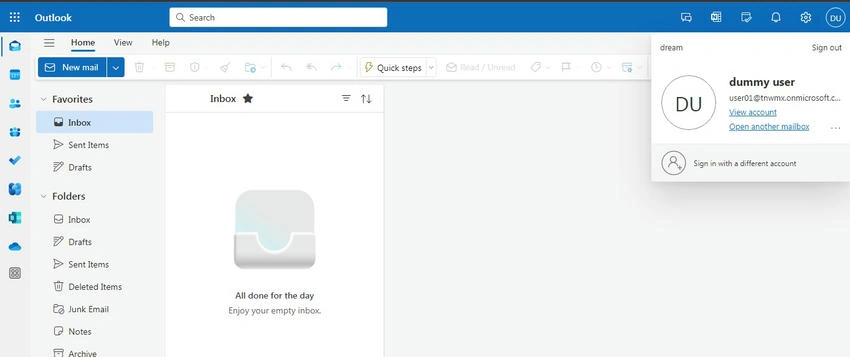
First, open the Microsoft Admin Portal and log in with your business mail ID. If you don't know how to create a business mail ID, you can see my other article also: https://www.csharp.com/article/microsoft-365-admin-enterprise-e5e3f3-services/
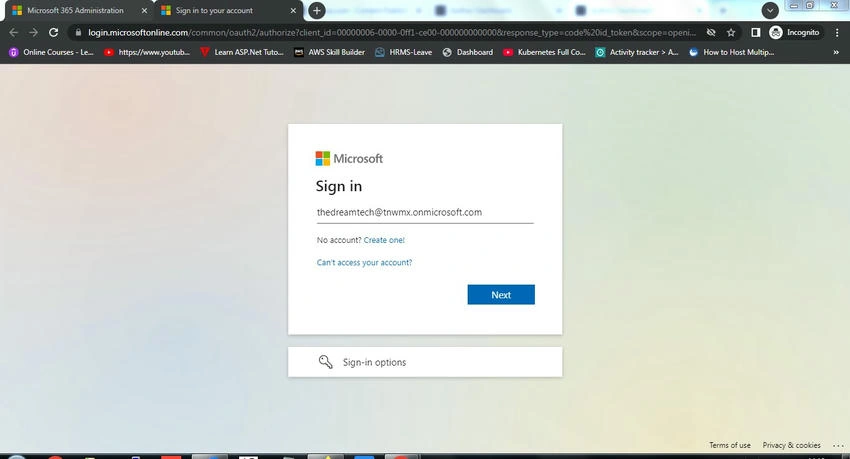
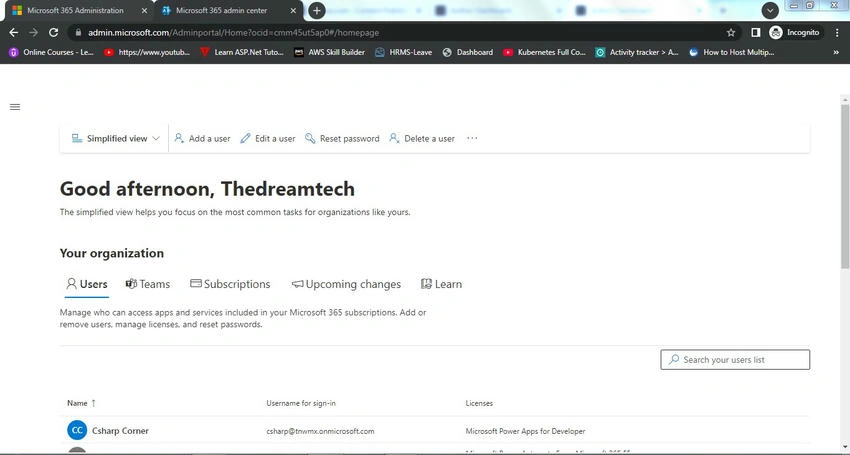
After that, when you log in to the admin portal, you will get an option to add; click on it.
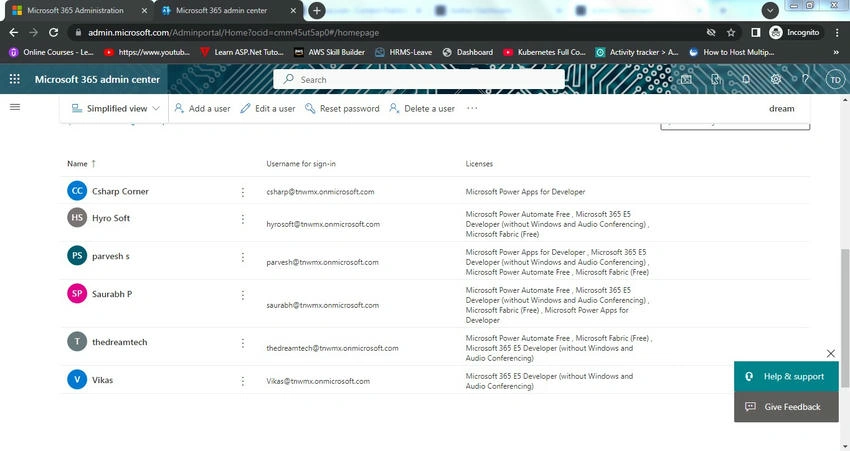
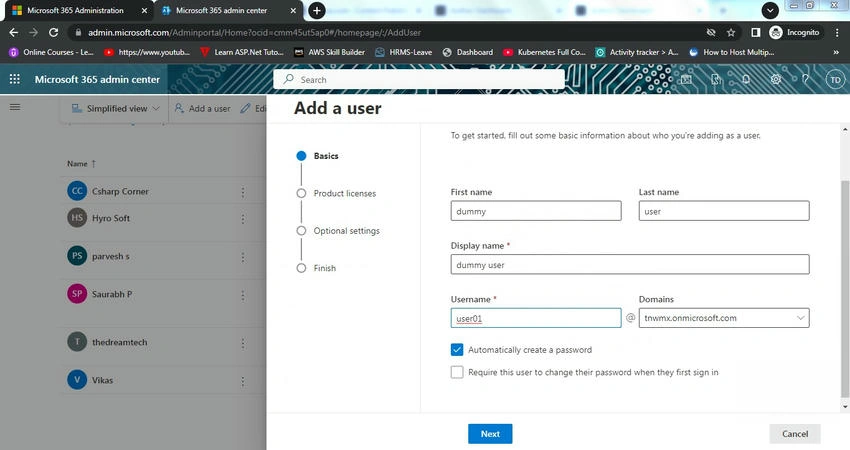
 .
Join the conversation! Your thoughts help the community grow.