

Introduction
Google Firebase is trending nowadays. It has around 10 sign in methods which include email, Google, Facebook, phone, Twitter, Yahoo etc. We are covering only the email and Google login options in this article. Now, we are going step by step. I have given the git repository link at the bottom as well.
Steps
-
The first and most basic step is to create a new application in Flutter. If you are a beginner in Flutter, then you can check my blog Create a first app in Flutter. I have created an app named “flutter_email_signin”.
-
Now, you need to set up a project in Google Firebase. Follow the below steps for that. Please follow the steps very carefully.
-
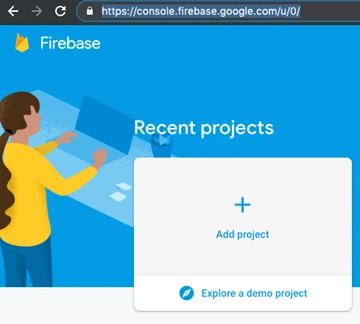
Go here and add a new project. I will share a screenshot of how it looks so you will get a better idea.
-
Click on "Add Project" to add a new project in Google Firebase. Then, you will find the below form.

-
Give a project name and accept the terms and conditions and click on Create Project. It will take some time to create a new project and redirect you to the project overview page.
-
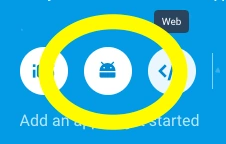
Now, you need to add an Android app in this project [Please check the below screenshot]. You can add a new Android project by clicking on the Android icon. You can also add an iOS project if you want to create the iOS application for the same.
-
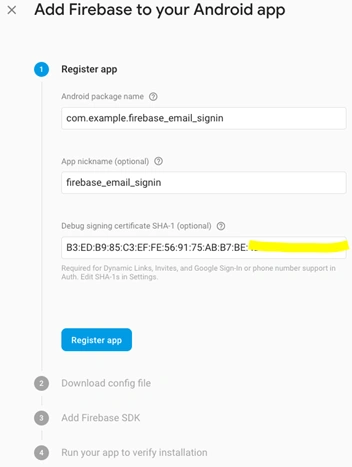
In Project Overview, add Android app. For that, click on the Android icon. It will open a new form.
-
You will find the Android package name in the AndroidManifest.xml file in the Android => App => main folder of your project.
-
App nickname is optional
-
For SHA-1 generation goto here.
-
In step 2 download google-service.json and put in Android => App folder of your project
-
In step 3 you can see you need to configure some dependencies
Note- buildscript {
- dependencies {
- // Add this line
- classpath 'com.google.gms:google-services:4.2.0'
- }
- App - level build.gradle( < project > /<app-module>/build.gradle): means build.gradle file in Android = > App folder
- // Add to the bottom of the file
- apply plugin: 'com.google.gms.google-services’
Don’t need to add implementation 'com.google.firebase:firebase-core:16.0.9' in dependencies
-
In Step 4 It will try to verify your app. For that, you need to run your app once or you can skip this step.
-
Hooray :) Your Android app has been created.
-
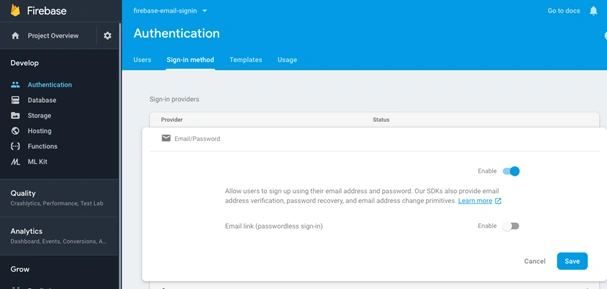
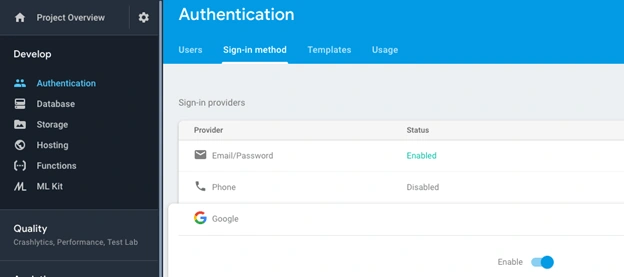
Now, you need to enable the Email/Password and/or Google Sign In method in Firebase. For that, you need to go to the Authentication tab and then the "Sign in" method tab. From there, enable Email/Password and Google sign-in method. Please check the screenshot.
-
You are all done with firebase Setup. Congratulations…. :)
-
Go back to the project and open pubspec.yaml file in the root of the project. Pubspec.yaml is used to define all the dependencies and assets of the project.
-
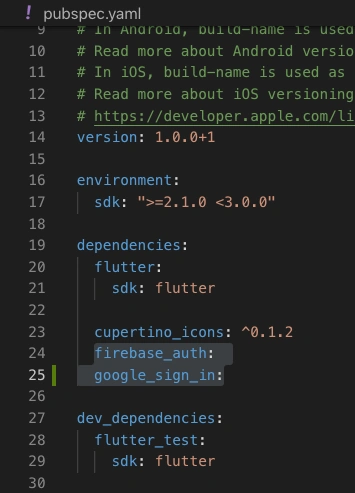
Add the below dependencies and save the file
firebase_auth:google_sign_in:
-
Please check the below screenshot and you will get a better idea of where to add the dependency.
Tekina TawarPosted May 31, 2020, 8:36 PM
Can Someone Please Explain why we need to authenticate with firebase user even if we are signing in with Google.
Ken FrançoisPosted Apr 5, 2020, 4:43 AM
The GoogleSignIn page shows but returns "Error while Login." however, the only fix to that was to excute "./gradlew signingReport" in the Terminal of Android Studio for the SHA-1/SHA-256 and save via Firebase/ under Settings of the Android app/ Users and Permission. Another way via the terminal for SHA-1 (debug, not release): Mac - keytool -list -v -keystore ~/.android/debug.keystore -alias androiddebugkey -storepass android -keypass android Windows - keytool -list -v -keystore "\.android\debug.keystore" -alias androiddebugkey -storepass android -keypass android
Richard SteinmetzPosted Sep 23, 2019, 4:13 AM
Very concise, but would be cool to include some screenshots of the end result so one knows from the beginning how the UI will look like
Chan DavidPosted Aug 9, 2019, 2:32 AM
Excellent Sample.