

Introduction
In this article, we will learn how to integrate Google Drive into the Flutter app. We will learn how we can upload, list, and download files to Google Drive using Flutter. I have used Google Plus login for authentication and then accessed Google Drive. I have studied the Google Drive API but found this way is better and native in the end. So let’s start our Google Drive implementation in Flutter.
Output

Steps
Step 1. The first and most basic step is to create a new application in Flutter. If you are a beginner then you can check my blog Create a First App in Flutter. I have created an app named “flutter_gdrive”.
Step 2. Integrate Google Plus Login into your project. I have written an article on this. Please check it out.
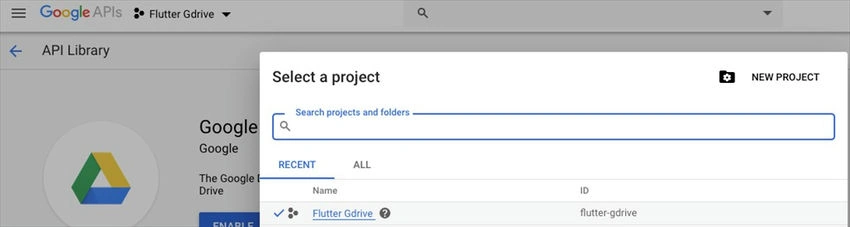
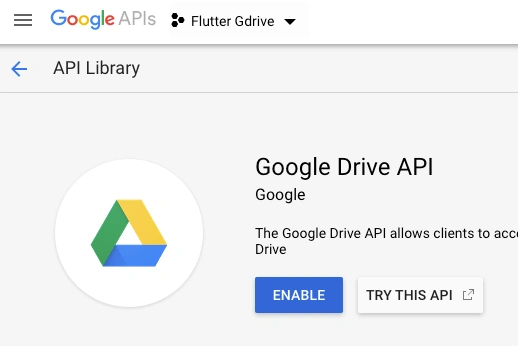
Step 3. Now, as you have already created a Google Firebase Project, it’s time to enable Google Drive API from Google Developer Console. Note that you need to select the same project in Google Developer Console as you have created in Google Firebase. In my case, it is “Flutter Gdrive”. Check the below screenshots to understand it more.
Step 4. Now, we will add the dependencies for implementing Google Drive Operations (Google API, Pick File to Upload & Download file in mobile storage). Please check the below dependencies.
dependencies:
  flutter:
    sdk: flutter
  cupertino_icons: ^0.1.2
  firebase_auth: ^0.15.2
  google_sign_in: ^4.1.0
  flutter_secure_storage: ^3.3.1+1
  googleapis: ^0.54.0
  googleapis_auth: ^0.2.11
  path_provider: ^1.5.1
  file_picker: ^1.3.8
Step 5. We need to define permission for file reading and writing. For that define the following permissions in AndroidManifest File. (android/app/src/main/AndroidManifest.xml)
<uses-permission android:name="android.permission.WRITE_EXTERNAL_STORAGE" />
<uses-permission android:name="android.permission.READ_EXTERNAL_STORAGE"/>
Step 6. Now, we will implement File Upload, Listing, and Download Login programmatically in the main. dart file. Following is the class for mapping Google Auth Credential to GoogleHttpClient Credentials.
class GoogleHttpClient extends IOClient {
  Map<String, String> _headers;

  GoogleHttpClient(this._headers) : super();

  @override
  Future<http.StreamedResponse> send(http.BaseRequest request) =>
      super.send(request..headers.addAll(_headers));

  @override
  Future<http.Response> head(Object url, {Map<String, String> headers}) =>
      super.head(url, headers: headers..addAll(_headers));
}
Step 7. Following is the programming implementation of Google Plus login, logout, file upload to Google Drive, file download, and listing of uploaded files on Google Drive.
Google Login
Future<void> _loginWithGoogle() async {
  signedIn = await storage.read(key: "signedIn") == "true" ? true : false;
  googleSignIn.onCurrentUserChanged
      .listen((GoogleSignInAccount googleSignInAccount) async {
    if (googleSignInAccount != null) {
      _afterGoogleLogin(googleSignInAccount);
    }
  });
  if (signedIn) {
    try {
      googleSignIn.signInSilently().whenComplete(() => () {});
    } catch (e) {
      storage.write(key: "signedIn", value: "false").then((value) {
        setState(() {
          signedIn = false;
        });
      });
    }
  } else {
    final GoogleSignInAccount googleSignInAccount =
        await googleSignIn.signIn();
    _afterGoogleLogin(googleSignInAccount);
  }
}

Future<void> _afterGoogleLogin(GoogleSignInAccount gSA) async {
  googleSignInAccount = gSA;
  final GoogleSignInAuthentication googleSignInAuthentication =
      await googleSignInAccount.authentication;

  final AuthCredential credential = GoogleAuthProvider.getCredential(
    accessToken: googleSignInAuthentication.accessToken,
    idToken: googleSignInAuthentication.idToken,
  );

  final AuthResult authResult = await _auth.signInWithCredential(credential);
  final FirebaseUser user = authResult.user;

  assert(!user.isAnonymous);
  assert(await user.getIdToken() != null);

  final FirebaseUser currentUser = await _auth.currentUser();
  assert(user.uid == currentUser.uid);

  print('signInWithGoogle succeeded: $user');

  storage.write(key: "signedIn", value: "true").then((value) {
    setState(() {
      signedIn = true;
    });
  });
}
Google Logout
void _logoutFromGoogle() async {
  googleSignIn.signOut().then((value) {
    print("User Sign Out");
    storage.write(key: "signedIn", value: "false").then((value) {
      setState(() {
        signedIn = false;
      });
    });
  });
}
Upload File to Google Drive
_uploadFileToGoogleDrive() async {
  var client = GoogleHttpClient(await googleSignInAccount.authHeaders);
  var drive = ga.DriveApi(client);
  ga.File fileToUpload = ga.File();
  var file = await FilePicker.getFile();
  fileToUpload.parents = ["appDataFolder"];
  fileToUpload.name = path.basename(file.absolute.path);
  var response = await drive.files.create(
    fileToUpload,
    uploadMedia: ga.Media(file.openRead(), file.lengthSync()),
  );
  print(response);
}
List Uploaded Files to Google Drive
Future<void> _listGoogleDriveFiles() async {
  var client = GoogleHttpClient(await googleSignInAccount.authHeaders);
  var drive = ga.DriveApi(client);
  drive.files.list(spaces: 'appDataFolder').then((value) {
    setState(() {
      list = value;
    });
    for (var i = 0; i < list.files.length; i++) {
      print("Id: ${list.files[i].id} File Name:${list.files[i].name}");
    }
  });
}
Download Google Drive File
Future<void> _downloadGoogleDriveFile(String fName, String gdID) async {
  var client = GoogleHttpClient(await googleSignInAccount.authHeaders);
  var drive = ga.DriveApi(client);
  ga.Media file = await drive.files
      .get(gdID, downloadOptions: ga.DownloadOptions.FullMedia);
  print(file.stream);

  final directory = await getExternalStorageDirectory();
  print(directory.path);
  final saveFile = File('${directory.path}/${DateTime.now().millisecondsSinceEpoch}$fName');
  List<int> dataStore = [];
  file.stream.listen((data) {
    print("DataReceived: ${data.length}");
    dataStore.insertAll(dataStore.length, data);
  }, onDone: () {
    print("Task Done");
    saveFile.writeAsBytes(dataStore);
    print("File saved at ${saveFile.path}");
  }, onError: (error) {
    print("Some Error");
  });
}
Step 8. Great -- we are done with Google Drive Integration in Flutter. Please check my full source code for it on Git.
In the above source code google-services.json file is not included, you need to set up your own Firebase project and put it in the Android ->app folder.
Conclusion
We have learned how to integrate Google Drive in Flutter and perform upload, download, and list operations.
adithya sureshPosted May 21, 2021, 10:19 AM
Hi, this is a very helpful article. There is one more function which we need to avoid memory leak. The GoogleHttpClient class must override the close() method.
emma windowPosted Oct 23, 2020, 12:48 AM
Hi, great article :) How do I upload files to a specific folder on google drive? (I have everything else working, from your tutorial above - thank you!) Emma
Aung KhantPosted Aug 21, 2020, 12:13 AM
Codes not work like Future<FirebaseUser> got deprecated !
Anand ALPosted May 18, 2020, 8:03 AM
'GoogleHttpClient.send' ('Future<StreamedResponse> Function(BaseRequest)') isn't a valid override of 'IOClient.send' ('Future<IOStreamedResponse> Function(BaseRequest)') --> showing error
Ed MannPosted Apr 9, 2020, 8:33 PM
Seems incomplete. missing details on step 3. There are more settings in the google console.
Станислав ФролкинPosted Feb 20, 2020, 3:59 AM
Pls tell me how to read files, folders from 'drive' spaces, not from hidden appDataFolder?
Mark GokingPosted Dec 23, 2019, 8:56 PM
hi could you please include code in the upload section how to listen to the stream to get the upload progress?