In this article, we are going to see the steps required to download Azure BLOB Storage contents from the container using PowerShell script. You can access the Azure resources using Azure PowerShell. Azure PowerShell contains sets of modules that provide multiple cmdlets to manage Azure with Windows PowerShell. You can build automation scripts with Azure resources.
Prerequisite
Before you begin to utilize PowerShell to oversee the Azure PowerShell, ensure that the Azure PowerShell has been installed. If not installed, here is an article How to install Azure PowerShell module. You need to do this only once for each computer from which you are running Azure PowerShell commands.
Step 1
Connect to Azure Portal using Connect-AzureRmAccount cmdlet.
Connect-AzureRmAccount
Step 2
We need to get the Azure Storage context to access the storage content from the Azure portal. You can get the context using New-AzureStorageContext cmdlets. The required parameters are,
- ConnectionString - Specifies a connection string for the Azure Storage context.
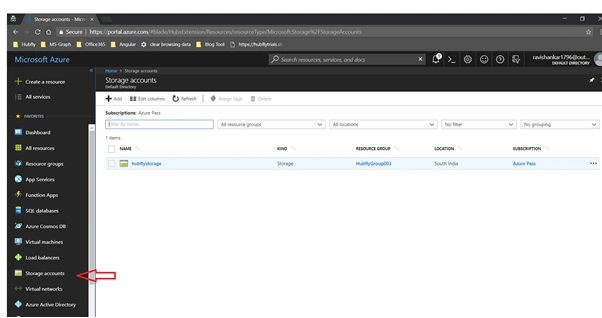
You can get the connection string from the Azure portal. Open your Azure portal and select Storage account from the side menu. It will look like the snapshot below.
Copy the connection string. It will look like the below snapshot.
Assign connection string in a variable and pass the value to the -ConnectionString parameter,
- $connection_string = 'xxxxxxxxxxxxxxxxxxxxxxxxxxxxxxxxxxxxxxxx'
- $storage_account = New-AzureStorageContext -ConnectionString $connection_string
Step 3
To get BLOBS in a container, use Get-AzureStorageBlob cmdlet. The required parameters are,
- Container - Specify the name of the container
- Context - Specify the context to access the storage BLOBS
- $container_name = 'hubflycontainer1'
- $blobs = Get-AzureStorageBlob -Container $container_name -Context $storage_account
Step 4
Create a directory using the New-Item cmdlet. The required parameters are,
- ItemType - Specify the item type as directory
- Path - Specify the Path where the directory should be created
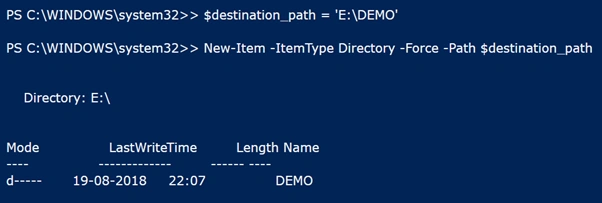
- $destination_path = 'E:\DEMO'
- New-Item -ItemType Directory -Force -Path $destination_path
Step 5
You can download the Azure Storage BLOBS using Get-AzureStorageBlobContent cmdlets. The required parameters are,
- Container - Specify the name of the container
- Blob - Specify the blob Name
- Destination - Specify the Path where the blob's contents should download
- Context - Specify the context to access the storage BLOBS
- $blobs = Get-AzureStorageBlob -Container $container_name -Context $storage_account
- foreach ($blob in $blobs)
- {
- New-Item -ItemType Directory -Force -Path $destination_path
- Get-AzureStorageBlobContent -Container $container_name -Blob $blob.Name -Destination $destination_path -Context $storage_account
- }
Now, you can check the destination path. You will see the BLOB content being downloaded.
Final code
- Connect - AzureRmAccount
- $container_name = 'hubflycontainer'
- $destination_path = 'E:\CDN-BACKUPS\CDN'
- $connection_string = 'xxxxxxxxxxxxxxxxxxxxxxxxxxxxxxxxxxxxxxxxxxxxxx'
- $storage_account = New - AzureStorageContext - ConnectionString $connection_string
- $blobs = Get - AzureStorageBlob - Container $container_name - Context $storage_account
- foreach($blob in $blobs) {
- New - Item - ItemType Directory - Force - Path $destination_path
- Get - AzureStorageBlobContent `
- -Container $container_name -Blob $blob.Name -Destination $destination_path ` - Context $storage_account
- }
I hope you have now learned how to download storage blobs using Azure PowerShell programmatically. Feel free to fill up the comment box below if you need any assistance.






saurabhPosted Nov 19, 2020, 7:44 AM
Hi Ravishankar, Thanks for sharing great step by step info. Can you help to download the only latest file from blob rather than all files. In short, I always want to download the latest file as the blob will have new files everyday.
keerthana BaskaranPosted Jun 16, 2020, 1:02 AM
I cnt see the blob content in destination ..could you plz help
Mahima KapoorPosted May 13, 2020, 8:16 AM
Hi, can you please let me know how to do all these steps through a C# code ?
shivaram santoshPosted May 8, 2020, 5:54 AM
Hi, This is really nice article. but Connecting Azure in Powershell is okay. But how can I use the same PowerShell in AzureDevops Pipeline? Can you please suggest me for this? Thanks in advance.
Sarthak JohariPosted Jul 31, 2019, 9:57 AM
I am receiving error as 'Access Denied' to the destination folder.
Megha BhosalePosted Dec 21, 2018, 5:48 AM
Hi I am not able to set local drive path through $destination_path = 'E:\DEMO' could you please help me on this i'm new to this powershell scripts
Muthu KumarPosted Aug 28, 2018, 1:16 AM
Nice Article, Clearly Explained
Hadshana KamalanathanPosted Aug 26, 2018, 11:25 AM
Nice article , thanks for sharing
Sarathlal SaseendranPosted Aug 26, 2018, 7:24 AM
Very clean and informative. Thanks for sharing.